Got a tip for us?

Music

You can use SharePlay while playing music on a HomePod, Apple TV 4K, or other third-party Bluetooth® speaker, and everyone can control the music with their iPad.

The host needs iPadOS 18 or later and an Apple Music subscription, while participants just need iPadOS 18 or later. Everyone needs an internet connection and Bluetooth turned on, and anyone joining can control what plays.

Here’s how to play music together using SharePlay on iPad.

Before you begin

  • The host must have an iPad with iPadOS 18 or later and be an Apple Music subscriber.
  • Participants must have an iPad with iPadOS 18 or later, but don’t need to have an Apple Music subscription.
  • Everyone must have an internet connection and Bluetooth turned on.
  • Everyone must allow their contacts to discover them when playing music to a speaker—go to Settings > Apps > Music, then turn on Discoverable by Nearby Contacts if it isn’t on already.

Start SharePlay from Music on your iPad

Using SharePlay to play music together? As the host, you’ll start on your iPad.

  1. Open the Music app on your iPad.
  2. While a song is playing, tap the MiniPlayer to open the Now Playing screen.
  3. Tap the Playback Destination button and select a playback destination.

    The music starts playing to the device you selected. See Stream video and audio with AirPlay.

  4. Tap the MiniPlayer to open the Now Playing screen. Tap the SharePlay button.

    A QR code appears; tap the QR code to enlarge it.

  5. To begin controlling the music, participants can scan the QR code on your iPad.

Join SharePlay with the iPad camera

  1. Go to the Camera app on your iPad.
  2. Point the camera at the QR code on an iPad that’s already joined SharePlay.

    A button appears below the picture of the QR code.

  3. Tap the button, then tap Connect.

    The host receives a notification and must tap the Checkmark button on their iPad to allow you to join.

Quick tip: After you approve someone to join SharePlay, they’re automatically approved the next time they join, too.

Leave SharePlay

Tap the SharePlay button at the bottom of the Now Playing screen, then tap Leave.

See also
Tag: Music

When you subscribe to Apple Music, you can show song credits and view and share lyrics.

Song credits show the performing artists, composition and lyrics, production and engineering roles, and even the available audio quality. Time-synced lyrics appear for many songs, and you can jump to a certain verse or get help pronouncing or translating the lyrics. And if you’re offline, you can still view lyrics for songs downloaded to your device.

Here’s how to show song credits and lyrics on iPad.

Show song credits

Performing artists, production and engineering roles, composition and lyrics, and available audio quality all appear in song credits.

  1. Open the Music app on your iPad.
  2. Do one of the following:
    • While a song is playing, tap the MiniPlayer to open the Now Playing screen, tap the More button, then tap View Credits.
    • Tap the More button next to a song in a list, then tap View Credits.

Show and hide time-synced lyrics

In Apple Music, many songs come with time-synced lyrics.

  1. Open the Music app on your iPad.
  2. While a song is playing, tap the MiniPlayer to open the Now Playing screen. Tap the Lyrics button.

    Note: If you’re offline, you can view lyrics as long as the songs are downloaded to your device.

  3. Do any of the following:

    • Jump to a certain verse: Tap a specific lyric—the first line of the chorus, for example—to go to that part of the song.
    • Get help pronouncing or translating the lyrics: Tap the Translation and Pronunciation button and choose Show Pronunciation or Show Translation.

      The Translation and Pronunciation button only appears when a translation or pronunciation is available that matches your iPad device’s Preferred Languages list. (You can view this list and add languages directly to it in Settings > General > Language & Region.) Not available in all languages.

      Tip: You can have either the lyrics or the pronunciation appear in larger text. Go to Settings > Apps > Music > Larger Text.

    • See all of a song’s lyrics: Tap the More button, tap View Credits, and then tap View Lyrics.
  4. To hide the lyrics, tap the Lyrics button.

Share lyrics

You can share up to 150 characters of a song’s lyrics, as long as time-synced lyrics are available.

  1. Open the Music app on your iPad.
  2. While a song is playing, tap the MiniPlayer to open the Now Playing screen.
  3. Tap the More button, then tap Share Lyrics.

    You can also touch and hold a lyrics line to open the sharing screen.

  4. Tap the first and last lyrics you want to share. Then choose a sharing option.

Report a concern

To report a concern about time-synced lyrics, tap the More button, then tap Report a Concern.

See also

Tag: Music

In the iTunes Store app, you can review and download music purchased by you or other family members. You can also customize content restrictions for the iTunes Store in Settings.

With Family Sharing, the organizer can approve purchases made by family members under a certain age. You see family members’ purchases only if they choose to share them, and you can view a chronological list of everything bought with your Apple Account.

Approve purchases with Family Sharing

When Family Sharing is set up, the family organizer gets to review and approve purchases by other family members under a certain age.

View and download music purchased by you or family members

  1. Open the iTunes Store app on your iPad.
  2. Tap Purchased in the tab bar at the top.
  3. If you set up Family Sharing, tap My Purchases. Then choose a family member to view their purchases.

    Note: You can see purchases made by family members only if they choose to share their purchases.

  4. Find the item you want to download. Then tap the Download button.

View your entire iTunes Store purchase history

Viewing your iTunes Store purchase history brings up a chronological list of the items purchased with your Apple Account, including apps, songs, books, and more.

Your purchase history is where you can do any of the following:

  • View when an order was billed to your account.
  • View the date of a purchase.
  • Resend email receipts.
  • Report a problem with purchased content.

Set content restrictions

Your child’s access to explicit content, music videos, and music profiles in Music is something you can restrict.

When you purchase access to movies, TV shows, music, music videos, ebooks, audiobooks, or ringtones from Apple, you also have the option to permanently download these items to a compatible iPhone, iPad, Mac, or PC. Apple cannot revoke your downloaded content, and you can always access your downloaded content without an internet connection.

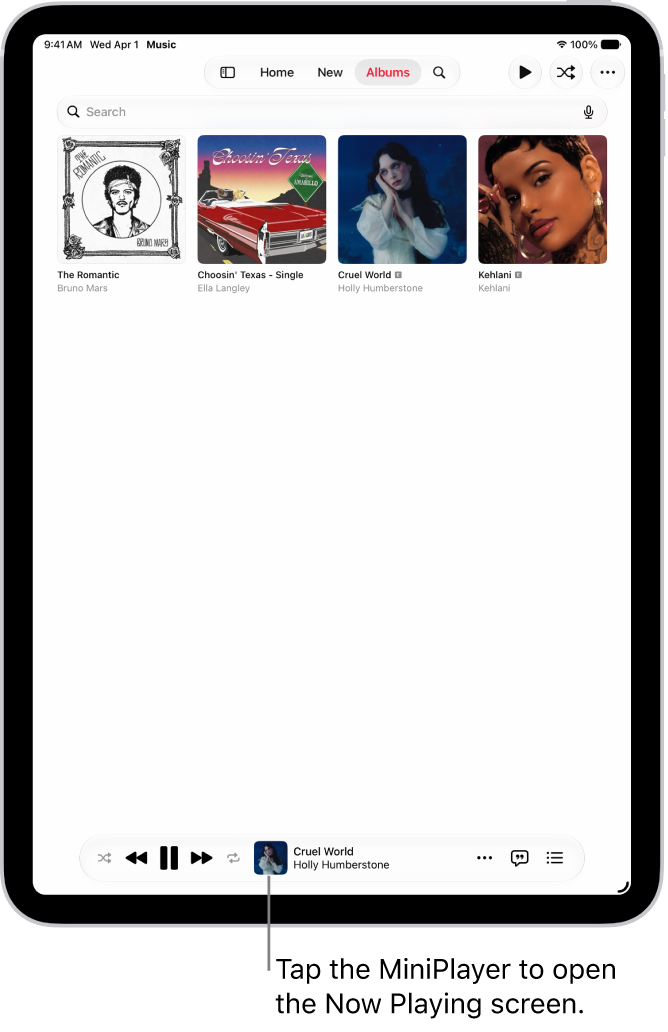
You can play and control music in the Music app in two different ways—the MiniPlayer and the Now Playing screen. The MiniPlayer shows the song that’s currently playing, and the Now Playing screen lets you adjust the volume, scrub to any point in a song, and stream music to Bluetooth® or AirPlay-enabled devices.

Quick tip: If you swipe left or right across the track title in the MiniPlayer or on the Now Playing screen, you’ll move between tracks.

Use the MiniPlayer

Along with the song that’s currently playing, the MiniPlayer gives you controls to play or pause music, or skip to the next track.

The Albums tab, showing the MiniPlayer near the bottom. The MiniPlayer shows the title of the song that’s playing.

Use the controls in the Now Playing screen

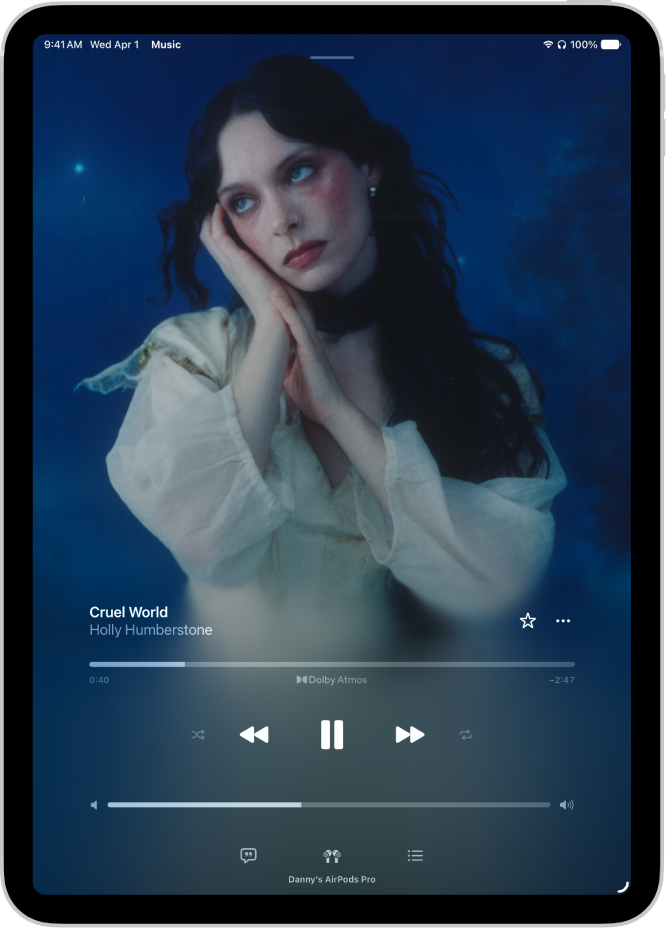
The Now Playing screen showing the various controls and buttons.

  1. Open the Music app on your iPad.
  2. While a song is playing, tap the MiniPlayer to open to the Now Playing screen.
  3. Do any of the following:

    • Adjust the volume: Drag the volume slider.

      You can also use the volume buttons on the side of iPad.

    • Scrub to any point in a song: Drag the playhead.
    • Go to the artist, album, or playlist: Tap the artist name below the song title. Choose an option.
    • Turn animated album cover art on or off: Open Settings, tap Apps and tap Music. Tap Animated Art and choose an option.

To get additional control over your music, tap any of these buttons:

Control Description
The Dismiss Now Playing Screen button. Dismiss the Now Playing screen.
The Favorite button. Mark the song as a favorite. See Mark items as favorites.
The More button. Tap for more options.
The Shuffle button. Tap to play your songs in random order (shuffle).
The Repeat button. Tap to repeat an album, playlist, or the entire queue. (Or double-tap to repeat a single song.)
The AutoPlay button. Tap to use AutoPlay, which adds similar songs and plays them at the end of the queue.
The AutoMix button. Tap to use AutoMix, which seamlessly transitions between songs, like a DJ. (Available for Apple Music subscribers.)
Tap to use Crossfade, which fades in each song (gradually increase its volume) while the previous song is fading out.
The Translation and Pronunciation button. Tap when you need help pronouncing or translating the lyrics. This button only appears when a translation or pronunciation is available that matches your iPad device’s Preferred Languages list. (You can view this list and add languages directly to it in Settings > General > Language & Region.) Not available in all languages.
The Previous Track button. Go back to the beginning of the song. Tap again to play the previous song in an album or playlist. Touch and hold to rewind through the current song.
The Pause button. Pause playback.
The Play button. Play the current song.
The Next Track button. Skip to the next song. Touch and hold to fast-forward through the current song.
The Lyrics button. Show time-synced lyrics (lyrics not available for all songs).
The Playback Destination button. Stream music to Bluetooth or AirPlay-enabled devices.
The Playing Next button. Show the queue.

Stream music to Bluetooth® or AirPlay-enabled devices

  1. Open the Music app on your iPad.
  2. While a song is playing, tap the MiniPlayer to open the Now Playing screen.
  3. Tap the Playback Destination button and then choose a device.

For speakers like HomePod, see our guide, Play audio on HomePod and other wireless speakers.

Note: Multiple AirPlay 2-enabled devices, like two or more HomePod speakers, can play the same music. And by pairing two sets of AirPods to one iPad, you and a friend can enjoy the same song or movie together. See our article, Play audio on multiple AirPlay 2-enabled devices.

See also

Tag: Music

Apple Music features six world-class radio stations (Apple Music 1, Apple Music Hits, Apple Music Country, Apple Music Club, Apple Música Uno, and Apple Music Chill), as well as a collection of stations based on different genres. You can also create your own custom stations, based on your pick of artist, song, or genre.

In addition to radio, you can play Apple Music TV, a free, 24-hour curated livestream of popular new music videos with exclusive premieres, live shows, and chart countdowns.

Siri: Ask Siri something like, “Play Apple Music 1.” Learn how to use Siri.

Play Apple Music radio

Live Apple Music radio stations and Apple Music TV only require you to be signed in to your Apple Account. You don’t need to subscribe to Apple Music to play them.

  1. Start the Music app on your iPad.
  2. Tap Radio in the sidebar and then tap one of the currently playing Apple Music radio stations.

    Note: Because Apple Music radio stations are live radio, you can’t rewind or skip songs.

Choose a radio station by genre

You do need to subscribe to Apple Music for curated radio stations like Stations by Genre.

  1. Start the Music app on your iPad.
  2. Tap Radio in the sidebar and tap a genre listed below More to Explore.
  3. Tap a featured station.

Create a station

Another option is to create a radio station based on a particular artist or song, and if you like that artist or song, chances are you’ll like the music the station plays.

  1. Start the Music app on your iPad.
  2. Touch and hold an artist or song.
  3. Tap Create Station.

To create a station in Now Playing, tap the More button, then tap Create Station.

Play broadcast radio stations

Siri: Ask Siri something like, “Play R&B Now Radio.” Learn how to use Siri.

  1. Start the Music app on your iPad.
  2. Do any of the following:

    • Search for a station: Tap Search, enter the station in the search field, and then tap a result to play the station.

      You can search for stations by name, call sign, frequency, and nickname.

    • Choose a station in the Radio tab: Tap Radio in the sidebar, swipe up, and then choose a station below the Local Broadcasters or International Broadcasters heading.

Note: You don’t need a subscription to Apple Music to play broadcast radio. Broadcast radio isn’t available in all countries or regions and not all stations are available in all countries or regions.

See also

Tag: Music

Apple Music subscribers can use Apple Music Sing to view real-time, beat-by-beat lyrics for select songs, as well as adjust the volume of a song’s vocals, so you can sing along with the music while the lyrics are highlighted.

Apple Music Sing is available on iPad Pro 11-inch (3rd generation and later), iPad Air (4th generation and later), iPad mini (A17 Pro), iPad mini (6th generation), and iPad (9th generation and later) using iPadOS 16.2 or later. If a song is playing with Dolby Atmos, turning on Apple Music Sing turns Dolby Atmos off. On Apple TV 4K, you can even see yourself singing onscreen.

Adjust the volume of a song’s vocals

  1. Start the Music app on your iPad.
  2. While a song is playing, tap the MiniPlayer to open the Now Playing screen. Tap the Lyrics button.
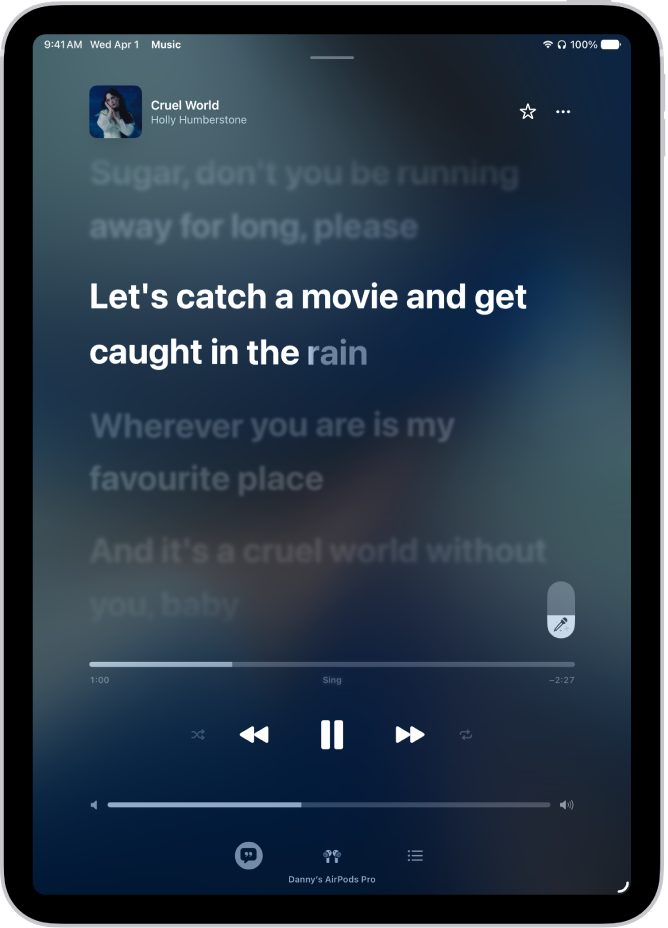
  3. Touch and hold the Apple Music Sing button. Then drag the slider up or down to adjust the vocal volume.

    When you need help pronouncing or translating the lyrics, tap the Translation and Pronunciation button, then choose Show Pronunciation or Show Translation. The Translation and Pronunciation button only appears when a translation or pronunciation is available that matches your iPad device’s Preferred Languages list. (You can view this list and add languages directly to it in Settings > General > Language & Region.) Not available in all languages.

    Tip: You can have either the lyrics or the pronunciation appear in larger text. Go to Settings > Apps > Music > Larger Text.

  4. To turn off Apple Music Sing for the song, tap the slider.

Turning on Apple Music Sing during a song playing with Dolby Atmos turns Dolby Atmos off, so the song plays without surround sound. Turn off Apple Music Sing, and the song plays with Dolby Atmos again.

The Now Playing screen showing the Apple Music Sing slider to the right of the lyrics. The currently playing lyrics are highlighted.

Sing onscreen with visual effects on Apple TV 4K

Using your iPad as a Continuity Camera puts you onscreen singing along with the lyrics, and you can add visual effects to your image and lyrics for a richer singalong experience.

“Cruel World” written by Holly Humberstone, Rob Milton, and Benjamin Francis Leftwich.

See also

Tag: Music

If you subscribe to Apple Music and you join a collaborative playlist, you can react to songs in the playlist with emoji. You just choose a reaction on the Now Playing screen. That might be a thumbs up emoji, for example, or you can find a specific emoji you’d rather use.

Note: Apple Music isn’t available in all countries or regions.

  1. Open the Music app on your iPad.
  2. Tap a collaborative playlist. Tap the MiniPlayer to open the Now Playing screen.
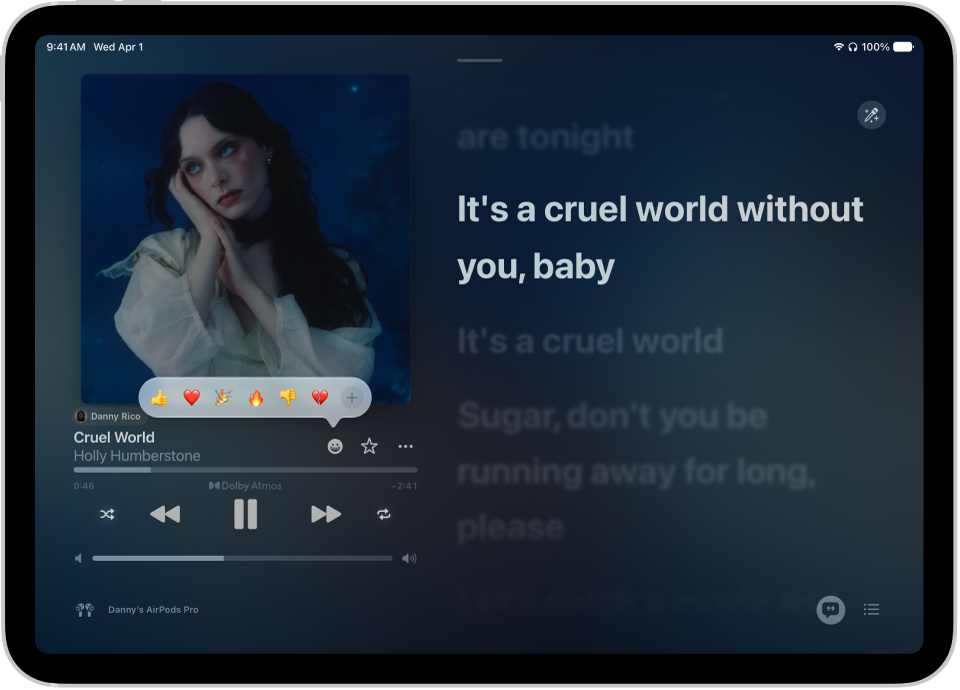
  3. Tap the Reaction button and choose a reaction (for example, a thumbs up emoji) or tap the Add button to find a specific emoji.

    The Now Playing screen with the Reactions button showing several emoji and an Add button that you can click to find more emoji.

See also

Tag: Music

If you subscribe to Apple Music, you can add music you’ve saved and playlists you’ve created in third-party music services to your Apple Music library.

You need iPadOS 18.4 or later, and you must be signed in to your Apple Account with Sync Library turned on. Depending on the service, you may be able to transfer all your music or only certain items, like playlists you’ve created, and when the transfer finishes, you see a summary of the music added to your library.

Note: Transferring music to Apple Music is provided by a third party. Apple Music and transferring music from third-party music services aren’t available in all countries or regions.

Before you begin

You’ll need all of the following in place before you begin:

  • You’re using iPadOS 18.4 or later and are signed in to your Apple Account.
  • Sync Library is turned on in Settings to transfer music. Go to Settings > Apps > Music, then turn on Sync Library if it’s not already on.

Transfer music from third-party music services

  1. Open the Music app on your iPad.
  2. Tap your profile icon in the lower-left corner of the sidebar.
  3. Tap Transfer Music from Other Services.

    If you don’t see this option, you need to sign in to your Apple Account.

  4. Select a music service. Sign in to the service.
  5. Select what you want to transfer (all or selected items) and then tap Add to Library.

    Note: Depending on the third-party music service, you may be able to transfer all music or only certain items (for example, only playlists you’ve created).

  6. When the transfer finishes, one of the following messages appears at the top of the screen:

    • Transfer Complete: The transfer finished successfully and you see a summary of the music that’s been added to your library. Tap OK.
    • Some Music Needs Review: The transfer finished, but some music wasn’t transferred. You can review and choose alternate versions, if available (for example, a live version of a song from the third-party music service wasn’t found in the Apple Music catalog, but a deluxe version was). See Review the transfer.

Review the transfer

During the transfer, music from the third-party music service is matched with the same music offered in the Apple Music catalog. (Nothing is removed from the other music service.)

The Apple Music catalog doesn’t always have a match for every song, music video, or album from the third-party music service. As you review matches, choose from the alternates provided, or ignore suggestions.

  1. On your iPad, do one of the following:

    • Go to the Music app, then at the top of the Library tab, tap Review Now in the Some Music Needs Review message.
    • Go to Settings > Apps > Music, then tap Review Current Transfer.
  2. In the Review Alternates screen, do any of the following for each of the items that need review:

    • Choose an alternate version: Select one of the items shown as a potential match with the original song from the third-party music service. To preview the song, tap the Play button on the album cover.
    • Don’t transfer the item: Tap Ignore [item] if you don’t want to transfer an alternate version into your Apple Music library. You can also tap Ignore All to finalize the transfer and start a new transfer.

      Music that doesn’t have alternate suggestions is listed in the Not Available section at the bottom of the Review Alternates screen.

  3. Repeat step 2 until you’ve reviewed all the alternates for each item and tap Add [items] to Library.

    Note: If you can’t finish reviewing your alternate matches in one session, tap Add [items] to Library at any time to accept the matches you selected so far. You can come back to the initial transfer and complete it within 30 days, but you need to finish reviewing all alternates in that transfer before you can start a new transfer. If you see Review Current Transfer in Music settings, it means that you have music that needs to be reviewed from an earlier transfer.

See also

Tag: Music

After you create an Apple Music profile, you can find and follow friends to see what they’re listening to.

To choose who to share music with, Music first needs access to your contacts, and it can recommend new friends to you. You can also let friends find you by your Apple Account, and follow friends who are in your contacts list and use Apple Music.

Here’s how to see what friends are listening to in Music on iPad.

Choose how to find friends

To choose which friends to share music with, you first need to allow Music to access your contacts.

  1. Open the Music app on your iPad.
  2. Tap the Show Sidebar button. Then tap your name at the bottom of the sidebar.
  3. Do any of the following:
    • Allow Apple Music access to your contacts: Select the Contacts on Apple Music option so Apple Music can access your contacts and recommend new friends to you periodically.
    • Allow friends to find you by Apple Account: Select the Allow Finding by Apple Account option and friends who have your Apple Account information can see you as a recommended friend.

Follow friends

You can follow people in several ways:

  • Add friends when you set up a profile.
  • After you set up your profile, swipe to the bottom of the profile screen, tap Follow More Friends, then tap Follow next to those you want to follow.

    You can follow friends who are in your contacts list and who use Apple Music.

  • On the profile screen, touch and hold a profile picture, then tap Follow.
  • Tap Search, enter a friend’s name, tap it in the results, then tap Follow.

    Note: You can only find friends who have an Apple Music profile using Search. Additionally, you must be 13 years or older to view Apple Music profiles. (Age restrictions vary by region.)

To see the people you’re following and those who follow you, open the profile screen, then swipe up.

When you see a lock on a profile picture, you’ll need to ask that person to follow them. If they accept your request, the person’s shared playlists and the music they’re listening to appear.

See what your friends are listening to

  1. Open the Music app on your iPad.
  2. Tap Home in the sidebar, then do any of the following:
    • See what your friends are listening to: Scroll down to Friends Are Listening To and then tap an item to play it.
    • Listen to a mix of songs your friends are listening to: Swipe left on Made For You. Then tap Friends Mix.
    • See what a follower or person you follow is listening to: Tap the Show Sidebar button, tap your name at the bottom of the sidebar, and then tap Music Profile. Tap a person’s profile picture to see shared playlists and music they’re listening to. You also see their followers and the people they follow.

Stop following friends

Stop following a friend, and you’ll no longer see what they’re listening to.

  1. Open the Music app on your iPad.
  2. Tap the Show Sidebar button. Then tap your name at the bottom of the sidebar.
  3. Tap Music Profile and touch and hold the profile picture of a person you follow. Tap Unfollow.

See also

Tag: Music

As soon as you subscribe to Apple Music, you can make selections so that you see playlists, albums, and songs based on your preferences. If you don’t want Music to make recommendations, you can also turn off your listening history.

Apple Music asks you what you like at first, and uses those preferences when recommending music. Turning off your listening history also hides the music you play from your followers on Apple Music.

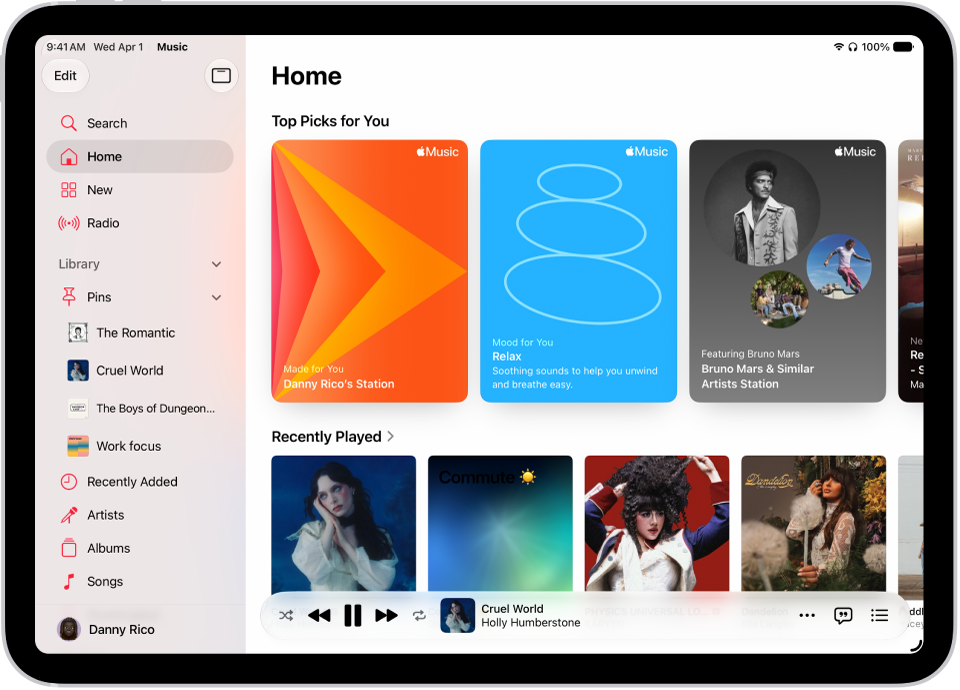
The Home tab in the Music app showing the sidebar on the left and the Home section at the right. The Home tab shows Top Picks at the top. Recently Played music appears below, showing four album covers. The MiniPlayer is at the bottom.

Select your favorite genres and artists

When you first tap Home in the sidebar, you’re asked to tell Apple Music what you like. Apple Music uses these preferences when recommending music.

  1. Open the Music app on your iPad.
  2. Tap the genres you like (double-tap those you love, and touch and hold the genres you don’t care for).
  3. Tap Next. Then do the same with the artists that appear.

Tell Apple Music to ignore your listening habits

With your listening history off, Apple Music ignores your listening habits, so new music recommendations and the contents of Replay playlists adjust to match.

  1. Open the Settings app on your iPad.
  2. Tap Apps and tap Music.
  3. Turn off Use Listening History.

Doing this also keeps all the music you play hidden from your followers on Apple Music. If you only want to hide certain playlists or albums, check out our guide, Hide music from your followers.

Quick tip: You can create a custom Focus to turn off Use Listening History. For example, if you’re a parent listening to your favorite songs and your child wants to listen to something they like, you can turn on that Focus so their songs don’t influence your recommendations.

See also

Tag: Music