Got a tip for us?

News

You can easily check the day’s top and trending stories from the News app, as well as stories about a topic of your choosing, with the Today or Topic widget. A story headline in the widget opens the story in News. You can also add, edit, and remove widgets.

Access stories from News widgets

In the Today or Topic widget, tap a story headline to open the story in News.

To add a News widget, see our article, Add, edit, and remove widgets.

See also

Tag: News

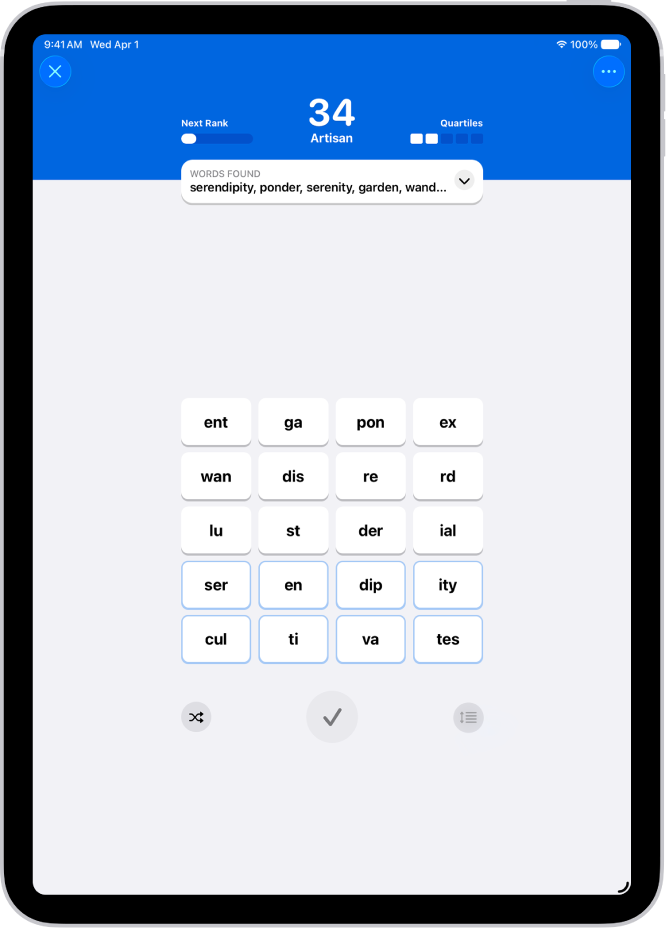
Apple News+ subscribers get access to a new Quartiles puzzle every day. Players select tiles containing two to four letters from a four-by-five grid to form words, and you can use up to four tiles per word. The more tiles you use, the more points you score.

A word formed from four tiles is called a Quartile and is worth 8 points, and when you find all five Quartiles, you get an additional 40 points. The object of the game is to earn the 100 points necessary to reach the Expert rank, though you can keep forming words and accumulating points after that. Not all possible words qualify, either, like proper nouns and profanity.

Note: Apple News, Apple News+, and puzzles aren’t available in all countries or regions.

A Quartiles puzzle in the News app.

Play Quartiles

  1. Start the News app on your iPad.
  2. Open a Quartiles puzzle.
  3. Tap tiles to create a word and then tap the Enter button to enter it.

    For example, to score a single point, tap “pear,” then tap the Enter button. To score 2 points, tap “ap,” then “pear” to form the word, “appear.” Go for 4 points by tapping “ap,” “pear,” then “ance.” Complete the Quartile and score 8 points by spelling “disappearance.”

    Completed words appear in the Words Found box, and any Quartiles you find appear in groups of four tiles.

    Not all possible words qualify in Quartiles puzzles. For example, obscure and technical terms, proper nouns, and profanity never appear in the word list.

  4. Do any of the following:

    • Reorder your tiles: After you tap the tiles to place them above the grid, you can touch and hold. Then drag to reorder them.
    • See points needed to move to the next rank: Tap Next Rank.
    • Clear tiles you don’t want to use: Tap the Remove button.
    • See how many words remain: When you reach the Expert rank, the Words Found box shows how many words you haven’t found.
    • See each word’s points: Tap the Expand button in the Words Found box.

Quick tip: For a quick Quartiles tutorial, tap the More button, then tap How to Play. To open the Quartiles puzzle feed instead, tap More Puzzles.

Shuffle or group tiles

  1. Start the News app on your iPad.
  2. Open a Quartiles puzzle and start finding words.
  3. Quartiles you find are anchored to the bottom of the grid. If you’d rather anchor them to the top of the grid, tap the More button. Then choose Sort Found Quartiles.
  4. Tap the Shuffle button to shuffle tiles that aren’t part of found Quartiles.
  5. To shuffle all tiles in the grid, tap the Arrangement button to turn off anchoring. Tap the Shuffle button.

Reveal all words

  1. Start the News app on your iPad.
  2. Open a Quartiles puzzle.
  3. Tap the More button and tap Reveal All Words. The words you didn’t find are shown.
    • If you reveal before you reach Expert rank: The puzzle doesn’t count in your Scoreboard stats and streaks.
    • If you reveal after you reach Expert rank: Your stats or streaks aren’t affected.

See also

Tag: News

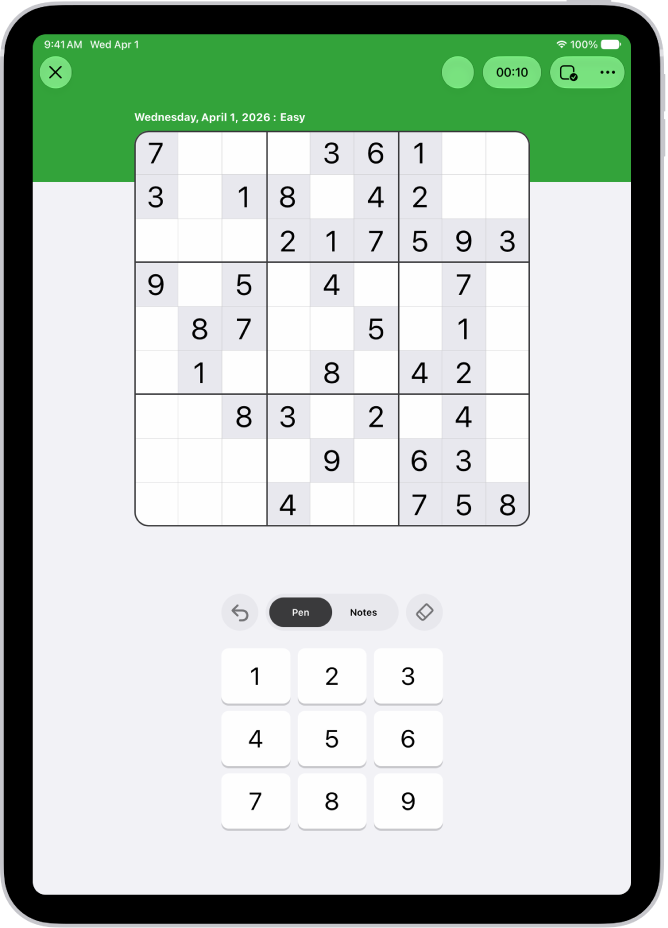
In sudoku puzzles, you place the numbers 1 to 9 into squares in a grid of nine blocks with nine squares each, so that every number appears exactly once in each block, row, and column. Each grid comes with a few givens, squares already filled in.

Apple News+ subscribers get new sudoku puzzles every day in three difficulties: easy, moderate, and challenging. Easy puzzles include more givens, while challenging puzzles require more complex strategies to narrow down options for each empty square. You can also keep track of which numbers might work in each square with notes.

Note: Apple News, Apple News+, and puzzles aren’t available in all countries or regions.

A Sudoku puzzle in the News app.

Solve a puzzle

  1. Open the News app on your iPad.
  2. Open a sudoku puzzle.
  3. Do any of the following:

    • Enter a number: With the Pen tab selected, tap a square and tap a number key near the bottom of the screen.
    • Delete an answer: Tap a square where you entered a number, then tap the Eraser button.
    • Step back through your actions: Tap the Undo button to undo.
  4. Continue entering numbers until every square is filled correctly.

    Tip: Turn on Autocheck to indicate when you successfully complete a block, row, or column.

Track possible answers

Using notes within the puzzle is a way to keep track of which numbers might work in each square.

  1. Open the News app on your iPad.
  2. Open a sudoku puzzle.
  3. Do any of the following:

    • Manually enter notes: Tap a square, tap Notes, and tap numbers to add them to the square. If your iPad is connected to an iPad keyboard, you can also press number keys. Tap the number again to remove it.

      When you enter an answer, any matching notes in that square’s block, row, or column are removed. To turn this feature off, tap the More button, tap Settings, then turn off Automatically Remove Notes.

    • Automatically show notes: Tap the Puzzles Options button, then tap Autofill Notes. Notes representing possible numbers appear in empty squares, based on all filled squares at that moment—givens and your answers (even if incorrect). You can still add and delete notes manually. Using Autofill doesn’t affect stats or streaks.
    • Play with or without notes: Tap the Puzzles Options button and then tap Show Notes or Hide Notes.

You commit a number in your notes that you think is the right answer by touching and holding it on the onscreen keypad.

Get help

If you’re unsure of an answer, you can get a little help.

  1. Open the News app on your iPad.
  2. Open a sudoku puzzle.
  3. Do any of the following:

    • Highlight matching numbers: Tap a number on the keypad, or tap any square with a number in it. (The square you select can be a given or one where you entered or revealed the answer.) Matching numbers are highlighted in answers and notes. To turn this feature on or off, tap the More button, tap Settings, and then tap Highlight Matching Numbers.
    • Check for duplicated numbers: Tap the More button, tap Settings, and then turn on Show Conflicts. When you enter a number that already appears in a block, row, or column, the squares’ bottom-right corners are marked with red triangles.
    • Mark incorrect answers as you enter them: Tap the Puzzles Options button and tap Autocheck. All incorrect answers you already entered have a red slash through them. As you enter additional numbers, the app checks whether or not they’re correct.

      When you turn on Autocheck inside a puzzle, it stays on for that puzzle only. To turn Autocheck on for all sudoku puzzles, tap the More button, tap Settings, turn on Always Autocheck, tap the Done button, tap the Puzzles Options button, then tap Autocheck (if it’s not already on).

    • Check answers: Tap the Puzzles Options button and then tap Check Square or Check Puzzle. A red slash indicates incorrect answers. Checking a square or puzzle doesn’t affect stats or streaks.
    • Identify a solvable square: Tap the Puzzles Options button, then tap Get Hint. The square having the most information available to deduce its answer is highlighted. Tap the Hint button to learn the strategy and recommended actions, like obvious pairs and hidden triplets. Using hints doesn’t affect stats or streaks.
    • Reveal answers: Tap the Puzzles Options button and tap Reveal. Tap Square or Puzzle to display the correct answer.

      Note: When you reveal all or a portion of a puzzle, the puzzle isn’t counted toward stats in your Scoreboard or as part of a streak. To maintain a sudoku streak, solve at least one of the current day’s sudoku puzzles of any difficulty level without revealing answers. Revealing also prevents you from undoing previous actions.

    • Review the sudoku tutorial: Tap the More button, then tap How to Play.

Restart your puzzle

Clearing a puzzle’s answers and resetting the timer gives you a fresh start.

  1. Open the News app on your iPad.
  2. Open a sudoku puzzle.
  3. Tap the Puzzles Options button and then tap Clear Puzzle.

Show or hide the timer

You can show or hide the timer that appears above your puzzle.

  1. Open the News app on your iPad.
  2. Open a sudoku puzzle.
  3. Do one of the following:
    • Tap the Timer button.
    • Tap the More button, choose Settings, then turn Show Timer on or off.

You don’t have to finish puzzles all at once, since the timer pauses while you’re away.

See also

Tag: News

The Today feed in the News app presents top stories selected by Apple News editors, the best stories from the channels and topics you follow, and stories and issues from Apple News+.

It also includes stories suggested by Siri, trending stories, My Sports, and more. Depending on your location, you may see Apple News Today audio briefings, puzzles, and local news with your weather, too. You can refresh the feed for the latest stories anytime, and influence what appears in it by following and blocking channels and topics.

Note: Local news and puzzles aren’t available in all countries or regions.

Access stories in the Today feed

  1. Start the News app on your iPad.
  2. Do one of the following:
    • Open a story: Tap the story.
    • Read more stories within a group: Tap the arrow next to the name of the group.
    • Play a video: Tap the Play button in the thumbnail.
    • Get newer stories: Next to Top Stories, swipe down to refresh the Today feed with the latest stories.

Follow, unfollow, block, and unblock channels and topics

By following and blocking channels and topics, you can influence what appears in the Today feed.

  1. Start the News app on your iPad.
  2. Do any of the following:
    • Open a channel feed: Touch and hold a story, tap the channel name, and then tap Go to Channel. Or tap a story in the Today feed and tap the channel name at the top of the story.
    • Open a topic feed: Tap the topic title—Movies or Travel, for example.
  3. At the top of the feed, do any of the following:
    • Follow: Tap the Add button.
    • Unfollow: Tap the More button. Then tap Unfollow Channel or Unfollow Topic.
    • Block: Tap the More button and then tap Block Channel or Block Topic.
    • Unblock: Tap the More button and tap Unblock Channel or Unblock Topic.

Note: Top Stories look the same for everyone, so if a story from a channel you blocked is in Top Stories, you’ll see the headline, but the channel stays blocked in the rest of your feed.

Manage your favorites

Favorites holds the channels and topics from your Following list that you like most, though you can have only a limited number of them. Adding them to Favorites makes them easier to access.

Note: You can add only channels and topics you currently follow to your Favorites.

Favorites appear in the sidebar.

  1. Start the News app on your iPad.
  2. Tap Edit at the top of the sidebar.

    If you don’t see the sidebar, tap the Sidebar button.

  3. Do any of the following:

    • Add a channel or topic to your Favorites: Tap the Add Favorite button next to a channel or topic.
    • Remove a favorite: Tap the Remove Favorite button next to a channel or topic you no longer want as a favorite.
    • Reorder favorites: Touch and hold the Reorder button and then drag favorites to the order you prefer.
  4. Tap the Done button.

Tell News what kind of stories you prefer

  1. Start the News app on your iPad.
  2. Tap Today in the sidebar or tab bar.
  3. Tap the More button below a headline. Then tap Suggest More or Suggest Less.

See stories only from the channels you follow

  1. Start the Settings app on your iPad.
  2. Tap Apps, then tap News.
  3. Turn on Restrict Stories in Today and then confirm your choice.

Note: When you restrict stories, the variety of stories in the Today feed is significantly limited, and Top Stories and Trending Stories don’t appear.

See also

Tag: News

You can read and share News stories on iPad.

While you read a story, you can read the next story or the previous story, return to the list of stories, and tell News what stories you prefer. You can also change the text size, share a story, and read the stories friends shared with you. Sharing works with options such as Messages or Mail.

Here’s how to read and share stories in News on iPad.

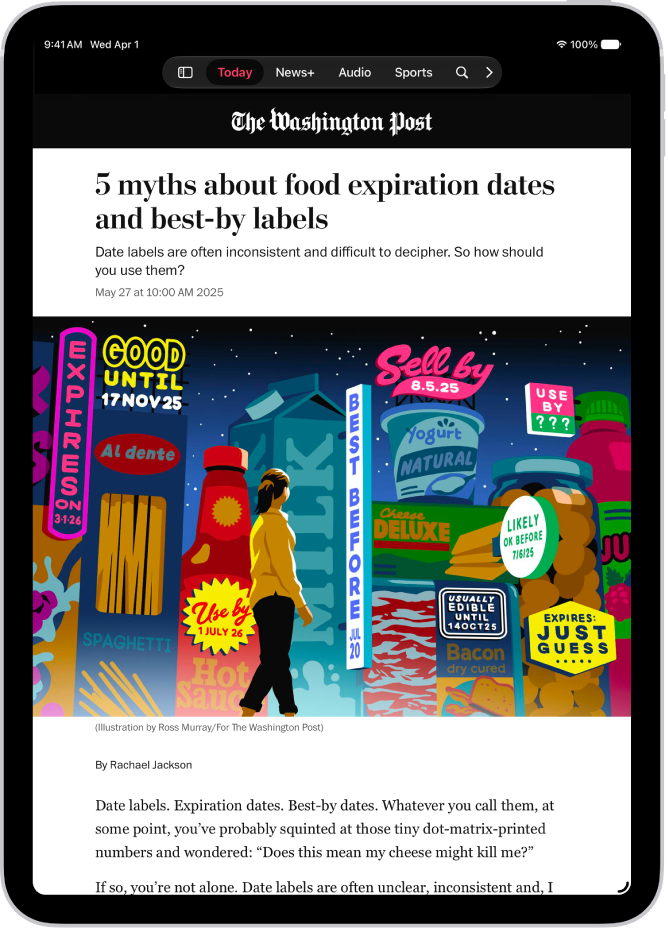
A news story in the News app. In the tab bar, Today is selected.

Note: Apple News and Apple News+ aren’t available in all countries or regions.

Read a story

  1. Open the News app on your iPad.
  2. Tap a story to read it. While viewing a story, do any of the following:
    • Read the next story: Swipe left.
    • Read the previous story: Swipe right.
    • Return to the list of stories: Tap the Back button at the top left of the screen.
    • Tell News what stories you prefer: In landscape orientation, tap the Suggest More button or the Suggest Less button at the top of the story. In portrait orientation, tap the More button, then tap Suggest More or Suggest Less. Your feedback is taken into account for future recommendations.
    • Change the text size: In landscape orientation, tap the Text Size button. Tap the smaller or larger letter to change the text size in the story and all other stories in the channel. In portrait orientation, tap the More button, tap Text Size, and tap the smaller or larger letter to change the text size in the story and all other stories in the channel. (Not available in all channels.)
    • Share a story: Tap the More button. Choose a sharing option, such as Messages or Mail.
    • Report a concern: If you believe that a story you’re viewing is mislabeled, inappropriate, offensive, or doesn’t display properly, tap the More button, tap Report a Concern and then follow the onscreen instructions.

Suggest More, Suggest Less, Save Story, and Report a Concern aren’t options in Apple News+ issues in PDF format. Read our article, Browse and read Apple News+ stories and issues.

Read stories shared with you

When a friend shares stories with you using the Messages app, you can easily find them in the Shared with You section in Apple News. (Your friend must be in your contacts list in Contacts.)

  1. Open the Settings app on your iPad.
  2. Tap Apps, then tap Messages.
  3. Tap Shared with You and then make sure News is turned on.
  4. Open the News app on your iPad.
  5. Tap Shared with You in the sidebar and then do any of the following:
    • Tap a shared story to read it in News.
    • Tap the name of the person who shared a story to reply to them in the Messages app. To reply while reading the story, tap the name shown below the channel’s logo.

See also

Tag: News

With My Sports, you can follow your favorite sports, teams, leagues, and athletes; receive stories from top sports publications, local newspapers, and more; access scores, schedules, and standings for the top professional and college leagues; and watch highlights.

You can browse all available sports, too. Before you can use it, you sign in to your Apple Account and the App Store on your iPad.

Here’s how to follow your favorite teams with My Sports on iPad.

Set up iPad to use My Sports

You must do the following before you can use My Sports:

  • Sign in to your Apple Account: Go to Settings, tap “Sign in to your iPad,” then enter your Apple Account information.
  • Sign in to the App Store: Go to Settings, tap your name, then tap Media & Purchases.

Get started with My Sports

To use My Sports, you first need to turn on syncing among Apple News, the Apple TV app, and the Apple Sports app (on iPhone). Once syncing is on, you automatically follow the same teams in all three apps.

  1. Open the News app on your iPad.
  2. Tap Sports in the sidebar or tab bar.
  3. Tap Pick Your Teams and tap Pick Your Teams.
  4. On the Manage My Sports screen, tap the Plus button next to sports, teams, leagues, and major sporting events to follow them.

    Sports topics you previously expressed interest in appear below Suggested. To search (by team name or location and more), tap the search field.

  5. Tap the Close button to close the Manage My Sports screen and then do any of the following:

    • View comprehensive sports coverage: Tap Sports in the sidebar or tab bar.
    • Check the most important sports stories at a glance: Tap Today in the sidebar or tab bar. Swipe up to the Sports group.
    • Get stories and team updates: After you follow a topic or team and allow syncing between Apple News, the Apple TV app, and the Apple Sports app (on iPhone), you can sign up for the Sports newsletter. (Not available in all countries or regions.) See Receive Apple News newsletters.
    • Get notified about a team or league you follow: Allow syncing between Apple News, the Apple TV app, and the Apple Sports app (on iPhone). Turn on notifications for Sports.

Browse all available sports

  1. Open the News app on your iPad.
  2. Tap Sports in the sidebar or tab bar. Tap All Sports at the top of the screen.
  3. Tap a sport or league to go to its feed.
  4. To follow that sport or league, tap the Follow button at the top of the screen.

    Sports and leagues you follow appear in the sidebar.

    If you don’t see the sidebar, tap the Sidebar button.

Manage sports topics

You can follow and unfollow sports topics after you set up My Sports.

  1. Open the News app on your iPad.
  2. Tap Sports in the sidebar or tab bar.
  3. Scroll down to My Sports, tap Manage, and then do any of the following:
    • Follow a topic: Tap the Follow button. Sports topics you follow appear in the sidebar.
    • Unfollow a topic: Tap the Unfollow button next to topics you want to unfollow and then tap Unfollow.
    • Reorder topics: Touch and hold the Reorder button, then drag topics to the order you prefer.
  4. Tap the Done button.

Show scores, schedules, highlights, and more

For your favorite teams, My Sports offers scores and schedules, video highlights, and stories related to your favorite teams, plus stats and stories for individual games and events.

  1. Open the News app on your iPad.
  2. Tap Sports in the sidebar or tab bar and then do any of the following:

    • Show scores and schedules: Swipe left on the scores at the top of the feed and then tap See More.
    • Show stats and stories for individual games: Tap a score at the top of the feed, or swipe down to a sports topic you follow. Tap a game.
    • Follow game updates with a Live Activity: During a game, tap a score at the top of the feed and tap Follow Live. You’ll get real-time updates from the Apple Sports app on your Home Screen and Lock Screen.
    • Watch a live game: Tap a score at the top of the feed. Tap Open in Apple TV (before or after the game) or Watch on Apple TV (during a live game). Or swipe down to a topic you follow and tap the game’s tile. Tap Open in Apple TV or Watch on Apple TV. If the game is available in your area and you subscribe to a service that broadcasts the game, you can watch it in the Apple TV app or in a supported app.

      Note: Supported sports apps may require a separate subscription. Not all games are available in all areas.

    • View highlights: Swipe up to the Highlights section and then tap the Play button in the thumbnail. Tap Highlights to see more highlights.

      Note: Highlights are available only for select leagues.

    • Read sports stories related to topics you follow: Swipe up to For You, then tap a story.

Stop syncing My Sports

You can stop syncing between Apple News, the Apple TV app, and the Apple Sports app (on iPhone).

Note: Once you turn off Sync My Sports, you can’t use My Sports anymore.

  1. Open the Settings app on your iPad.
  2. Tap Apps, then tap News.
  3. Turn off Sync My Sports.

See also

Tag: News

If you don’t want to miss important stories, you can use notifications and newsletters to stay on top of the latest news. Some channels you follow may send notifications, and you can also choose to receive newsletters from Apple News editors by email.

If you subscribe to Apple News+, you can also get notified when new issues of publications you follow are available.

Here’s how to get News notifications and newsletters on iPad.

Note: Apple News and Apple News+ aren’t available in all countries or regions.

Turn on notifications

Some channels you follow may send notifications about important stories.

  1. Open the News app on your iPad.
  2. At the bottom of the sidebar, tap Notifications & Email below Manage.

    If you don’t see the sidebar, tap the Sidebar button.

  3. Turn on notifications for your preferred channels, as well as notifications from Apple News, such as Apple News Top Stories, Apple News Spotlight, and more.

Apple News+ subscribers can also get notifications when new issues of publications they follow are available, along with New Features & Tips notifications.

Receive Apple News newsletters

Newsletters from Apple News editors can come to your email inbox if you’d like. They feature top stories, personalized based on your interests, and if you subscribe to Apple News+, they can also include new issues of your favorite magazines.

  1. Open the News app on your iPad.
  2. Swipe to the bottom of the sidebar. Tap Notifications & Email.

    If you don’t see the sidebar, tap the Sidebar button.

  3. Swipe to the bottom of the screen and then do any of the following:

    • Turn on Apple News Newsletters.
    • Tap Sign Up for Newsletters, then tap Sign Me Up.
  4. In the U.S., several different newsletters may be available. To choose which ones you want to receive, do one of the following:

    • Opt in: Tap Sign Up.
    • Opt out: Tap Subscribed.

To stop receiving newsletters, return to the Notifications & Email screen, then turn off Apple News Newsletters. In the U.S., tap Manage Newsletters, then unsubscribe from each newsletter you no longer want to receive.

Note: Personalized newsletters aren’t available in all countries or regions. To get the Sports newsletter, you need to first sync My Sports and follow a sports topic.

See also

Tag: News

You can save news stories to read later, and Apple News+ subscribers can even read saved stories in Offline Mode.

You can read a saved story anytime from Saved Stories in the sidebar, and delete a saved story when you’re done with it. You can also remove all saved stories at once, and search for channels, topics, stories, or recipes in News.

Here’s how to save stories in News on iPad.

Save a story

  1. Start the News app on your iPad.
  2. When reading a story, do one of the following:
    • In landscape orientation: Tap the Save button.
    • In portrait orientation: Tap the Save button and then tap Save Story.

Read a saved story

  1. Start the News app on your iPad.
  2. Tap Saved Stories in the sidebar and then tap the story.

Delete a saved story

  1. Start the News app on your iPad.
  2. Tap Saved Stories in the sidebar.

    If you don’t see the sidebar, tap the Sidebar button.

  3. Do one of the following:

    • Delete one story: Swipe the story left.
    • Remove all saved stories: Tap Clear and then tap Clear Saved Stories.

See also

Tag: News

The News app keeps track of a wide variety of channels, topics, stories, and recipes, which makes it easy to find content that interests you. You can search for the name of a channel, a topic like fashion or politics, an event like an upcoming meteor shower, or a recipe title, ingredient, or keyword.

  1. Start the News app on your iPad.
  2. Tap the Search button in the sidebar or tab bar and enter any of the following in the search field:
    • The name of a channel, such as Scientific American or Washington Post
    • A topic, such as fashion, business, or politics
    • An event, such as an upcoming meteor shower
    • A recipe title, ingredient, or keyword
  3. Tap the Search button.

See also

Tag: News

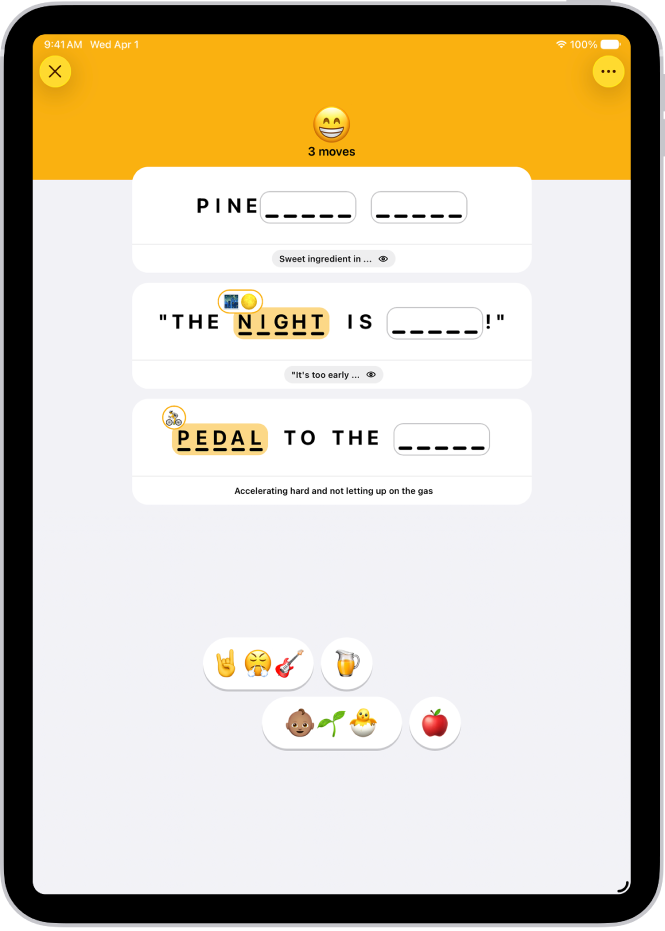
Apple News+ subscribers can solve daily Emoji Game puzzles by completing words and phrases with emoji. The object is to complete several phrases with as few moves as possible, and each emoji can be read directly, through association, or in combination with others. Trying an answer or expanding a clue counts as a move.

Letters relating to an emoji may appear nonconsecutively in an answer, and a group of emoji is interpreted as a whole. If you reveal the answers you didn’t find, the puzzle doesn’t count in your Scoreboard stats and streaks.

Note: Apple News, Apple News+, and puzzles aren’t available in all countries or regions.

An Emoji Game puzzle in the News app.

  1. Open the News app on your iPad.
  2. Open an Emoji Game puzzle.
  3. Do any of the following:

    • Try an answer: Consider the various definitions or associations for the emoji and then drag the most appropriate emoji (or group of emoji) to complete each word or phrase.

      For example, a “pear” emoji 🍐 could complete “DISAP_ _ _ _,” but interpreted as “fruit” it could complete “_ _ _ _ _ FUL.”

      Letters relating to emoji may appear nonconsecutively in an answer. For example, dragging an “earth” emoji 🌍 to “L_ _ _N _ _E ROPES” completes the phrase “learn the ropes.”

      Interpret grouped emoji as a whole. For example, a single 🐠 could mean “fish,” while 🐠🐠🐠 might mean “school.”

    • Expand a clue: Tap the Expand button. This counts as a move.
    • Reveal answers: Tap the More button, then tap Reveal. The answers you didn’t find are shown. The puzzle doesn’t count in your Scoreboard stats and streaks.

Quick tip: If you’d like a quick Emoji Game tutorial, tap the More button and then tap How to Play. Or, to open the Emoji Game feed, choose More Puzzles.

See also

Tag: News