Got a tip for us?

News

If you don’t want to miss important stories, you can use notifications and newsletters to stay on top of the latest news. Some channels you follow may send notifications, and you can also choose to receive newsletters from Apple News editors by email.

If you subscribe to Apple News+, you can also get notified when new issues of publications you follow are available.

Here’s how to get News notifications and newsletters on iPhone.

Turn on notifications

You may get notifications about important stories from some channels you follow.

  1. Open the News app on your iPhone.
  2. Tap Following and swipe to the bottom of the screen. Then tap Notifications & Email below Manage.
  3. Turn on notifications for your preferred channels, as well as notifications from Apple News, such as Apple News Top Stories, Apple News Spotlight, and more.

Once you subscribe to Apple News+, notifications can also tell you when publications you follow have new issues available. New Features & Tips notifications are another option.

Receive Apple News newsletters

Apple News editors can send newsletters to your email inbox, too, if you’d like. They feature top stories personalized based on your interests, and with an Apple News+ subscription, newsletters can also include new issues of your favorite magazines.

  1. Open the News app on your iPhone.
  2. Tap Following, swipe to the bottom of the screen, and tap Notifications & Email.
  3. Swipe to the bottom of the screen and then do any of the following:
    • Turn on Apple News Newsletters.
    • Tap Sign Up for Newsletters, then tap Sign Me Up.
  4. In the U.S., several different newsletters may be available. To choose which ones you want to receive, do one of the following:
    • Opt in: Tap Sign Up.
    • Opt out: Tap Subscribed.
  5. To stop receiving newsletters, return to the Notifications & Email screen and turn off Apple News Newsletters. In the U.S., tap Manage Newsletters and then unsubscribe from each newsletter you no longer want to receive.

Note: Personalized newsletters aren’t available in all countries or regions. To get the Sports newsletter, you need to first sync My Sports and follow a sports topic.

Tag: News

If you subscribe to Apple News+, you can find personalized food content, including a large catalog of recipes with features like adjustable recipe yields, nutrition facts, customizable units, and easy-to-start timers.

Your recommendations get more personalized as you read more food content and recipes. You can search by recipe title, ingredient, or keyword, save a recipe, and prepare it. You can also look at other recipes or stories while you’re reading one, and filter recipes.
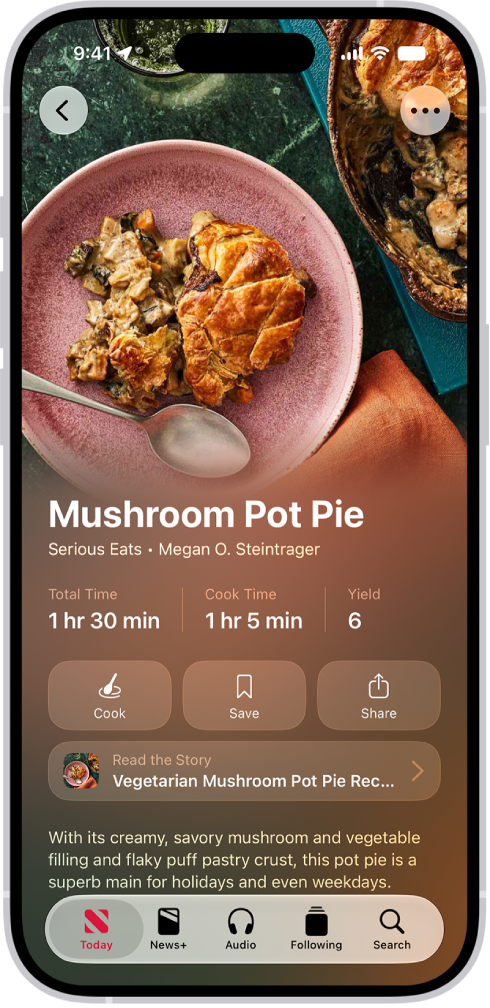
A recipe in Apple News+.

Note: Apple News, Apple News+, and food features aren’t available in all countries or regions.

Browse stories and recipes

  1. Open the News app on your iPhone.
  2. From the Today feed, tap Food, then scroll down to see stories and recipes.

Reading more food content and recipes makes your recommendations more personalized.

Quick tip: Swipe left or right to look at other recipes or stories while you’re reading one.

Search for and filter recipes

  1. Open the News app on your iPhone.
  2. From the Today feed, tap Food.
  3. Tap Recipe Catalog at the top of the feed or the Recipe Catalog button. Then do any of the following:

    • Search by recipe title, ingredient, or keyword: Tap the search field, enter a term, and then tap the Search button.
    • Filter by category: Tap a category, such as Vegetarian.
    • Add and combine filters: Tap the Filter button and tap a filter. Then tap the Done button.
    • Remove a filter: Tap the Remove button next to a filter below the search field.
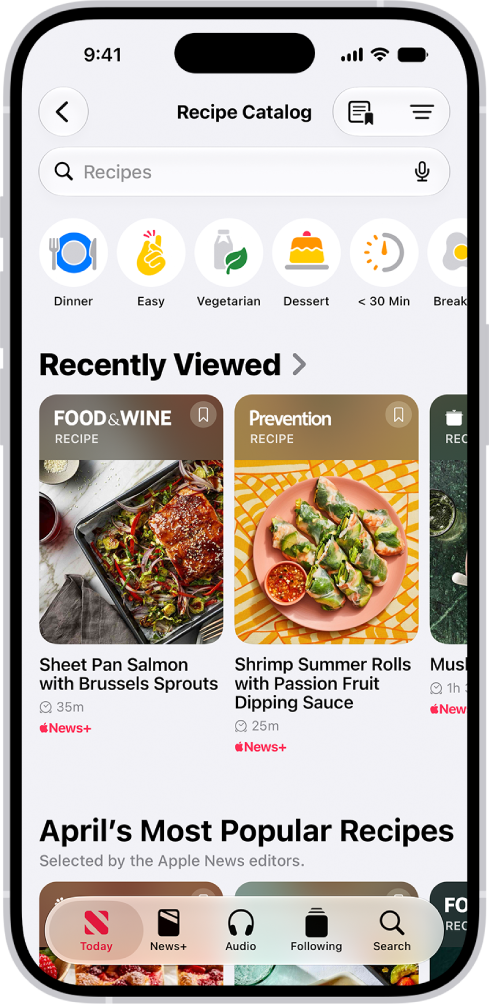
    The Recipe Catalog in Apple News+.

Save a recipe

  1. Open the News app on your iPhone.
  2. From the Today feed, tap Food and then scroll down to browse recipes. Or search for and filter recipes, as above.
  3. Do one of the following:
    • While browsing or viewing search results: Tap the Save Recipe button.
    • While a recipe is open: Tap Save.
  4. To revisit saved recipes, tap Saved Recipes in the Following list or the Food feed, or tap the Saved Recipes button in the Recipe Catalog.

To remove a recipe from your saved recipes, touch and hold the recipe, then tap Unsave Recipe.

Prepare a recipe

  1. Open the News app on your iPhone.
  2. From the Today feed, tap Food and then scroll down to browse recipes. Or search for and filter recipes, as above.
  3. To open a recipe, do one of the following:

    • Tap a recipe in the search results.
    • While reading a food story that includes a recipe, tap the View Recipes button. If the story has multiple recipes, tap the View Recipes button, then tap the recipe you want to prepare.
  4. Scroll to see the recipe’s ingredients, directions, nutrition facts, and ratings, or tap Ingredients, Directions or More to jump between them.

    Tip: You can add a recipe’s ingredients to your grocery list. While viewing the recipe, tap the More button, then tap Add to Grocery List.

  5. To focus on the directions, tap Cook.

    Steps appear in a larger font and the display stays on while you’re preparing the recipe.

  6. While viewing directions, do any of the following:

    • Use a cooking timer: When a timer appears in a step, tap the Timer button, swipe up or down to adjust the timer duration, then tap Set Timer.
    • View ingredient quantities: When an ingredient in a step appears in bold, tap the ingredient to view how much is used in the recipe without going back to the ingredients list.
    • Keep track of which ingredients you already prepared or used: While viewing the ingredients list, tap an ingredient.

Quick tip: To keep track of recipes you’ve prepared, tap the More button while viewing a recipe, then tap Mark as Cooked.

If you notice that a recipe is miscategorized, has incorrect ingredients or directions, or doesn’t display properly, tap the More button, tap Report a Concern, then follow the onscreen instructions.

Customize the units used in recipes

In all Apple News+ recipes, you can convert the units from US to Metric and from Fahrenheit to Celsius. And for baking recipes, you can show ingredient measurements in weight.

  1. Open the News app on your iPhone.
  2. Open a recipe, as above.
  3. Tap the More button and tap Customize Units.

Adjust a recipe’s yield

  1. Open the News app on your iPhone.
  2. Open a recipe, as above.
  3. Tap the More button, then tap Scale Recipe.
  4. To adjust the recipe yield, tap or, or type the scale factor.

To reset the ingredients to their original quantity, tap the Revert button.

Note: Cook times, temperature, equipment, or cookware size aren’t affected by scaling a recipe.

Add notes to a recipe

Notes you add to a recipe can record your results, ingredient or step substitutions, or how long a step took to complete on your stove or oven.

  1. Open the News app on your iPhone.
  2. Open a recipe, as above.
  3. Tap the More button. Then do either of the following:
    • Add a note: Tap Add Notes.
    • Edit a note: Tap Edit Notes.
  4. Enter your observations and then tap the Done button.

Rate a recipe

  1. Open the News app on your iPhone.
  2. From the Today feed, tap Food and then scroll down to browse recipes. Or search for and filter recipes, as above.
  3. Open a recipe, scroll down to Ratings, and tap a star to select a rating.

Access food content offline

You can make the Food feed, Recipe Catalog, and Saved Recipes accessible in Offline Mode.

  1. While you’re online, open the Settings app on your iPhone.
  2. Tap Apps and tap News. Tap Automatic Downloads (below News+ Offline Mode).
  3. Turn on Food & Recipes.
Tag: News

With My Sports, you can follow your favorite sports, teams, leagues, and athletes; receive stories from top sports publications, local newspapers, and more; access scores, schedules, and standings for the top professional and college leagues; and watch highlights.

Before you can use My Sports, you must sign in to your Apple Account and to the App Store on your iPhone.

Here’s how to follow your favorite teams with My Sports on iPhone.

Set up iPhone to use My Sports

You need to do the following before you can use My Sports:

  • Sign in to your Apple Account: Go to Settings , tap “Sign in to your iPhone,” then enter your Apple Account information.
  • Sign in to the App Store: Go to Settings , tap your name, then tap Media & Purchases.

Get started with My Sports

To use My Sports, you first need to allow syncing between the Apple TV app, Apple News, and the Apple Sports app. Once syncing is allowed, you’ll automatically follow the same teams in all three.

  1. Open the News app on your iPhone.
  2. From the Today feed, tap Sports.
  3. Tap Pick Your Teams and tap Pick Your Teams.
  4. On the Manage My Sports screen, tap the Follow button next to sports, teams, leagues, and major sporting events to follow them.

    Sports topics you previously expressed interest in appear below Suggested. To search (by team name or location and more), tap the search field.

  5. Tap the Close button to close the Manage My Sports screen and then do any of the following:

    • View comprehensive sports coverage: Tap Following and then tap Sports (below Sections).
    • Check the most important sports stories at a glance: Tap Today and swipe up to the Sports group.
    • Get stories and team updates: After you follow a topic or team and allow syncing between Apple News, the Apple TV app, and the Apple Sports app, you can sign up for the Sports newsletter for stories and team updates. (Not available in all countries or regions.)
    • Get notified about a team or league you follow: Allow syncing between Apple News, the Apple TV app, and the Apple Sports app. turn on notifications for Sports.

Browse all available sports

  1. Open the News app on your iPhone.
  2. From the Today feed, tap Sports.
  3. Tap All Sports at the top of the screen and then tap a sport or league to go to its feed.
  4. To follow that sport or league, tap the Follow button.

Manage sports topics

Once you’ve set up My Sports, you can follow and unfollow sports topics.

  1. Open the News app on your iPhone.
  2. From the Today feed, tap Sports.
  3. Scroll down to My Sports, tap Manage, and then do any of the following:
    • Follow a topic: Tap the Follow button next to each topic you want to follow.
    • Unfollow a topic: Tap the Unfollow button next to topics you want to unfollow and then tap Unfollow.
    • Reorder topics: Touch and hold the Reorder button, then drag topics to the order you prefer.
  4. Tap the Cancel button.

Show scores, schedules, highlights, and more

With My Sports, you’ll get scores and schedules for your favorite teams, plus video highlights, stats and stories for individual games and events, and stories related to your favorite teams.

  1. Open the News app on your iPhone.
  2. From the Today feed, tap Sports, then do any of the following:
    • Show scores and schedule: Swipe left on the scores at the top of the feed and then tap See More.
    • Show stats and stories for individual games: Tap a score at the top of the feed, or swipe down to a sports topics you follow. Then tap a game.
    • Follow game updates with a Live Activity: During a game, tap a score at the top of the feed and tap Follow Live. You’ll get real-time updates from the Apple Sports app on your Home Screen and Lock Screen.
    • Watch a live game: Tap a score at the top of the feed. Tap Open in Apple TV (before or after the game) or Watch on Apple TV (during a live game). Or swipe down to a topic you follow and tap the game’s tile. Tap Open in Apple TV or Watch on Apple TV. If the game is available in your area and you subscribe to a service that broadcasts the game, you can watch it in the Apple TV app or in a supported app.
    • Note: Supported sports apps may require a separate subscription. Not all games are available in all areas.
    • View highlights: Swipe up to the Highlights section and then tap the Play button in the thumbnail. Tap Highlights to see more highlights.
    • Note: Highlights are available only for select leagues.
    • Read sports stories related to topics you follow: Swipe up to For You, then tap a story.

Stop syncing My Sports

You can also stop syncing between the Apple TV app, Apple News, and the Apple Sports app.

Note: You can no longer use My Sports if you turn off Sync My Sports.

  1. Open the Settings app on your iPhone.
  2. Tap Apps, then tap News.
  3. Turn off Sync My Sports.
Tag: News

The Today feed in the News app presents top stories selected by Apple News editors, the best stories from the channels and topics you follow, and stories and issues from Apple News+. The Today feed also includes stories suggested by Siri, trending stories that are popular with other News readers, My Sports, and more.

It can change with where you are. Depending on your location, the Today feed can also include Apple News Today audio briefings, puzzles, and local news, with your local weather conditions.

Note: Audio briefings, local news, and puzzles aren’t available in all countries or regions.

Access stories in the Today feed

  1. Start the News app on your iPhone.
  2. Do one of the following:
    • Open a story: Tap the story.
    • Read more stories within a group: Tap next to the name of the group.
    • Play a video: Tap the Play button in the thumbnail.
    • Get newer stories: Next to Top Stories, swipe down to refresh the Today feed with the latest stories.

Follow, unfollow, block, and unblock channels and topics

Following and blocking channels and topics influences what appears in the Today feed.

  1. Start the News app on your iPhone.
  2. Do any of the following:
    • Open a channel feed: Touch and hold a story, tap the channel name, and then tap Go to Channel. Or tap a story in the Today feed and tap the channel name at the top of the story.
    • Open a topic feed: Tap the topic title—Movies or Travel, for example.
  3. At the top of the feed, do any of the following:
    • Follow: Tap the Add button.
    • Unfollow: Tap the More button. Then tap Unfollow Channel or Unfollow Topic.
    • Block: Tap the More button and then tap Block Channel or Block Topic.
    • Unblock: Tap the More button and tap Unblock Channel or Unblock Topic.

Note: Top Stories are the same for everyone, so if one comes from a channel you blocked, you still see its headline, but that channel stays blocked in the rest of your feed.

Manage your favorites

Favorites holds the channels and topics you like best from your Following list, though you can have only a limited number of them. Channels and topics in Favorites are easier to access.

Note: Your Favorites can only include channels and topics you currently follow.

You won’t see any Favorites the first time you use the News app on your iPhone. To create your Favorites group, mark channels and topics as favorites, then customize the list at any time.

  1. Start the News app on your iPhone.
  2. Tap Following, tap Edit, and do any of the following:
    • Add a channel or topic to your Favorites: Tap the Add Favorite button next to a channel or topic.
    • Remove a favorite: Tap the Remove Favorite button next to a channel or topic you no longer want as a favorite.
    • Reorder favorites: Touch and hold the Reorder button and then drag favorites to the order you prefer. Tap the Done button.

Note: Your Favorites group stays in your Following list even if you tap Block from Today in the Today feed.

Tell News what kind of stories you prefer

  1. Start the News app on your iPhone.
  2. Tap Today.
  3. Tap the More button below a headline. Then tap Suggest More or Suggest Less.

See stories only from the channels you follow

  1. Start the Settings app on your iPhone.
  2. Tap Apps, then tap News.
  3. Turn on Restrict Stories in Today and then confirm your choice.

Note: Keep in mind that restricting stories significantly limits the variety you see in the Today feed, and Top Stories and Trending Stories no longer appear.

Tag: News

Apple News+ subscribers can automatically download News content, then access it when there’s no Wi-Fi or cellular connection, for example, when taking a flight or riding the subway.

Downloads can include stories, issues, audio stories, recipes, and puzzles, ready for Offline Mode.

Here’s how to use Offline Mode to read downloaded News content on iPhone.

Note: Content that can be downloaded for Offline Mode may include stories, issues, audio stories, recipes, and puzzles. Not all content types are available in all countries or regions.

Turn on Automatic Downloads for Apple News+

  1. Sign in to your Apple Account.
  2. Start the Settings app on your iPhone.
  3. Tap Apps, then tap News.
  4. Turn on Background App Refresh.
  5. Tap Automatic Downloads, turn on Allow Automatic Downloads, and turn on any of the following:
    • Recent Stories: Downloads the latest stories in the Today feed, Best of News+ feed, Sports feed, Shared with You, and History.
    • Saved Stories: Downloads the latest stories in your Saved Stories list.
    • Magazine Issues: Downloads the latest issues of magazines you follow.
    • Food & Recipes: Downloads the Food feed, the Recipe Catalog, and Saved Recipes.
    • Puzzles: Downloads the Puzzles feed, the feed for each puzzle type, and the puzzles in these feeds.
    • Audio Stories: Downloads audio stories in the Today feed and Audio tab.

Note: Turn on Optimize Storage to download smaller versions of images in stories and recipes.

As long as your iPhone has enough storage space and is connected to Wi-Fi and power, it downloads News content. On a cellular connection without Wi-Fi, only Top Stories in the Today feed download automatically.

Use News in Offline Mode

If you don’t have a Wi-Fi or cellular connection, No Internet Connection appears at the top of the screen and any content in the app that isn’t downloaded is dimmed. To switch from the currently loaded version of each feed to the downloaded version, tap Show Stories Downloaded for Offline Mode. When you reconnect to the internet, tap Check for New Stories at the top of the screen. All feeds in the app are refreshed and display the latest content.

Tag: News

In addition to subscribing to Apple News+, you can subscribe to individual publications from select publishers. You don’t even have to start in News. And when you subscribe to a channel, you automatically follow it, so stories from the channel show up in the Today feed.

You can access these subscriptions in News in three ways:

  • Subscribe within News: You can purchase a subscription directly in News. In a channel that offers subscriptions, tap the subscription button.
  • Access an existing subscription purchased from a publisher’s app: If you downloaded a publisher’s app from the App Store, and subscriptions you bought as in-app purchases are also available in News, you’re automatically granted access in News.
  • Access an existing subscription purchased from a publisher: If you purchased a subscription directly from a publisher’s website or from the publisher’s app on a non-Apple device, the publisher may allow you to sign in to your account in News to access your subscription there. To sign in, tap a story that requires a subscription to read, then tap the “Already subscribed” link. Enter the user name and password for your existing subscription.

Subscribing to a channel means you’ll follow it automatically, and its stories appear in the Today feed.

To cancel a subscription, tap Following, swipe up, tap Subscriptions (below the Manage heading), select the subscription, then tap Cancel Subscription.

Tag: News

To get the most out of Apple News+, follow your favorite publications and browse through current and back issues.

Stories and issues from Apple News+ appear in the Today feed, the Best of News+ feed, and channel feeds, while entire issues live in the News+ tab. There you can see content chosen just for you, browse the full catalog of publications, or jump to new and recent issues in My Magazines.

Here’s how to browse and read Apple News+ stories and issues on iPhone.

Note: Apple News and Apple News+ aren’t available in all countries or regions.

Follow and unfollow publications

To follow an Apple News+ publication, follow its channel.

  1. Open the News app on your iPhone.
  2. Do any of the following:
    • Tap Today or News+ , tap a story or issue from an Apple News+ publication, tap the publication’s name at the top of the screen, then tap the Follow button.
    • Tap the Search tab, enter the publication’s name in the search field, then tap the Follow button.
    • Tap News+ , swipe left on the categories near the top of the screen, tap Newspapers or Catalog, then tap Follow below the publication’s cover.

To unfollow a publication, tap Following, swipe left on the publication, then tap Unfollow.

Browse Apple News+ issues and stories

  1. Open the News app on your iPhone.

    Stories and issues from Apple News+ appear in the Today feed, Best of News+ feed, and channel feeds. Stories (but not issues) can also be found in topic feeds and search results.

  2. To access entire issues, tap News+, where you can do any of the following:

    • View News+ content chosen just for you: Near the top of the screen, tap Best of News+.
    • View all available publications: Swipe left on the options near the top of the screen and then tap Catalog.
    • View a specific content category: Swipe left on the options near the top of the screen, tap Catalog, tap Featured, and tap a category such as Money & Business, Entertainment, or Sports.
    • View new and recent issues: Tap My Magazines. By default, new issues appear near the top of the screen. The issue you most recently read appears first. If you recently downloaded an issue, it appears next. To choose a different sorting option, tap the More button. Then tap Sort by Name or Sort by Date.

Note: Blocking an Apple News+ publication also removes its issues from My Magazines.

Open a story or issue

  1. Open the News app on your iPhone.
  2. Do any of the following:
    • Tap an issue cover in News+ or the Today feed.
    • Tap the Search tab, enter the name of the Apple News+ channel in the search field, tap the channel, then tap the issue.
    • Follow a link to a story or issue that someone shared with you.

Access back issues

  1. Open the News app on your iPhone.
  2. Do any of the following:
    • Tap News+ , tap My Magazines, tap the More button below the issue cover (or touch and hold the cover), then tap Browse Back Catalog.
    • Tap a channel you follow, or search for a channel, then tap it. Below Recent Issues, swipe to the issue you want to read, then tap to open it. You can also tap Sections near the top of the screen, then tap Issues to browse all available issues.

Read Apple News+ issues

  1. Open the News app on your iPhone.
  2. Open the issue, where you can do any of the following:
    • Page through an issue: Swipe left to go to the next story, or swipe right to go to the previous story.
    • View the table of contents: When you’re reading a story, tap the More button. Then tap Go to Issue.
    • Change the text size: Tap the More button, tap Text Size, and then tap the smaller or larger letter to change the text size in the story and all other stories in the channel. If the issue is a PDF, pinch to zoom.

If you sign out in Settings > [your name] > Media & Purchases, you can only access free stories—you must sign back in to access stories and download issues that require an Apple News+ subscription.

Tag: News

If you subscribe to Apple News+, you can listen to audio versions of select News+ stories. You can also listen to select Apple News+ audio stories in the Podcasts app.

The Audio tab is where it starts, with stories you’re currently listening to in Up Next and stories recommended to you based on your interests in For You. You can add stories to Up Next, and read, share, or remove audio stories, too.

Here’s how to listen to News stories in News on iPhone.

Note: Apple News and Apple News+ aren’t available in all countries or regions.

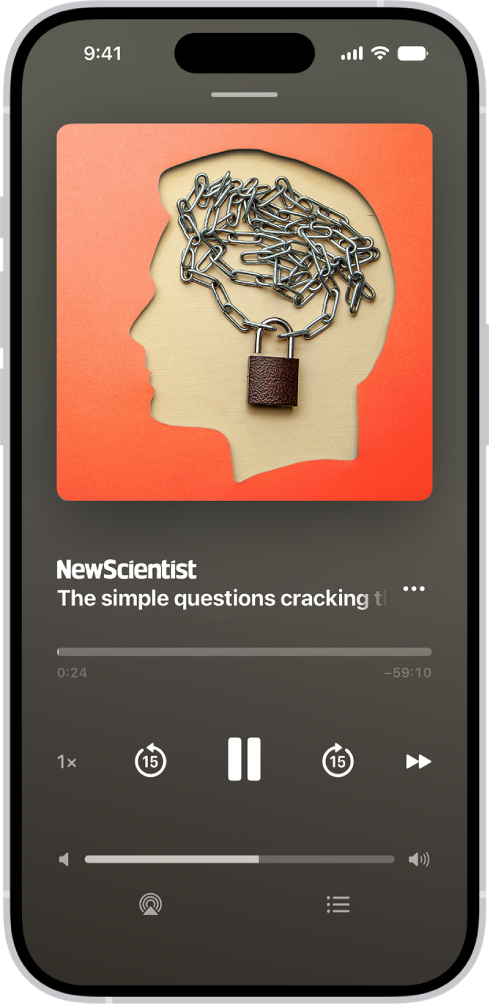
The audio player for a story in Apple News+, with playback controls and a volume slider.

Browse audio stories

  1. Open the News app on your iPhone.
  2. Tap Audio to show Apple News+ audio stories and Apple News Today.
  3. If you’re a subscriber, you see selections of audio content, including:
    • Up Next: Stories you’re currently listening to or have added to the Up Next queue.
    • For You: Stories recommended to you based on your interests.

To learn more about a story before listening to it, tap See Details.

Without an Apple News+ subscription, you can still hear previews of audio stories.

Play audio stories

  1. Open the News app on your iPhone.
  2. Tap Audio, then tap a story to play it.
  3. As the story plays, use the mini player controls at the bottom of the screen to skip back, pause, or close the story.
  4. To access more controls, tap the mini player to open the full-screen player and then do any of the following:
    • Adjust the volume: Drag the slider at the bottom of the screen left or right.
    • Skip forward or back: Tap or touch and hold the rounded arrows.
    • Speed it up or slow it down: Tap 1x, then choose a speed.
    • Go to a specific time: Drag the slider below the image left or right.
    • Go to the next story: Tap the Forward button.
    • Go to your Up Next queue: Tap the Table of Contents Switch button.
    • Save, share, or read the story: Tap the More button.
    • Play on a different device: Tap the AirPlay button. Then choose an available device such as HomePod, Apple TV 4K, or Bluetooth® speakers.
    • Switch back to the mini player: Swipe down from anywhere on the screen, or tap the Close button at the top of the screen.
    • Close the full-screen player: Tap the More button, then tap Close Audio Player.
  5. To close the mini player, tap the Close button.

Audio stories can also appear in a feed. To listen to the story, tap the Play button (Apple News+ subscription required). You can also tap the story to read it, then tap the Play button at the top of the story.

Add stories to Up Next

  1. Open the News app on your iPhone.
  2. In the Audio tab or a news feed, tap the More button. Choose Play Next or Play Last.

To reorder stories in the Up Next queue, tap See All, touch and hold the Reorder button, then drag stories to the order you prefer.

Read, share, and remove audio stories

  1. Open the News app on your iPhone.
  2. Tap Audio and then do any of the following:
    • Read, share, and more: Tap the More button and then choose an option.
    • Remove stories from the Up Next queue or For You: Touch and hold the story and select Remove.

Note: Several of these options also appear when you swipe a story left or right.

Tag: News

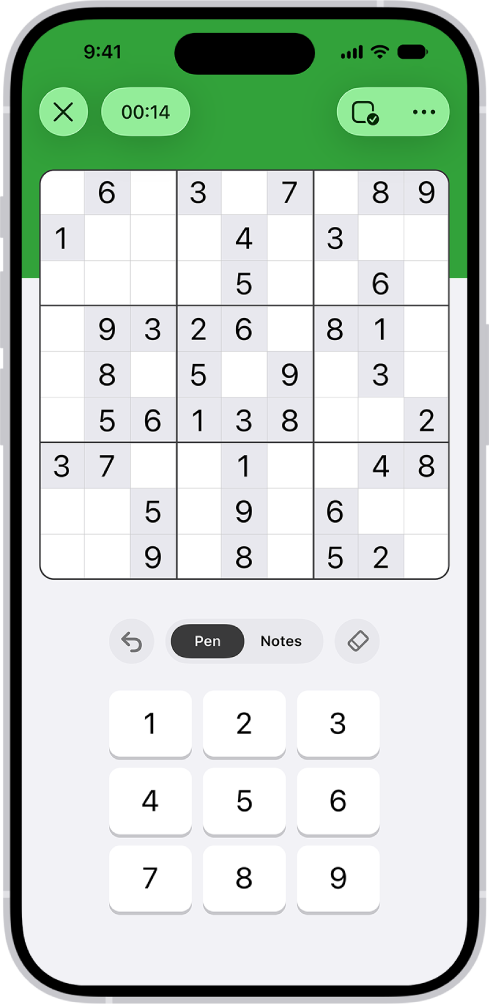
In sudoku puzzles, you place the numbers 1 to 9 into squares in a grid consisting of nine blocks with nine squares each, so that every number appears exactly once in each block, row, and column. Each sudoku grid comes with a few givens, squares already filled in.

Apple News+ subscribers get new sudoku puzzles every day in three difficulties: easy, moderate, and challenging. Easy puzzles include more givens, while challenging puzzles require more complex strategies to narrow down options for each empty square.

Note: Apple News, Apple News+, and puzzles aren’t available in all countries or regions.

A sudoku puzzle with several features turned on: Notes, Highlight Matching Numbers, Show Conflicts, and Autocheck.

Solve a puzzle

  1. Open the News app on your iPhone.
  2. Open a sudoku puzzle.
  3. Do any of the following:
    • Enter a number: With the Pen tab selected, tap a square. Then tap a number key.
    • Delete an answer: Tap a square where you entered a number, then tap the Eraser button.
    • Step back through your actions: Tap the Undo button to undo.
  4. Continue entering numbers until every square is filled correctly.

Quick tip: Turn on Autocheck, and you’ll know when you successfully complete a block, row, or column.

Track possible answers

Notes within the puzzle help you keep track of which numbers might work in each square.

  1. Open the News app on your iPhone.
  2. Open a sudoku puzzle.
  3. Do any of the following:
    • Manually enter notes: Tap a square and tap Notes. Then tap numbers to add them to the square. Tap the number again to remove it. When you enter an answer, any matching notes in that square’s block, row, or column are removed. To turn this feature off, tap the More button and tap Settings. Then turn off Automatically Remove Notes.
    • Automatically show notes: Tap the Puzzles Options button, then tap Autofill Notes. Notes representing possible numbers appear in empty squares, based on all filled squares at that moment—givens and your answers (even if incorrect). You can still add and delete notes manually. Using Autofill doesn’t affect stats or streaks.
    • Play with or without notes: Tap the Puzzles Options button and then tap Show Notes or Hide Notes.

Think a number in your notes is the right answer? Commit it by touching and holding that number on the onscreen keypad.

Get help

If you’re unsure of an answer, you can get a little help.

  1. Open the News app on your iPhone.
  2. Open a sudoku puzzle.
  3. Do any of the following:
    • Highlight matching numbers: Tap a number on the keypad, or tap any square with a number in it. (The square you select can be a given or one where you entered or revealed the answer.) Matching numbers are highlighted in answers and notes. To turn this feature on or off, tap the More button, tap Settings, and then tap Highlight Matching Numbers.
    • Check for duplicated numbers: Tap the More button, tap Settings, and then turn on Show Conflicts. When you enter a number that already appears in a block, row, or column, the squares’ bottom-right corners are marked with red triangles.
    • Mark incorrect answers as you enter them: Tap the Puzzles Options button and tap Autocheck. All incorrect answers you already entered have a red slash through them. As you enter additional numbers, the app checks whether or not they’re correct. When you turn on Autocheck inside a puzzle, it stays on for that puzzle only. To turn Autocheck on for all sudoku puzzles, tap the More button, tap Settings, turn on Always Autocheck, tap the Done button, tap the Puzzles Options button, and then tap Autocheck (if it’s not already on).
    • Check answers: Tap the Puzzles Options button and then tap Check Square or Check Puzzle. A red slash indicates incorrect answers. Checking a square or puzzle doesn’t affect stats or streaks.
    • Identify a solvable square: Tap the Puzzles Options button, then tap Get Hint. The square having the most information available to deduce its answer is highlighted. Tap the Hint button to learn the strategy and recommended actions, like obvious pairs and hidden triplets. Using hints doesn’t affect stats or streaks.
    • Reveal answers: Tap the Puzzles Options button and tap Reveal. Tap Square or Puzzle to display the correct answer. Note: When you reveal all or a portion of a puzzle, the puzzle isn’t counted toward stats in your Scoreboard or as part of a streak. To maintain a sudoku streak, solve at least one of the current day’s sudoku puzzles of any difficulty level without revealing answers. Revealing also prevents you from undoing previous actions.
    • Review the sudoku tutorial: Tap the More button, then tap How to Play.

Restart your puzzle

For a fresh start, you can clear the puzzle’s answers and reset the timer.

  1. Open the News app on your iPhone.
  2. Open a sudoku puzzle.
  3. Tap the Puzzles Options button and then tap Clear Puzzle.

Show or hide the timer

You can show or hide the timer that appears above your puzzle.

  1. Open the News app on your iPhone.
  2. Open a sudoku puzzle.
  3. Do one of the following:
    • Tap the Timer button.
    • Tap the More button, tap Settings, then turn Show Timer on or off.

There’s no need to solve puzzles all at once, since the timer pauses while you’re away.

Tag: News

In Apple News, you can set up a local news feed to stay up to date on news, events, and weather in the places that matter to you most. You can follow your preferred locations and customize them to prioritize news from a specific city, town, or neighborhood.

Stories from the primary location you follow also appear in your Today feed, and you can use your current location to find a news feed. You can also search for a news feed by state or country.

Note: Apple News isn’t available in all countries or regions. The Local News feed is available in the U.S. only.

Set up a local news feed

  1. Open the News app on your iPhone.
  2. From the Today feed, tap Local. Then do either of the following:
    • If you don’t follow any locations: Tap Get Started.
    • If you follow one or more locations in Local News: Tap Locations and tap Manage Locations.
  3. Do any of the following:
    • Search for a news feed using your current location: If you’re getting started with local news, tap Current Location. If you follow one or more locations, tap the search field and tap Current Location.
    • Search for a location: Tap the search field and enter a city, town, or zip code. Then select a location from the search results.
    • Search by state or country: Scroll down and select a state or country. A list of locations in that state or country appears.
  4. Tap the Add button next to the location you want to follow. Tap the Close button or the Back button to go back to the list of locations.
  5. Tap the Close button to go back to the local news feed.

The Following tab lists the locations you follow under Local News.

Read local news

  1. Open the News app on your iPhone.
  2. From the Today feed, tap Local and tap a story to read it.

Customize the news feed for a location

When you follow a location, you can prioritize a specific city, town, or neighborhood for news and weather.

  1. Open the News app on your iPhone.
  2. From the Today feed, tap Local and then tap Locations.
  3. Tap Manage Locations.
  4. Tap Customize under the name of a location you follow. If you already added a specific location, tap the location’s name to change it.
  5. Tap the search field and enter a city, town, or zip code. Then select a location from the search results.

Change locations in your local news feed

  1. Open the News app on your iPhone.
  2. From the Today feed, tap Local, tap Locations, and then select the location you want to read news about.

Follow local publishers

Search for local news feeds by state or country, and you can follow their local publishers directly.

  1. Open the News app on your iPhone.
  2. From the Today feed, tap Local and then tap Locations.
  3. Tap Manage Locations and then scroll down and select a state or country.
  4. Scroll down to Local Publishers and tap the Add button next to the publishers you want to follow.
Tag: News