Got a tip for us?

News

You can easily check the day’s top and trending stories from the News app, as well as stories about a topic of your choosing, right from the Today or Topic widget. Any story headline in the widget opens the story in News, so you can read it in full.

Access stories from News widgets

In the Today or Topic widget, tap a story headline to open the story in News.

Tag: News

In the News app, you can clear your reading history and adjust how you get reading recommendations. You can remove your reading history, the information used to recommend stories, or both, and the change applies on all devices where you’re signed in to the same Apple Account.

Clear your history

  1. Open the News app on your iPhone.
  2. Tap Following, tap History, tap Clear, and then do any of the following:
    • Remove your reading history: Tap Clear History.
    • Remove information used to recommend stories: Tap Clear Recommendations. Choosing this option can change the types of channels, topics, and stories shown in the Today and other feeds in Apple News on all your Apple devices.
    • Remove your history and recommendations: Tap Clear All.
  3. Your News history and recommendation information are removed from all devices where you’re signed in to the same Apple Account.

When you clear your history, the identifier used by Apple News to report statistics to news publishers is also reset. You can reset the identifier at any time by going to Settings > Apps > News, then turning on Reset Identifier.

Recommend stories based on News app reading only

Turn off Siri & Search for the News app, and recommendations are based only on your reading habits in the News app, not in Safari and other apps.

  1. Open the Settings app on your iPhone.
  2. Tap Apps, then tap News.
  3. Tap Siri and turn off Show in App.
Tag: News

When you subscribe to Apple News+, you can access hundreds of magazines and newspapers, along with recipes, puzzles, and audio stories. You can share issues with others or download them for offline reading.

You can subscribe to Apple News+ or to Apple One Premier, which includes Apple News+ and other Apple services. You can also share Apple News+ with family members. And you can cancel or change your Apple News+ subscription.

Note: Apple News, Apple News+, Apple One and puzzles aren’t available in all countries or regions.

Subscribe to Apple News+

  1. Open the News app on your iPhone.
  2. Do one of the following:
    • Tap the subscription button shown in a magazine, puzzle, recipe, or story.
    • Tap News+ , then tap the subscription button.
  3. Follow the onscreen instructions.

You may be asked to sign in to your Apple Account.

Share Apple News+ with family members

Once you subscribe to Apple News+ or Apple One Premier, you’re able to share Apple News+ with up to five other family members by using Family Sharing. Your family group members don’t have to do anything. Apple News+ becomes available to them the first time they open the News app once your subscription begins. Joining a family group with an Apple News+ or Apple One Premier subscription when you already subscribe means your subscription won’t renew on your next billing date, and you’ll use the group’s subscription instead. If the family group you join doesn’t subscribe, it uses your subscription.

Note: Apple News+ sharing with a family group ends when you cancel the subscription, leave a Family Sharing group, or remove a member from the Family Sharing group.

Cancel or change your Apple News+ subscription

  1. Open the News app on your iPhone.
  2. Tap Following, scroll down, tap Subscriptions (below Manage), and then do one of the following:
    • Apple News+ only: Tap Cancel Subscription and then follow the onscreen instructions.
    • Apple News+ and individual channels: Select Apple News+, tap Cancel Subscription, and then follow the onscreen instructions.
Tag: News

The News app keeps track of a wide variety of channels, topics, stories, and recipes, which makes it easy to find content that interests you. In the Search tab, you can enter the name of a channel, a topic like fashion or politics, an event, or a recipe title.

  1. Start the News app on your iPhone.
  2. Tap the Search tab and tap the search field.
  3. Enter any of the following:
    • The name of a channel, such as Scientific American or Washington Post
    • A topic, such as fashion, business, or politics
    • An event, such as an upcoming meteor shower
    • A recipe title, ingredient, or keyword
  4. Tap the Search button.
Tag: News

With an Apple News+ subscription, you can download issues to read when you’re not connected to the internet.

You can download an issue from My Magazines, the Catalog, or a magazine channel you follow, then read it offline from the Downloaded section of News+. When you’re done, you can remove downloaded issues, or remove an issue from My Magazines entirely.

Here’s how to manually download Apple News+ issues on iPhone.

Note: Apple News and Apple News+ aren’t available in all countries or regions.

Download an Apple News+ issue

  1. Open the News app on your iPhone.
  2. Do any of the following:
    • Tap News+ , then tap My Magazines. You can also tap Catalog near the top of the screen, then tap a stack of magazines.
    • Tap Following , then tap a magazine channel you follow.
    • Tap the Search tab, enter the magazine channel name in the search field, then tap the channel.
  3. When you find the issue you want, tap the More button below the issue cover (or touch and hold the cover) and then tap Download Issue.

To download multiple issues, tap News+, tap My Magazines, tap the More button, then tap Select. Tap the issues you want to download, then tap the Download button.

Read a downloaded issue

  1. Open the News app on your iPhone.
  2. Tap News+.
  3. Tap Downloaded near the top of the screen and tap an issue.

Remove downloaded issues

  1. Open the News app on your iPhone.
  2. Tap News+, then tap Downloaded near the top of the screen.
  3. Tap the More button, tap Select and tap the issues you want to remove. Then tap the Delete button.

Removed an issue from the Downloaded tab? It’s easy to access it again in My Magazines.

Remove an issue from My Magazines

  1. Open the News app on your iPhone.
  2. Tap News+. Tap My Magazines near the top of the screen.
  3. Tap the More button below the issue cover (or touch and hold the cover), tap Remove, and tap Remove from My Magazines.

The issue’s cover and content are removed from iPhone, plus other devices signed in to the same Apple Account with News turned on in iCloud settings.


Tag: News

You can save news stories to read later. Apple News+ subscribers can read saved stories in Offline Mode. You can save a story when reading a story, and read a saved story later in the News app on your iPhone.

Save a story

  1. Start the News app on your iPhone.
  2. When reading a story, tap the More button, then tap Save Story.

Read a saved story

  1. Start the News app on your iPhone.
  2. Tap Following and tap Saved Stories. Tap the story.

Delete a saved story

  1. Start the News app on your iPhone.
  2. Tap Following, tap Saved Stories, and do one of the following:
    • Delete one story: Swipe the story left.
    • Remove all saved stories: Tap Clear and then tap Clear Saved Stories.
Tag: News

You can read and share News stories on iPhone.

While viewing a story, you can read the next story or the previous story, and tell News what stories you prefer with Suggest More or Suggest Less, so your feedback is taken into account. You can also read stories shared with you, and share a story with others in the News app. Apple News and Apple News+ aren’t offered in all countries or regions, though.

Note: Apple News and Apple News+ aren’t available in all countries or regions.

Read a story

  1. Start the News app on your iPhone.
  2. Tap a story to read it. While viewing a story, do any of the following:
    • Read the next story: Swipe left.
    • Read the previous story: Swipe right.
    • Return to the list of stories: Tap the Back button.
    • Tell News what stories you prefer: Tap the Suggest More button or the Suggest Less button. Your feedback is taken into account for future recommendations.
    • Change the text size: Tap the More button and tap Text Size. Then tap the smaller or larger letter to change the text size in the story and all other stories in the channel. (Not available in all channels.)
    • Share a story: Tap the More button. Choose a sharing option, such as Messages or Mail.
    • Report a concern: If you believe that a story you’re viewing is mislabeled, inappropriate, offensive, or doesn’t display properly, tap the More button, tap Report a Concern and then follow the onscreen instructions.

The Report a Concern, Save Story, Suggest More, and Suggest Less options aren’t available in Apple News+ issues in PDF format.

Read stories shared with you

When a friend shares stories with you using the Messages app, you can easily find them in the Shared with You section in Apple News. (Your friend must be in your contacts list in Contacts.)

  1. Start the Settings app on your iPhone.
  2. Tap Apps, then tap Messages.
  3. Tap Shared with You and then make sure News is turned on.
  4. Start the News app on your iPhone.
  5. Tap Following and tap Shared with You. Do any of the following:
    • Tap a shared story to read it in News.
    • Tap the name of the person who shared a story to reply to them in the Messages app. To reply while reading the story, tap the name shown below the channel’s logo.
Tag: News

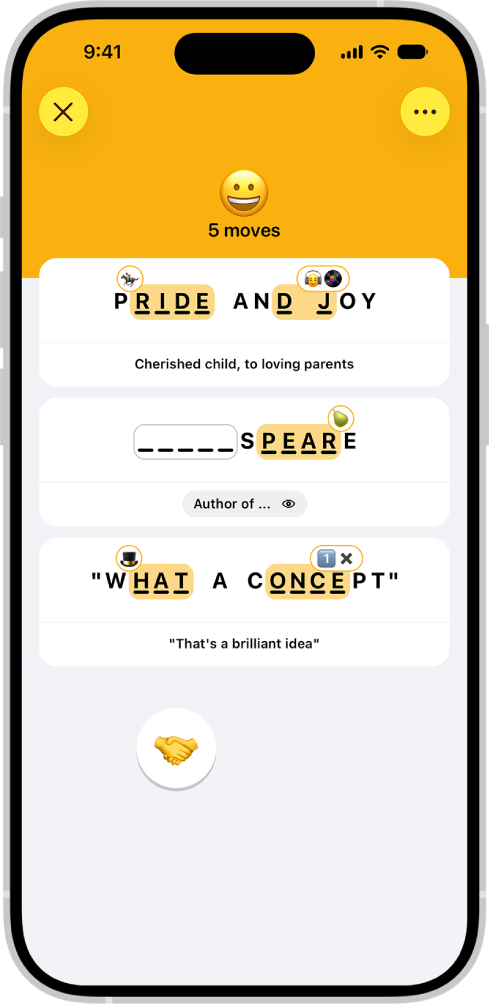
Apple News+ subscribers can solve daily Emoji Game puzzles by completing words and phrases with emoji. The object is to complete several phrases with as few moves as possible, and each emoji can be read directly, through association, or in combination with others. Trying an answer or expanding a clue counts as a move.

Letters relating to an emoji may appear nonconsecutively in an answer, and a group of emoji is interpreted as a whole. If you reveal the answers you didn’t find, the puzzle doesn’t count in your Scoreboard stats and streaks.

Note: Apple News, Apple News+, and puzzles aren’t available in all countries or regions.

The Emoji Game, showing the number of moves, two emoji placed as answers, and one about to be placed in an unanswered spot.

  1. Start the News app on your iPhone.
  2. Open an Emoji Game puzzle.
  3. Do any of the following:
    • Try an answer: Consider the various definitions or associations for the emoji and then drag the most appropriate emoji (or group of emoji) to complete each word or phrase. For example, a pear emoji 🍐 could complete DISAP_ _ _ _, but interpreted as fruit it could complete _ _ _ _ _ FUL. Letters relating to emoji may appear nonconsecutively in an answer. For example, dragging an earth emoji 🌍 to L_ _ _N _ _E ROPES completes the phrase learn the ropes. Interpret grouped emoji as a whole. For example, a single 🐠 could mean fish, while 🐠🐠🐠 might mean school.
    • Expand a clue: Tap the Expand button. This counts as a move.
    • Reveal answers: Tap the More button, then tap Reveal. The answers you didn’t find are shown. The puzzle doesn’t count in your Scoreboard stats and streaks.

Quick tip: For a quick Emoji Game tutorial, tap the More button and tap How to Play. You can also choose More Puzzles to open the Emoji Game feed.

Tag: News