Got a tip for us?

Passwords

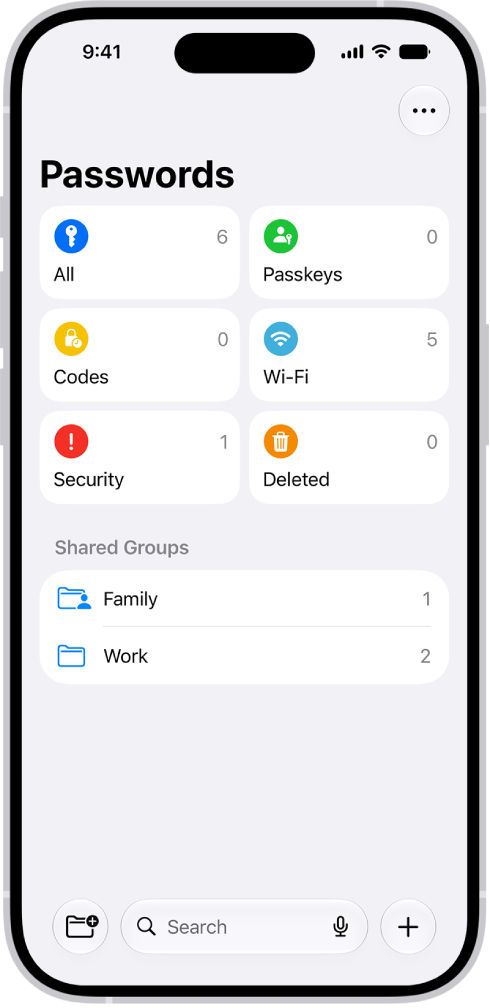
The Passwords app gathers all your passwords, passkeys, and verification codes in one place. They’re available on every device where you sign in with the same Apple Account and turn on Passwords & Keychain in iCloud settings. Here are all your types of password credentials:

The Home Screen for the Passwords app, with buttons for All, Passkeys, Verification Codes, W-Fi, Security, and Deleted, along with a list of Shared Groups.

  • App passwords
  • Website passwords
  • Sign in with Apple
  • Passkeys
  • Verification codes
  • Wi-Fi passwords
  • Passwords shared with groups

Find a password by sorting or searching. Then tap Edit to reveal the password, or to change or delete the password. Tip: In Passwords, tap Security for recommendations to change weak passwords.

When you create and store your own passwords for websites and apps, iPhone automatically identifies common weaknesses (for example, if they’re easily guessed or used multiple times). iPhone can also securely monitor your passwords and alert you if any of them appear in known data leaks.

For an account with a weak or compromised password, you’ll see a message that explains the problem. You can hide a security recommendation, too. And if a website allows it, you can switch to a passkey instead.

Change a weak or compromised password

  1. Open the Passwords app on your iPhone.
  2. Tap Security. If an account has a weak or compromised password, a message explains the problem.
  3. Tap an account.
  4. Tap the Password field. Tap Copy Password, so you can paste it where it’s requested—for example, when you create a new password and you’re asked to enter your old password.
  5. Tap Change Password. Change your password on the website or in the app.

If the website or app allows you to use a passkey or to upgrade to Sign in with Apple, you can take advantage of the security and convenience of those features. If you aren’t given the upgrade option when you change your password, many accounts allow iPhone to automatically create a strong password that you don’t have to remember. Note: If iPhone warns you about a password for a website or app that’s no longer available, you can remove its account from your iPhone and iCloud Keychain. Go to the Passwords app on your iPhone, tap All, then swipe left on the account.

Hide a security recommendation

If you’re unable to address a security recommendation, you can hide it so you don’t have to keep reviewing it.

  1. Open the Passwords app on your iPhone.
  2. Tap Security.
  3. Tap an account, then tap Hide.

To show a security recommendation you’ve hidden, tap Security, tap the Show Hidden Recommendations button, tap an account, then tap Unhide.

Turn detection of compromised passwords on or off

By monitoring your passwords, iPhone can alert you if they appear in known data leaks.

  1. Open the Settings app on your iPhone.
  2. Tap Apps and tap Passwords.
  3. Turn Detect Compromised Passwords on or off.

When you sign up for services on websites and in apps, you can let iPhone create strong passwords for many of your accounts. iPhone stores the passwords in the Passwords app or your chosen password manager, and fills them in for you automatically. You can also edit a suggested password or ask for a different one.

Note: If you use a third-party password manager, you can accept the strong passwords suggested by the password manager or enter your own. Your passwords are saved in the password manager.

Instead of requiring you to sign in with passwords, participating websites and apps support these alternatives:

  • Sign in with Apple: Lets you use your Apple Account to sign in, and limits the information shared about you.
  • A passkey: Lets you use Face ID or Touch ID to securely sign in without using a password.

Create a strong password for a new account

In most cases, creating a strong password and saving it to the Passwords app consists of steps similar to these, depending on the website or app.

  1. On the new account screen for the website or app, enter a new account name. For supported websites and apps, iPhone suggests a unique, complex password.
  2. Do one of the following:
    • Choose the suggested password: Tap Use Strong Password.
    • Edit the suggested password: Tap Other Options, tap Edit Strong Password, tap the password text field, and make your changes.
    • Get a different strong password: Tap Other Options and tap Edit Strong Password. Tap the suggested password.
    • Get a strong password consisting of only numbers and letters: Tap Other Options and tap No Special Characters.
    • Get a strong password that’s easy to type: Tap Other Options and tap Easy to Type.
    • Make up your own password: Tap Other Options and then tap Choose My Own Password.
  3. To copy the password so you can paste it into a Confirm Password field if asked, tap Other Options. Tap Copy Strong Password.
  4. To securely add and keep notes about recovery key information, security questions, PIN numbers, and similar details, enter them in the Notes field. To view the notes later, open the Passwords app on your iPhone, tap All, and then tap the account.
  5. To later allow iPhone to automatically fill in the password for you, tap Yes when you’re asked if you want to save the password.

Automatically fill in a saved password

The steps for signing in with your saved password usually look like these, depending on the website or app.

  1. On the sign-in screen for the website or app, tap the account name field.
  2. Do one of the following:
    • Tap the account suggested at the bottom of the screen or near the top of the keyboard.
    • Tap the Password AutoFill button, tap Other Passwords, then tap an account.

The password is filled in. To see the password, tap the Show Password Text button. To enter an account or password that isn’t saved, tap the Keyboard button on the sign-in screen.

Turn Password AutoFill on or off

Go to Settings > General > AutoFill & Passwords, then turn on or off AutoFill Passwords and Passkeys. You can automatically fill passwords from up to three passwords apps.

Use iCloud Keychain to keep your website and app passwords and passkeys, credit card information, Wi-Fi network information, and other account information up to date across all your approved devices and Mac computers. iCloud Keychain can also keep the accounts you use in Mail, Contacts, Calendar, and Messages up to date across all your iPhone and iPad devices and Mac computers.

It’s secure, too. iCloud Keychain is secured with 256-bit AES encryption during storage and transmission, and its data can’t be read by Apple. And if all your devices are lost or stolen, you can still recover your iCloud Keychain.

Set up iCloud Keychain

You can set up iCloud Keychain now if you didn’t do it when you first set up your iPhone.

  1. Start the Settings app on your iPhone.
  2. Tap your name, then tap iCloud.
  3. Tap See All (next to Saved to iCloud) and tap Passwords & Keychain.
  4. Turn on Sync this iPhone and then follow the onscreen instructions.

Set up iCloud Keychain on an additional device

Turning on iCloud Keychain on an additional device sends a notification to your other devices using iCloud Keychain. It asks for your approval. Approve the additional device on one of your other devices, and iCloud Keychain automatically begins updating on it. Without access to your other devices, you can approve iCloud Keychain with your iCloud Security Code by following the onscreen instructions.

Recover your iCloud Keychain if all your devices are lost or stolen

iCloud Keychain syncs across devices to provide convenience and redundancy in case you lose a single device. If all your devices are lost and you’ve added a recovery contact to your Apple Account, your contact can help you recover your iCloud Keychain. Go to Settings > [your name] > Sign-In & Security, tap Recovery Contacts, then tap Learn More. You can also recover your iCloud Keychain through iCloud Keychain escrow, which is also protected against brute-force attacks. iCloud Keychain escrows a user’s keychain data with Apple without allowing Apple to read the passwords and other data it contains. Your keychain is encrypted using a strong passcode, and the escrow service provides a copy of the keychain only if a strict set of conditions is met. To recover your keychain through iCloud Keychain escrow, authenticate with your Apple Account on a new device, then respond to an SMS sent to a trusted phone number. After you authenticate and respond, you must enter the device passcode. iOS, iPadOS, and macOS allow only 10 attempts to authenticate. After several failed attempts, the record is locked and you must contact Apple Support on the Apple Support website to be granted more attempts.


Shared password groups are an easy and secure way to share passwords, passkeys, and Sign in with Apple credentials with your family and trusted contacts. Anyone in the group can add passwords, passkeys, and Sign in with Apple credentials.

When a shared credential changes, it changes on everyone’s device. You can create a group, manage it, and respond to an invitation to join one.

Here’s how to share passwords and passkeys with people you trust on iPhone.

Create a group

Note: You need to be signed in to your Apple Account to create a shared password group.

  1. Open the Passwords app on your iPhone.
  2. Tap the New Shared Group button.
  3. Enter a name for the group, then tap Add People.
  4. Type the name, email address, or phone number of the person or people you want to add and tap Add. Note: To add someone to your group, they must be in your contacts and have an iPhone, iPad, or Mac with iOS 17, iPadOS 17, macOS 14, or later. If they can be added to the group, their contact information appears in blue. If it appears in gray, their iPhone, iPad, or Mac might not support shared password groups.
  5. Tap the Create button.
  6. Select the passwords you want to share with the group. Tap Move.

If you don’t want to share any passwords yet, tap the Close button. You can notify the people you’ve invited to the group, and they can also see the invitation in Passwords > Group Invitations. Your shared passwords are saved in iCloud Keychain, and you can use them like any other saved password. You receive a notification whenever anyone else is invited to the group.

Manage a group

If you created a group, only you can add or remove other members, or delete it. Other members don’t have these options, but they can leave at any time.

  1. Open the Passwords app on your iPhone.
  2. Tap the name of your group. You can add or remove other members, or delete the group.
  3. Do any of the following:
    • Add a member to the group: Tap your name and then tap Add People.
    • Remove a member from the group: Tap the member’s name, then tap Remove From Group.
    • Remove a shared password or passkey from the group: Tap Select and select the shared account with the shared password or passkey. Then tap the Delete button.
    • Delete the group: Tap your name and tap Delete Group.
  4. When you’re finished making changes, tap the Done button.

Respond to an invitation to join a group

  1. Open the Passwords app on your iPhone.
  2. Tap the invitation and then tap Accept to join the group. You can also decline the invitation.

Important: Don’t accept an invitation if you don’t recognize the sender.