Got a tip for us?

Passwords

In the Passwords app, you can find all your passwords, passkeys, and verification codes in one place. You can use your passwords on all your devices where you sign in to the same Apple Account with Passwords & Keychain turned on in iCloud.

If you use AutoFill to sign in to websites and apps, your passwords automatically appear in Passwords. You can find a password by searching or sorting, and Passwords can even give you security recommendations to change weak passwords.

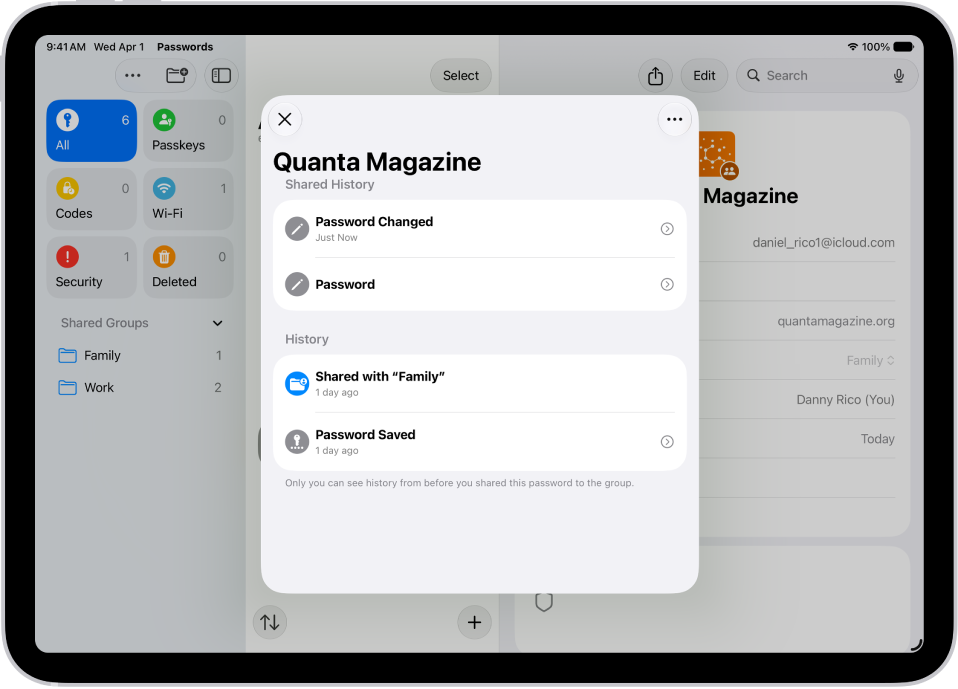
The history of password changes for an account. The password was originally saved a month ago, and it was also changed a month ago.

Here are all the types of password credentials you can see:

  • App passwords
  • Website passwords
  • Sign in with Apple
  • Passkeys
  • Verification codes
  • Wi-Fi passwords
  • Passwords shared with groups

Find a password by searching or sorting. Then tap Edit to reveal the password, or to change or delete the password.

Quick tip: In Passwords, tap Security for recommendations to change weak passwords.

See also

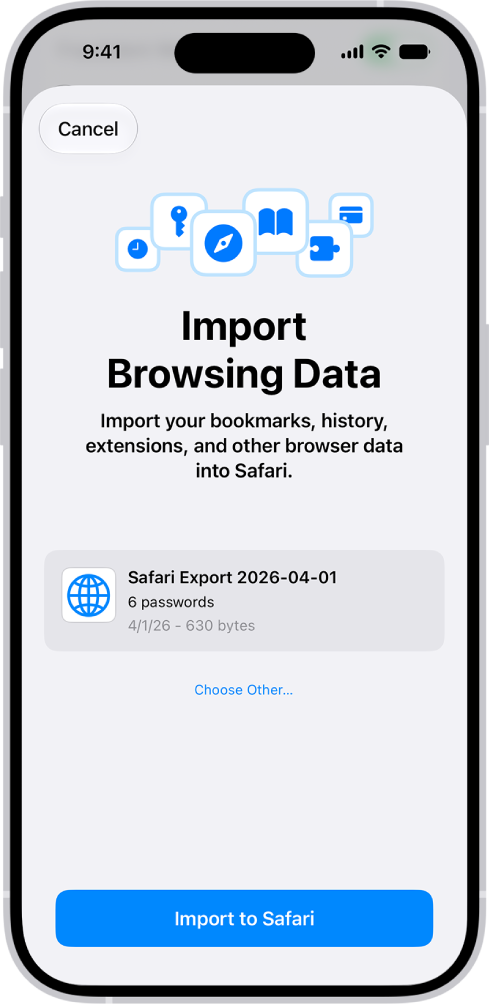
You can import passwords that you’ve exported to a CSV file from another password manager, and you can import a CSV or ZIP file. The file itself might not be encrypted, though, so anyone who can access it could see your passwords.

WARNING: Your imported passwords might not be encrypted and could be visible to anyone who can access the file.

The Import Browsing Data screen, showing the CSV file of passwords from another password manager to be imported.

  1. Open the Settings app on your iPhone.
  2. Tap Apps, then tap Safari.
  3. Below History and Website Data, tap Import.
  4. Tap Choose File. Then choose the CSV file (or ZIP file) you exported from your other password manager.
  5. Tap Import to Safari.
  6. Tap Done.

WARNING: For security, delete the file you imported from.

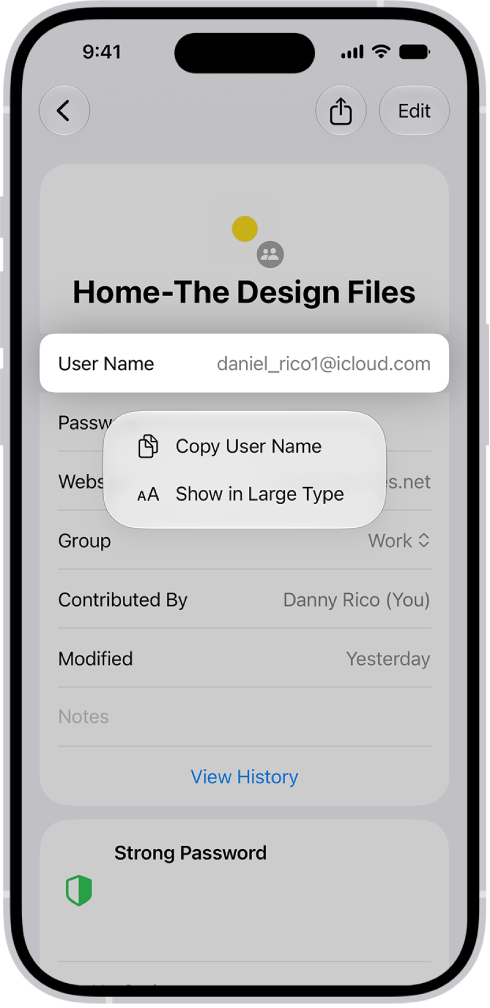
You can show user names, passwords, and verification codes in large text on your iPhone. It’s built into the Passwords app, where Show in Large Type makes the user name, password, or verification code for an account bigger and easier to read.

An account screen showing the user name highlighted, with options to Copy User Name and Show in Large Type.

  1. Start the Passwords app on your iPhone.
  2. Tap All, then tap an account.
  3. Touch and hold your user name, password, or verification code. Then tap Show in Large Type.

You can delete the password you use to sign in to a website or app on your iPhone. You just find the account for the password you want to delete in the Passwords app and delete it. That doesn’t remove your password from the website or app where you created it, though.

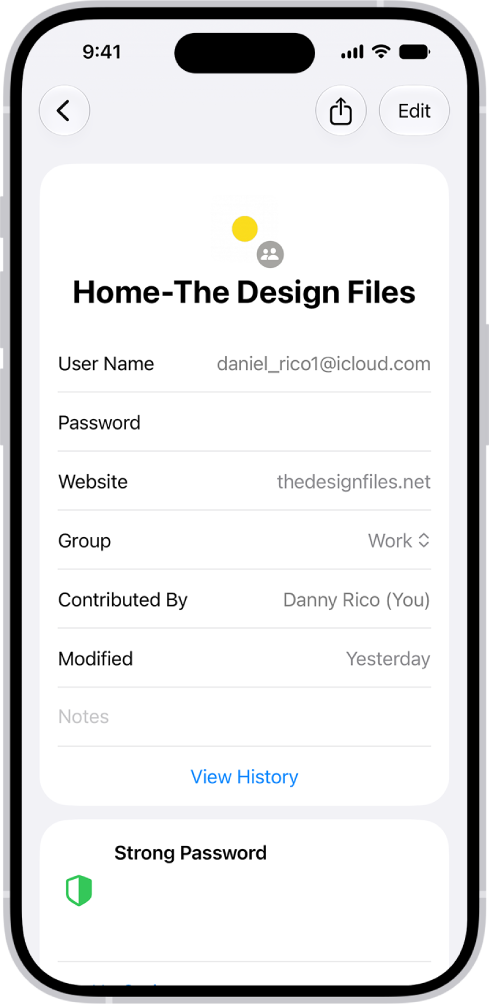
A list of all accounts with passwords that are stored in the Passwords app.

  1. Open the Passwords app on your iPhone.
  2. Tap All, then tap the account for the password you want to delete.
  3. Tap Edit.
  4. Tap Delete and then tap Delete Password to confirm.

Note: The website or app where you created the password still has it.

If you delete a password from your iPhone, you have 30 days to recover the password before it’s permanently deleted. Deleted passwords wait in the Deleted section of the Passwords app, and if you shared the password with a group, you can choose whether to resume sharing it.

  1. Open the Passwords app on your iPhone.
  2. Tap Deleted.
  3. Locate the account for the deleted password and tap the account.
  4. Tap Recover.

If you previously shared the password with a group, choose one of the following:

  • Recover to Group: Resume sharing the password with the group.
  • Recover and Stop Sharing: Stop sharing the password with the group.

Your password returns to your iPhone and iCloud Keychain.

Some websites and apps offer two-factor authentication (also known as multifactor authentication), which helps prevent other people from accessing your accounts even if they know your passwords. Passwords are the first authentication factor, and temporary, one-time verification codes are commonly a second factor.

iPhone can automatically generate these verification codes without your reliance on SMS messages or additional apps. Setting it up takes either a QR code from the website, scanned with your iPhone camera, or a setup key you enter in the Passwords app.

Here’s how to automatically fill in one-time verification codes on iPhone.

Set up automatic verification codes for a website or app by scanning a QR code

Another device with a screen, like a computer or iPad, can display a QR code from a website or app. Then you can scan the code with the iPhone camera.

  1. On your other device, sign in to the area of the website or app where you manage your account. Select options to enable two-factor authentication and an authenticator app. A QR code appears to help you set up an authenticator app.
  2. On iPhone, use the camera to scan the QR code.
  3. On iPhone, select your account for the website or app. A verification code appears below the User Name and Password fields.
  4. On your other device, enter the verification code that appears on your iPhone.

Set up automatic verification codes for a website or app by entering a setup key

If you can’t scan a QR code from another screen, enter a setup key manually instead.

  1. Sign in to the area of the website or app where you manage your account and then select options to enable two-factor authentication and an authenticator app.
  2. Choose the option to manually use a setup key (or setup code or similar) and select and copy the setup key.
  3. Start the Passwords app on your iPhone.
  4. Tap All, then tap your account for the website or app.
  5. Tap Edit, then tap Set Up Code.
  6. Visit the website to get a setup key, enter the setup key in Passwords and then tap Use Setup Key.

If the website offers a QR code, you can touch and hold it, then choose Add Verification in Passwords to do this automatically.

Use a verification code on a website or in an app

  1. Sign in to the website or app.
  2. If prompted, select the option to use an authenticator app.
  3. When asked for a verification code, tap the suggestion that appears above the keyboard.

If no suggestion appears, go to the Passwords app on your iPhone, select your account for the website or app, tap the verification code, then tap Copy Verification Code. Return to the website or app, then paste the verification code into the field.

Automatically delete one-time verification codes

Since one-time verification codes are filled in automatically, there’s no need to leave the website or app you’re signing in to. After Autofill enters the verification codes, you can keep them or choose to delete them automatically.

  1. Start the Settings app on your iPhone.
  2. Tap General, then tap Autofill & Passwords.
  3. Under Verification Codes, turn Delete After Use on or off.

When you secure the data on your Mac with FileVault, you get a recovery key during setup. If you forget your Mac password, you can reset it by entering the recovery key, and you can see that key in the Passwords app on your iPhone.

You can copy the recovery key to use elsewhere, too. It shows up on your iPhone or iPad, as long as it’s signed in to the same Apple Account as your Mac.

  1. Open the Passwords app on your iPhone.
  2. Tap All, then tap the name of your Mac in the list.
  3. Tap the Recovery Key field.
  4. To copy the password to use elsewhere, tap Copy Recovery Key.

Note: You can see the recovery key for your Mac in the Passwords app on your iPhone or iPad where you’re signed in to the same Apple Account as your Mac.

You can view and copy passwords, add notes like security question reminders, and more with the encrypted account information stored on iPhone. iCloud Keychain securely keeps this information up to date across all your approved devices.

You can also view and copy a password for a website or app account, go to the website for an account, or remove an account from your iPhone and iCloud Keychain.

Here’s how to view your passwords and related information on iPhone.

View and copy a password for a website or app account

  1. For an account that uses a password, do one of the following:
    • Ask Siri something like, “Show me my passwords.”
    • Open the Passwords app on your iPhone.
    • On a sign-in screen, tap the Password AutoFill button.
  2. Tap an account, then tap the Password field.
  3. To copy the password to use elsewhere, tap Copy Password.

Add notes for an account with a password or passkey

You can securely store notes about security questions, recovery key information, PIN numbers, and similar details.

  1. Open the Passwords app on your iPhone.
  2. Tap All, then tap an account.
  3. Tap Edit, tap Notes, enter your text, and then tap the Save button.

To update the notes, tap Edit, then tap the Notes field.

Go to the website for an account

  1. Open the Passwords app on your iPhone.
  2. Tap All, then tap an account.
  3. Do one of the following:
    • Tap the Safari button.
    • Tap the website URL, tap Copy Website, then paste the URL into the address field of your browser.

Remove an account from your iPhone and iCloud Keychain

  1. Open the Passwords app on your iPhone.
  2. Tap All, then tap an account.
  3. Swipe left on the account, tap Delete, and then tap Delete Password to confirm.

For example, you might want to remove the account for a website or app that’s no longer available. Note: This action doesn’t remove the account from the website or app where you created it.

Remove a password or passkey from your iPhone and iCloud Keychain

  1. Open the Passwords app on your iPhone.
  2. Tap All, then tap an account.
  3. Tap Edit.
  4. Tap Delete. Tap Delete Password or Delete Passkey to confirm.

Note: The password or passkey stays on the website or app where you created it.

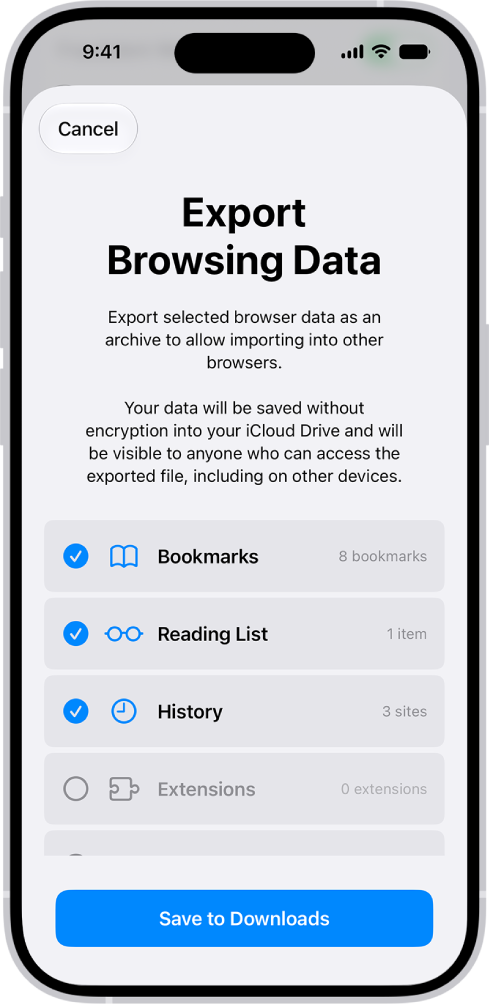
You can export your passwords for websites and accounts to a CSV file, and then import them into another password manager. But not every password goes with you. You can’t export Wi-Fi passwords, passwords you shared with a group you didn’t create, or Sign in with Apple account passwords. The exported file isn’t encrypted, either, so after you import the passwords into another password manager, it’s best to delete the file you exported.

WARNING: Your exported passwords are not encrypted and are visible to anyone who can access the file. After you import the passwords into another password manager, delete the file you exported.

The Export Browsing Data screen, with the Passwords option selected for export to another password manager.

  1. Start the Settings app on your iPhone.
  2. Tap Apps, then tap Safari.
  3. Below History and Website Data, tap Export.
  4. Select Passwords.
  5. Deselect the other choices.
  6. Tap Save to Downloads.
  7. Tap Done.

Note: Wi-Fi passwords, passwords you shared with a group (unless you created the group), and Sign in with Apple account passwords can’t be exported.

AirDrop lets you securely share passwords and passkeys for website and app accounts with someone using an iPhone, iPad, or Mac. Compared to sharing other types of information, though, AirDrop has more stringent requirements for passwords and passkeys. iCloud Keychain must be set up, and you each need to be in the other’s contacts.

Check the AirDrop requirements

For passwords and passkeys, AirDrop has more stringent requirements than it does for sharing other types of information.

  • iCloud Keychain must be set up on your iPhone.
  • The person youʼre sharing with must be in your contacts list in the Contacts app, and they must be listed with the email address they use for iCloud.
  • You must be in the other person’s contacts list in the Contacts app, and you must be listed with the email address you use for iCloud.

Send a password or passkey

If the person you’re sharing with is on iPhone or iPad, ask them to open Control Center and allow AirDrop to receive items. Someone on a Mac needs to allow themselves to be discovered in AirDrop in the Finder.

  1. Start the Passwords app on your iPhone.
  2. Tap All. Tap the account you want to share.
  3. Tap the Share button, then tap Share with AirDrop.
  4. Tap the device or picture of the person you want to send the password or passkey to.

Receive a password or passkey

  1. If you haven’t already done so, allow AirDrop to receive items.
  2. When you receive a request to accept a password or passkey from someone else, tap Accept.

Your iPhone saves the password or passkey, where you can see its information, and iPhone can automatically fill it in on the account’s sign-in screen. It’s saved to your iCloud Keychain, too, which makes it available on other devices where you’re signed in to your Apple Account.