








Got a tip for us?

PDF

Do you need a more powerful PDF editor than your Mac’s Preview app or other free alternatives? UPDF for Mac is one such tool that offers more power and convenience in a premium package.

What is UPDF? Why should you download it?

UPDF is a PDF editor, markup tool, organizer, and reader with a clean UI that emphasizes content. Though many of us can get away with free PDF apps like Preview, some require more powerful tools for annotation, sharing, editing, and signing PDFs. That’s where premium apps like UPDF kicks in.

Editing PDFs on Mac is Never So Easy

UPDF for Mac is a fast, full-featured PDF editing tool that’s particularly easy to use because it’s designed with a simple and clear user interface that won’t confuse anybody.

Drag. Drop. Edit. That’s it!
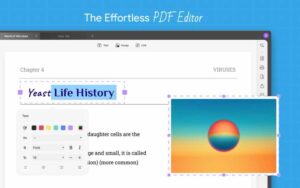
Edit PDF

UPDF for Mac offers comprehensive PDF editing tools that give you the power to do just about anything to your PDF files. It’s as easy as drag and drop.

  • Edit Text: UPDF for Mac provides a range of text editing tools, including font styles, sizes, and formatting options.
  • Edit Image: UPDF can edit the images in your PDF. You can rotate, crop, or replace the images in your PDF. The app can resize, shrink, and stretch your images.
  • Edit Links: The software allows users to edit links within PDFs, making it easy to update URLs or add new links.
  • Edit Headers & Footers: Users can customize headers and footers across PDFs, including adding text, images, or logos.
  • Edit Watermarks & Backgrounds: UPDF for Mac offers advanced watermark and background editing tools, enabling users to add custom designs or remove existing ones.
  • Organize Pages: The software provides tools to organize PDF pages, including rearranging, deleting, or merging pages.

Explore the Power of Generative AI Right Inside UPDF on Mac
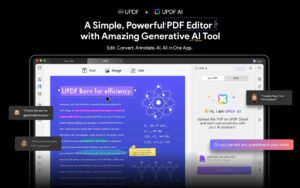
UPDF AI

UPDF for Mac integrates AI technology to enhance productivity and creativity. Users can leverage AI-powered features such as:

  • Translate PDF: Translate any language to what you need with UPDF Mac PDF editor.
  • Summarize PDF: Summarize long PDFs or simplify complex data charts in seconds.
  • Ask PDF: Chat and ask any questions on PDF content. Get explanations for selected text.
  • Chat: The UPDF AI chat function extends beyond topics found in the document. It’s an AI chatbot that interacts with PDF documents, answers questions, and provides insights in a conversational manner for improved productivity. Ask about any topic and the AI can answer.

Your Go-to for PDF Reading and Annotating

UPDF makes it very easy to read PDF files on Mac. Alongside reading your PDF files, you can also write PDF on Mac using a variety of tools.

  • Cloud Storage: 10 GB of cloud storage. This makes it incredibly easy to securely store and sync your PDF files and make them available across all the platforms.
  • Markup Tools: 14 markup tools to review PDFs. You can underline, strikethrough, and add text boxes, stamps, shapes, stickers, and more.
  • Page Display Modes: 5 page display modes to view PDFs flexibly.
  • Light / Dark Read Modes: Options for light and dark read modes.

Simplify Your Workflow on Mac with Smart PDF Tools

UPDF for Mac provides tools to streamline your workflow, including:

  • Create fillable PDFs: Create fillable forms with text fields, checkboxes, radio buttons, lists, drop-down lists and buttons.

  • Fill Forms: When the PDF document is sent, the recipient can easily fill out the pre-defined text fields and mark the appropriate entries in forms.

  • Sign PDFs: Add your signature with a keyboard, mouse, or a trackpad. Furthermore, you can customize the signature to your liking by adjusting its stroke and color.

  • Protect PDFs: Protect PDFs with passwords, permissions, or encryption so only the intended recipient can access your sensitive information.

  • Redact: Redact sensitive information from PDFs.

  • Bates Numbering: Add Bates numbering to PDFs for easy referencing.

Convert PDF with OCR Effortlessly

OCR PDF reader

If you want to do OCR PDF on Mac, UPDF has you covered. The software has OCR technology for converting scanned documents to editable PDFs. The software supports:

  • 14 formats: Convert PDFs to or from 14 popular formats including Word, Excel, and PowerPoint.
  • 38 languages: Recognize and extract text from images or scanned PDFs in 38 languages.

Should I Buy UPDF?

Free apps typically don’t cover all the bases, and premium apps often cost too much. That’s what makes UPDF so great. It’s in the sweet spot of doing a lot and costing a little.

When you chose UPDF Editor, you get a full-featured PDF editor with OCR and AI tools you won’t find in other PDF editors. Despite having more features and a universal license, UPDF is intuitive, user-friendly, and it’s available at a much lower price.

When a PDF editor is an all-in-one app that can accomplish all of your tasks, it simplifies the workflow. It could become your go-to PDF editing solution.

If you need to find an AI PDF tool that is lightweight and easy to use, then UPDF is a very good choice. If you have any other questions about this software, leave a comment down below.

Tag: PDF

You want to convert PDF file on your Mac, iPhone, or iPad, but you’re not sure how.  /”>CleverPDF is an online tool that converts PDF files on iPhone, iPad, and Mac. In this article, I’ll review CleverPDF and show you how to convert PDF files on your iPhone, iPad, or Mac!

CleverPDF Review: The Best Online PDF Converter

While there is no shortage of PDF converters, most of the premium offerings comes with a very high price point. As for the free PDF converters, most of them are trash – forget about deriving a reliable PDF solution.

So, when I stumbled upon CleverPDf, an online PDF converter, a few days ago, I (kind of) pushed it aside almost instantaneously. It was only when I tried it out that I realized that CleverPDF is different from the rest on several pivotal fronts – so much so that most online PDF tools can fail to compete with its versatility. And that’s what has propelled me to write a comprehensive review of this online PDF converter.

If you’ve ever needed to convert PDF to word on Mac, you know how challenging it can be. That’s where CleverPDF and its arsenal of online PDF tools come into the picture. It lets you quickly convert PDF to Word, PDF to Excel, PDF to JPG, PDF to Image, and dozens of other formats in just a few steps. Not only can you convert PDF to Word on Mac, you can also shrink PDF on Mac smoothly and compress them with one of the numerous tools CleverPDF offers. And if you need to encrypt PDF on Mac, let CleverPDF make it painless by allowing you to protect your PDF file with a password easily. Let’s dive into the breakdown!

CleverPDF Review: The Best Online PDF Converter

Best Free Online PDF Converter for Everyone

More Than 40 Tools

Candidly speaking, my biggest criticism about online PDF converters is the lack of efficient tools. Very few of them are capable of delivering a complete PDF solution. But that is not the case with CleverPDF as it not only boasts over 40 highly efficient tools but also accomplishes its intended goal in a very short amount of time.

If you visit their homepage, you will see a list of all PDF Tools that they offer. CleverPDF provides over 40 amazing PDF tools, including the conversion of PDF files and other format files, such as Word to PDF, Excel to PDF, Images to PDF, PNG to PDF, and more. Tools such as Compress PDF, Split PDF, ETC. are also available. These tools are all free to use, and it is not difficult to get started. Even if you are using it for the first time, CleverPDF can quickly help you out even if you have no IT expertise at hand.

To test its efficiency, I threw many challenges at it. The first one was to see how well it’s able to convert PDF to Excel on Mac. While many other apps and services can get it done, very few can do it with accuracy. Frankly speaking, I would say that CleverPDF passed this test with pretty good results. It performed the task fast and with the desired proficiency.

CleverPDF Review: The Best Online PDF Converter

The next challenge that I put before CleverPDF is to check its ability to convert PDF to Word on Mac. Again, not many online PDF converters can get through it proficiently. So, I was keen to see how well it fares. Again, the results were excellent.

CleverPDF Review: The Best Online PDF Converter

Another challenge that I put before CleverPDF is to check its ability to shrink PDF on Mac. I needed to extract some pages in a PDF file and compress them so that I can send a smaller email attachment to my coworker by email, so I used the Split PDF and Compress PDF tools. Then I was pleasantly surprised to find that the Split PDF tool provides various options. I can freely select the pages that need to be extracted. After I successfully downloaded the new PDF file, I uploaded my file to Compress PDF tool, which also provides various options, giving me the ability to choose the compression level according to my needs. To my surprise, a large PDF file was compressed to a smaller file with precision.

CleverPDF Review: The Best Online PDF Converter

CleverPDF Review: The Best Online PDF Converter

Ease of use

I have tried a ton of PDF online tools from feature-rich to lightweight. From what I have experienced, I can say that only a few of them are easy-to-use. Additionally, most of them demand a steep learning curve that kind of spoils the whole experience.

For first-time users with no technical background, CleverPDF is a boon. The best part of this tool is that it comes with clear descriptions under each feature. So, whether you are into PDF converting games professionally or have to deal with PDFs only once in a blue moon, you can get through your job without being enmeshed into any complexity.

Integrated with Several Cloud Storage Platforms

It’s worth mentioning that CleverPDF provides multiple ways to upload and download files. CleverPDF has integrated with Google Drive and Dropbox, which are the most popular file storing platforms. As such, users can upload and save files from and to different cloud storing platforms. Thus, you can seamlessly access your stored files and convert them anytime and anywhere.

Free and Safe to Use

After I used CleverPDF many times, I confirmed that the web-based app is totally free. Its user interface is simple, and navigating it on Apple devices is a breeze.

Premium license for Offline versions (Mac and Windows) are also available. So, if you want to carry out your tasks offline, perform batch processing and convert larger files, you can take advantage of this all-in-one solution to handle your PDFs without any hassles.

Apple devices are renowned for their security, but that also requires user participation to a certain extent. If you want to protect your privacy, you must eliminate potential loopholes by imposing necessary safeguards. To help with that, CleverPDF will automatically delete uploaded files within 30 minutes after the conversion is completed. To further safeguard your privacy, CleverPDF gives users the ability to manually remove the files from the server instantly in a single click. So, you shouldn’t worry about the security and privacy of your data.

Universal Compatibility

Needless to say but I wish to emphasize that CleverPdf works perfectly on any OS. So, regardless of which side of the stream you belong to – Windows, macOS, Linux, iOS or Android, – You can easily convert files with your device at anytime and anywhere. That’s the advantage of being a modern online tool.

 Final thoughts……

Using CleverPDF made me realize how much I missed the quick conversion and simple interface of online PDF tools. While other tools are quite capable, the speed of CleverPDF simply blows my mind. After my testing, i can confirm that CleverPDF is a very efficient tool for those who often need to deal with PDFs and want to have reliable tools to get the job done. Loaded with an array of tools, a perfect file encryption mechanism, and a reliable privacy policy, this all-in-one PDF converter can come in handy to the people who have to often deal with PDFs and want a tool that can perform various tasks with the needed precision.

Go ahead give CleverPDF a try. While you are at it, do let us know about your favorite function of the tool.

Tag: PDF