Got a tip for us?

Photos

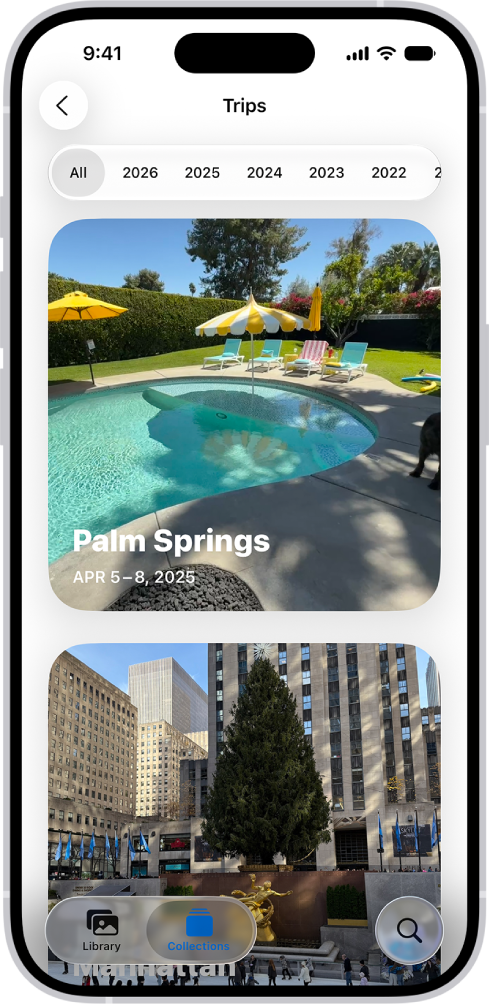
In the Photos app, you can quickly find photos and videos from your trips grouped into collections, based on location data from the photos. They’re all in Trips, in Collections. And to help you find older trips, you can jump to a year.

Trips is open in the Photos app. A row of years appears along the top of the screen. All is selected, and below it are collections of photos, each from a different trip.

  1. Open the Photos app on your iPhone.
  2. Tap Collections, scroll down to Trips, and tap the trip collection you want to view.

Tap a year at the top of the screen to help you find older trips.

Tag: Photos

In the Notes app, you can add photos, videos, and information from other apps, such as maps, links, and documents.

That could be a location from Maps, a webpage from Safari, or a PDF from Files. You can change the preview size of attachments, and even draw on a photo. Photos and videos you take in Notes can be saved to the Photos app, too.

Here’s how to add photos, video, and more to notes on iPhone.

Add a photo or video

  1. Open the Notes app on your iPhone.
  2. In a note, tap the Attachments button and choose an option. Tip: To draw on a photo, tap the photo, then tap the Handwriting Tools button. To save photos and videos taken in Notes to the Photos app, go to Settings > Apps > Notes, then turn on Save to Photos.

Add info from another app to a note

Information from another app can go into a note as an attachment, such as a screenshot, a PDF in Files, a webpage in Safari, or a location in Maps.

  1. In the app you’re using, open the item you want to share (for example, a map or webpage).
  2. Tap Share or the Share button. Then tap Notes or Add to Quick Note.
  3. Save the item to a new note or choose an existing note.

Change the preview size of attachments

  1. Open the Notes app on your iPhone.
  2. In a note, you can change the preview size of the following:
    • A single attachment: Touch and hold the attachment or tap the More button, tap View As, and choose an option.
    • All attachments in a note: Tap the More button, tap Attachment View, and then choose Set All to Small or Set All to Large.

View all attachments in Notes

  1. Open the Notes app on your iPhone.
  2. Above the notes list, tap the Folder Actions button. Then tap View Attachments to see thumbnails of photos, links, documents, and other attachments. (Attachments in locked notes aren’t shown.) To go to a note with a specific attachment, touch and hold attachment thumbnail, and tap Show in Note.
Tag: Photos

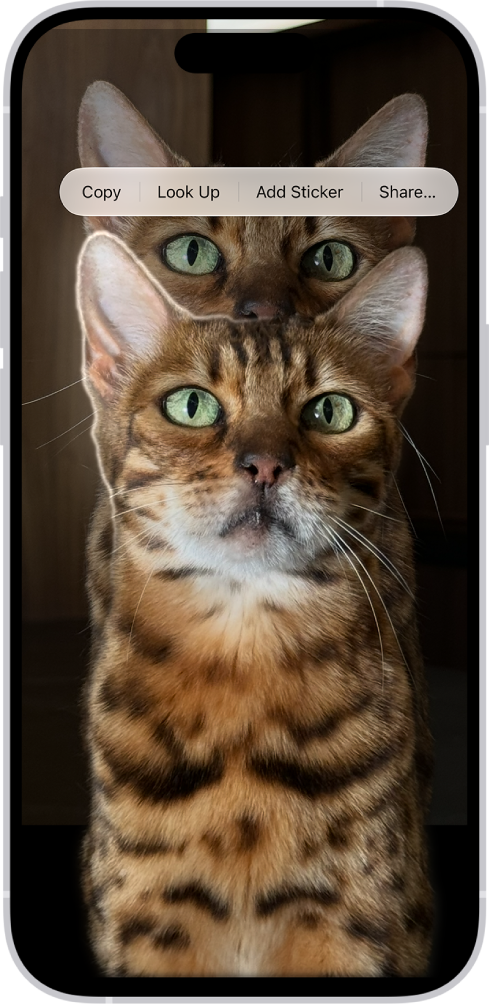
You can isolate the subject of a photo or video frame from its background, then copy or share it in other documents and apps. You can use this feature in Photos, Safari, Quick Look, and more.

Once the subject is lifted, you can paste it into an email, text message, or note, look it up to learn more about it, or add it as a sticker to use in Markup and Messages. You can also share it with AirDrop or Mail.

A photo is open in the Photos app library. The subject in the center of the photo is outlined and the Copy, Add Sticker, and Share buttons appear above it.

  1. Open a photo in full screen, or pause a video on any frame.
  2. Touch and hold the subject. When an outline appears around the subject, do one of the following:
    • Tap Copy or Copy Subject, then paste the subject into an email, text message, or note.
    • Continue to hold, then with another finger, open a document in another app and drag the subject into the document.
    • Tap Look Up to learn more about the subject.
    • Tap Add Sticker, then save the sticker to use in Markup, Messages, and more.
    • Tap Share, then choose a sharing option, such as AirDrop or Mail.
Tag: Photos

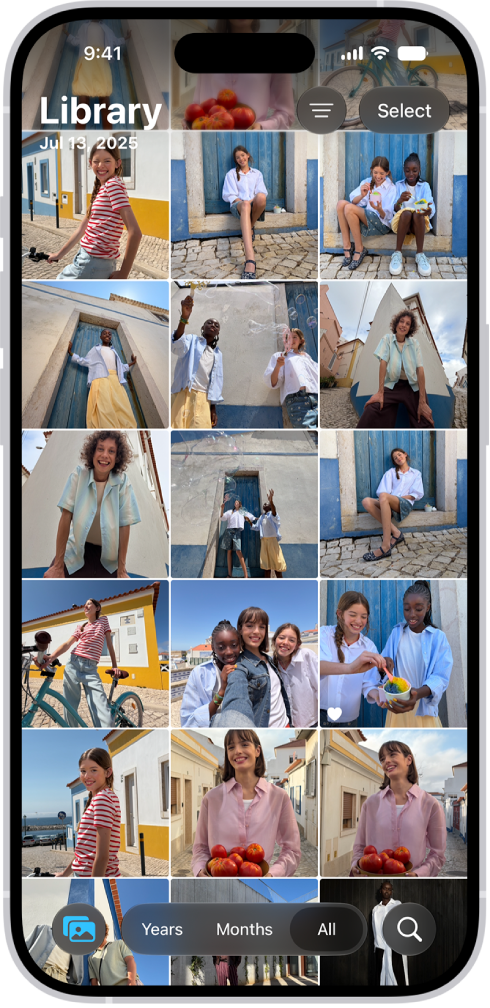
Browse the library in the Photos app to view your entire collection of photos and videos. You can go to a specific time in your library by year or month, and change the size and appearance of the photo thumbnails. You can also hide screenshots or photos shared with you in Messages.

The Photos app is open to the photo library grid. At the bottom of the screen, from left to right, are buttons to view the library by Years, Months, and All buttons. In the bottom-right corner is the Search button.

View your library

  1. Start the Photos app on your iPhone.
  2. Make sure Library is selected.
  3. Swipe down to browse photos and tap Years or Months to go to a specific time in your library.

Change the library display

In the library photo grid, you can change the size and appearance of photo thumbnails and manage what content is displayed in your library.

Quick tip: Pinch the screen to zoom in or out as you view the library.

  1. Start the Photos app on your iPhone.
  2. Tap the Sort and Filter button.
  3. Tap View Options, then do any of the following:
    • Enlarge the size of the photo and video thumbnails: Tap Zoom In.
    • Reduce the size of the photo and video thumbnails, to see more at the same time: Tap Zoom Out.
    • View each photo or video thumbnail in the dimension it was captured in: Tap Aspect Ratio Grid. To return to square thumbnails, tap Square Photo Grid.
    • Hide screenshots: Tap Screenshots.
    • Hide the shared library badge on thumbnails: Tap Shared Library Badge.
    • Hide photos and videos shared with you in Messages: Tap Shared with You.
    • Hide the thumbnail badge on items in your iCloud Shared Photo Library: Tap Shared Library Badge.
    • Hide photos and videos you manually added from your Mac: Tap From My Mac.
Tag: Photos

Use star ratings to rank your photos and videos from 1 to 5 stars. After you apply ratings, you can filter your Photos library to quickly find your favorite shots.

Star ratings appear in the top-left corner of each image in your library grid, and you can change a rating, remove it, or apply one to an unrated image later. You can also filter by rating to see all items with that rating, or all items in your library without a rating.

Here’s how to apply star ratings to photos and videos on iPhone.

Turn on star ratings

  1. Start the Photos app on your iPhone.
  2. Tap Collections and tap your Apple Account profile at the top of the screen.
  3. Turn on Show Ratings Controls.

Rate a photo or video

  1. Start the Photos app on your iPhone.
  2. Open a photo or video.
  3. Tap the Unrated button. Then tap a star rating, from 1 through 5. Tip: Star ratings appear in the top-left corner of an image in your photo library grid. Touch and hold an image in the grid to change the star rating, remove it, or apply a rating to an unrated image.

Filter photos and videos by star rating

  1. Start the Photos app on your iPhone.
  2. Tap the Sort and Filter button, then tap Rating.
  3. Tap a rating level to see all items with that rating, or tap Unrated to see all items in your library without a rating.

To remove the rating filter, tap the star at the top of the library, then tap Remove Filters.

Tag: Photos

Use the Photos app to view photos and videos on your iPhone.

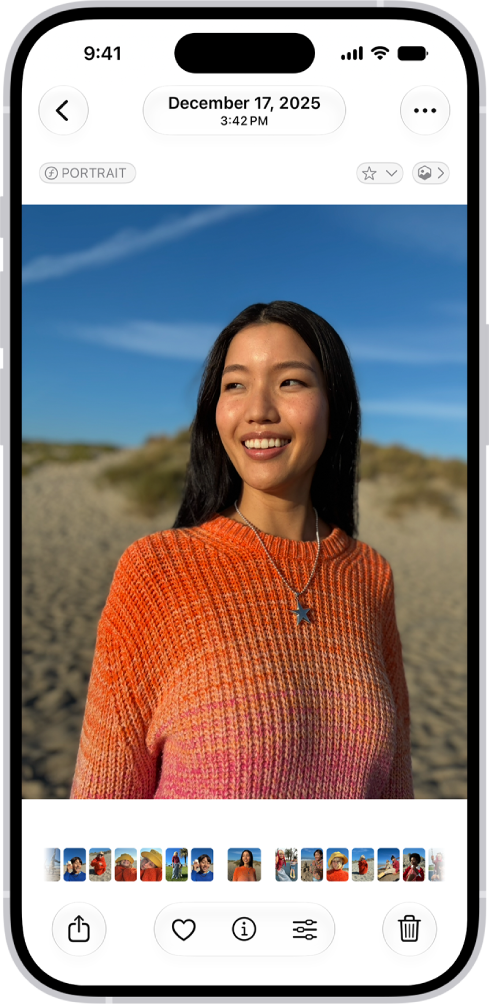
You can open a photo to view it in full screen, then keep browsing, or use the thumbnails below the photo to quickly jump forward or back. On iPhone 12 or later, you can view the photo with a 3D effect using Spatial Scene. To focus on the photo you’re viewing, you can hide the controls onscreen. Videos play right in Photos, too.

Here’s how to view photos and videos on iPhone.

View photos

An open photo with thumbnails of other photos across the bottom of the screen. At the top left is a Back button to go back to browsing.

  1. Start the Photos app on your iPhone.
  2. Tap a photo to view it in full screen. Tip: Tap the Spatial Scene button, then move your iPhone in your hand to view the photo with a 3D effect (available on iPhone 12 or later).
  3. Swipe left or right on the photo to keep browsing, or swipe the thumbnails below the photo to quickly jump forward or back.
  4. Tap the Back button to close the photo and return to the library or collection.

Quick tip: Tap the photo you’re viewing to hide the onscreen controls and focus on it, then tap it again to show the controls.

Play videos

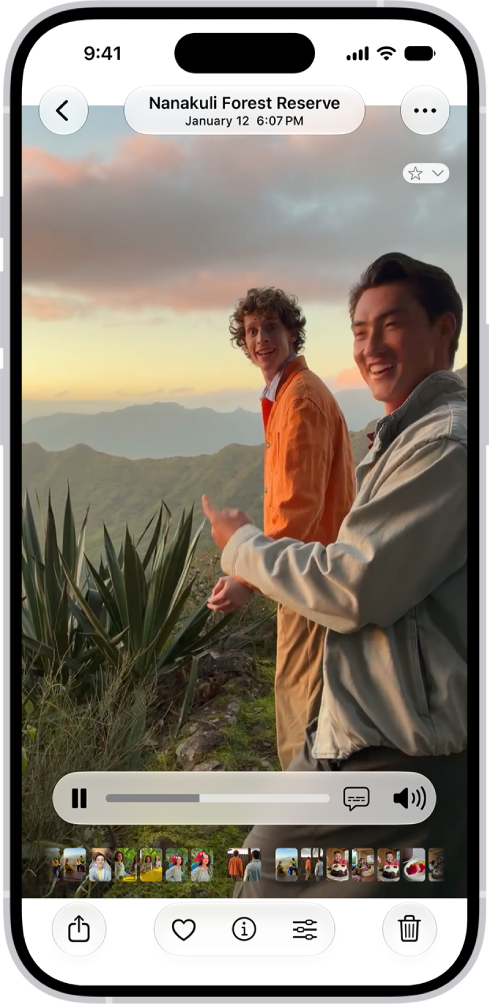
An open video with a Play/Pause button, a progress bar, and a Mute/Volume button along the bottom. At the top left is a Back button to go back to browsing.

  1. Start the Photos app on your iPhone.
  2. Tap a video to play it. As the video plays, you can pause the video, or drag the gray bar to go forward or back in the video.
  3. Tap the Back button to close the video and return to the library or collection.
Tag: Photos

Use Photos on your iPhone to find your photos, enjoy your memories, and share your best shots. The Library tab shows all your photos organized by date, and memories turn your photos and videos into personalized collections set to music. You can also adjust light and color, crop, and add filters or styles.

Each memory centers on a theme, like a person, pet, place, event, or activity. You can share photos with Mail, Messages, or AirDrop, or share all the photos and videos in a collection.
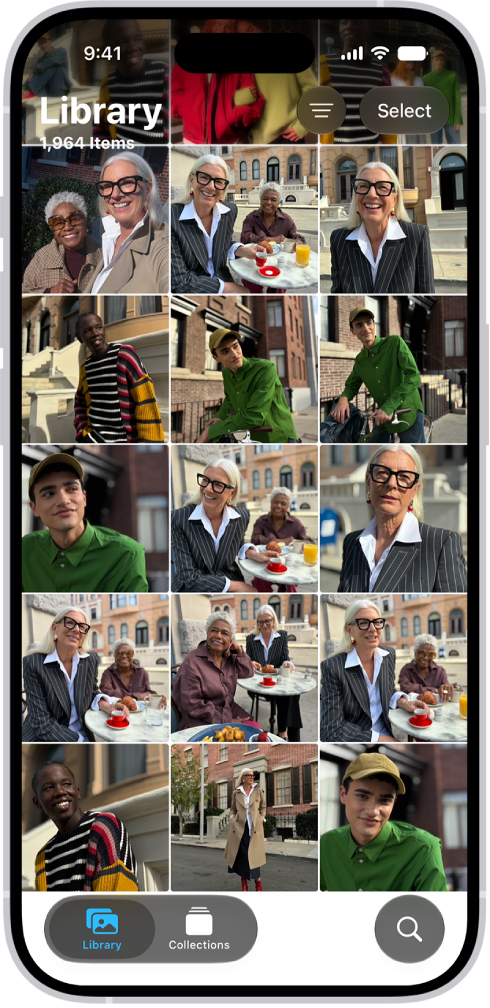
The Photos app is open and the Library tab is selected at the bottom of the screen.

Browse your photos

To get started viewing your photos and videos, go to the Photos app. The Library tab shows all your photos organized by date. To view collections of photos—like Albums, Recent Days, People & Pets, and more—tap Collections .
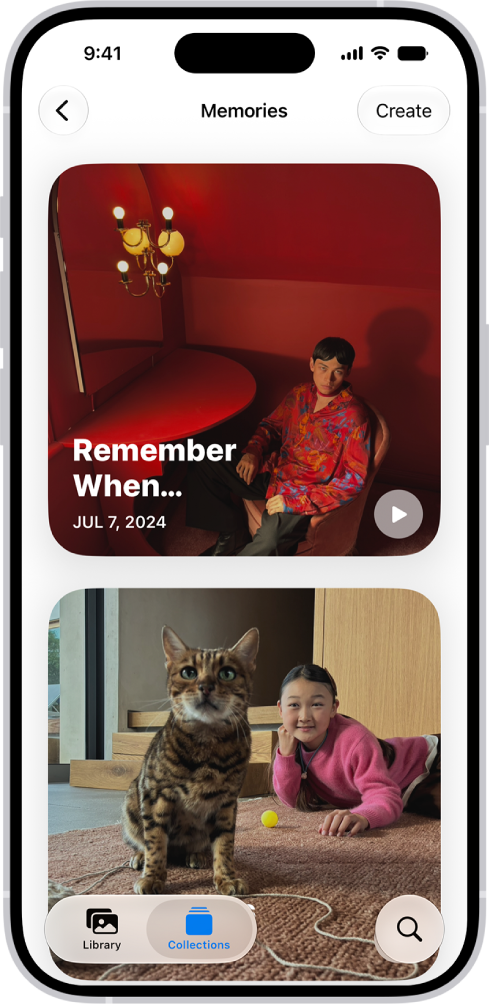
The Photos app is open to the Memories collection.

Enjoy your memories

Relive your favorite memories with personalized collections of photos and videos that are set to music and play like a movie. Tap Collections , tap Memories, then tap a memory. Each memory features photos from your library curated around a theme—like a person, pet, place, event, or activity.
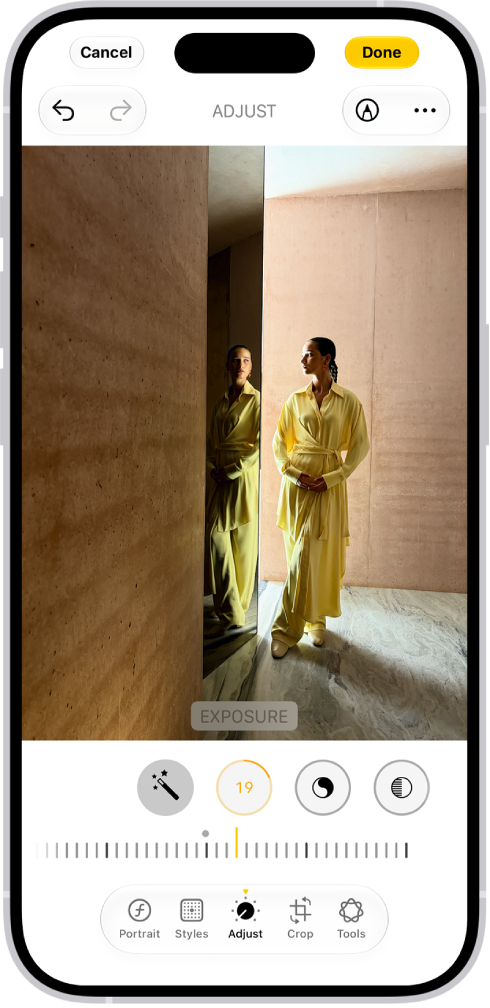
The Edit screen with a photo in the center. At the bottom of the screen, from left to right, are the Adjust, Filters, Crop, and Clean Up buttons. The Adjust button is selected and there is a slider to adjust Brilliance. The Cancel button is in the top-left corner of the screen and the Done button is in the top-right corner.

Edit your photos

To make your photos stand out, adjust light and color, crop, rotate, add a filter, and more. Open a photo or video, then tap the Edit button to start editing.
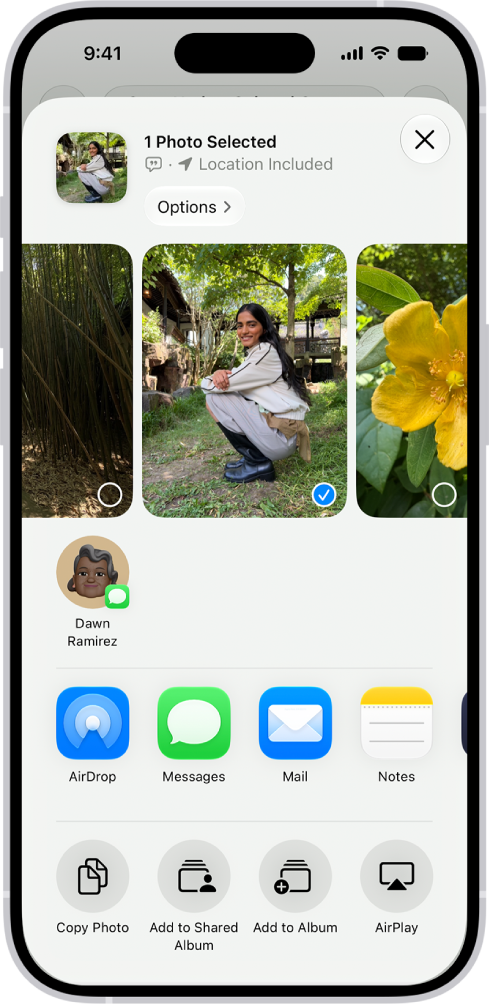
A selected photo is displayed in the top half of the iPhone screen, with a row of share options below. Additional options appear below those, including Copy Photo, Add to Shared Album, Add to Album, and Use as Wallpaper.

Share your photos

Open a photo or video, tap the Share button, then choose a sharing option like Mail, Messages, or AirDrop. To share all the photos and videos in a collection, tap the More button, then tap Share.


Tag: Photos

You can add photos and videos to and delete them from the albums you create in the Photos app. You can also search within an album to quickly find specific photos and videos.

You can work with several items at once, and search by location, date, keyword, and more. Your albums can be sorted and filtered, too.

Here’s how to add, delete, and find photos and videos in albums on iPhone.

Add photos and videos to an album

  1. Open the Photos app on your iPhone.
  2. Tap Collections and tap Albums.
  3. Tap an album to open it.
  4. Tap the More button and then tap Add Photos.
  5. Select the photos or videos you want to add to the album and then tap the Done button.

Quick tip: Tap the Search button to look for photos by location, date, keyword, and more.

Add photos and videos to an album from your library

  1. Open the Photos app on your iPhone.
  2. Tap Library. Then tap a photo or video to view it in full screen.

    To add multiple photos or videos at the same time, tap Select, then tap the items you want to add.

  3. Tap the More button, tap Add To, and then tap Album, Shared Album, or create a new one.
  4. Tap the album you want to add to.

Quick tip: To sort and filter your albums, tap the More button at the bottom of the screen. Looking for a specific album? Use the Search button.

Remove photos and videos from an album

  1. Open the Photos app on your iPhone.
  2. Tap Collections and tap Albums.
  3. Tap an album to open it.
  4. Touch and hold the photo you want to remove. Tap Remove from Album.

Search for photos in an album

  1. Open the Photos app on your iPhone.
  2. Tap Collections.
  3. Tap Albums. Tap the album you want to search in.
  4. Tap the Search button and enter the person, object, or place you’re looking for. Tap the Search button.
  5. Tap the Close button to close the search results.
Tag: Photos

The Photos app creates collections of your photos and videos based on where they were taken. You can use the Map view to see photos taken in a specific location, look for photos taken nearby, and see collections of photos on a map.

Only photos and videos with embedded location information, or GPS data, show up on the map. You can also check where any single photo or video was taken from its info.

View your photo library on a map

A map lets you browse your photo library by location.

  1. Start the Photos app on your iPhone.
  2. Tap Library, tap the Sort and Filter button, and tap Show Map. Only pictures and videos that have embedded location information (GPS data) are included. Tip: Pinch the map to zoom in and out, or drag to see more locations.
  3. Tap a photo thumbnail to see all of the photos and videos taken in that location.

Check where a photo or video was taken

To see where a photo or video was taken, check its location while you’re viewing it.

  1. Start the Photos app on your iPhone.
  2. Open a photo and swipe up or tap the Info button.
  3. Tap the map or address link to see more details.

Quick tip: Tap Show Nearby Photos for more photos or videos from this location.

View a collection on a map

On a map, you can also browse a collection’s photos and videos by location.

  1. Start the Photos app on your iPhone.
  2. Tap Collections and then tap a collection such as a trip or a recent day.
  3. Tap the More button and then tap Show Map. Tip: Pinch the map to zoom in and out, or tap Show Nearby Photos to view more photos taken in the area.
  4. Tap the Close button to close the map.
Tag: Photos

Some long video files are too large to send in a standard text message. You can use AirDrop, iCloud, or Mail Drop to send long videos that you record with your iPhone camera.

AirDrop is the simplest way to send a large video to someone nearby on an iPhone, iPad, Mac, or Apple Vision Pro, since it sends information using Wi-Fi and Bluetooth.

Here’s how to share long videos on iPhone.

Send a video using AirDrop

AirDrop is the simplest way to send a large video to a nearby Mac, iPhone, iPad, or Apple Vision Pro. It sends information using Wi-Fi and Bluetooth®, so before you send anything, check that both you and the recipient have these controls turned on in Control Center.

  1. If the person you’re sending the video to isn’t in your contacts, have them do one of the following:

    • On iPhone or iPad: Open Settings, tap General, tap AirDrop, and tap Everyone for 10 Minutes.
    • On a Mac: Choose Apple menu > System Settings. Then click General in the sidebar. Click AirDrop & Handoff. Then click the pop-up menu next to AirDrop and choose Everyone.
  2. Start the Photos app on your iPhone.
  3. Tap the video you want to send. Tap the Share button.

    If you want to send the video in its original format, including metadata, location, and any associated edit history or captions, tap Options, then turn on All Photos Data.

  4. Tap AirDrop and then tap the contact or device you want to share with.

After you share, the recipient gets an alert asking them to accept or decline the AirDrop transfer.

Send a video using Mail Drop

With Mail Drop, you can send a large video as an attachment in Mail.

  1. Start the Photos app on your iPhone.
  2. Tap the video you want to send, tap the Share button, and then tap Mail.
  3. Tap the To field and then enter the name or email of the recipient.

    If you want to add a subject or message, tap the Subject field or email body.

  4. Tap the Send button to send.

Recipients have 30 days to download Mail Drop attachments.

Tag: Photos