








Got a tip for us?

Photos

When you search in the Photos app, you’ll see suggestions of dates, locations, and people you’ve named in your photo library. You can search within your Library or Collections tabs, or within a specific album or collection, and you can search by place, category, business names, events, text such as an email address or phone number, and people or pets you’ve named.

With Apple Intelligence, you can search for specific images by describing what you want to find, and search video clips for key moments.

Apple Intelligence on iOS 27 or later is available on an Apple Intelligence-enabled iPhone 15 Pro, iPhone 15 Pro Max, or iPhone 16 model or later. Apple Intelligence is not available in all languages or regions. Usage limits may apply.*
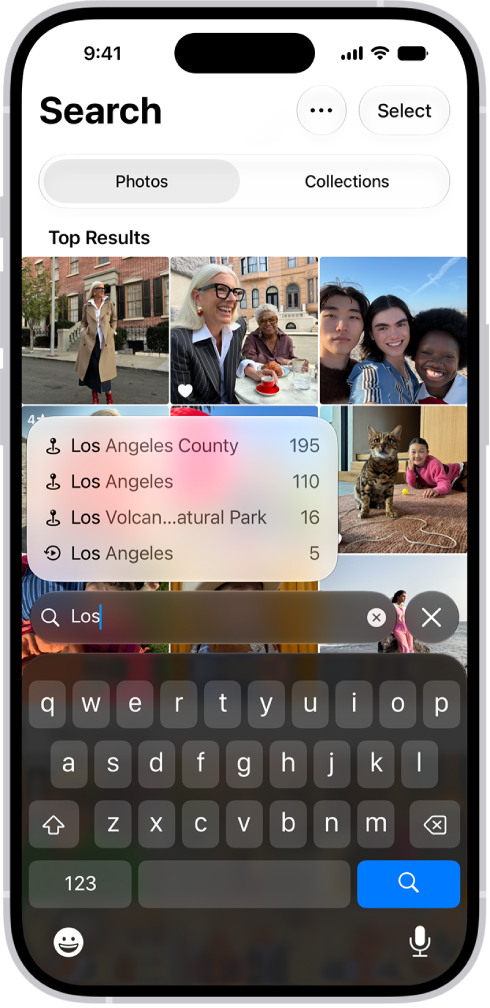
The Search screen in the Photos app showing search suggestions based on the text entered in the search field.

Search for photos and videos

  1. Open the Photos app on your iPhone.
  2. Tap the Search button in the bottom-right corner.
  3. Type what you’re looking for into the search field, such as:
    • Date (month or year)
    • Place (city or state)
    • Business names (museums, for example)
    • Category (beach or sunset, for example)
    • Events (sports games or concerts, for example)
    • People or pets you have named in your photo library
    • Text (an email address or phone number, for example)
    • Caption
    • If you’re using Apple Intelligence, enter a description using natural language—”Maya skateboarding in a tie-dye shirt,” or “Sadie cartwheeling on the grass,” for example.
  4. Tap one of the suggestions or tap the Search button.
  5. Swipe up to browse the complete search results, or do any of the following:
    • Select specific search results: Tap Select and select the photos and videos you want to share or add to an album.
    • View albums or memories that contain the search result: Tap Collections.
    • Sort search results: Tap the Sort and Filter button. Then tap Added to sort by the date added to your library, or tap Captured to sort by the date taken.
    • Filter search results: Tap the Sort and Filter button. Then tap an option, such as Favorites or Edited.
  6. Tap the Close button to exit search.

Quick tip: Narrow your search by including a media type, such as Video or Portrait, in the search field.

Search by shared library participant

As a participant in an iCloud Shared Photo Library, you can also search by who added a photo or video to the library.

  1. Open the Photos app on your iPhone.
  2. Tap the Search button, then enter “Shared by.”
  3. Tap a suggested name.

*Apple Intelligence is available with Siri and device language set to Chinese (Simplified), Chinese (Traditional), Danish, Dutch, English, French, German, Italian, Japanese, Korean, Norwegian, Portuguese, Spanish, Swedish, Turkish, or Vietnamese. Some features may not be available in all regions or languages. Some devices may not be available in all regions. Siri AI is available in beta in iOS 27, iPadOS 27, macOS 27, watchOS 27, and visionOS 27 and requires an Apple Intelligence–enabled device set to a supported language. Available in English to start. Siri AI will not be initially available in the EU on iOS, iPadOS, and watchOS. Certain Apple Intelligence features that rely on server-side models are subject to daily usage limits, including but not limited to Siri AI, Intelligent Photo Editing Tools, Image Playground, and AFM 3 Cloud models in Shortcuts. Daily limits may vary by feature, request complexity, system demand, system policies, and other factors. Expanded access to such features will be available for a fee in the future. Use of these features is subject to the Apple Intelligence Terms and Conditions.
You can use iCloud Photos to keep your photos and videos securely stored in iCloud. If you turn on iCloud Photos on all your devices, you can see the photos and videos you took on iPhone on any device.

When iCloud Photos is turned on, the photos and videos you take are uploaded automatically and stored in their original format at full resolution. Any changes you make to your photo collection on one device are reflected on your other devices, too. You can check whether your photos are syncing right from the Photos app.

Here’s how to back up and sync your photos and videos with iCloud.

Note: Make sure that you’re signed in to the same Apple Account on all your devices, and that your devices meet these minimum system requirements: iOS 8.3, iPadOS 13.1, macOS 10.10.3, or later, or a Windows device with iCloud for Windows 7.x or later.

Turn on iCloud Photos

  1. Open the Settings app on your iPhone.
  2. Tap your name, then tap iCloud.
  3. Tap Photos and turn on Sync this iPhone.

When you take a photo or video, iCloud automatically uploads it, so your photos stay backed up and in sync. You can access your library from any device, anytime.

Check if your photos and videos are backed up to iCloud

To make sure you have copies if something happens to your iPhone, check that iCloud Photos is syncing your photos to iCloud.

  1. Open the Photos app on your iPhone.
  2. Tap Collections.
  3. In the top-right corner of the screen, you can see a preview of your syncing status. You may see any of the following:
    • Yellow badge: iCloud syncing is paused. Tap your account icon to see the details.
    • Yellow warning icon: Your iCloud storage is almost full. Tap your account icon to see the details.
    • Red exclamation mark: Your iCloud storage is full.
    • Blue badge: You have notifications from a shared library or shared album. Tap your account icon to see the details.
    • Partially filled blue circle around your account icon: Photos are actively uploading to iCloud. Tap your account icon to see the details.
    • Partially filled gray outline around your account icon: Uploads are paused. Tap your account icon to see the details.
  4. Tap your account to see more details. The last time your iPhone synced with iCloud appears below the account profile.

Note: If iCloud sync is in progress or paused, a notification also appears in the upper-left corner of the library.

Sync iCloud Photos immediately

Once you turn on Sync Immediately, iCloud Photos prioritizes syncing items added to your library after that.

  1. Open the Photos app on your iPhone.
  2. Tap Collections. Tap your iCloud account profile at the top of the screen.
  3. Tap Sync Immediately, then tap For Today.

To turn off syncing, tap Off. Sync Immediately automatically turns off after one day.

Note: Sync Immediately may affect battery and cellular usage and will pause if Low Power Mode or Low Data Mode is turned on.

Turn off Optimize Storage on your iPhone

To make the most of the storage space on your iPhone, iCloud Photos offers Optimize iPhone Storage. When it’s on, iCloud stores all your full‑resolution photos and videos in their original formats, and your iPhone keeps storage-saving versions. Optimize iPhone Storage is on by default, but you can turn it off.

  1. Open the Settings app on your iPhone.
  2. Tap your name, then tap iCloud.
  3. Tap Photos, tap iPhone Storage, and then tap Download and Keep Originals.

Get more iCloud storage

You can upgrade to iCloud+ for more storage and additional features if your uploaded photos and videos exceed your storage plan.

Tags: iCloud, Photos

After you set up or join an iCloud Shared Photo Library, you can share photos and videos with friends and family in the Photos app. You and up to five other participants can add photos and videos to the library, and any edits, comments, or other adjustments made to them are seen by everyone in real time.

Content in a shared library is also added to everyone’s memories, featured photos, and the Photos widget. And because shared photos and videos are separate from your personal library, you can switch between viewing the shared library, your personal library, or both. When you view both, content that’s part of the shared library has a badge on its thumbnail.

Switch between viewing your iCloud Shared Photo Library and personal library

  1. Start the Photos app on your iPhone.
  2. Make sure Library is selected.
  3. Tap the Sort and Filter button and select the following:
    • View your Photos content and iCloud Shared Photo Library content: Tap Both Libraries.
    • View only your personal Photos content: Tap Personal Library.
    • View only iCloud Shared Photo Library content: Tap Shared Library.

Viewing both your personal and shared library? Anything that’s part of the shared library shows a badge in the top-right corner of its thumbnail.

Make edits and changes to content in an iCloud Shared Photo Library

All participants see these changes when you make them to photos and videos in an iCloud Shared Photo Library:

  • Edits.
  • Favorites, captions, keywords, or date and time adjustments.
  • Deleted content.

Note: If someone deletes content you added to the shared library, you get a notification. To turn off these notifications, in Photos tap your account in the top-right corner of the screen, tap Shared Library, and then turn off Deletion Notifications. You can also move deleted content you added from Recently Deleted back to your personal library within 30 days.

Move shared content from an iCloud Shared Photo Library to your personal library

Photos stored in your shared library carry a badge in their top-right corner. If you contributed photos and videos to the shared library, you can move them back to your personal library.

  1. Start the Photos app on your iPhone.
  2. Open a photo or video in your shared library.
  3. Tap the More button at the top of the screen. Tap Move to Personal Library.

Add storage space to your iCloud Shared Photo Library

All participants can access the content in an iCloud Shared Photo Library, but the iCloud storage it uses counts against the library organizer’s storage space.

When the shared library content goes beyond the organizer’s available storage space, the organizer can upgrade to iCloud+ or add more storage to their existing iCloud+ subscription.

Tags: iCloud, Photos

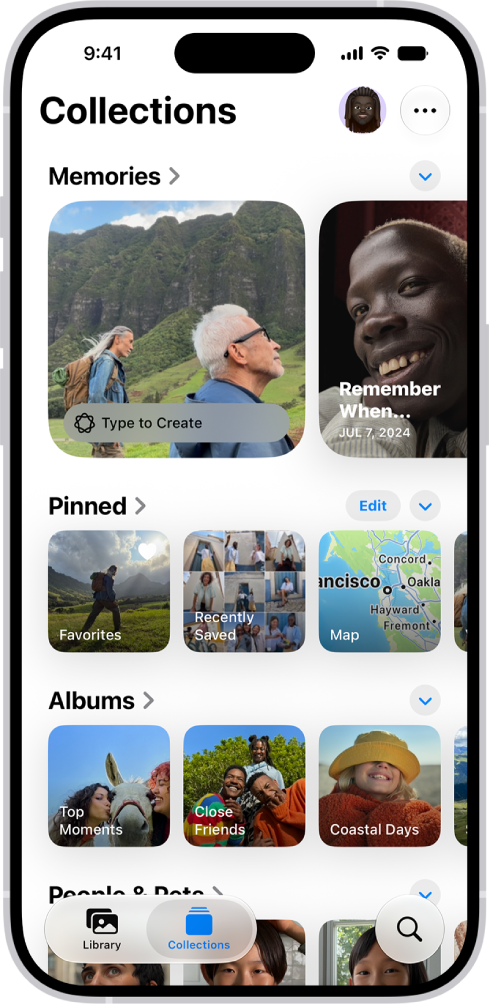
Your photos and videos are organized into curated collections such as Memories, Trips, People & Pets, and more. Some collections are also organized by category such as Live Photos, Selfies, Recently Saved, and Recently Viewed.

You can change how collections look, with larger or smaller image tiles or no images at all, and change the order they appear on the screen. The ones you view most often can be pinned at the top, so they’re easy to find. Here’s how to browse your photo collections on iPhone.

The Photos app is open and the Collections button is selected at the bottom of the screen. On the screen from top to bottom are the following Collections: Memories, Pinned, Albums, and Recent Days.

View your collections

  1. Open the Photos app on your iPhone.
  2. Tap Collections.
  3. Swipe up to view the collections. Under each collection heading, swipe left or right to see different collections. Or tap the heading to see all the collections in that category.
  4. Tap a collection to open it.

Change the collections display

Collections can show larger or smaller image tiles, or no images at all, and you can change the order they appear in on the screen.

  1. Open the Photos app on your iPhone.
  2. Tap Collections.
  3. Tap the Layout and Reorder button at the top of the screen and then do any of the following:
    • Enlarge the size of the collection tiles: Tap the Large Grid button.
    • Reduce the size of the collection tiles: Tap the Small Grid button.
    • Show the default display: Tap the Mixed Grid button.
    • Hide the collection tiles: Tap Collapse All.
    • Reorder collections: Tap Reorder and touch and drag a collection into a new position. Tap the Done button.
    • Choose which library to include in collections (if you’re part of an iCloud Shared Photo Library): Tap Both Libraries, Personal Library, or Shared Library.

Quick tip: Tap the Forward button to hide the image tiles for a single collection, and tap it again to stop hiding them.

By default, videos and Live Photos automatically play when you tap Collections. To turn autoplay off, tap your account in the top-right corner, then turn off Auto-Play Motion and Loop Videos.

Reorder collections

You can change the order of collections so the ones you go to most frequently appear first. For example, if you frequently view your Shared Albums, you can move them above other collections.

  1. Open the Photos app on your iPhone.
  2. Tap Collections.
  3. Scroll to the bottom of the screen and tap Reorder. Then drag a collection into a new position.
  4. Tap Done.

You can also tap the Layout and Reorder button, then tap Reorder.

Pin collections and albums

To keep the collections you view most often easy to find, choose what goes in the Pinned collection at the top of the screen.

  1. Open the Photos app on your iPhone.
  2. Tap Collections.
  3. Tap Edit (to the right of the Pinned heading), then do any of the following:

    • Remove a pinned collection: Tap the Remove button and tap Delete.
    • Pin a collection: Tap the suggested collection you want to add, or scroll down and tap Any Collection or Album to see more options.
    • Reorder pinned collections: Touch and hold a pinned collection. Then drag it to a new position.

    Note: Collections with the Remove button next to them are currently in your pinned collections. Collections with the Add button next to them are not yet pinned.

  4. When you’re done, tap the Close button.

Quick tip: Pinning a collection is quick: touch and hold it, then tap Pin. To remove it from Pinned, touch and hold it again and tap Unpin.

Filter and sort items in a collection

You can filter items in a collection by category, like Captured by Me, Edited, or Rating, and sort them to display oldest first or newest first.

  1. Open the Photos app on your iPhone.
  2. Tap Collections, then tap a collection to open it.
  3. Tap the Sort and Filter button and then do either of the following:
    • Filter items: Tap the filter you want to apply.
    • Sort items: Tap Sort By. Tap Newest First or Oldest First.
Tag: Photos

Use albums in the Photos app to view and organize your photos and videos. You can also rename, rearrange, and delete albums and create folders to contain multiple albums.

If you use iCloud Photos, albums are stored in iCloud. They’re up to date and accessible on devices where you’re signed in to the same Apple Account. You can also sort and filter your albums, or put them in a custom order.

Create a new album

  1. Start the Photos app on your iPhone.
  2. Tap Collections.
  3. Tap Albums, then tap the Add button.
  4. Tap New Album and then name the album, add photos, and choose a key photo to represent the album.
  5. Tap Create.

Sort and filter albums

  1. Start the Photos app on your iPhone.
  2. Tap Collections.
  3. Tap Albums and tap the More button. Choose a sort option.

    If you choose Sort by Custom Order, touch and hold an album, then drag it to a new position.

  4. To show only albums or only folders, tap Filter and tap Albums or Folders.

To change the format of the albums list, tap the More button, then tap List View or Album Cover.

Update an album

  1. Start the Photos app on your iPhone.
  2. Tap Collections and tap Albums.
  3. Tap the album to open it, then tap the More button.
  4. Tap the current title and then do any of the following:
    • Change the name: Enter a new name in the text field.
    • Change the key photo: Tap the photo icon in the bottom-right corner of the current key photo. Then select a new photo in the photo grid.
    • Add or remove photos: Tap Add Photos and then tap the photos you want to add (tap All to see your entire library), or deselect photos to remove them from the album. Tap the Done button to save your changes.
  5. Tap the Done button to close the album.

Share photos from an album

  1. Start the Photos app on your iPhone.
  2. Tap Collections and tap Albums.
  3. Tap the album to open it and tap Select.
  4. Tap the items you want to share, or tap Select All to share everything in the album.
  5. Tap the Share button and then choose a sharing option such as AirDrop, Messages, or Mail.

Create a shared album from a personal album

Want to share an existing album with friends and family? You can copy all of its photos and videos into a new shared album.

  1. Start the Photos app on your iPhone.
  2. Tap Collections and tap Albums.
  3. Tap the album to open it, then tap the More button.
  4. Tap Create Shared Album, then tap the Done button.

Delete an album

  1. Start the Photos app on your iPhone.
  2. Tap Collections and tap Albums.
  3. Touch and hold the album you want to delete.
  4. Tap Delete Album.

Note: You can delete an album without losing the photos and videos within it. They stay in your photo library and in any other albums they were added to.

Organize albums in folders

Folders help you organize your albums, and once you create one, it appears in the Albums collection.

  1. Start the Photos app on your iPhone.
  2. Tap Collections and tap Albums.
  3. Tap the Add button, then tap New Folder.
  4. Name the folder in the text field, tap Add Albums, select the albums you want to add and tap the Done button.
  5. Tap the Done button to save and close the folder.

To remove an album from a folder, tap the folder to open it, touch and hold an album, then tap Remove from Folder.

Tag: Photos

Apple Reference Image lets you capture, view, and share reference images, which are like digital negatives, so you can verify exactly what the camera originally captured. On iPhone 18 Pro models, photos taken in Reference mode include reference data.

If a photo includes a reference image, you can develop, view, and share it in Photos to verify whether the photo has been altered or edited. You need an internet connection to develop a reference image, and you can include it when you share a photo or transfer photos to a Mac or PC.

Note: Apple Reference Image is not available in all countries or regions.

Develop a reference image

You need to develop a reference image from a photo taken in Reference mode before you can view or share it.

Note: You need an internet connection to develop reference images. If you’re not connected, it happens the next time you’re online.

  1. Start the Photos app on your iPhone.
  2. Open a photo taken in Reference mode. Tip: You can find all photos captured with reference images in the Reference album: tap Collections, tap Media Types, then tap Reference.
  3. Tap Reference at the top of the photo.

The reference image is developed automatically.

View the reference information

With a reference image developed, you can do either of the following:

  • Tap Reference to view the unedited image, then compare it with the photo to verify whether the photo has been altered or edited.
  • Tap Reference, then tap the View Reference Image Data button to view the Reference Image Data.

To view a reference image, you need a Mac, iPad, or iPhone with macOS 27, iPadOS 27, iOS 27, or later.

Share a reference image

You can choose whether to include a photo’s reference image when you share or export it. If you want it included every time you share, turn on Share Reference Image:

  • On iPhone 18 Pro models: Go to the Settings app , tap Camera, tap Reference Image, then turn on Share Reference Image.
  • On other iPhone models: Go to the Settings app , tap Apps, tap Photos, then turn on Share Reference Image.

To include or leave out the reference image for a single share, select the photo you want to share, then tap the Share button. Tap Options in the Share window, then turn Reference Image on or off. Then share the photo—for example, with AirDrop or Messages—or export it to an external device.

Note: Reference images can only be viewed on iOS 27, iPadOS 27, macOS 27, or later, on an iPhone, iPad, or Mac.

Share a reference image when you transfer photos

Turn on Transfer Reference Image if you want the reference image included when you transfer photos to a Mac or PC:

  • On iPhone 18 Pro models: Go to the Settings app , tap Camera, tap Reference Image, then turn on Transfer Reference Image.
  • On other iPhone models: Go to the Settings app , tap Apps, tap Photos, tap Transfer to Mac or PC, then turn on Transfer Reference Image.

Transferring photos includes the reference image data, but you can view a reference image only on an iPad, Mac, or iPhone with iPadOS 27, macOS 27, iOS 27, or later.

Tag: Photos

On supported models, Camera uses the Ultra Wide camera to capture macro photography, close-ups in sharp focus. You can take macro photos and Live Photos, and shoot macro slow-motion and time-lapse videos.

You don’t need a separate mode for it. In Photo or Video mode, you just get close to the subject. You can also control automatic macro switching.

Here’s how to take macro photos and videos with your iPhone camera.

Take a macro photo or video

  1. Open Camera on your iPhone.

    Make sure Camera is in Photo or Video mode.

  2. Get close to the subject—as close as 2 centimeters. Camera will automatically switch to the Ultra Wide camera to enable macro photography.
  3. Tap the Shutter button to take a photo or the Record button to start and stop recording video. On models with the Camera Control, click to take a photo or to start and stop recording.

Take a macro slow-motion or time-lapse video

  1. Open Camera on your iPhone.
  2. Swipe right to select Slo-mo or Time-lapse mode.
  3. Tap .5x to switch to the Ultra Wide camera and then move close to the subject.
  4. Tap the Record button or click the Camera Control on (supported models) to start and stop recording.

Control automatic macro switching

For macro photos and videos, you decide when Camera automatically switches to the Ultra Wide camera.

  1. Open Camera on your iPhone.
  2. Get close to your subject.

    When you get within macro distance of your subject, the Auto Macro On button appears on the screen.

  3. Tap the Auto Macro On button to turn off automatic macro switching.

Quick tip: If the photo or video becomes blurry, you can back up or tap .5x to switch to the Ultra Wide camera.

  1. Tap the Auto Macro Off button to turn automatic macro switching back on.

To turn off the manual Macro Control when taking photos and videos, go to Settings > Camera, then turn off Macro Control.

If you want to maintain your Macro Control setting between camera sessions, go to Settings > Camera > Preserve Settings, then turn on Macro Control.

Tag: Photos

In the Photos app, you can find collections of photos and videos organized into different categories in Utilities. You can revisit photos that you captured, or recently edited, saved, or shared.

You can also find photos based on their content—like identity documents, receipts, handwriting, illustrations, and QR codes. And you can reorder the Utilities list to put the collections you use most at the top. For your privacy, some collections, like Hidden and Recently Deleted, are locked by default.

Find receipts, QR codes, and more in Utilities

  1. Open the Photos app on your iPhone.
  2. Tap Collections, scroll down, and tap Utilities.
  3. Tap the collection you want to view.

Note: Some Utilities collections, like Hidden and Recently Deleted, are locked by default for your privacy.

Reorder the Utilities list

To help you find the collections you access most often, you can reorder the Utilities list.

  1. Open the Photos app on your iPhone.
  2. Tap Collections, scroll down, and tap Utilities.
  3. Tap Edit, touch and hold the collection you want to move, and then drag it to a new position. To undo your changes, tap Reset.
  4. Tap the Done button.

Find recovered items and save or delete them

Couldn’t add a photo or video to your library because it wasn’t saved properly? You may find a copy of it in Recovered.

  1. Open the Photos app on your iPhone.
  2. Tap Collections, scroll down, and tap Utilities.
  3. Tap Recovered and then tap the photo or video you want to recover.
  4. Tap Permanently Delete or Restore to Library.

Important: When you delete a recovered photo or video, it’s deleted permanently. You can’t recover photos that you deleted from the Recovered collection in Utilities.

Tag: Photos

In the Photos app, you can edit Live Photos, change the key photo, and add fun effects like Bounce and Loop.

In addition to the photo editing tools, you can trim a Live Photo’s length and mute the sound. You can even turn a Live Photo into a still of its key photo. Effects like Loop repeat the action in a continuous looping video.

Here’s how to edit Live Photos on iPhone.

Make Live Photo edits

Besides the photo editing tools, you can trim a Live Photo’s length, mute the sound, change its key photo, and turn it into a still photo.

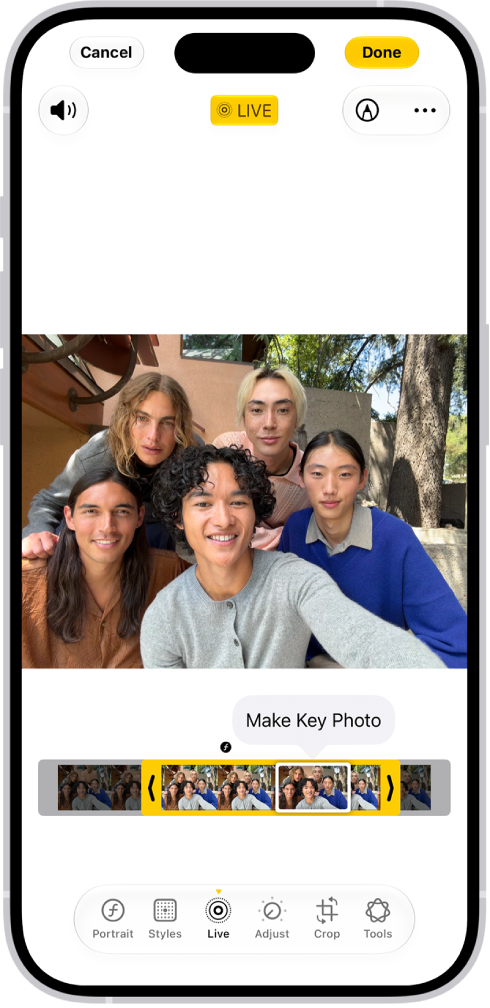
A Live Photo is open in the Photos app. Beneath the photo is the frame viewer with the Make Key Photo button active. On either end of the frame viewer are two arrows that allow you to trim the Live Photo. At the bottom of the screen are the Live, Adjust, Filters, and Crop buttons. The Live button is selected.

  1. Open the Photos app on your iPhone.
  2. Open a Live Photo, then tap the Edit button.
  3. Tap the Live Photo button. Do any of the following:
    • Set a key photo: Move the white frame on the frame viewer, tap Make Key Photo, and tap Done.
    • Trim a Live Photo: Drag either end of the frame viewer to choose the frames the Live Photo plays.
    • Make a still photo: Tap the Live button at the top of the screen to turn off the Live feature. The Live Photo becomes a still of its key photo.
    • Mute a Live Photo: Tap the Mute button at the top of the screen. Tap it again to unmute.

Note: On an iPhone 15 model or later, Live Photos taken with a portrait effect lose that effect if you change the key photo.

Add effects to a Live Photo

Adding effects to Live Photos turns them into fun videos.

  1. Open the Photos app on your iPhone.
  2. Open a Live Photo.
  3. Tap Live in the top-left corner. Choose one of the following:
    • Live: Applies the Live video playback feature.
    • Loop: Repeats the action in a continuous looping video.
    • Bounce: Rewinds the action backward and forward.
    • Long Exposure: Simulates a DSLR-like long exposure effect by blurring motion.
    • Live Off: Turns off the Live video playback feature or applied effect.
    • Portrait: Applies the Portrait effect.
    • Portrait off: Turns off the Portrait effect.

Turn a Live Photo into a video

To share a Live Photo with people who aren’t on Apple devices, for example, you can turn it into a short video to save or share.

  1. Open the Photos app on your iPhone.
  2. Open a Live Photo.
  3. Tap the More button in the top-right corner. Then tap Save as Video.
Tag: Photos

On supported models, you can use Camera to take photos in Apple ProRAW. Apple ProRAW combines the information of a standard RAW format along with iPhone image processing to offer additional creative control when you make adjustments to exposure, color, and white balance.

It’s available on all cameras, including the front camera, though not in Portrait mode. Once it’s turned on, you can also change the Apple ProRAW default resolution and format. ProRAW photos retain more information about the images, so they have larger file sizes.

Set up Apple ProRAW

To set up Apple ProRAW on supported models, go to Settings > Camera > Formats, then turn on Apple ProRAW or ProRAW & Resolution Control (depending on your model).

Note: Because Apple ProRAW photos retain more information about the images, their file sizes are larger.

Take a photo with Apple ProRAW

  1. Open Camera on your iPhone.
  2. Depending on your settings, tap either JPEG or HEIC at the top of the screen. Then tap RAW.
  3. Tap the screen anywhere outside of the menu to close it.
  4. Tap the Shutter button to take your shot.

To preserve your ProRAW setting, go to Settings > Camera > Preserve Settings, then turn on Apple ProRAW or ProRAW & Resolution Control (depending on your model).

Change the Apple ProRAW default resolution and format

On supported models, choose 12 MP, 48 MP, or HEIF 48 MP as your ProRAW default resolution.

  1. Start the Settings app on your iPhone.
  2. Tap Camera, then tap Formats.
  3. Turn on ProRAW & Resolution Control.
  4. Tap ProRAW Format, then select an option.
Tag: Photos