Got a tip for us?

Photos

iPad uses your Apple Account to create your contact card, called My Card, in the Contacts app. You can add or edit details—including your name, address, phone number, and birthday, as well as the Contact Poster, which you can share with people when you call or send a message to them.

When you edit My Card, your AutoFill information in Safari updates too, so online forms fill in your address automatically.

Complete or edit My Card

  1. Start the Contacts app on your iPad.
  2. Tap My Card at the top, then tap Edit.

    If you don’t see My Card, tap the Add button and enter your information, then return to the contact list, touch and hold your contact, and tap Make this My Card.

  3. Enter your contact information.

    Contacts suggests addresses and phone numbers to help you.

Add or edit your home address

  1. Start the Contacts app on your iPad.
  2. Tap My Card at the top, then tap Edit.
  3. Tap Add Address and then add your address.
  4. Tap the label that appears to the left of the address and select Home.

You can use AutoFill in Safari to automatically fill in your address for things like online shopping or online forms. When you edit your My Card, your AutoFill information automatically updates. See Fill in personal information.

Add or edit your avatar and poster

When you call or send a message to others, your avatar and poster can show up automatically if you set them.

  1. Start the Contacts app on your iPad.
  2. Tap My Card at the top, then tap Edit.
  3. Tap your contact photo and choose a style.
  4. Tap Customize to edit your avatar and poster.

Share your name and contact image

You can have your updated name, photo, and poster automatically shared with people in your contacts.

  1. Start the Contacts app on your iPad.
  2. Tap My Card at the top, tap Edit, and then tap your contact photo.
  3. Turn on Name & Photo Sharing to start sharing your contact photo and poster with others. (You may need to scroll down.)

    You can share automatically with Contacts Only, or select Always Ask to be prompted before your name, photo, and poster are shared with anyone.

Add or edit contact pronouns

You can add or edit your pronouns or another contact’s pronouns in the Contacts app.

  1. Start the Contacts app on your iPad.
  2. Tap My Card at the top to add your pronouns, or select another contact to add theirs.
  3. Tap Edit and tap add pronouns.
  4. Select your language and add the correct pronouns.

    You can also add pronouns in other languages by tapping Add Pronouns again.

  5. Tap Add.

Note: Your pronouns stay private by default when you share your contact information through Contacts or NameDrop, and another contact’s pronouns are never shared when you share their information.

See also

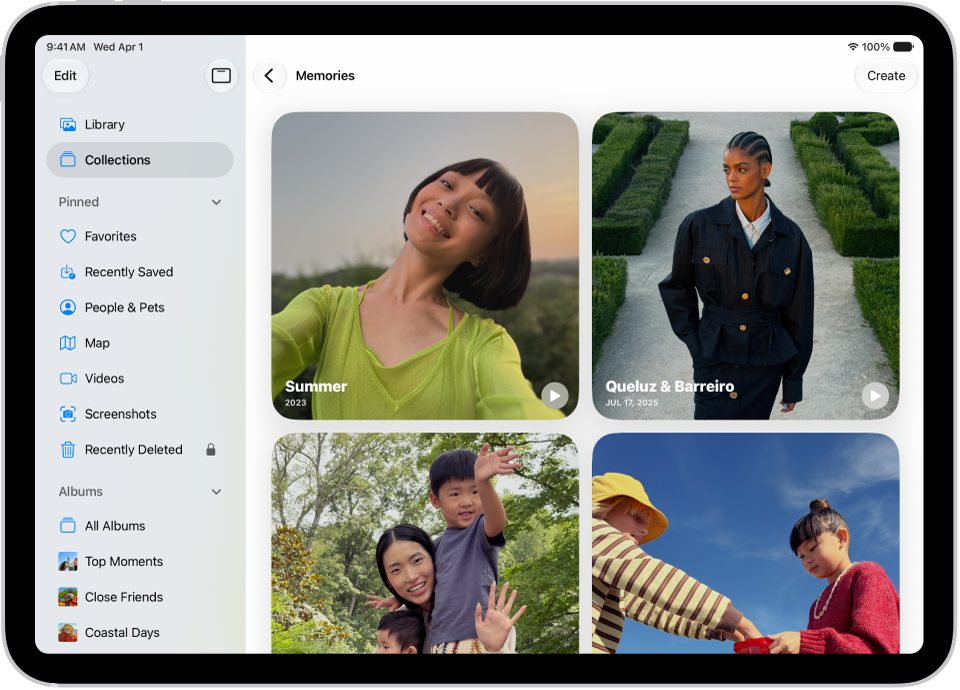
The Memories collection in the Photos app includes personalized collections of photos and videos that feature a significant person, pet, place, activity, or event from your photo library.

In a memory, you can filter and sort the photos and videos, view all of them, or search for photos and videos. You can share a memory, delete it, show its location on a map, or play the memory movie, and you can add a memory to Favorites to make your favorite memories easier to find.

The Photos app is open to the Memories collection. The All tab is selected, with a list of memories below.

View your memories

  1. Open the Photos app on your iPad.
  2. Tap Collections.
  3. Swipe left under Memories to scroll through a selection of your memories, or tap Memories to view them all.
  4. Select a memory to view all the photos and videos included in that memory.
  5. As you view a memory, you can do any of the following:
    • Filter and sort the photos and videos in the memory: Tap the Sort and Filter button.
    • View all the photos and videos in the memory: Tap Show All.
    • Search for photos and videos in the memory: Tap the Search button.
    • Share the memory, delete the memory, or show the memory location on a map: Tap the More button.
    • Share specific photos and videos in the memory: Tap Select, tap the photos and videos you want to share, and then tap the Share button.
    • Play the memory movie: Tap the Play button.
  6. Tap the Back button to close the memory and return to Collections.

Add a memory to Favorites

Identify your favorite memories to make them easier to find.

  1. Open the Photos app on your iPad.
  2. Tap Collections.
  3. Touch and hold a memory and tap Add to Favorite Memories.

To view your favorite memories, tap Collections, tap Memories, then tap Favorites.

See also

Tag: Photos

In the Photos app, you can edit your memory movies to make them even more personal. Try Memory Looks, which pair different songs with a matching photographic style. Memory Looks are curated combinations of different songs, pacing, and styles.

You can also choose new songs, edit the title, change the length, and add or remove photos. And Apple Music subscribers can add songs from the millions of songs in the Apple Music catalog.

Here’s how to personalize your memory movies in Photos on iPad.

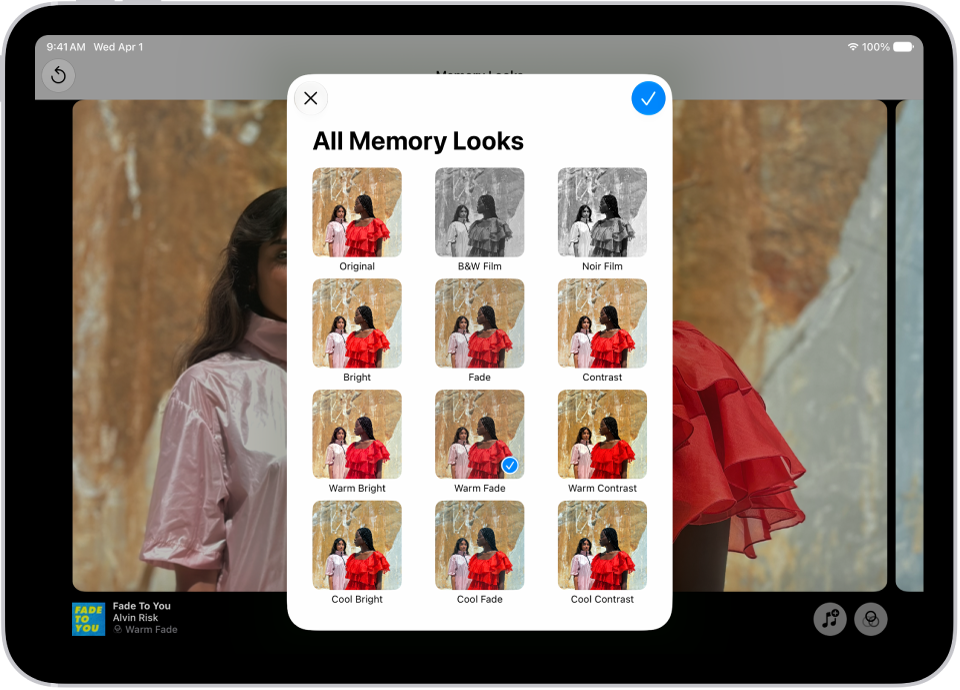
A memory movie is playing and in the middle of the screen are the options for applying a Memory Look.

Change the look of a memory movie

Memory Looks, curated combinations of different songs, pacing, and styles, change the look and feel of a memory movie.

  1. Open the Photos app on your iPad.
  2. Tap Collections.
  3. Swipe left under Memories to scroll through a selection of your memories, or tap Memories to view them all.
  4. Tap the Play button in the bottom-right corner of a memory to play it.
  5. Tap the screen, then tap Customize.
  6. Tap Customize Look, then swipe left to view different Memory mixes. You can also do the following:
    • Tap the Filters button to view all of the Memory Looks at the same time.
    • Tap the Music button to change the song.
  7. Tap the screen to apply the Memory Look.

Change the music of a memory movie

A memory movie’s music can come from memory soundtracks or suggested songs in Apple Music. If you subscribe to Apple Music, you can also access your Apple Music library and get suggested songs based on your musical preferences or what’s in the memory.

  1. Open the Photos app on your iPad.
  2. Tap Collections.
  3. Swipe left under Memories to scroll through a selection of your memories, or tap Memories to view them all.
  4. Tap the Play button in the bottom-right corner of a memory to play it.
  5. Tap the screen, then tap Customize.
  6. Tap Music, then tap Change Song.

    Apple Music subscribers can tap Browse to search for songs in the Apple Music library.

Add or remove photos in a memory movie

It’s up to you which photos appear in a memory movie: you can add or remove suggested featured photos, or pick photos and videos directly from your library.

  1. Open the Photos app on your iPad.
  2. Tap Collections.
  3. Swipe left under Memories to scroll through a selection of your memories, or tap Memories to view them all.
  4. Tap the Play button in the bottom-right corner of a memory to play it.
  5. Tap the screen, tap the Browse button, and do any of the following:
    • Add a photo: Tap the photos you want to add (tap All to see your entire library) and tap the Done button.
    • Remove a photo: Deselect a photo to remove it from the memory. Tap the Done button.
    • Search for photos in your library: Tap All and tap the Search button. Then type what you’re looking for. Tap the photos you want to add. Then tap the Done button.
  6. Tap the Back button to return to the memory movie.

Reorder photos in a memory movie

  1. Open the Photos app on your iPad.
  2. Tap Collections.
  3. Swipe left under Memories to scroll through a selection of your memories, or tap Memories to view them all.
  4. Tap the Play button in the bottom-right corner of a memory to play it.
  5. Tap the screen, then tap the Browse button.
  6. Touch and hold a photo, then drag it to a new position in the grid.
  7. Tap the Back button to return to the memory movie.

Change the length and transitions of a memory movie

A memory movie’s length can be short, medium, or long, depending on the number of photos in it, and whichever you choose automatically adjusts the number of photos included. The transition between photos can change as well, to crossfade or rotate, for example.

  1. Open the Photos app on your iPad.
  2. Tap Collections.
  3. Swipe left under Memories to scroll through a selection of your memories, or tap Memories to view them all.
  4. Tap the Play button in the bottom-right corner of a memory to play it.
  5. Tap the screen and tap Customize. Tap Transition and Duration.
  6. Make your selections, then tap the Done button.

Edit the title, subtitle, and key photo

You can edit a memory’s title or subtitle, and you can also swap the key photo that appears with the title of the memory.

  1. Open the Photos app on your iPad.
  2. Tap Collections.
  3. Swipe left under Memories to scroll through a selection of your memories, or tap Memories to view them all.
  4. Tap the screen and then tap the More button.
  5. Tap the current title and then do any of the following:
    • Edit the memory title or subtitle: Enter a new title or subtitle in the text fields.
    • Change the key photo: Tap the photo icon in the bottom-right corner of the current key photo. Then select a new photo in the photo grid.
  6. Tap the Done button.

See also

Tag: Photos

After you take a photo or video, use the tools in the Photos app to edit it on your iPad. You can adjust the light and color, add a filter, and more, and when you use iCloud Photos, any edits you make are saved across all your devices.

Enhance can automatically improve light and color, and if you took a photo with iPhone 16 or later, you can change its Photographic Style.

Quick tip: If you want to choose the background color of Edit mode (for example, so it’s always dark), see Set the background color of Edit mode, below.

Adjust light and color

  1. Open the Photos app on your iPad.
  2. Tap a photo or video to open it, then tap the Edit button.

    The Edit screen of the Photos app showing a photo in the center. To the left of the photo are the Adjust, Filters, and Crop buttons; Adjust is selected. To the right of the photo are buttons for editing effects and a slider to adjust each effect level.

  3. Tap Adjust.
  4. Swipe left under the photo to view the lighting adjustments you can make—for example, Exposure, Brilliance, Highlights, and Shadows.
  5. Tap the lighting setting you want to edit. Then drag the slider to make precise adjustments.

    The level of adjustment you make for each lighting setting is indicated by the outline around the button, so you can see at a glance which lighting settings have been increased or decreased. Tap the lighting button to switch between the edited photo or video and the original so you can see the difference your edits made.

  6. Tap Done to save your edits, or if you don’t like your changes, tap Cancel, and then tap Discard Changes.

Quick tip: To automatically enhance light and color in a photo or video, tap the Enhance button.

Change the Photographic Style of photos captured on iPhone 16 or later

If you take a photo with an iPhone 16 or later, open the Photos app to change or edit its Photographic Style.

  1. Open the Photos app on your iPad.
  2. Open a photo taken with an iPhone 16 or later, then tap the Edit button.
  3. Make sure Styles is selected on the left side of the screen. Do one of the following:

    • Choose a style: Tap a style or slide to select one of the style options on the right side of the screen.
    • Adjust the tone and color: Tap the Styles Chooser. Then slide your finger on the Styles Chooser to simultaneously adjust the tone and color. Drag your finger on the slider below to adjust the intensity level.

      As you make adjustments, the values for tone, color, and intensity are shown at the top of the screen. Tap the round arrow to reset these values.

  4. Tap Done.

Apply filter effects

  1. Open the Photos app on your iPad.
  2. Open a photo or video, then tap the Edit button.
  3. Tap the Filters button on the left side of the screen to apply filter effects such as Vivid or Dramatic.

    To remove a filter that was applied when you took the photo, choose Original.

  4. Tap a filter on the right side of the screen and drag the slider to adjust the effect.

    To compare the edited photo to the original, tap the photo.
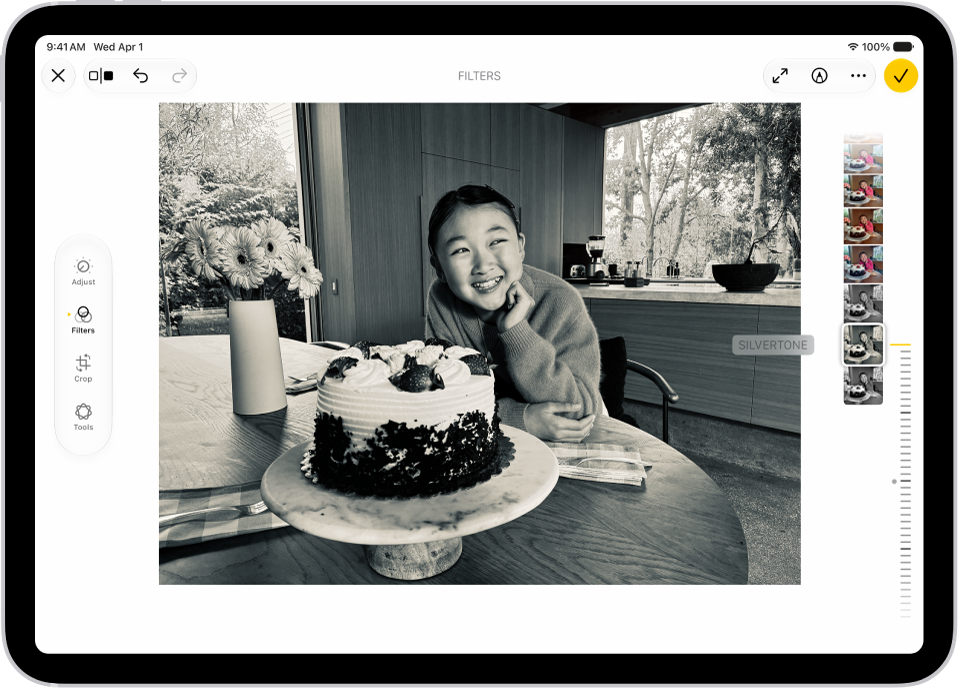
    The Edit screen in the Photos app with a photo in the center. On the left side of the screen are the Adjust, Filters, and Crop buttons; Filters is selected. On the right side of the screen are the filter options and a slider to adjust the level of the filter effect.

  5. Tap Done to save your edits, or if you don’t like your changes, tap Cancel, and then tap Discard Changes.

Note: For photos taken with an iPhone 16 or later, use Photographic Styles instead of filters to give your photos a customized look. See Change the Photographic Style of photos captured on iPhone 16 or later.

Copy and paste edits to multiple photos

Copy the edits you made to one photo (or video), and you can paste them onto another photo, or a batch of photos, all at once.

  1. Open the Photos app on your iPad.
  2. Open the photo or video that contains the edits you want to copy.
  3. Tap the More button, then tap Copy Edits.
  4. Review and turn off any edits you don’t want to copy. Tap Copy.
  5. Tap the Back button to return to your library.
  6. Tap Select and tap the thumbnails of the photos you want to paste the edits onto, or open a single photo or video.
  7. Tap the More button and then tap Paste Edits.

Note: Photos automatically adjusts the white balance and exposure of edited photos so they’re a better match and look even more similar.

Add stickers, text, and more

  1. Open the Photos app on your iPad.
  2. Tap a photo to open it.
  3. Tap the Edit button, then tap the Markup button.
  4. Tap the Add Annotations button to add stickers, captions, text, shapes, or even your signature.
  5. Tap the Done button to save your edits.

Set the background color of Edit mode

Edit mode’s background matches the light or dark appearance of your iPad by default, but you can change its color. Prefer to edit photos against a dark background? Set it to always appear dark.

  1. Open the Photos app on your iPad.
  2. Tap a photo or video to open it, then tap the Edit button.
  3. Tap the More button, tap Appearance, and then do one of the following:
    • Match edit mode to the light or dark appearance of your iPad: Tap System.
    • Make Edit mode always appear dark: Tap Dark.
    • Make Edit mode always appear light: Tap Light.

Use Apple Intelligence editing tools

Apple Intelligence gives you the Clean Up, Extend, and Reframe tools for editing your photos. See our article, Clean up, extend, and reframe photos on iPad.

Apple Intelligence on iPadOS 27 or later is available on an Apple Intelligence-enabled iPad mini (A17 Pro) and iPad models with M1 or later, according to Apple. Apple Intelligence is not available in all languages or regions. Usage limits may apply.

*Apple Intelligence is available with Siri and device language set to Chinese (Simplified), Chinese (Traditional), Danish, Dutch, English, French, German, Italian, Japanese, Korean, Norwegian, Portuguese, Spanish, Swedish, Turkish, or Vietnamese. Some features may not be available in all regions or languages. Some devices may not be available in all regions. Siri AI is available in beta in iOS 27, iPadOS 27, macOS 27, watchOS 27, and visionOS 27 and requires an Apple Intelligence–enabled device set to a supported language. Available in English to start. Siri AI will not be initially available in the EU on iOS, iPadOS, and watchOS. Certain Apple Intelligence features that rely on server-side models are subject to daily usage limits, including but not limited to Siri AI, Intelligent Photo Editing Tools, Image Playground, and AFM 3 Cloud models in Shortcuts. Daily limits may vary by feature, request complexity, system demand, system policies, and other factors. Expanded access to such features will be available for a fee in the future. Use of these features is subject to the Apple Intelligence Terms and Conditions.

See also

You can use iCloud Photos to keep your photos and videos securely stored in iCloud. If you turn on iCloud Photos on all your devices, you can see the photos and videos you took on iPad on any device, and you can also access them in a web browser.

When it’s on, the photos and videos you take are uploaded automatically and stored in their original format at full resolution. Changes you make on one device show up on your other devices, too.

Note: Make sure that you’re signed in to the same Apple Account on all your devices, and that your devices meet these minimum system requirements: iOS 8.3, iPadOS 13.1, macOS 10.10.3, or later, or a Windows device with iCloud for Windows 7.x or later.

Turn on iCloud Photos

  1. Open the Settings app on your iPad.
  2. Tap your name, then tap iCloud.
  3. Tap Photos, then turn on Sync this iPad.

iCloud uploads every photo and video you take automatically, keeping your photos backed up and in sync. Your library is then available from any device, anytime.

Check if your photos and videos are backed up to iCloud

To make sure you’ll have copies if something happens to your iPad, check that iCloud Photos is syncing your photos to iCloud. Paused syncing means your photos aren’t being backed up to iCloud.

  1. Open the Photos app on your iPad.
  2. Tap Collections.
  3. In the top-right corner of the screen, you can see a preview of your syncing status. You may see any of the following:
    • Yellow badge: iCloud syncing is paused. Tap your account icon to see the details.
    • Yellow warning icon: Your iCloud storage is almost full. Tap your account icon to see the details.
    • Red exclamation mark: Your iCloud storage is full. See Get more iCloud storage.
    • Blue badge: You have notifications from a shared library or shared album. Tap your account icon to see the details.
    • Partially filled blue circle around your account icon: Photos are actively uploading to iCloud. Tap your account icon to see the details.
    • Partially filled gray outline around your account icon: Uploads are paused. Tap your account icon to see the details.
  4. Tap your account to see more details. The last time your iPad synced with iCloud appears below the account profile.

Sync iCloud Photos immediately

iCloud Photos prioritizes syncing items that are added to your library after Sync Immediately is turned on.

  1. Open the Photos app on your iPad.
  2. Tap Collections. Tap your iCloud account profile at the top of the screen.
  3. Tap Sync Immediately, then tap For Today.

    To turn off syncing, tap Off. Sync Immediately automatically turns off after one day.

Note: Sync Immediately may affect battery and cellular usage and will pause if Low Power Mode or Low Data Mode are turned on.

Turn off Optimize Storage on your iPad

iCloud Photos can help you get the most from the storage space on your iPad. With Optimize iPad Storage on, your full-resolution photos and videos stay in iCloud in their original formats, while your iPad keeps storage-saving versions. Optimize iPad Storage starts out on, though you can turn it off.

  1. Open the Settings app on your iPad.
  2. Tap your name, then tap iCloud.
  3. Tap Photos and tap iPad Storage. Tap Download and Keep Originals.

Get more iCloud storage

If your uploaded photos and videos exceed your storage plan, you can upgrade to iCloud+ for more storage and additional features. See Subscribe to iCloud+.

See also

Tags: iCloud, Photos

You can isolate the subject of a photo or video frame from its background, then copy or share it in other documents and apps. You can use this feature in Photos, Safari, Quick Look, and more.

Once the subject is lifted, you can paste it into an email, text message, or note, look it up to learn more about it, or add it as a sticker to use in Markup and Messages. You can also share it with AirDrop or Mail.

Note: This feature isn’t supported on iPad (8th generation).

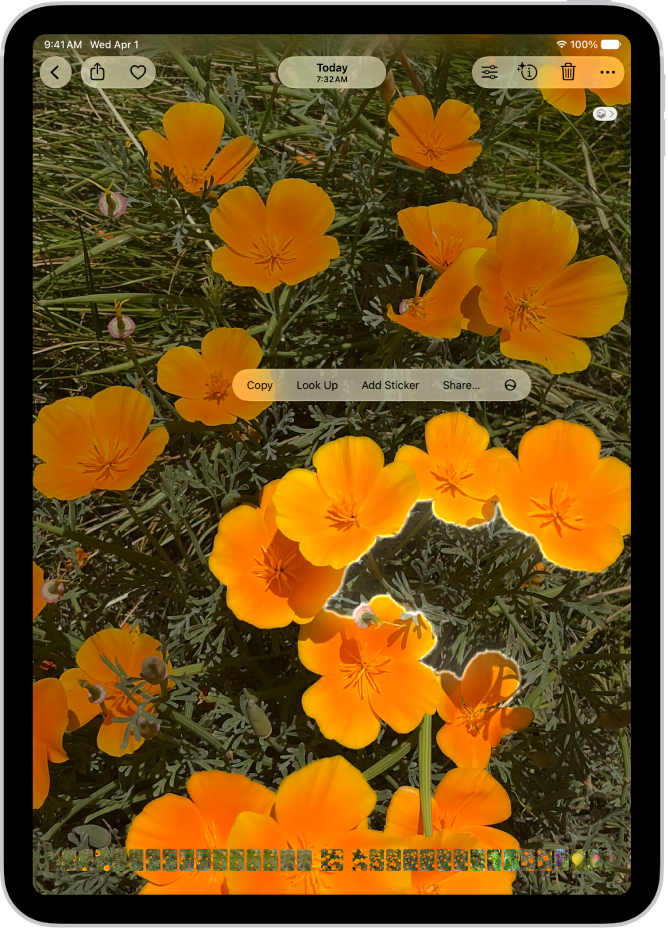
A photo is open in the Photos app library. The subject in the center of the photo is outlined and the Copy, Look Up, Add Sticker, and Share buttons appear above it.

  1. Open a photo in full screen, or pause a video on any frame.
  2. Touch and hold the subject. When an outline appears around the subject, do one of the following:
    • Tap Copy or Copy Subject, then paste the subject into an email, text message, or note.
    • Continue to hold, then drag the subject into another document.
    • Tap Look Up to learn more about the subject.
    • Tap Add Sticker, then save the sticker to use in Markup, Messages, and more.
    • Tap Share, then choose a sharing option, such as AirDrop or Mail.

See also

Tag: Photos

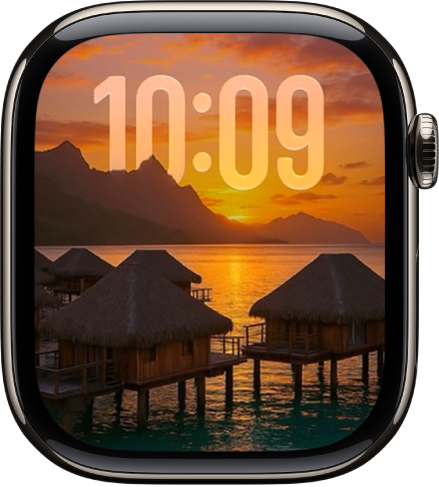
The Photos watch face cycles through photos you choose or through a synced album. You can also cycle through photos of specific people, places, pets, and cities from your photo library. A new photo appears every time you raise your wrist or tap the display.

You can shuffle your photo library or a collection, or manually add up to 24 photos. When you shuffle, sixteen photos are automatically selected to display each day.

The Photos watch face showing a photo from a synced photo album. The time appears on the left of the screen.

Create a Photos watch face

  1. Start the Apple Watch app on your iPhone.
  2. Tap Face Gallery and tap the Photos category. Choose a style.
  3. Do one of the following:

    • Shuffle your photo library: Tap Shuffle and tap Featured or People. Then tap Continue.
    • Shuffle a collection: Tap Shuffle, tap Collection, choose an album, and then tap Continue.
    • Manually add photos: Tap Choose Photos and select up to 24 photos. Tap the Done button.

    Note: When you shuffle your photo library or a collection, sixteen photos are automatically selected to display each day.

  4. Scroll down. Then choose any of the options to customize the layout of the watch face.
  5. When you’re finished, tap Add at the top of the screen.

Note: Not seeing photos? Check that they’re in your synced album. For help, read our guide, Choose a photo album and manage storage on Apple Watch.

Add a photo to your watch face

  1. Start the Photos app on your Apple Watch.
  2. Tap an album (like Featured or Favorites) and then tap a Photo.
  3. Tap the Action button and scroll down. Then tap Create Watch Face.
  4. Tap Photos.

See also

All photos and videos you take with your iPhone camera are saved in the Photos app. With iCloud Photos turned on, all new photos and videos are automatically uploaded and available in Photos on all your devices that are set up with iCloud Photos (with iOS 8.1, iPadOS 13, or later).

You can see the photos you’ve taken recently right from Camera. You can also share and print your photos.

Note: If Location Services is turned on in Settings > Privacy & Security > Location Services, photos and videos are tagged with location data that can be used by apps and photo-sharing websites.

View your photos

  1. Open Camera on your iPhone.
  2. Tap the thumbnail image in the lower-left corner.
  3. Swipe left or right to see the photos you’ve taken recently.
  4. Tap the screen to show or hide the controls.
  5. Tap All Photos to see all your photos and videos saved in the Photos app.

Share and print your photos

  1. While viewing a photo on your iPhone, tap the Share button.
  2. To share your photo, select an option such as AirDrop, Mail, or Messages.
  3. To print your photo, swipe up to select Print from the list of actions.

Upload photos and keep them up to date across devices

Use iCloud Photos to upload photos and videos from your iPhone to iCloud and then access them on other devices where you’re signed in to the same Apple Account. iCloud Photos is useful if you want to keep your photos up to date across multiple devices or save space on your iPhone. To turn on iCloud Photos, go to Settings > Apps > Photos, then turn on iCloud Photos.

Tags: iCloud, Photos

The Photos app sorts photos and videos of people, dogs, and cats in the People & Pets collection (or the People collection if no pets appear). You can name a person, dog, or cat directly from a photo or video in your photo library, or in the People & Pets collection.

When you name someone, they’re automatically added to People & Pets and named in other photos. A question mark appears next to anyone you haven’t named yet.

Name a person or pet in a photo or video

Naming a person or pet in a photo or video automatically adds them to the People & Pets collection, and they’re named in your other photos and videos, too.

  1. Start the Photos app on your iPhone.
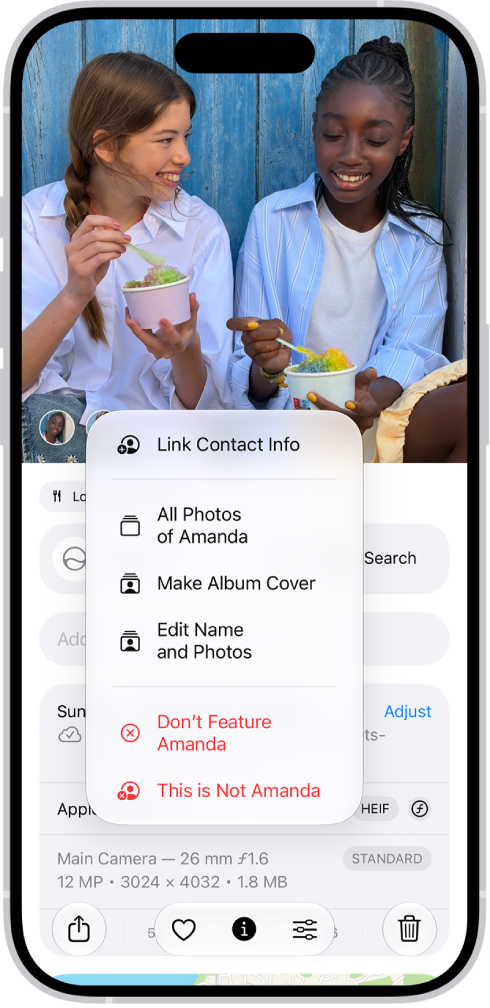
  2. Open a photo or video and then swipe up to see the details. People or pets in the photo or video appear in the bottom-left corner. A question mark appears next to those you haven’t named.
  3. Tap the person or pet with a question mark next to their picture. Tap Edit Name and Photos.

    The top half of the iPhone screen shows a photo open in the Photos app. In the bottom-left corner of the photo are the faces of the people that appear in the photo. One of the faces has a question mark next to it. A menu of options includes, from top to bottom, All Photos, Make Key Photo, Edit Name and Photos, and Don’t Feature This Person.

  4. Tap Name This Person or Name This Pet and enter their name. Tap the Done button.

Name a person or pet in the People & Pets collection

  1. Start the Photos app on your iPhone.
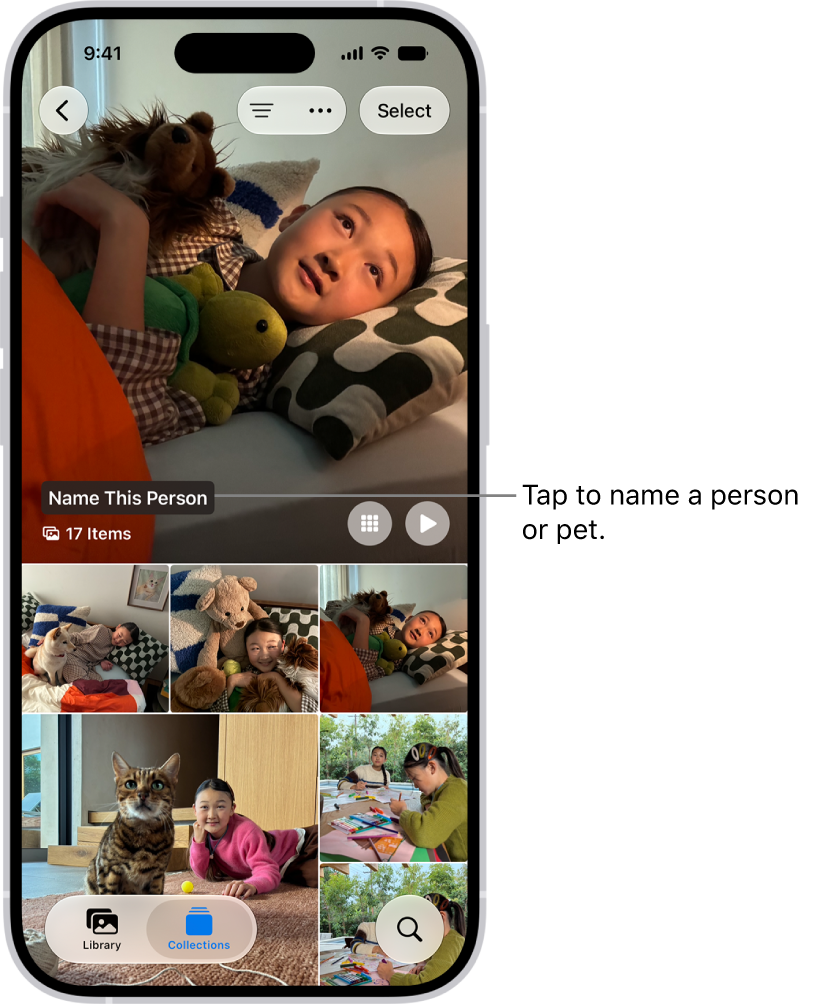
  2. Tap Collections and tap People & Pets. Then tap the person or pet you want to name.

    The People & Pets collection in the Photos app. Groups appear at the top, and people and pets are listed below.

  3. Tap Name This Person or Name This Pet. Then enter their name. If the person is listed in your contacts, you can tap their name below Results.
  4. Tap the Done button.

If the person or pet you want to name doesn’t appear, tap Add People at the bottom of the People & Pets collection to see more faces.

Change the key photo for a person or pet

In the People & Pets collection, you can change the key photo of a person or pet.

  1. Start the Photos app on your iPhone.
  2. Tap Collections and tap People & Pets. Then touch and hold the key photo you want to change.
  3. Tap Edit Name and Photos and tap the photo icon in the bottom-right corner of the current key photo.
  4. Select a new photo from the choices in the photo grid and tap the Done button.

Mark a person or pet as a favorite

To make the people or pets you interact with the most easier to find in the People & Pets collection, mark them as favorites.

  1. Start the Photos app on your iPhone.
  2. Tap Collections, then tap People & Pets.
  3. Touch and hold a person or pet’s key photo and tap Favorite.

To remove a person or pet from your favorites, touch and hold their key photo in the People & Pets collection, then tap Unfavorite.

Fix incorrect names

Found misidentifications in the People & Pets collection? You can fix them.

  1. Start the Photos app on your iPhone.
  2. Tap Collections, then tap People & Pets.
  3. Tap the misidentified person or pet. Tap the More button at the top of the screen.
  4. Tap the incorrect name at the top of the menu, tap the name again, enter the correct name, and then tap the Done button.

You can also fix misidentifications while viewing a photo or video in your library. Swipe up to see the photo or video information. Tap the misidentified person or pet in the circle at the bottom-left corner. Tap This is Not [name], then tap Rename This Person or Rename This Pet.

Sort the People & Pets collection alphabetically or manually

  1. Start the Photos app on your iPhone.
  2. Tap Collections, tap People & Pets, tap Sort, and then choose one of the following:
    • Sort alphabetically: Tap Sort by Name.
    • Sort manually: Tap Sort by Custom Order. Touch and hold a key photo and drag it to a new position.

Hide or don’t feature a person or pet

  1. Start the Photos app on your iPhone.
  2. Tap People & Pets and then touch and hold the person or pet’s key photo.
  3. Tap Hide [name] or Don’t Feature [name].

When you’re using iCloud Photos, People & Pets stays up to date on all your devices.

Tag: Photos

While you edit a photo or video, you can undo and redo changes. After saving, if you don’t like how your changes look, you can revert back to the original.

And when you use iCloud Photos, any edits you make to your photos and videos are saved across all your devices. As you edit, you can compare the edited version to the original, and undo and redo multiple edit steps.

Undo and redo as you edit

As you edit a photo or video, tap the Undo button and the Redo button at the top of the screen to undo and redo multiple edit steps.

Quick tip: Tap the photo or video, and you can compare the edited version to the original.

Revert an edited photo or video

To undo edits after you save, you can revert to the original.

  1. Start the Photos app on your iPhone.
  2. Open the edited photo or video and tap the More button.
  3. Tap Revert to Original.
Tag: Photos