Got a tip for us?

Photos

A Live Photo captures what happens just before and after you take a photo, including the audio. You take a Live Photo just like you do a normal photo.

Live Photo is on by default in Photo mode, and your Live Photos are saved automatically in your photo library. You can add effects such as bounce and loop, or turn off Live Photos. If you’ve already taken a Live Photo, you can turn the effect off later, too.

Take a Live Photo

  1. Open Camera on your iPad.
  2. Make sure Camera is set to Photo mode and that Live Photo is turned on.

    Note: Live Photo is on by default. When it’s on, you see the Live Photo button in yellow on the right side of the screen.

  3. Tap the Shutter button to take a Live Photo.
  4. To play the Live Photo, tap the photo thumbnail below the Shutter button. Touch and hold the screen.

Your Live Photos go into your photo library in the Photos app automatically. For effects like bounce and loop on your Live Photos, see our guide, Add effects to a Live Photo.

Turn off Live Photos

  1. Open Camera on your iPad.
  2. Make sure Camera is set to Photo mode.
  3. Tap the Live Photo button on the right side of the screen so that a slash appears through the button.

To turn the effect off on a Live Photo you’ve already taken, read our article, Make Live Photo edits.

See also
Tags: camera, Photos

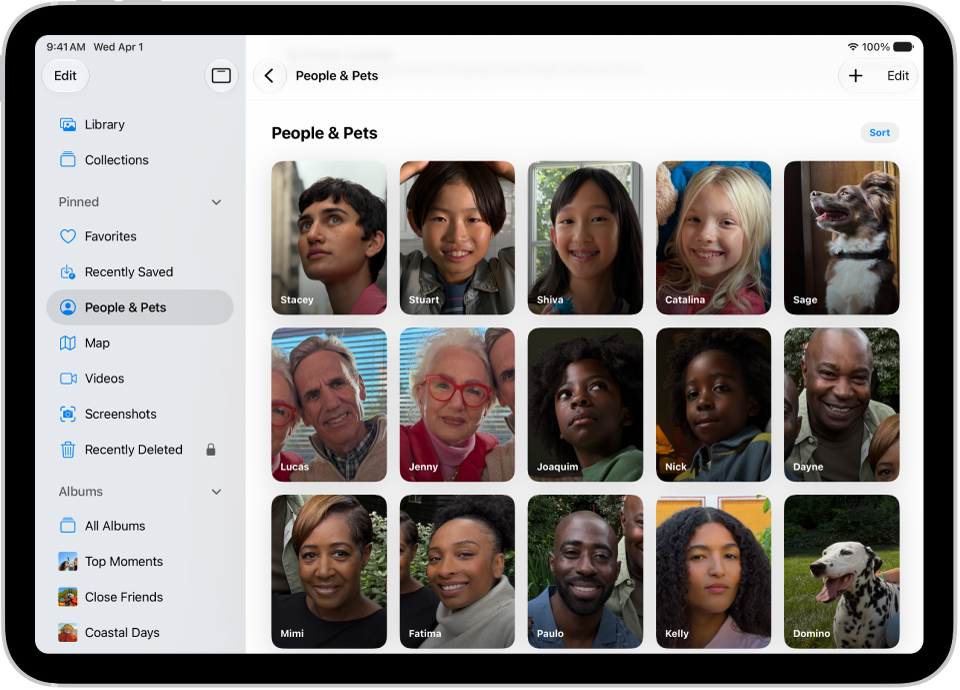
The Photos app sorts photos and videos of people, dogs, and cats in the People & Pets collection (or the People collection if no pets appear). You can name a person, dog, or cat directly from a photo or video in your photo library, or in the People & Pets collection.

When you name someone, they’re automatically added to People & Pets and named in other photos. A question mark appears next to anyone you haven’t named yet.

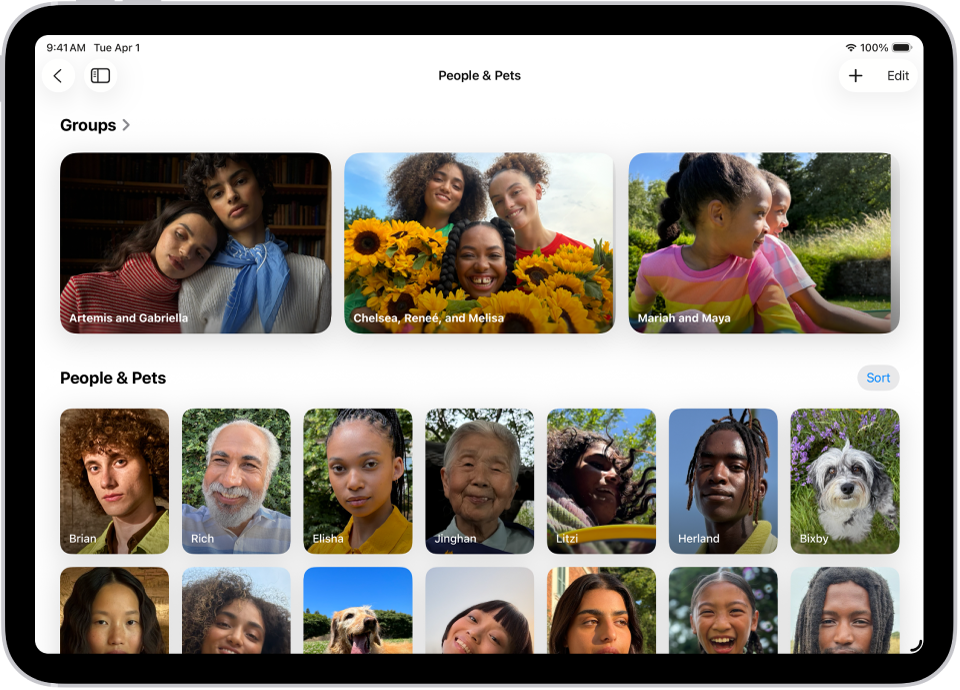
The People & Pets collection is open in the Photos app.

Name a person or pet in a photo or video

Name a person or pet in a photo or video, and they’re automatically added to the People & Pets collection, along with being named in other photos and videos in your library.

  1. Start the Photos app on your iPad.
  2. Open a photo or video and then swipe up to see the details.

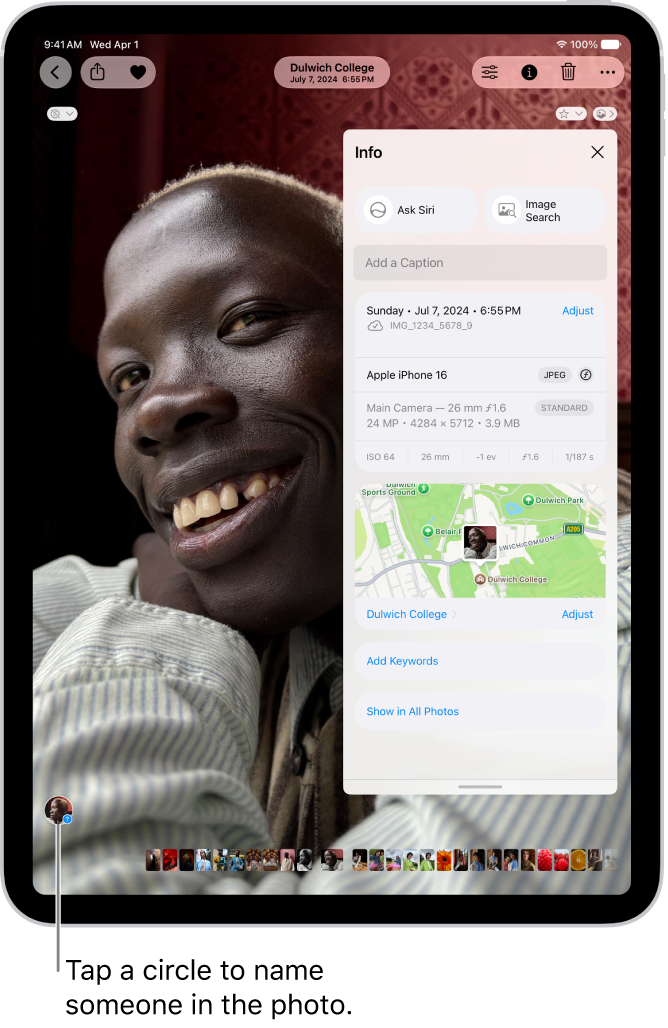
    People or pets in the photo or video appear in the bottom-left corner. A question mark appears next to those you haven’t named.

  3. Tap the person or pet with a question mark next to their picture. Tap Edit Name and Photos.

    The iPad screen shows a photo open in the Photos app. In the bottom-left corner of the photo is a thumbnail of the person who appears in the photo.

  4. Tap Name This Person or Name This Pet and enter their name. Tap the Done button.

Name a person or pet in the People & Pets collection

  1. Start the Photos app on your iPad.
  2. Tap Collections.
  3. Tap People & Pets. Tap the person or pet you want to name.
  4. Tap Name This Person or Name This Pet and enter their name.

    If the person is listed in your contacts, you can tap their name below Results.

  5. Tap the Done button.

If the person or pet you want to name doesn’t appear, tap Add People at the bottom of the People & Pets collection to see more faces.

For a collection of a group of people and pets, check out our guide, Find group photos.

Change the key photo for a person or pet

You can change the key photo of a person or pet in the People & Pets collection.

  1. Start the Photos app on your iPad.
  2. Tap Collections.
  3. Tap People & Pets and touch and hold the key photo you want to change.
  4. Tap Edit Name and Photos and tap the photo icon in the bottom-right corner of the current key photo.
  5. Select a new photo from the choices in the photo grid and tap the Done button.

Mark a person or pet as a favorite

Marking the people or pets you interact with the most as favorites makes them easier to find in the People & Pets collection.

  1. Start the Photos app on your iPad.
  2. Tap Collections.
  3. Tap People & Pets and touch and hold a person or pet’s key photo. Tap Favorite.

To remove a person or pet from your favorites, touch and hold their key photo in the People & Pets collection, then tap Unfavorite.

Fix incorrect names

You can fix misidentifications in the People & Pets collection.

  1. Start the Photos app on your iPad.
  2. Tap Collections, then tap People & Pets.
  3. Tap the misidentified person or pet. Tap the More button at the top of the screen.
  4. Tap the incorrect name at the top of the menu, tap the name again, enter the correct name, and then tap the Done button.

You can also fix misidentifications while viewing a photo or video in your library. Swipe up to see the photo or video information. Tap the misidentified person or pet in the circle at the bottom-left corner. Tap This is Not [name], then tap Rename This Person or Rename This Pet.

Sort the People & Pets collection alphabetically or manually

  1. Start the Photos app on your iPad.
  2. Tap Collections.
  3. Tap People & Pets, tap Sort, and choose one of the following:
    • Sort alphabetically: Tap Sort by Name.
    • Sort manually: Tap Sort by Custom Order. Touch and hold a key photo and drag it to a new position.

Hide a person or pet

  1. Start the Photos app on your iPad.
  2. Tap Collections.
  3. Tap People & Pets and then touch and hold the person or pet’s key photo.
  4. Tap Hide [name] or Don’t Feature [name].

Quick tip: Rather than removing a person or pet, you can feature them less often. Check out our article, Show a person less frequently or not at all.

When you use iCloud Photos, People & Pets is kept up to date on all your devices.

See also

Tag: Photos

The Photos app recognizes groups of people and pets who often appear together in pictures and videos, and sorts them into group collections. For example, if you have many pictures of your family or a group of friends, Photos creates a collection for each of those groups.

You can also create a group collection with any combination of people and pets. You can add someone to a group and share the photos of the group, too.

The People & Pets screen in the Photos app. There is a row of groups at the top of the screen, with individual people and pets below.

Find group photos and videos

  1. Start the Photos app on your iPad.
  2. Tap Collections, then tap People & Pets.
  3. Below Groups, swipe to view your groups or tap See All.
  4. Select a group to view all the photos and videos in that group.

    Tip: To add someone to the group, tap the Sort and Filter button, tap View Options, then tap Other People.

To share the photos of the group, tap the More button, then tap Share Photos.

Create a group collection

You can create a group collection with any combination of people and pets from the People & Pets collection.

  1. Start the Photos app on your iPad.
  2. Tap Collections, then tap People & Pets.
  3. To the right of Groups, tap the Add button. Then tap Create New Group.
  4. Select the people and pets you want in the group. Tap the Done button.
  5. Optionally, enter a new name for the group or add more people and pets to the group.
  6. Tap Create.

Edit or delete a group collection

  1. Start the Photos app on your iPad.
  2. Tap Collections, then tap People & Pets.
  3. Below Groups, touch and hold the group you want to edit. Then do any of the following:
    • Rename the group: Tap Edit Name and People, enter a new name, and then tap the Done button.
    • Add or remove people: Tap Edit Name and People. Then tap the Remove button at the top-left corner of their picture.
    • Add someone to the group: Tap Edit Name and People. Tap Add People & Pets. Select who you want to add. Tap the Done button.
    • Edit the group photo: Tap Edit Name and People and then tap the photo icon in the bottom-right corner of the current group photo. Select a new photo and then tap the Done button.
    • Delete the group: Tap Delete Group.

Change the order of group collections

  1. Start the Photos app on your iPad.
  2. Tap Collections, then tap People & Pets.
  3. Touch and hold a group, then drag it to a new position.

See also

Tag: Photos

You can share photos and videos in Mail or Messages, or in other apps you install. With AirDrop, you can instantly share photos with anyone nearby on an iPhone, iPad, Mac, or Apple Vision Pro.

You can share a single photo or video, several at once, or all the photos in a collection. If you’re sharing multiple items, Show Selected lets you check your choices before you share.

Here’s how to share photos and videos on iPad.

To learn about transferring photos and videos to an external storage device, see Import and export photos and videos.

Note: Sharing a photo or video includes sharing its associated metadata, such as date and time, location, device, and captions.

Share photos and videos

  1. Open the Photos app on your iPad.
  2. Do any of the following:

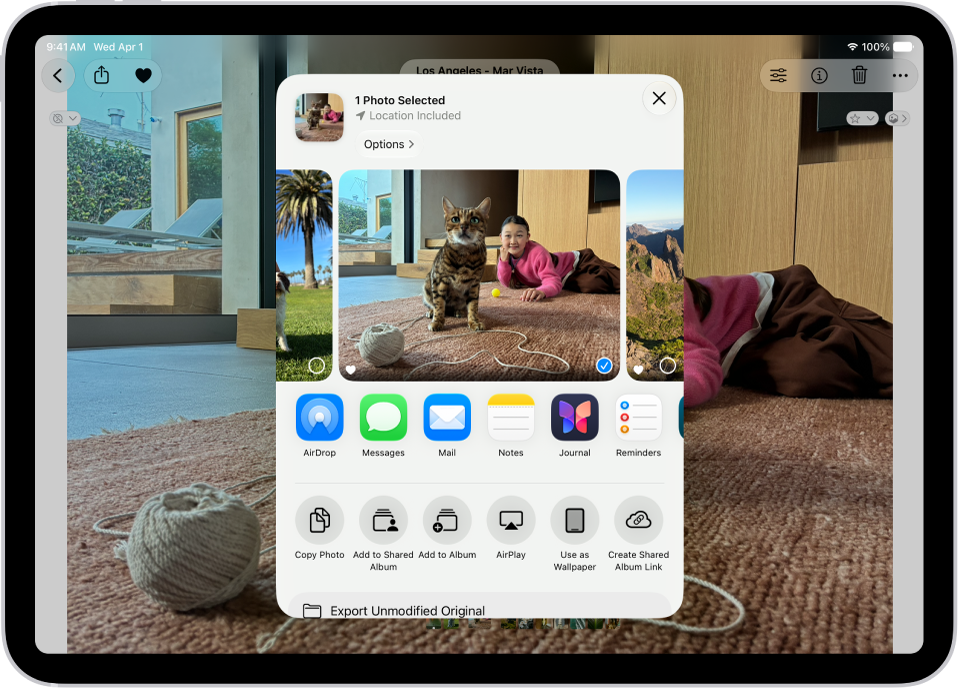
    • Share a single photo or video: Open the photo or video and tap the Share button. Then choose a sharing option such as Mail, Messages, or AirDrop.

      A photo is open in the Photos app and the share options are displayed in the middle of the screen.

    • Share multiple photos or videos: When viewing a screen with multiple thumbnails, tap Select. Then tap the thumbnails of the photos and videos you want to share. Tap the Share button. Then choose a sharing option such as Mail, Messages, or AirDrop.

      Tip: If you’re sharing multiple items, tap Show Selected to view or modify your selections before you share.

    • Share all the photos in a collection: While viewing a collection of photos, tap Select. Then tap Select All. Tap the Share button. Then choose a sharing option such as Mail, Messages, or AirDrop.

With a shared album, you can share photos and videos with a group of friends and family, and they can contribute to the album, too. Read our guide, Create shared albums.

Note: Your service provider sets the size limit for attachments. And on devices or services that don’t support Live Photos, a Live Photo gets shared as a still photo.

Adjust the information you share about a photo or video

You can choose the format, file type, and information that goes along with a photo or video before you share it.

  1. Open the Photos app on your iPad.
  2. Open a photo or video, tap the Share button, tap Options, and then do any of the following:
    • Don’t share keywords: Turn off Keywords.
    • Adjust the file format: Tap Automatic for the best file format for the destination, tap Current to prevent a file format conversion, or tap Most Compatible and files may convert to JPEG or MOV.
    • Send all photo data: Turn on All Photos Data to share the original file with edit history and metadata; the recipient can view and modify the current version (available with AirDrop only).
  3. Tap the Close button.

Save or share a photo or video you receive

Photos shared with you from other apps can be saved.

Depending on the app, tap the Save button next to the image, or touch and hold the photo or video, then tap the Save button.

To view your saved photos and videos, open your photo library, or see our article, Find recently saved photos.

Note: Photos and videos people share with you in the Messages app get saved in your photo library automatically. To turn this feature off, go to the Settings app and tap Apps, then tap Messages. Next, tap Shared with You and turn off Photos.

See also

Tag: Photos

You can add and delete photos and videos in a shared album. You can also save photos and videos from a shared album to your photo library.

When you add new photos, everyone you share the album with is notified automatically, and everyone can react with emoji and comments. Those comments and reactions are visible to all participants, and you can view shared album activity, too.

Here’s how to contribute to a shared album on iPad.

Add photos and videos to a shared album

  1. Start the Photos app on your iPad.
  2. Tap Collections.
  3. Tap Shared Albums and tap an album.
  4. Tap the More button and then tap Add Photos.
  5. Select the photos and videos you want to add, then tap the Done button.

When you add new photos, the people you share the album with are automatically notified.

Comment and react to shared album content

You can react to content in a shared album with emoji and comments that all participants can see.

  1. Start the Photos app on your iPad.
  2. Tap Collections.
  3. Tap Shared Albums and tap an album.
  4. Tap a photo or video and then tap the Reactions button to react with an emoji, or tap the Comment Lines button to enter a comment.

To delete a comment, touch and hold it, then tap Delete. You can delete only your own comments, unless you’re the album organizer, who can delete any comment.

View shared album activity

  1. Start the Photos app on your iPad.
  2. Tap Collections.
  3. Tap Shared Albums and tap Activity.
  4. The latest contributions to your shared albums are shown here.

    Tap the Updates button to see a detailed feed of all activity in your shared albums.

Tap the Reactions button or the Comment Lines button below a contribution to leave a reaction or comment. Tap the More button to save content someone else contributed or to delete content that you contributed.

To view activity for a specific shared album, tap the album, then tap the Conversation button.

Filter shared album content

  1. Start the Photos app on your iPad.
  2. Tap Collections.
  3. Tap Shared Albums and tap an album.
  4. Tap the Sort and Filter button, tap Media Types or Shared By, and tap a filter option.

To remove the filter, tap the Sort and Filter button, then tap Remove Filter.

Delete photos, videos, and comments from a shared album

An organizer can delete any photos, videos, or comments in a shared album, while participants can’t delete anything but the content they personally added. Anything deleted disappears automatically from the shared album on all your devices and on every participant’s devices.

  1. Start the Photos app on your iPad.
  2. Tap Collections.
  3. Tap Shared Albums and tap an album.
  4. Do either of the following:
    • Delete multiple items: Tap Select, tap the items to delete and tap the Delete button. Then tap Delete from All Devices.
    • Delete a single item: Tap the photo or video, tap the Delete button, and then tap Delete from All Devices.

To delete a comment, touch and hold it, then tap Delete. You can only delete your own comments unless you’re the album organizer, who can delete any comment.

Save photos and videos from a shared album to your library

  1. Start the Photos app on your iPad.
  2. Tap Collections.
  3. Tap Shared Albums and tap an album.
  4. Tap the More button. Then tap Save All Shared Items or Save Remaining Items.

To save a single photo or video, tap the image to open it, then tap the Save button.

See also

Tag: Photos

If you created a shared album, you can invite more participants to join the album. You can also remove participants, manage album notifications, let other participants manage the album, and turn posting for participants off and on.

By default, all participants can view and comment on album content, but you can change each person’s permissions to Can Manage Album and Photos, Can Add Photos, or Can View and Comment.

Here’s how to add and remove people in a shared album on iPad.

Add participants to a shared album

  1. Open the Photos app on your iPad.
  2. Tap Collections.
  3. Tap Shared Albums and tap an album.
  4. Tap the Manage Shared Album button and tap Invite Participants.
  5. Tap a share method, enter the recipients’ details, and then send the invite.

Manage participant permissions

The organizer of a shared album can manage participant permissions. By default, all participants can view and comment on album content, contribute photos and videos, and remove any content they contributed. You can change these permissions:

  1. Open the Photos app on your iPad.
  2. Tap Collections.
  3. Tap Shared Albums and tap an album.
  4. Tap the Manage Shared Album button, tap a participant, and then tap one of the following:
    • Can Manage Album and Photos: The participant can invite other participants, rename the album, update permissions, and delete photos or videos added by others.
    • Can Add Photos: The participant can share photos and videos and remove content they contributed.
    • Can View and Comment: The participant can view and comment on photos and videos.
  5. Tap the Done button.

When participants post or comment in a shared album you’re a part of, notifications about the activity appear in the Albums Activity tab.

Remove participants from a shared album

  1. Open the Photos app on your iPad.
  2. Tap Collections.
  3. Tap Shared Albums, then tap an album you created.
  4. Tap the Manage Shared Album button.
  5. Tap the participant you want to remove.
  6. Tap Remove Participant at the bottom of the screen.

See also

Tag: Photos

With Shared Albums, you can create albums to share with just the people you choose—and they can add their own photos, videos, and comments for everyone to see. If you set up a shared album, you can also rename or delete it.

You need to be signed in to your Apple Account on each device you use with Shared Albums. You can also join a shared album someone else created.

Before you begin

Make sure you’re signed in to your Apple Account on your iPad and any other devices you want to use with Shared Albums.

  1. Open the Settings app on your iPad.
  2. Tap your name and tap iCloud. Tap Photos.
  3. Turn on Shared Albums.

Create a shared album

  1. Open the Photos app on your iPad.
  2. Tap Collections, then tap Shared Albums.
  3. Tap the Add button, then do the following:

    • Add photos and videos to the album: Tap Add Photos, select the items you want to add, and then tap the Done button.
    • Name the album: Type a name in the Shared Album Name text field.
    • Set sharing permissions: Tap Sharing Options. Then select People You Choose or Anyone with the Link.

      Note: If you select People You Choose and the link is shared with someone you didn’t invite, they can request access to the album. You can grant or deny the request.

    • Allow the album to expire: Turn on Make Album Temporary to set the album to expire after 30 days.
  4. Tap the Done button.

For inviting people to join the shared album, read our guide, Add and remove people in a shared album.

Note: A shared album’s content uses the organizer’s iCloud storage space, but albums set to expire don’t use any iCloud storage.

Join a shared album

Select the link you received, then select Join. You may need to ask for access, provide your email, or sign in to your Apple Account.

If you join by email and want to save the album to your account, select Join, then sign in to your Apple Account.

To view pending invitations, tap Collections, then tap your Apple Account profile.

View shared albums

You can view all of your shared albums in one place.

  1. Open the Photos app on your iPad.
  2. Tap Collections.
  3. Tap Shared Albums to see all of your shared albums and tap an album to view it.

    Tip: Tap Activity to view updates to your shared albums, such as new photos, reactions, and comments. See View shared album activity.

Rename a shared album

The creator of a shared album can change its name.

  1. Open the Photos app on your iPad.
  2. Tap Collections.
  3. Tap Shared Albums and tap an album.
  4. Tap the More button, then tap the album name.
  5. Enter a new name in the text field and then tap the Done button.

Delete or remove yourself from a shared album

  1. Open the Photos app on your iPad.
  2. Tap Collections.
  3. Tap Shared Albums and tap an album.
  4. Tap the More button. Tap Delete Shared Album if you created the album, or tap Leave Shared Album if you’re a participant.

Any photos you’ve saved or downloaded from a shared album to your photo library remain there, even if the shared album is deleted or its creator stops sharing it. See our article, Contribute to a shared album on iPad.

See also

Tag: Photos

In the Photos app, you can make stickers from the subjects in your photos and animated stickers from the subjects in your Live Photos. Then use your stickers to decorate messages, photos, notes, and more.

Your stickers appear in the stickers menu, which you can open from the onscreen keyboard or the Markup tools. You can delete a sticker you no longer want, too.

Here’s how to make stickers from your photos on iPad.

Turn a photo or Live Photo into a sticker

You can turn a photo’s main subject into a sticker.

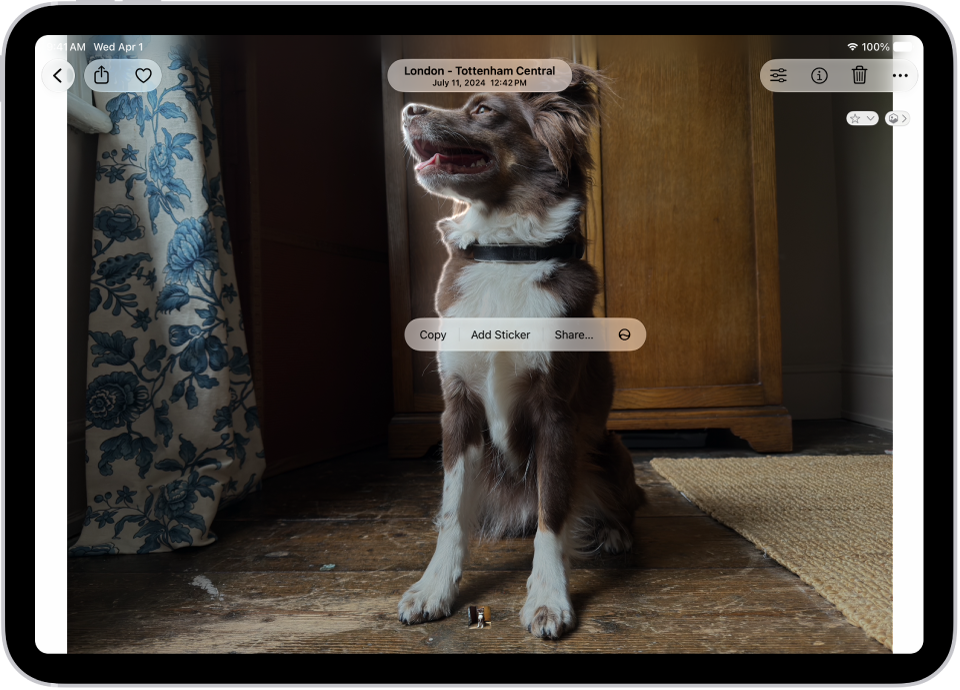
The Photos app is open to a photo of a dog. The dog is selected, and the option Add Sticker is available in the menu above.

  1. Start the Photos app on your iPad.
  2. Tap a photo to open it in full screen.
  3. Touch and hold the subject and then let go.
  4. Tap Add Sticker.

    The sticker appears in your stickers menu, which you can access when you use the iPad onscreen keyboard or Markup tools.

  5. Tap Add Effect to apply a visual effect such as Outline, or Comic, or turn the Live Photo animation on or off.

Quick tip: Stickers you’ve created can decorate a photo, too. See our guide, Edit photos and videos.

Delete a sticker

  1. Start the Photos app on your iPad.
  2. Open a photo and then tap the Edit button.
  3. Tap the Markup button, then tap the Add button.
  4. Tap Add Sticker, touch and hold the sticker you want to delete, and tap Remove.

Stickers sync with iCloud, so you’ll have them on each iPhone, iPad, Mac, and Apple Vision Pro device that’s signed in to the same Apple Account.

See also

Tags: iCloud, Photos

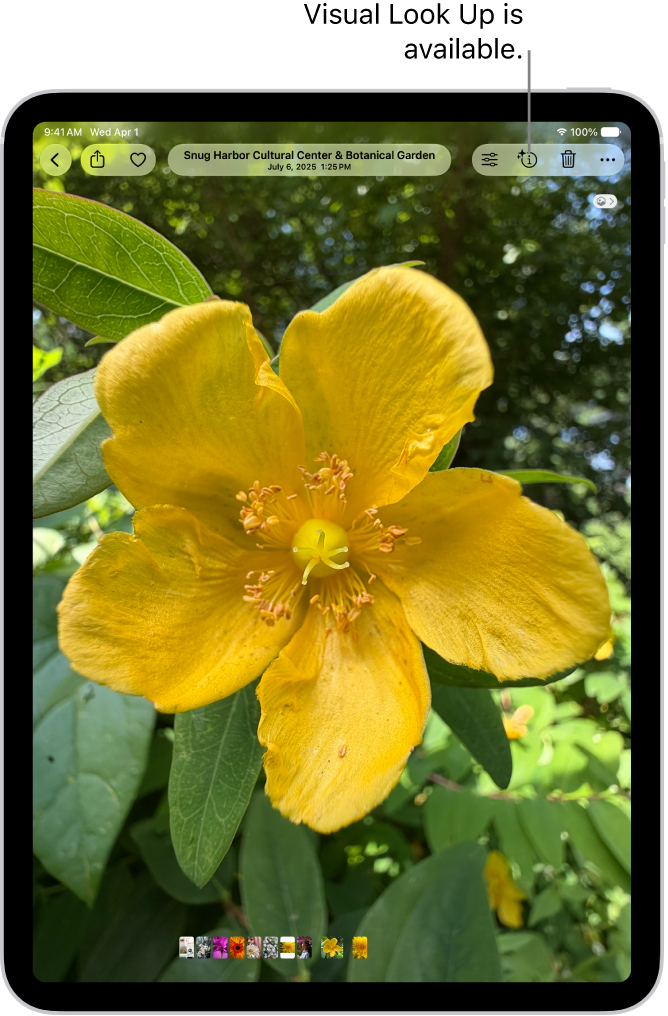
With Visual Look Up, you can identify and learn about architectural landmarks, popular statues, famous art, plants, pets, books, and more that appear in photos and images. It can also identify food and suggest related recipes, and you can use it in Photos, Safari, Quick Look, and more.

When the Info button shows a symbol with stars, Visual Look Up is available. You can also interact with content in a photo or video, and lift a subject from the photo or video background.

A photo is open in the Photos app library. At the top of the screen, the Info button displays an icon indicating that Visual Look Up information is available. The button is selected and the Visual Look Up results appear on the screen.

  1. Open a photo or image in full screen, or pause a video on any frame.

    If the Info button displays a symbol with stars such as the Fork Knife Circle Badge Sparkles button or the Dog Circle Badge Sparkles button, Visual Look Up is available.

  2. Tap the starred Info button and then tap Look Up at the top of the photo information to view the Visual Look Up results.
  3. Tap the screen anywhere outside the Visual Look Up results box to close it and tap the Close button to close the photo or video info box.

Apple says Visual Look Up isn’t available in all regions or languages.

See also

Tag: Photos

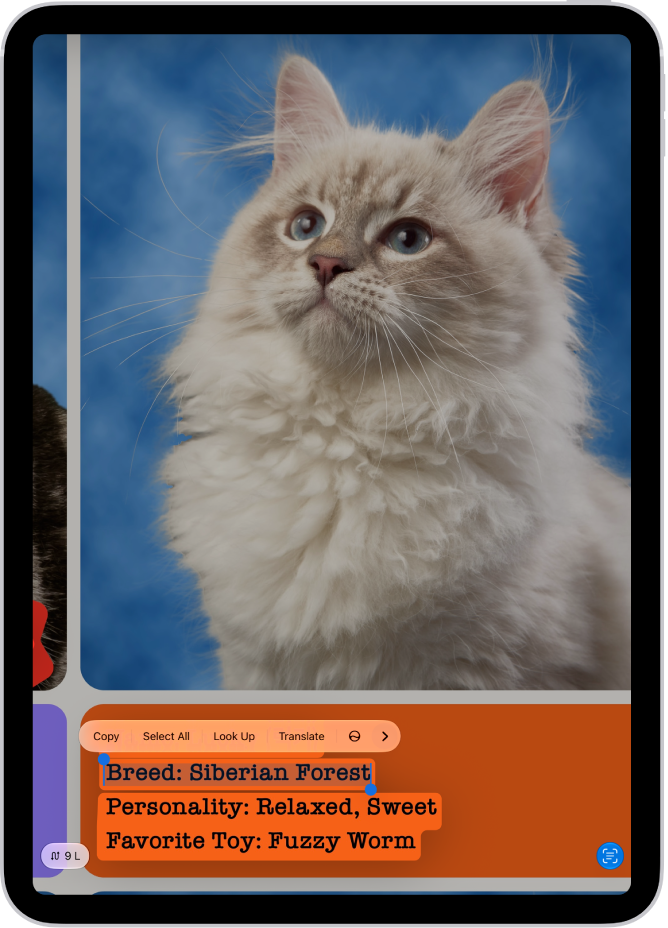
Live Text recognizes text within your photos, videos, and images you find online. You can select text to copy, share, or translate, or use quick actions to make a phone call, open a website, or convert currencies.

You can use Live Text in Safari, Photos, Camera, Quick Look, and more, and you’ll want to make sure it’s turned on for all supported languages first. You can also look up the meaning of text, search the web for it, or share it with AirDrop, Messages, or Mail.

Note: Live Text isn’t supported on iPad (8th generation), and it isn’t available in all regions or languages.

A photo of a recipe in Spanish is shown. Within the photo, text is highlighted. Near the bottom, from left to right, are buttons for Translate, converting grams, converting Celsius, and the Detect Text button.

Turn on Live Text

Before you start using Live Text, make sure it’s turned on for all supported languages.

  1. Open the Settings app on your iPad.
  2. Tap General and tap Language & Region.
  3. Turn on Live Text.

Copy, translate, and look up text in a photo or video

  1. Open a photo or pause a video that contains text.
  2. Tap the Detect Text button and then touch and hold the selected text.
  3. Use the grab points to select specific text. Then do any of the following:
    • Copy Text: Copy text to paste into another app such as Notes or Messages.
    • Select All: Select all the text within the frame.
    • Look Up: Show personalized web suggestions.
    • Translate: Translate text.
    • Search the web: Look up the selected text on the web.
    • Share: Share text using AirDrop, Messages, Mail, or other available options.
  4. Tap the Detect Text button to return to the photo or video.

Perform tasks within a photo or video with quick actions

Depending on the content of the photo or video, you can tap a quick action at the bottom of the screen to do things like make a phone call, get directions, translate languages, convert currencies, and more.

  1. Open a photo or pause a video that contains text.
  2. Tap the Detect Text button.
  3. Tap a quick action at the bottom of the screen.
  4. Tap the Detect Text button to return to the photo or video.

See also

Tag: Photos