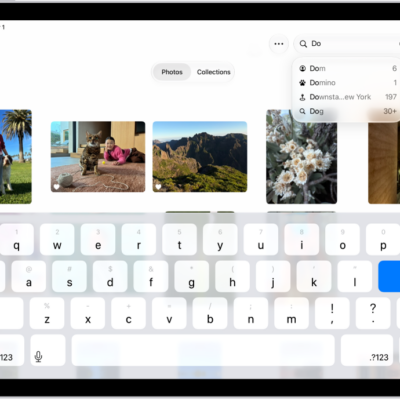
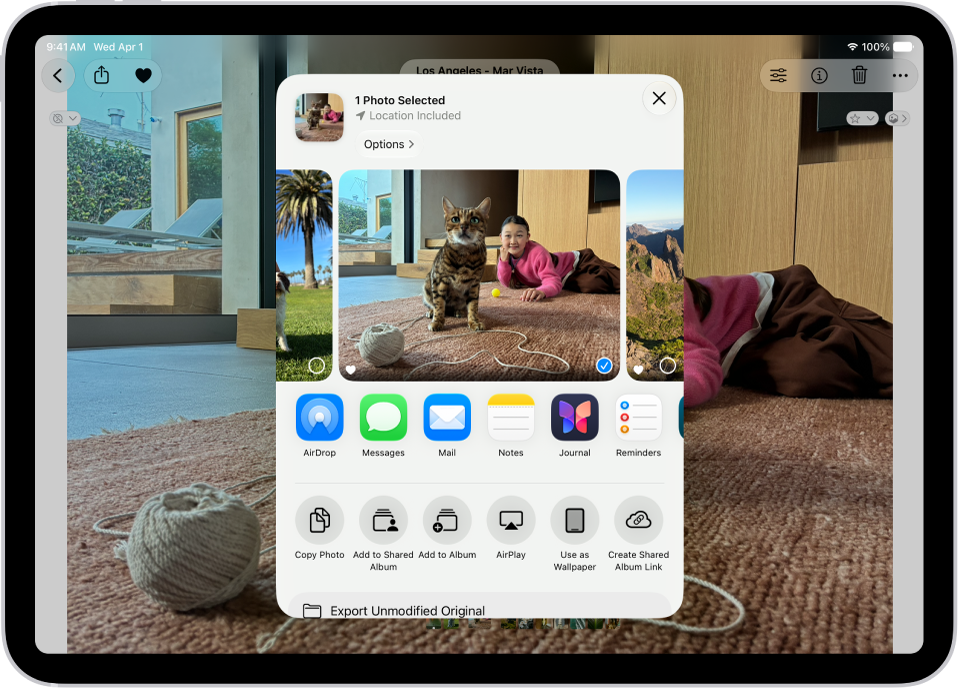
You can share photos and videos in Mail or Messages, or in other apps you install. With AirDrop, you can instantly share photos with anyone nearby on an iPhone, iPad, Mac, or Apple Vision Pro.
You can share a single photo or video, several at once, or all the photos in a collection. If you’re sharing multiple items, Show Selected lets you check your choices before you share.
Here’s how to share photos and videos on iPad.
To learn about transferring photos and videos to an external storage device, see Import and export photos and videos.
Note: Sharing a photo or video includes sharing its associated metadata, such as date and time, location, device, and captions.
Share photos and videos
- Open the Photos app on your iPad.
-
Do any of the following:
-
Share a single photo or video: Open the photo or video and tap the Share button. Then choose a sharing option such as Mail, Messages, or AirDrop.
-
Share multiple photos or videos: When viewing a screen with multiple thumbnails, tap Select. Then tap the thumbnails of the photos and videos you want to share. Tap the Share button. Then choose a sharing option such as Mail, Messages, or AirDrop.
Tip: If you’re sharing multiple items, tap Show Selected to view or modify your selections before you share.
- Share all the photos in a collection: While viewing a collection of photos, tap Select. Then tap Select All. Tap the Share button. Then choose a sharing option such as Mail, Messages, or AirDrop.
-
Share a single photo or video: Open the photo or video and tap the Share button. Then choose a sharing option such as Mail, Messages, or AirDrop.
With a shared album, you can share photos and videos with a group of friends and family, and they can contribute to the album, too. Read our guide, Create shared albums.
Note: Your service provider sets the size limit for attachments. And on devices or services that don’t support Live Photos, a Live Photo gets shared as a still photo.
Adjust the information you share about a photo or video
You can choose the format, file type, and information that goes along with a photo or video before you share it.
- Open the Photos app on your iPad.
- Open a photo or video, tap the Share button, tap Options, and then do any of the following:
- Don’t share keywords: Turn off Keywords.
- Adjust the file format: Tap Automatic for the best file format for the destination, tap Current to prevent a file format conversion, or tap Most Compatible and files may convert to JPEG or MOV.
- Send all photo data: Turn on All Photos Data to share the original file with edit history and metadata; the recipient can view and modify the current version (available with AirDrop only).
- Tap the Close button.
Save or share a photo or video you receive
Photos shared with you from other apps can be saved.
Depending on the app, tap the Save button next to the image, or touch and hold the photo or video, then tap the Save button.
To view your saved photos and videos, open your photo library, or see our article, Find recently saved photos.
Note: Photos and videos people share with you in the Messages app get saved in your photo library automatically. To turn this feature off, go to the Settings app and tap Apps, then tap Messages. Next, tap Shared with You and turn off Photos.
See also
- Use AirDrop on iPad to send items to nearby Apple devices
- Import and export photos and videos on iPad
- Create shared albums in Photos on iPad