Got a tip for us?

Photos

Use the Photos app to view photos and videos on your iPad. You can view a photo in full screen and keep browsing, or play videos and go forward or back in the video. On supported models, you can even view the photo with a 3D effect.

To focus on the photo you’re viewing, you can hide the controls onscreen. You can also search for photos and videos, and play memory movies in Photos on iPad.

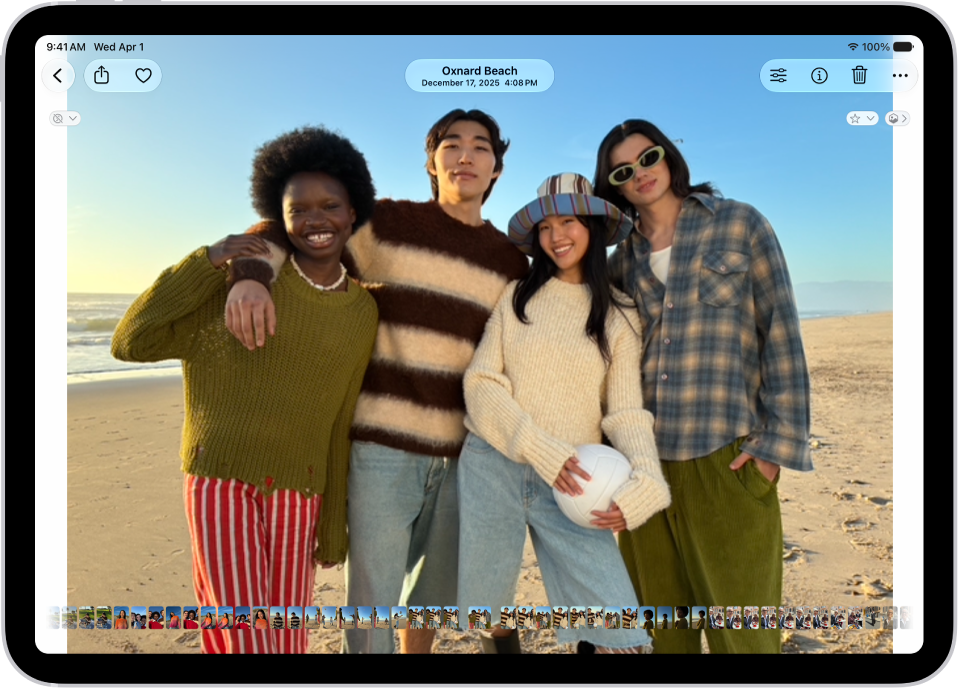
A photo is open in the Photos app and fills the center of the screen.

View photos

  1. Open the Photos app on your iPad.
  2. Tap a photo to view it in full screen.

    Tip: Tap the Spatial Scene button, then move your iPad in your hand to view the photo with a 3D effect—available on iPad Pro (M4 and M5), iPad Pro 12.9-inch (5th generation and later), iPad Pro 11-inch (3rd generation and later), iPad Air (M2, M3, and M4), iPad Air (5th generation and later), iPad (A16), iPad mini (A17 Pro), and iPad mini (6th generation).

  3. Swipe left or right on the photo to keep browsing, or swipe the thumbnails below the photo to quickly jump forward or back.
  4. Tap the Back button to close the photo and return to the library or collection.

Quick tip: To focus on the photo in front of you, tap it to hide the controls onscreen, and tap it again to show the controls.

Play videos

  1. Open the Photos app on your iPad.
  2. Tap a video to play it.

    As the video plays, you can pause the video, or drag the gray bar to go forward or back in the video.

  3. Tap the Back button to close the video and return to the library or collection.

See also

Tag: Photos

Keywords are tags or labels you add to your photos and videos to help you easily find them. After assigning keywords, you can search for photos and videos by the keywords associated with them.

As you type a search, keyword results have Aa before them, and you can type several keywords separated by spaces. You can manage your keywords, too.

Here’s how to add keywords to photos and videos on iPad.

Add keywords

  1. Open the Photos app on your iPad.
  2. Open a photo or video.
  3. Tap the Info button or swipe up on the image.
  4. Tap Add Keywords, enter your custom keyword or keywords, and then tap the Done button.

    If you’ve already added keywords and want to add more, tap Edit in the field where the keywords appear.

  5. Swipe down to close the Info menu.

Search for photos and videos by keyword

  1. Open the Photos app on your iPad.
  2. Tap the Search button, then enter the keyword.

    As you type, suggested search results appear below the search field. Search results for keywords have Aa before them.

    Tip: You can type multiple keywords separated by spaces.

  3. Tap the suggested search result to view all the photos and videos with the keyword you entered.
  4. Tap the Close button to close the keyword search results.

Manage keywords

  1. Open the Photos app on your iPad.
  2. Tap Collections. Tap your profile in the top-right corner of the screen.
  3. Tap Manage Keywords, tap a keyword, and tap any of the following:
    • Add to Favorite: Adds the keyword to the Keyword filter options in your photo library, albums, and collections.
    • Rename: Changes the name of the keyword applied to your photos and videos.
    • Delete: Removes the keyword from your photos and videos.
  4. Tap Add Keywords at the bottom of the screen to create a new keyword.

See also

Tag: Photos

When you search in the Photos app, you’ll see suggestions of dates, locations, and people you’ve named in your photo library. You can search within your Library or Collections tabs, or within a specific album or collection, and you can search by place, category, business names, events, text such as an email address or phone number, and people or pets you’ve named.

With Apple Intelligence, you can search for specific images by describing what you want to find, and search video clips for key moments.

Apple Intelligence on iPadOS 27 or later is available on an Apple Intelligence-enabled iPad mini (A17 Pro) and iPad models with M1 or later, Apple notes. Apple Intelligence is not available in all languages or regions. Usage limits may apply.*
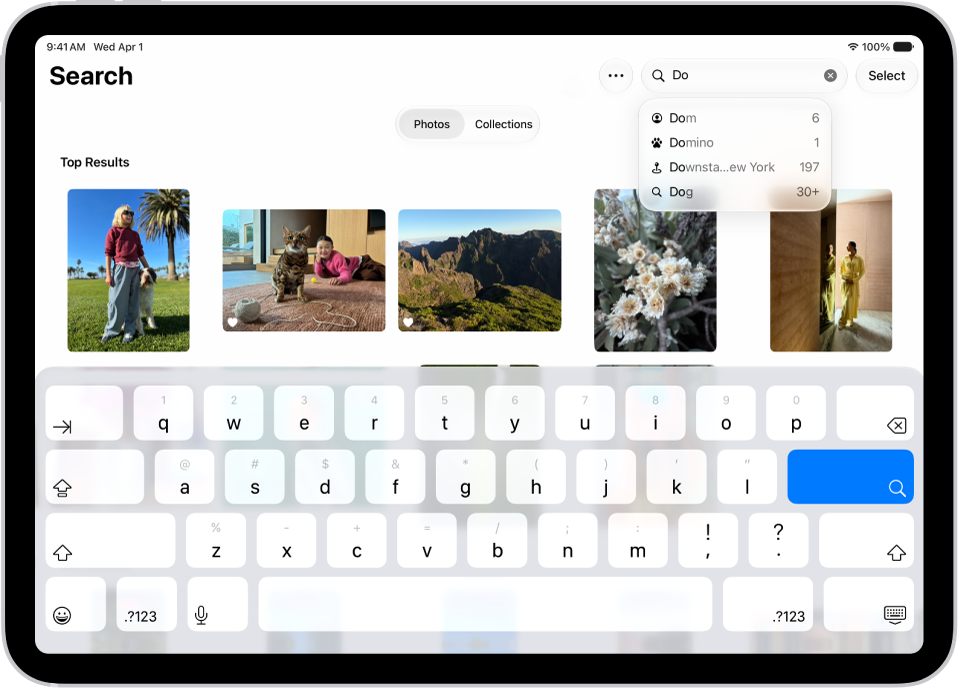
The Search screen in the Photos app. At the top of the screen is the search field and below it are suggestions.

Search for photos and videos

  1. Open the Photos app on your iPad.
  2. Tap the Search button in the top-right corner.
  3. Type what you’re looking for into the search field, such as:
    • Date (month or year)
    • Place (city or state)
    • Business names (museums or restaurants, for example)
    • Category (beach or sunset, for example)
    • Events (sports games or concerts, for example)
    • People or pets you’ve named in your photo library (see Find and name people and pets)
    • Text (an email address or phone number, for example)
    • Caption (See photo and video information)
    • If you’re using Apple Intelligence, enter a description using natural language—”Maya skateboarding in a tie-dye shirt,” or “Sadie cartwheeling on the grass,” for example.
  4. Tap one of the suggestions or tap the Search button.
  5. Swipe up to browse the complete search results, or do any of the following:
    • Select specific search results: Tap Select and select the photos and videos you want to share or add to an album.
    • View albums or memories that contain the search result: Tap Collections.
    • Sort search results: Tap the Sort and Filter button. Then tap Added to sort by the date added to your library, or tap Captured to sort by the date taken.
    • Filter search results: Tap the Sort and Filter button. Then tap an option, such as Favorites or Edited.
  6. Tap the Close button to exit search.

Quick tip: To narrow your search, include a media type like Video or Portrait in the search field.

Search by shared library participant

Participants in an iCloud Shared Photo Library can also search by who added each photo or video to the library.

  1. Open the Photos app on your iPad.
  2. Tap the Search button, then enter “Shared by.”
  3. Tap a suggested name.

*Apple Intelligence is available with Siri and device language set to Chinese (Simplified), Chinese (Traditional), Danish, Dutch, English, French, German, Italian, Japanese, Korean, Norwegian, Portuguese, Spanish, Swedish, Turkish, or Vietnamese. Some features may not be available in all regions or languages. Some devices may not be available in all regions. Siri AI is available in beta in iOS 27, iPadOS 27, macOS 27, watchOS 27, and visionOS 27 and requires an Apple Intelligence–enabled device set to a supported language. Available in English to start. Siri AI will not be initially available in the EU on iOS, iPadOS, and watchOS. Certain Apple Intelligence features that rely on server-side models are subject to daily usage limits, including but not limited to Siri AI, Intelligent Photo Editing Tools, Image Playground, and AFM 3 Cloud models in Shortcuts. Daily limits may vary by feature, request complexity, system demand, system policies, and other factors. Expanded access to such features will be available for a fee in the future. Use of these features is subject to the Apple Intelligence Terms and Conditions.

See also

Browse the library in the Photos app to view your entire collection of photos and videos.

You can go to a specific time in your library by years or months, or go back to your most recent photos. You can also change the size and appearance of the thumbnails in your library grid and view each one in the dimension it was captured in. And you can manage the content displayed in your library, such as screenshots and photos shared with you in Messages.

Here’s how to browse your photo library on iPad.

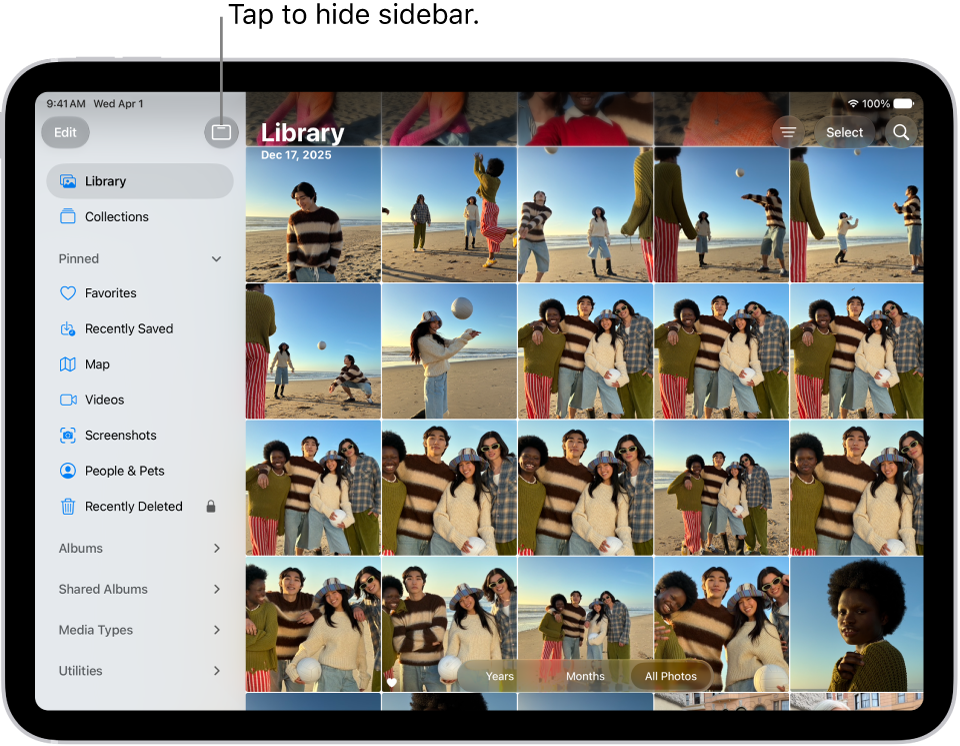
The Photos app is open and the Library tab is selected in the sidebar.

View your library

  1. Start the Photos app on your iPad.
  2. Tap Library.
  3. Swipe down to see more photos, or tap Years or Months to go to a specific time in your library.
  4. Tap Library or All to go back to your most recent photos.

To focus on the images in your library, tap the Hide Sidebar button to close the sidebar, then use the Years, Months, and All buttons to navigate. To show the sidebar again, tap the Toggle Sidebar button.

Change the library display

You can change the size and appearance of photo thumbnails in the library photo grid and manage what your library displays.

Quick tip: As you view the library, pinch the screen to zoom in or out.

  1. Start the Photos app on your iPad.
  2. Tap the More button, then tap View Options.
  3. Do any of the following:
    • Enlarge the size of the photo and video thumbnails: Tap Zoom In.
    • Reduce the size of the photo and video thumbnails, to see more at the same time: Tap Zoom Out.
    • View each photo or video thumbnail in the dimension it was captured in: Tap Aspect Ratio Grid. To return to square thumbnails, tap Square Photo Grid.
    • Hide screenshots: Tap Screenshots.
    • Hide the shared library badge on thumbnails: Tap Shared Library Badge.
    • Hide photos and videos shared with you in Messages: Tap Shared with You.
    • Hide photos and videos you manually added from your Mac: Tap From My Mac.

For more ways to customize the content shown in your photo library, check out our guide, Filter and sort the photo library.

See also

Tag: Photos

Find photos and videos in your photo library faster by sorting, filtering, or hiding certain items. You can sort the library by the date items were added or the date they were taken, and filter it by category, such as Edited, Favorites, or Captured by Me.

The Media Types filter can show only photos, videos, or screenshots, and you can apply multiple filters at the same time. Screenshots and photos and videos synced from your Mac or shared with you in Messages appear there by default, but you can hide them to reduce clutter.

Sort the library

Sort your photo library, and items appear by the date they were added or the date they were taken.

  1. Start the Photos app on your iPad.
  2. Tap the Sort and Filter button and tap one of the following options at the top of the list:
    • Added: Photos and videos you added most recently appear at the bottom of the library.
    • Captured: Photos and videos are sorted by the date they were taken, instead of the date they were added to the library.

Filter the library

Filters display items in your photo library by category, such as Edited, Favorites, or Captured by Me, and the Media Types filter displays only photos, videos, or screenshots.

Quick tip: You can apply multiple filters at the same time.

  1. Start the Photos app on your iPad.

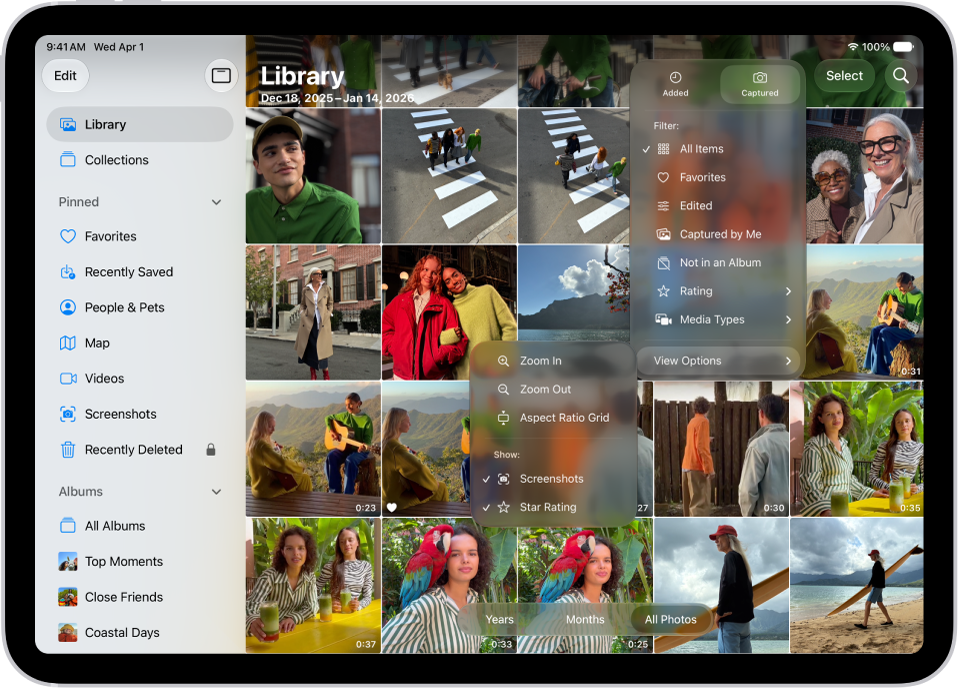
    The Photos app is open and the Library tab is selected in the sidebar. The Sort and Filter button at the top of the screen is selected, showing Sort and Filter options for viewing the library contents.

  2. Tap the Sort and Filter button and then tap the filter you want to apply.
  3. To remove the filters and return to the full library, tap Remove Filters.

Hide screenshots, items from your Mac, and items shared with you

By default, photos and videos shared with you in the Messages app, photos and videos synced from your Mac, and screenshots automatically appear in your photo library. To reduce clutter, you can hide these items.

  1. Start the Photos app on your iPad.
  2. Tap Library.
  3. Tap the Sort and Filter button and then tap View Options.
  4. Tap Screenshots, From My Mac, or Shared with You to hide these items in your library. To stop hiding them, tap the option again.

See also

Tag: Photos

On supported iPhone models, Cinematic mode in Camera applies a depth-of-field effect that keeps the subject of your video sharp while blurring the foreground and background. After capturing the video, you can adjust or remove the Cinematic mode effects in the Photos app on iPad.

Camera identifies where to focus while you record and can change focus automatically, and you can change the focus subject later. You can even adjust the depth of field or turn off the Cinematic effect.

Cinematic mode videos can be edited on iPad Pro 12.9-inch (3rd generation and later), iPad Pro 11-inch (all generations), iPad Air (3rd generation and later), iPad mini (5th generation and later), and iPad mini (A17 Pro).

Turn off the Cinematic effect

  1. Open the Photos app on your iPad.
  2. Open a video you recorded in Cinematic mode. Tap the Edit button.
  3. Tap Cinematic at the top of the screen and then tap Done.

To turn Cinematic mode back on, repeat these steps.

Change the focus subject in a Cinematic mode video

When you record in Cinematic mode, Camera automatically works out where to focus and can change focus automatically if it identifies a new subject. You’re also free to change the focus subject manually.

  1. Open the Photos app on your iPad.
  2. Open a video you recorded in Cinematic mode. Tap the Edit button.

    White dots under the frame viewer indicate where Camera automatically changed the focus while recording. Yellow dots indicate where the focus was manually changed.

  3. Play the video, or slide the white vertical bar in the frame viewer, to the point where you want to change the focus.
  4. Tap the new subject, outlined in yellow, on the screen to change the focus; double-tap to set automatic focus tracking on the subject.

    A yellow dot appears under the frame viewer to indicate the focus was changed.

    Note: You can also touch and hold the screen to lock the focus at a specific distance from the camera.

  5. Repeat the steps above to change focus points throughout the video.

    To remove a manual focus change, tap the yellow dot under the frame viewer, then tap the Delete button.

  6. Tap Done to save your changes.

Tap the Manual Tracking button to switch between automatic focus tracking and the manually selected focus points.

After you save your changes, you can revert a Cinematic mode video to the original version if you don’t like your edits. Open the video, then tap Revert.

Adjust the depth of field in a Cinematic mode video

  1. Open the Photos app on your iPad.
  2. Open a video you recorded in Cinematic mode. Tap the Edit button.
  3. Tap the Depth Control button at the top of the screen.

    A slider appears below the video.

  4. Drag the slider left or right to adjust the depth of field effect. Then tap Done.

To undo your edits after you save, open the video, then tap Revert.

Export Cinematic mode videos to your Mac

To edit Cinematic mode videos in other apps, transfer them from your iPhone to your Mac, complete with depth and focus metadata.

Note: Your Mac has to be using macOS 13 or later to edit Cinematic mode videos from an iPhone with iOS 16 or later.

  1. Open the Photos app on your iPad.
  2. Open a Cinematic mode video. Then tap the Share button.
  3. Tap Options at the top of the screen and turn on All Photos Data. Then tap the Done button.
  4. Tap AirDrop. Tap the device you want to share with (make sure the device you’re sharing with has AirDrop turned on).

Export Cinematic mode videos to an external storage device

You can export Cinematic mode videos directly to an external drive, a memory card, or other storage device.

Note: Photos and videos that have been edited will be exported as the unmodified original version.

  1. Open the Photos app on your iPad.
  2. Select the video you want to export.
  3. Tap the Share button and then tap Export Unmodified Original.
  4. Tap your storage device (below Locations) and then tap the Done button.

See also

Tag: Photos

All photos and videos you take with your iPad camera are saved in the Photos app. With iCloud Photos turned on, all new photos and videos are automatically uploaded and available in Photos on all your devices that are set up with iCloud Photos (with iOS 8.1, iPadOS 13, or later).

You can share and print your photos, too, or send them with AirDrop, and iCloud Photos can even help save space on your iPad.

Note: If Location Services is turned on in Settings > Privacy & Security > Location Services, photos and videos are tagged with location data that can be used by apps and photo-sharing websites. See Control the location information you share.

View your photos

  1. Open Camera on your iPad.
  2. Tap the thumbnail image below the Shutter button.
  3. Swipe right to see the photos you’ve taken recently.

    Tap the screen to show or hide the controls.

  4. Tap All Photos to see all your photos and videos saved in Photos.

Share and print your photos

  1. While viewing a photo on your iPad, tap the Share button.
  2. To share your photo, select an option such as AirDrop, Mail, or Messages.
  3. To print your photo, swipe up to select Print from the list of actions.

To share with nearby devices, see our guide, Use AirDrop on iPad to send items to nearby Apple devices.

Upload photos and keep them up to date across devices

Use iCloud Photos to upload photos and videos from your iPad to iCloud and access them on other devices where you’re signed in to the same Apple Account. iCloud Photos is useful if you want to keep your photos up to date across multiple devices or save space on your iPad. To turn on iCloud Photos, go to Settings > Apps > Photos, then turn on iCloud Photos.

See also

Tags: iCloud, Photos

In the Photos app, you can trim a video you recorded on your iPad to change where it starts and stops. You can also adjust the playback speed, and change the portion of a video that appears in slow motion when you record in Slo-mo mode.

When you capture a video on any iPhone 16 model or later (except iPhone 16e), you can edit Spatial Audio in the Photos app, like reducing background noise to focus on the person speaking. You can save a trimmed video as a new clip, too, though a new clip can’t be reverted to the original.

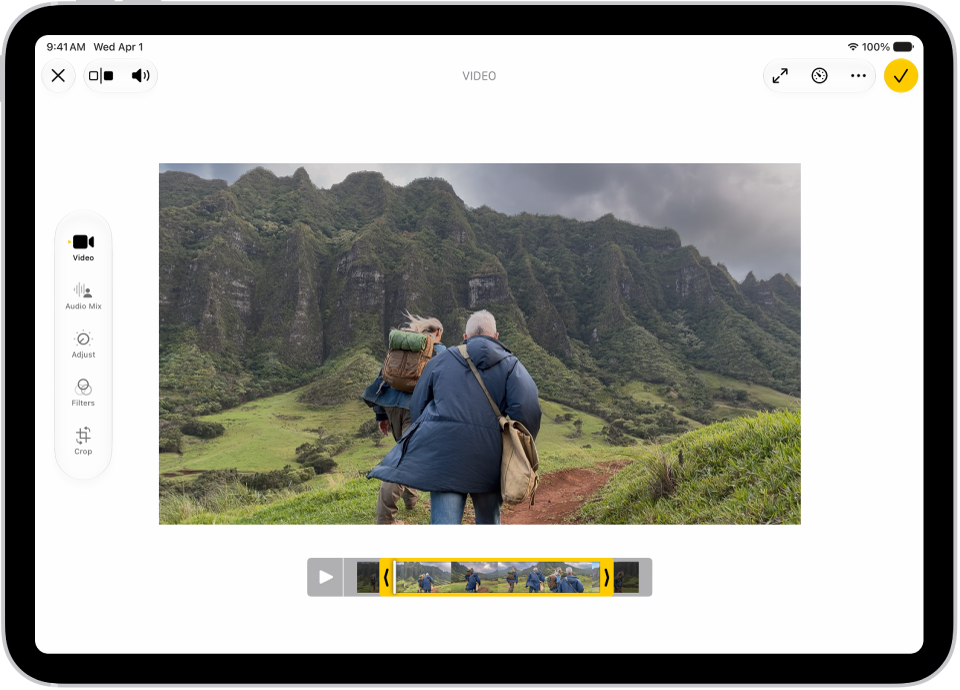
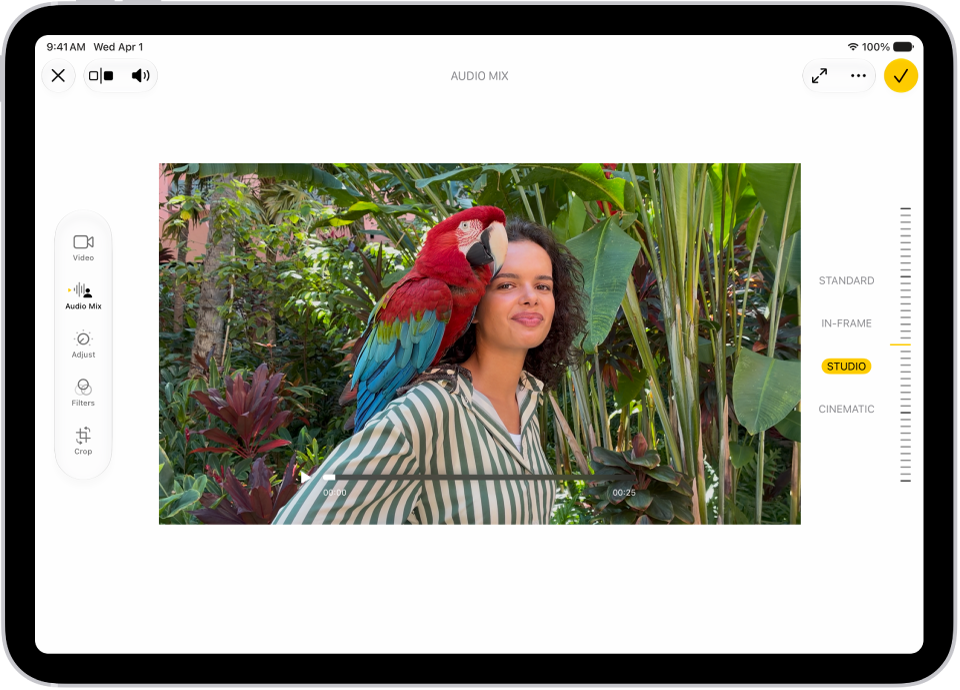
The Edit screen in the Photos app with a video playing in the center. The video’s frame viewer is across the bottom of the video and a yellow outline is around the selected frames to include in the trimmed video. On the left side of the screen are the Video, Adjust, Filters, and Crop buttons; the Video button is selected.

Trim a video

  1. Open the Photos app on your iPad.
  2. Open a video and then tap the Edit button.
  3. Drag either end of the frame viewer to adjust the start and stop time. Then tap Done.
  4. Tap Save Video to save only the trimmed video, or Save Video as New Clip to save both versions of the video.

To undo the trim after you save, open the video, tap the Edit button, then tap Revert.

Note: You can’t revert a video saved as a new clip to the original.

Edit the video playback speed

Slowing down videos captured at a high frame rate creates a dramatic effect.

  1. Open the Photos app on your iPad.
  2. Open a video, tap the Edit button, and then tap Video.
  3. Tap the Playback Speed button and then tap a playback speed.

    Note: The playback options available depend on the format of the video you captured. The larger the format you capture, the more options are available.

Edit slow-motion sections of a video shot in Slo-mo mode

  1. Open the Photos app on your iPad.
  2. Open a video shot in Slo-mo mode and then tap the Edit button.
  3. Drag the white vertical bars beneath the frame viewer to set where the video is played in slow motion.
  4. Tap Done to save your edits, or if you don’t like your changes, tap Cancel.

Edit sound with Audio Mix

Video you capture on iPhone 16 or later, except iPhone 16e, is recorded in multiple formats like Spatial Audio and Stereo, allowing more audio customization. With Spatial Audio turned on while recording, you can edit the video sound on your iPad later, reducing background noise to focus on the person speaking, for instance.

  1. Open the Photos app on your iPad.

    A video is open in the Photos app. On the left side of the screen are editing buttons for Video, Audio Mix, Adjust, Filters, and Crop. Audio Mix is selected. On the right side of the screen are buttons to adjust the sound options which are Standard, In-Frame, Studio, and Cinematic. Studio is selected.

  2. Open a video and then tap the Edit button.
  3. Tap Audio Mix and then choose one of the following:

    • Standard: Play the original audio you recorded.
    • In-Frame: Reduce sounds and voices from sources not visible in the video frame.
    • Studio: Reduce background sounds and reverb, to make it sound more like you’re recording in a professional studio.
    • Cinematic: Put all the voices onto a front-facing track and leave environmental noises in surround, like the audio in movies.
  4. Drag the slider next to the mix options to increase or decrease the effect and background noise levels.
  5. Tap Done.

See also

Tag: Photos

While you edit a photo or video, you can undo and redo changes. After saving, if you don’t like how your changes look, you can revert back to the original.

When you use iCloud Photos, any edits you make to your photos and videos are saved across all your devices. As you edit, you can also compare the edited version to the original.

Here’s how to undo and revert photo edits on iPad.

Undo and redo as you edit

As you edit a photo or video, tap the Undo button and the Redo button at the top of the screen to undo and redo multiple edit steps.

Quick tip: If you’d like to compare the edited version to the original, tap the photo or video.

Revert an edited photo or video

You can revert to the original even after you’ve edited a photo or video and saved your changes.

  1. Open the Photos app on your iPad.
  2. Open the edited photo or video and tap the More button.
  3. Tap Revert to Original.

See also

Tag: Photos

In the Photos app, you can change and adjust the lighting effects, depth of field, and focus point of images you take in Portrait mode.

You can apply, change, or remove Portrait Lighting effects, and edit portraits taken on other devices. Natural Light, for example, keeps the face in sharp focus against a blurred background, while Stage Light spotlights the face against a deep black background.

Here’s how to edit Portrait mode photos on iPad.

Change the Portrait Lighting effect

In Portrait mode photos, you can apply, change, or remove the Portrait Lighting effects, and even edit portraits taken on other devices.

  1. Open the Photos app on your iPad.
  2. Tap a Portrait mode photo to open it, then tap the Edit button.
  3. Tap the Lighting Intensity Off button at the top of the screen.

    The Lighting effects appear on the right side of the screen.

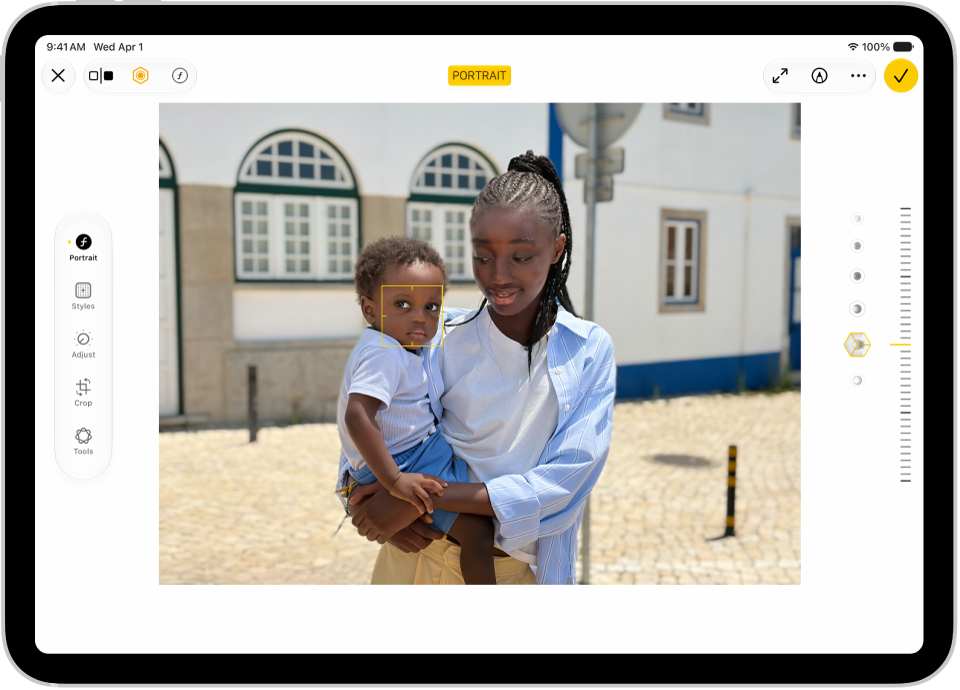
  4. Touch the Portrait Lighting button. Then slide your finger up or down to choose a lighting effect:

    • Natural Light: The face is in sharp focus against a blurred background.
    • Studio Light: The face is brightly lit, and the photo has an overall clean look.
    • Contour Light: The face has dramatic shadows with highlights and lowlights.
    • Stage Light: The face is spotlit against a deep black background.
    • Stage Light Mono: The effect is like Stage Light, but the photo is in classic black and white.
    • High-Key Light Mono: The effect creates a grayscale subject on a white background.
  5. Drag the slider up or down to adjust the intensity of the lighting effect.
  6. Tap Done.

    The Edit screen of a Portrait mode photo. The photo is in the center of the screen and on the right side of the screen are the Portrait Lighting effect options. Stage Light is selected and there is a slider to adjust the level of the effect. On the left side of the screen are the Portrait, Adjust, Filters, and Crop buttons. The Portrait button is selected.

Note: To remove Portrait Lighting from a photo, tap the Edit button, and then tap Portrait at the top of the screen.

Blur the background in portraits

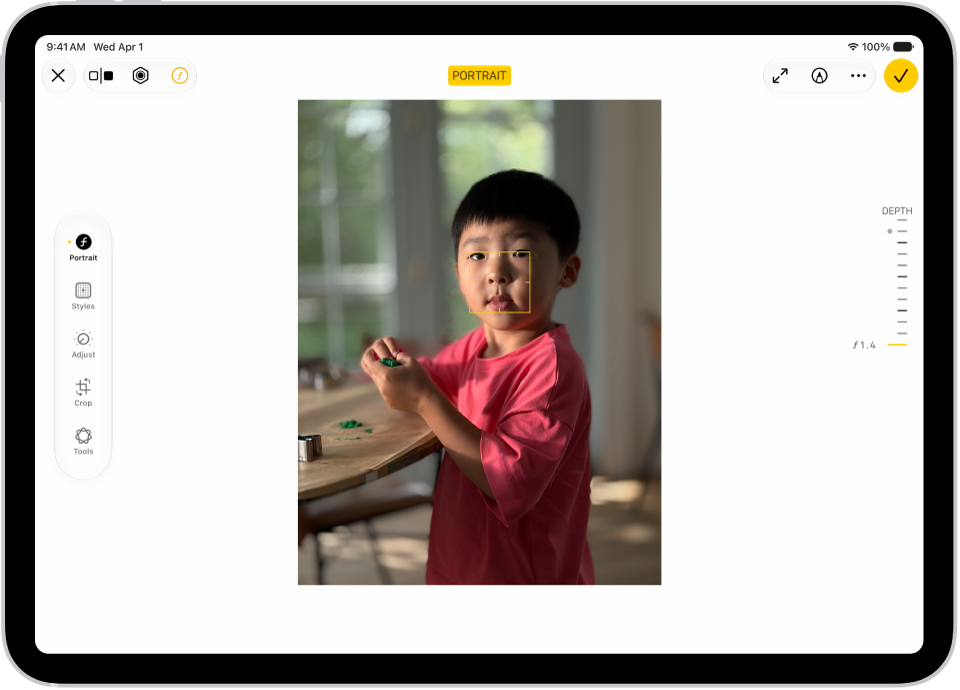
On models that support Depth Control, use the Depth Control slider to adjust the level of background blur in your portraits.

The Edit screen of a Portrait mode photo. A portrait photo is in the center of the screen. On the right side of the screen is a slider to adjust the Depth Adjustment setting. On the left side of the screen are the Portrait, Adjust, Filters, and Crop buttons. The Portrait button is selected.

  1. Open the Photos app on your iPad.
  2. Tap a Portrait mode photo to open it, then tap the Edit button.
  3. Tap Portrait on the left side of the screen and drag the slider on the right to adjust the background blur effect.

    A white dot marks the original depth value for the photo.

  4. Tap Done.

Change the focus point of a portrait

If a portrait was taken on an iPhone 13 or later running iOS 16 or later, you can use Depth and Focus Control on your iPad to change the subject (or focus point). Pick a new subject, and the depth of field (or blur) adjusts automatically so it appears sharp and in focus. Make sure, though, the new subject isn’t blurry or too far in the distance.

  1. Open the Photos app on your iPad.
  2. Tap a Portrait mode photo to view it in full screen and tap the Edit button.
  3. Tap a new subject or focus point in the photo.
  4. Tap Done.

Remove the portrait effect

You can remove the portrait effect (background blur) from a photo taken in Portrait mode.

  1. Open the Photos app on your iPad.
  2. Open a photo taken in Portrait mode.
  3. Tap Portrait on the left side of the screen and tap Portrait Off.

See also

Tag: Photos