Got a tip for us?

Photos

You can find photos and videos taken on a particular date—year, month, or day. The Recent Days collection shows a summary of the best photos from a particular day, and you can browse through your library by year or month. Years and Months views are curated to show your best shots.

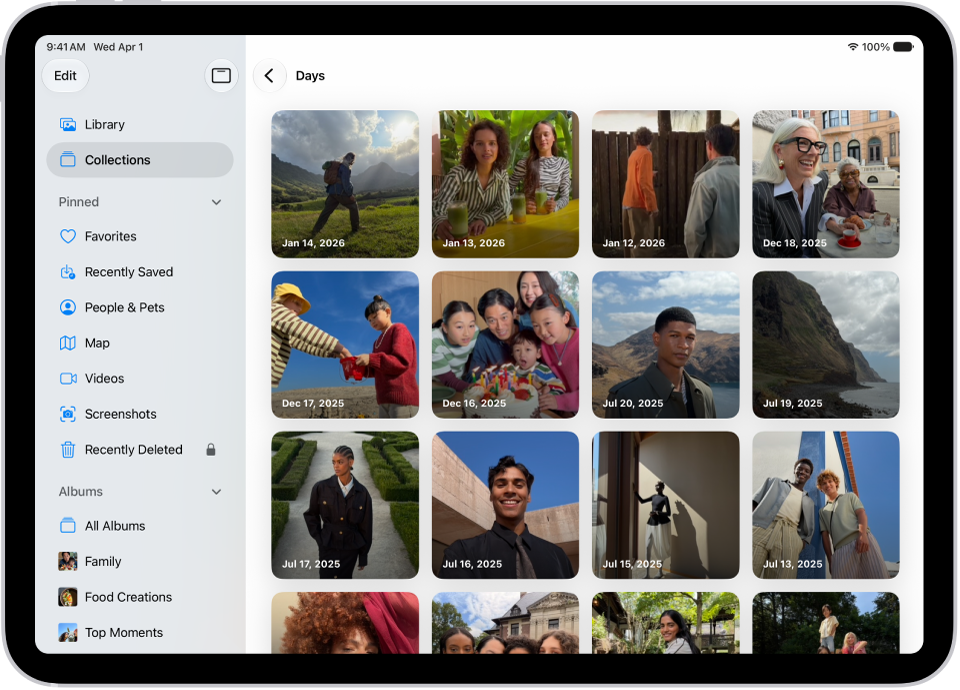
Days collection is open in the Photos app, showing collections of photos from each day arranged in a grid.

View the photos and videos you took on a recent day

You can find the photos and videos you took on a particular day in the Recent Days collection.

  1. Start the Photos app on your iPad.
  2. Tap Collections and then scroll down to Recent Days.
  3. Swipe left or right to quickly move between days, or tap Recent Days to view all.
  4. Tap a day to open the collection.

When you open a day in Recent Days, you see a summary of the best photos from the day. To see all the photos you took that day, tap Show All.

Browse through your library by year or month

  1. Start the Photos app on your iPad.
  2. Tap Library and tap one of the following:
    • Years: Quickly locate a specific year in your photo library.
    • Months: View collections of photos that you took throughout a month, organized by significant events—like a family outing, social occasion, birthday party, or trip.

Years and Months views are curated to show your best shots, and visual clutter like similar photos, screenshots, whiteboards, and receipts aren’t shown. To see every photo and video, tap All.

You can also search for a specific date; read our article, Search for photos and videos.

See also

Tag: Photos

You can find all the photos and videos you saved from other apps—like Messages, Safari, and Mail—in the Recently Saved collection. Photos and videos that were sent to you using AirDrop also appear here.

You can also sort your library by Recently Added, and see the photos you saved today in the Saved Today collection. The Recently Viewed and Recently Shared collections can help, too, and you can find receipts, QR codes, recently edited photos, and more.

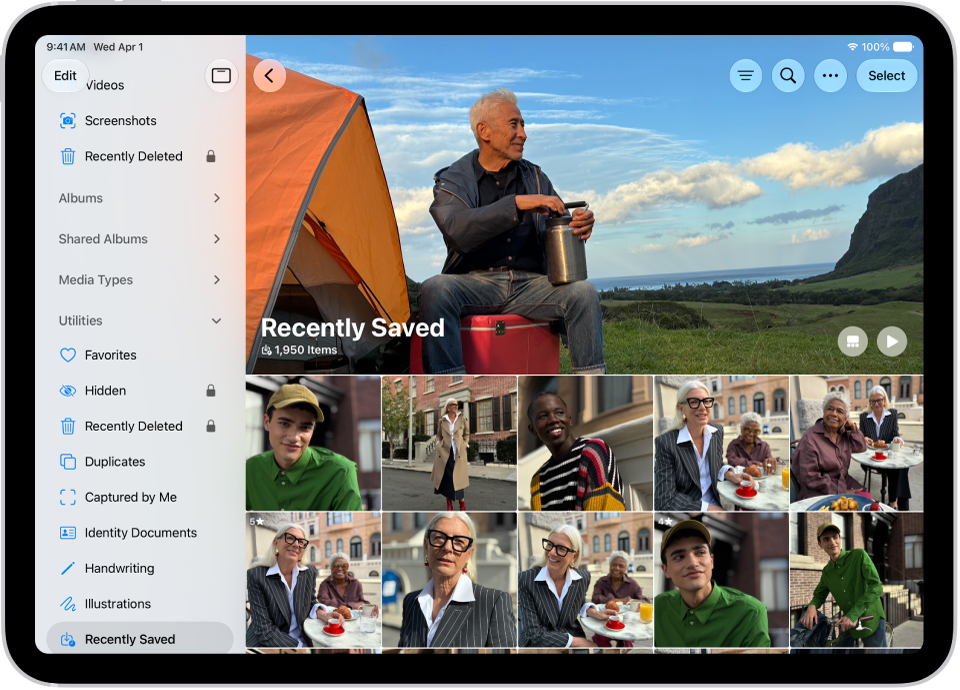
The Recently Saved collection is open in the Photos app, showing photos and videos.

  1. Start the Photos app on your iPad.
  2. Do any of the following:

    • Tap Collections, then tap the Recently Saved collection below Pinned.

      Tip: You can also find the Recently Saved collection below Utilities along with the Recently Viewed and Recently Shared collections.

    • Tap Library, tap the Sort and Filter button, then tap Sort by Recently Added.

Quick tip: For the photos you saved today, tap Collections, and then tap the Saved Today collection below Recent Days.

See also

Tag: Photos

Use albums in the Photos app to view and organize your photos and videos. You can also rename, rearrange, and delete albums and create folders to contain multiple albums.

If you use iCloud Photos, albums are stored in iCloud, so they’re up to date on devices signed in to the same Apple Account. See Back up and sync your photos and videos with iCloud. You can also sort and filter albums, change the format of the albums list, and share photos from an album.

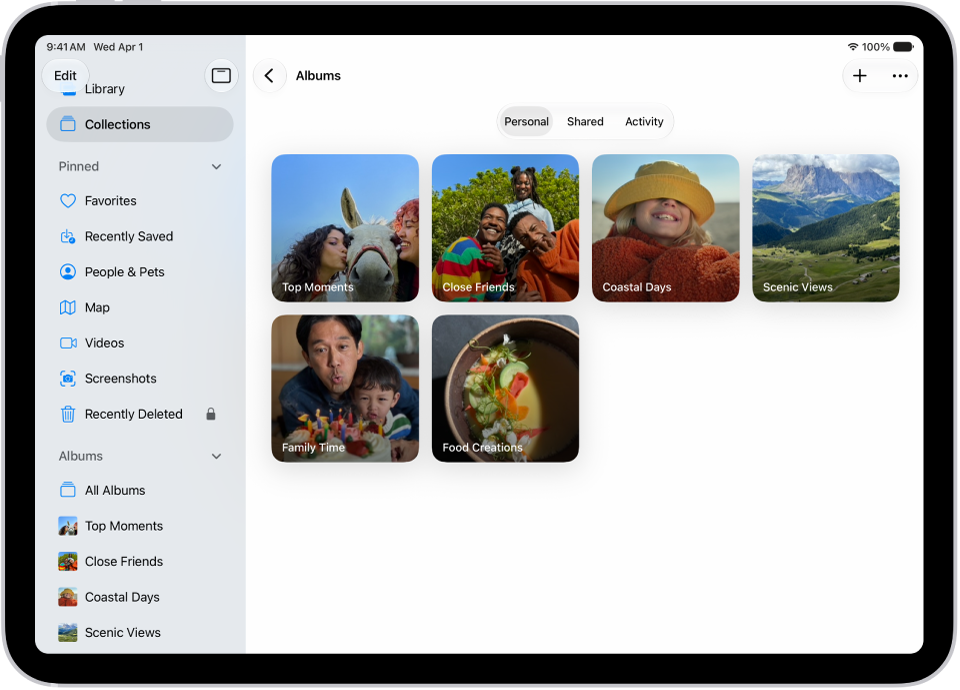
The Photos app is open to Albums. Personal is selected. The rest of the iPad screen shows thumbnails for albums in a grid.

Create a new album

  1. Open the Photos app on your iPad.
  2. Tap Albums in the library sidebar. Tap All Albums (or tap Collections, then tap Albums).
  3. Tap the Add button and then tap New Album.
  4. Enter a name for the album, add photos, and choose a key photo to represent the album.
  5. Tap Create.

For an album you can collaborate on with other people, check out our guide, Create shared albums.

Sort and filter albums

  1. Open the Photos app on your iPad.
  2. Tap Albums in the library sidebar. Tap All Albums (or tap Collections, then tap Albums).
  3. Tap the More button, then choose a sort option.

    If you choose Sort by Custom Order, touch and hold an album, then drag it to a new position.

  4. To show only albums or only folders, tap the More button, tap Filter, and tap Albums or Folders.

To change the format of the albums list, tap the More button, then select List View or Album Cover.

Update an album

  1. Open the Photos app on your iPad.
  2. Tap Collections and tap Albums.
  3. Tap the album to open it, then tap the More button.
  4. Tap the current title and then do any of the following:
    • Change the name: Enter a new name in the text field.
    • Change the key photo: Tap the photo icon in the bottom-right corner of the current key photo. Then select a new photo in the photo grid.
    • Add or remove photos: Tap Add Photos and then tap the photos you want to add (tap All to see your entire library), or deselect photos to remove them from the album. Tap the Done button to save your changes.
  5. Tap the Done button to close the album.

Share photos from an album

  1. Open the Photos app on your iPad.
  2. Tap Collections and tap Albums.
  3. Tap an album to open it.
  4. Tap Select, then tap the items you want to share. Or tap Select, then tap Select All to share everything in the album.
  5. Tap the Share button. Choose a sharing option such as AirDrop, Messages, or Mail.

Create a shared album from a personal album

To share an existing album with friends and family, move copies of all its photos and videos into a new shared album.

  1. Open the Photos app on your iPad.
  2. Tap Collections and tap Albums.
  3. Tap the album to open it, then tap the More button.
  4. Tap Create Shared Album, then tap the Done button.

For inviting and managing participants, read our article, Add and remove people in a shared album.

Delete an album

  1. Open the Photos app on your iPad.
  2. Tap Collections and tap Albums.
  3. Touch and hold the album you want to delete.
  4. Tap Delete Album.

Note: If you delete an album, its photos and videos remain in your photo library and in any other album they were added to.

Organize albums in folders

To organize your albums, create folders. Each folder you create appears in the Albums collection.

  1. Open the Photos app on your iPad.
  2. Tap Albums in the library sidebar. Tap All Albums (or tap Collections, then tap Albums).
  3. Tap the Add button, then tap New Folder.
  4. Name the folder in the text field, tap Add Albums, select the albums you want to add and tap the Done button.
  5. Tap the Done button to save and close the folder.

To remove an album from a folder, tap the folder to open it, touch and hold an album, then tap Remove from Folder.

See also

Tag: Photos

You can add photos and videos to and delete them from the albums you create in the Photos app. You can also search within an album to quickly find specific photos and videos.

You can work with several items at once, and search by location, date, keyword, and more. Your albums can be sorted and filtered, too.

Here’s how to add, delete, and find photos and videos in albums on iPad.

Add photos and videos to an album

  1. Open the Photos app on your iPad.
  2. Tap Collections and tap Albums.
  3. Tap an album to open it.
  4. Tap the More button and then tap Add Photos.
  5. Select the photos or videos you want to add to the album and then tap the Done button.

    Tip: Tap the Search button to find photos by location, date, keyword, and more.

Add photos and videos to an album from your library

  1. Open the Photos app on your iPad.
  2. Tap Library. Then tap a photo or video to view it in full screen.

    To add multiple photos or videos at the same time, tap Select, then tap the items you want to add.

  3. Tap the More button, tap Add To, and then tap Album, Shared Album, or create a new one.
  4. Tap the album you want to add to.

    Tip: Tap the More button at the bottom of the screen to sort and filter your albums, or the Search button to find the album you’re looking for.

Remove photos and videos from an album

  1. Open the Photos app on your iPad.
  2. Tap Collections and tap Albums.
  3. Tap an album to open it.
  4. Touch and hold the photo you want to remove. Tap Remove from Album.

To remove multiple photos or videos from an album, tap Select, then select the items you want to remove. Tap the More button, then tap Remove from Album.

Search for photos and videos in an album

  1. Open the Photos app on your iPad.
  2. Tap Collections and tap Albums.
  3. Tap an album to open it.
  4. Tap the Search button and enter the person, object, or place you’re looking for. Tap the Search button.
  5. Tap the Close button to close the search results.

See also

Tag: Photos

You can filter and sort photos and videos in the albums you create in the Photos app. You might filter an album to show only photos, only videos, or the ones you marked as favorites.

You can also sort photos and videos in an album by newest to oldest, oldest to newest, or in a custom order. You can remove a filter whenever you want, and add, delete, and find photos and videos in albums or search for them on iPad.

Filter photos and videos in an album

  1. Open the Photos app on your iPad.
  2. Tap Collections and tap Albums.
  3. Tap an album to open it.
  4. Tap the Sort and Filter button, tap Filter, and choose an option.

To remove a filter from an album, tap the icon that replaced the Sort and Filter button, then tap Remove Filter.

Sort photos and videos in an album

  1. Open the Photos app on your iPad.
  2. Tap Collections and tap Albums.
  3. Tap an album to open it.
  4. Tap the Sort and Filter button. Choose a sort option.

    If you choose Sort by Custom Order, touch and hold the photo or video thumbnail, then drag it into a new position.

See also

Tag: Photos

Some long video files are too large to send in a standard text message. You can use AirDrop, iCloud, or Mail Drop to send long videos that you record with your iPad camera.

AirDrop is the simplest way to send a large video to someone nearby on an iPhone, iPad, Mac, or Apple Vision Pro, since it sends information using Wi-Fi and Bluetooth.

Here’s how to share long videos on iPad.

Send a video using AirDrop

For sending a large video to a nearby Mac, iPad, iPhone, or Apple Vision Pro, AirDrop is the simplest option. Because it sends information using Wi-Fi and Bluetooth®, both you and the recipient need to have these controls turned on in Control Center before sending.

  1. If the person you’re sending the video to isn’t in your contacts, have them do one of the following:

    • On iPhone or iPad: Open Settings, tap General, tap AirDrop, and tap Everyone for 10 Minutes.
    • On a Mac: Choose Apple menu > System Settings. Then click General in the sidebar. Click AirDrop & Handoff. Then click the pop-up menu next to AirDrop and choose Everyone.
  2. Open the Photos app on your iPad.
  3. Tap the video you want to send. Tap the Share button.

    If you want to send the video in its original format, including metadata, location, and any associated edit history or captions, tap Options, then turn on All Photos Data.

  4. Tap AirDrop and then tap the contact or device you want to share with.

    After you share, the recipient receives an alert to accept or decline the AirDrop transfer.

Send a video using Mail Drop

With Mail Drop, you can send a large video as an attachment in Mail.

  1. Open the Photos app on your iPad.
  2. Tap the video you want to send, tap the Share button, and then tap Mail.
  3. Tap the To field and then enter the name or email of the recipient.

    If you want to add a subject or message, tap the Subject field or message body.

  4. Tap the Send button to send.

    Recipients have 30 days to download Mail Drop attachments.

See also

Tag: Photos

You can import photos and videos directly to the Photos app from a digital camera, an SD memory card, or another iPad or iPhone that has a camera. You can also export unmodified versions of your photos and videos directly to an external drive, memory card, or other storage device that’s connected to your iPad.

To import from a camera, you connect it with an adapter and make sure it’s in transfer mode.

Import photos and videos to your iPad

Import photos and videos saved on another device such as a digital camera or an external drive to the Photos app on your iPad.

  1. Insert the camera adapter or card reader into the Lightning connector or USB-C connector, or connect the device directly to your iPad.
  2. Do one of the following:
    • Connect a camera: Connect the adapter to the camera. Turn on the camera and make sure it’s in transfer mode. For more information, see the documentation that came with the camera.
    • Connect an external storage device or insert an SD memory card into the card reader: Don’t force the card into the slot on the reader; it fits only one way.
    • Connect an iPhone or iPad: Use the Lightning adapter or the USB-C cable that came with the device to connect it to the camera adapter. Turn on and unlock the device.
  3. Open the Photos app on your iPad.
  4. Tap Import.
  5. Select the photos and videos you want to import. Select your import destination.
    • Import all items: Tap Import All.
    • Import selected items: Tap the items you want to import (a checkmark appears for each), tap Import, and then tap Import Selected.
  6. After the photos and videos have been imported, keep or delete them on the camera, card, iPhone, or iPad.
  7. Disconnect the camera adapter or card reader.

Export photos and videos to an external storage device

You can export photos and videos you took on your iPad directly to an external drive, a memory card, or other storage device.

Note: Photos and videos you’ve edited will export as the unmodified original version.

  1. Connect your iPad to the storage device using the Lightning or USB-C connector, or connect the device directly to your iPad.
  2. Open the Photos app on your iPad.
  3. Select the photos and videos you want to export.
  4. Tap the Share button and then tap Export Unmodified Original.
  5. Tap your storage device (below Locations) and tap Save.

Photos and videos in the Hidden album won’t be transferred if the album is locked. To unlock it, go to Settings > Apps > Photos, then turn off Use Face ID, Use Touch ID, or Use Passcode.

See also

Tag: Photos

With Apple Intelligence, you can remove distracting objects, extend a photo beyond its original frame, and adjust its perspective.

The Clean Up tool removes distracting objects from a photo, and it may even highlight some items for you to tap and remove. You can also extend the background or reframe the perspective, though Clean Up isn’t available in all languages or regions.

Here’s how to clean up, extend, and reframe photos on iPad.

Note: Apple Intelligence on iPadOS 27 or later is available on an Apple Intelligence-enabled iPad mini (A17 Pro) and iPad models with M1 or later. Apple Intelligence is not available in all languages or regions. Usage limits may apply.*
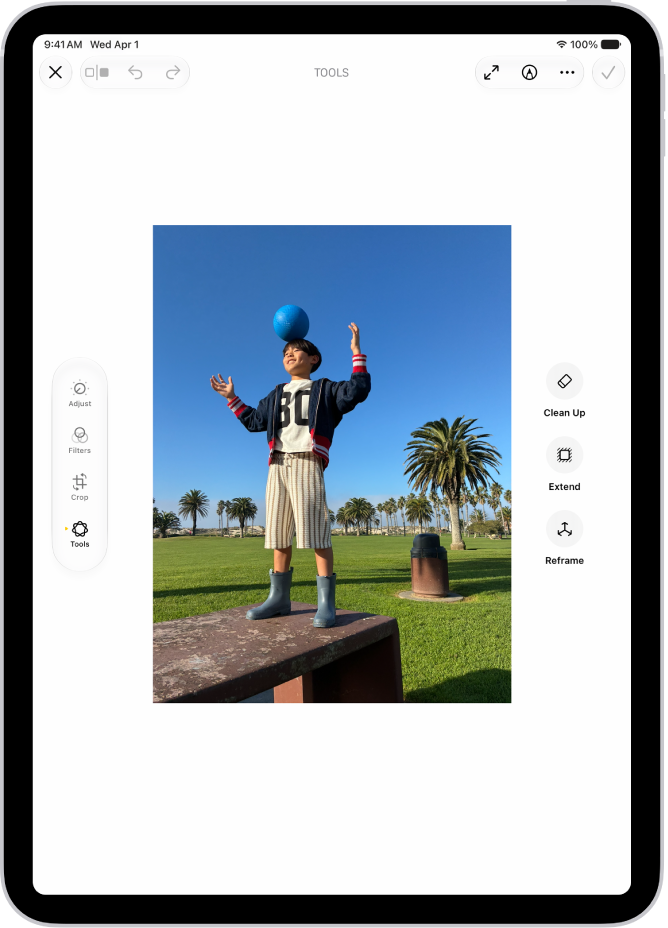
The Clean Up, Extend, and Reframe buttons next to a photo being edited in the Photos app.

Clean up distractions

Use the Clean Up tool to remove distracting objects from a photo.

Note: Clean Up is not available in all languages or regions.

  1. Start the Photos app on your iPad.
  2. Open a photo and then tap the Edit button.
  3. Tap Tools, then tap Clean Up.
  4. Tap, brush, or circle what you want to remove.
    • Some items may be highlighted automatically so you can quickly tap to remove them.
    • You can use two fingers to pinch, zoom, or pan the image.
    • Tap the Undo button if you want to restore something you removed.
  5. Tap Clean Up (if you’re using High Quality processing).
  6. Tap the Done button. Then tap Done to close the photo.

To undo Clean Up changes after saving, follow steps 1 through 3 above, then tap Reset.

You can choose the processing type Photos uses for Clean Up—Auto, Fast, or High Quality. Tap Auto during the Clean Up process, then choose an option.

Extend the background

Use the Extend tool to expand the edges of the original photo frame.

  1. Start the Photos app on your iPad.
  2. Open a photo and then tap the Edit button.
  3. Tap Tools, then tap Extend.
  4. Pinch or drag the photo to adjust the background ratio; drag the edge of the frame to crop.
  5. Tap Extend.
  6. Tap the Done button and tap the Done button to close the photo.

After you save, you can undo the changes you made with the Extend tool. Follow steps 1 through 3 above, then tap Reset.

Reframe the perspective

Use the Reframe tool to change the point of capture after you take a photo.

  1. Start the Photos app on your iPad.
  2. Open a photo and then tap the Edit button.
  3. Tap Tools, then tap Reframe.
  4. Touch, then drag the photo to adjust the perspective.
  5. Tap Reframe.

    Tap the photo to compare the reframed version to the original.

  6. Tap the Done button and tap the Done button to close the photo.

After you save, you can undo the changes you made with the Reframe tool. Follow steps 1 through 3 above, then tap Reset.

*Apple Intelligence is available with Siri and device language set to Chinese (Simplified), Chinese (Traditional), Danish, Dutch, English, French, German, Italian, Japanese, Korean, Norwegian, Portuguese, Spanish, Swedish, Turkish, or Vietnamese. Some features may not be available in all regions or languages. Some devices may not be available in all regions. Siri AI is available in beta in iOS 27, iPadOS 27, macOS 27, watchOS 27, and visionOS 27 and requires an Apple Intelligence–enabled device set to a supported language. Available in English to start. Siri AI will not be initially available in the EU on iOS, iPadOS, and watchOS. Certain Apple Intelligence features that rely on server-side models are subject to daily usage limits, including but not limited to Siri AI, Intelligent Photo Editing Tools, Image Playground, and AFM 3 Cloud models in Shortcuts. Daily limits may vary by feature, request complexity, system demand, system policies, and other factors. Expanded access to such features will be available for a fee in the future. Use of these features is subject to the Apple Intelligence Terms and Conditions.

See also

Use the tools in the Photos app to crop, rotate, flip, straighten, or adjust the size of a photo or video. When you use iCloud Photos, any edits you make are saved across all your devices.

You can crop manually or to a standard preset ratio, such as Square, Wallpaper, 9:16, or 5:7, and rotate an image 90 degrees or flip it horizontally. The crop tool keeps the original aspect ratio of the photo unless you unlock it.

Here’s how to crop, rotate, flip, or straighten photos and videos on iPad.

Crop, rotate, or flip a photo or video

  1. Open the Photos app on your iPad.
  2. Tap a photo or video to open it, then tap the Edit button.
  3. Tap the Crop button on the left side of the screen and then do any of the following:

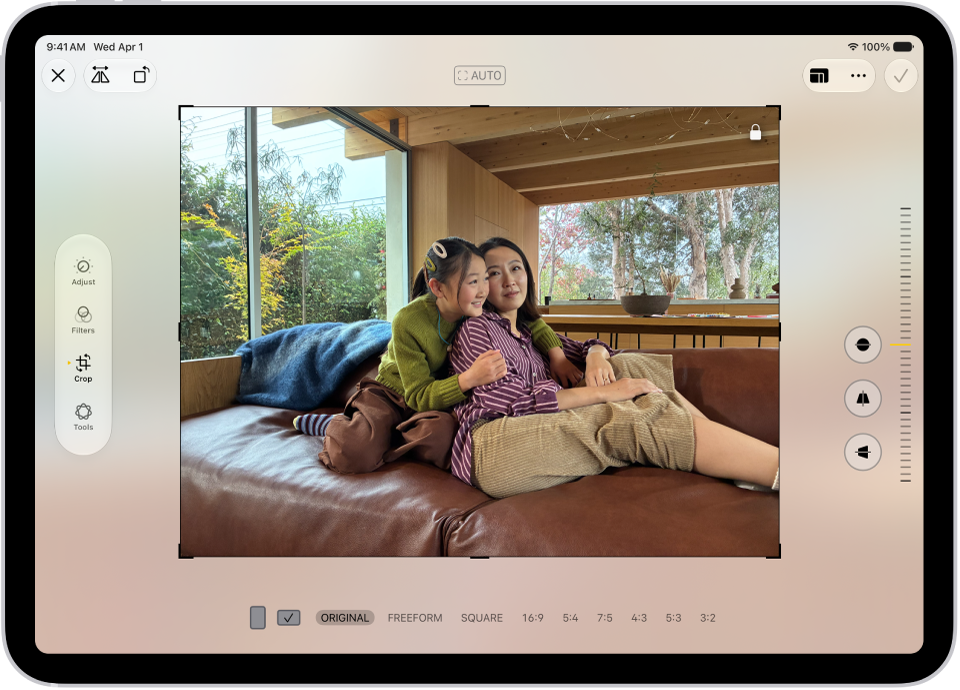
    The Edit screen in the Photos app with a photo in the center. On the left side of the screen are the Adjust, Filters, and Crop buttons; the Crop button is selected. On the right side of the screen are the crop enhancement options and a slider to adjust the level of the effect.

    • Crop manually: Drag the rectangle corners to enclose the area you want to keep in the image, or pinch open or closed.

      Note: When you drag a corner, the crop tool keeps the original aspect ratio of the photo. To change the aspect ratio, tap the lock at the top-right corner of the photo to unlock the aspect ratio.

    • Crop to a standard preset ratio: Tap the Aspect Ratio button at the top of the screen. Choose an option at the bottom of the screen such as, Square, Wallpaper, 9:16, or 5:7.
    • Rotate: Tap the Rotate button to rotate the image 90 degrees.
    • Flip: Tap the Flip button to flip the image horizontally.
  4. Tap the Done button to save your edits or tap the Close button to discard.

To quickly crop a photo while you’re viewing it, pinch the photo to zoom in, then tap Crop in the top-right corner of the screen. Make any further adjustments with the crop tools, then tap the Done button.

Straighten or tilt a photo or video

You can straighten a photo or video, or tilt it vertically or horizontally.

  1. Open the Photos app on your iPad.
  2. Tap a photo or video to open it, then tap the Edit button.
  3. Tap the Crop button.
  4. Tap a button next to the frame to straighten, tilt vertically, or tilt horizontally.
  5. Drag the slider to make adjustments.

    The level of adjustment you make is displayed by the slider. Tap the straighten or tilt button to switch between the adjusted version and the original.

  6. Tap the Done button to save your edits or tap the Close button to discard.

    Tip: To undo edits after you save, open the photo or video, tap the round arrow, then tap Revert to Original.

See also

Tag: Photos

You can make a screen recording to capture what’s happening on your iPad screen and save it as a video. You can even turn on the microphone to add audio.

Recording starts after a 3-second countdown, and your screen recordings are saved to your photo library automatically. The Screen Recording control is in Control Center, and you can review your screen recordings with your other media types in the Photos app.

Note: You can’t record your screen while using screen mirroring, and some apps might not allow you to record their content.

Record the iPad screen

  1. Swipe down from the top-right corner of the screen to open Control Center.

    If you don’t see the Screen Recording control, add it to Control Center. See Customize controls.

  2. Tap the Screen Recording button and then wait for the 3-second countdown to start recording.
  3. Swipe up to dismiss Control Center and then perform the action you want to record.
  4. To stop recording, tap the red button at the top of the screen and tap Stop.

Take a screen recording with audio

  1. Swipe down from the top-right corner of the screen to open Control Center.
  2. Touch and hold the Screen Recording button, tap Microphone to turn it on, and tap Start Recording.
  3. Wait for the 3-second countdown, then start recording.

Note: Some apps might not let you record their content. Also, you can’t record your screen and use screen mirroring together.

Review your screen recordings

Screen recordings are automatically saved to your photo library.

  1. Open the Photos app on your iPad.
  2. Tap Collections, scroll down to Media Types, and then tap Screen Recordings.

See also