Got a tip for us?

Photos

You can delete, copy, and share the photos you take in the Photo Booth app. You can also choose Copy Photo to paste a photo into another document, or Add to Shared Album to put it in a shared album in the Photos app.

Delete a photo in Photo Booth

  1. Tap a photo thumbnail at the bottom of the screen.
  2. Tap the Delete button, then tap Delete Photo.

Share or copy a photo in Photo Booth

  1. Tap a photo thumbnail at the bottom of the screen.
  2. Tap the Share button and choose a share option.

    You can also choose Copy Photo to paste the photo into another document or Add to Shared Album to add the photo to a shared album in the Photos app, see Create shared albums in Photos.

See also

Tags: camera, Photos

View each memory in your Memories collection as a movie that’s set to music. All the collections and albums you have in the Photos app can also be viewed as a memory movie that you can edit to make more personal.

With Apple Intelligence, you can create a custom memory movie of the story you want to see. While one plays, you can pause it, mute it, go backward or forward, or close it.

Note: Apple Intelligence on iPadOS 27 or later is available on an Apple Intelligence-enabled iPad mini (A17 Pro) and iPad models with M1 or later. Apple Intelligence is not available in all languages or regions. Usage limits may apply.*

Play a memory movie

  1. Open the Photos app on your iPad.
  2. Tap Collections.
  3. Swipe left under Memories to scroll through a selection of your memories, or tap Memories to view them all.
  4. Tap the Play button in the bottom-right corner of a memory to play it.
  5. As the memory movie plays, you can do any of the following:
    • Pause: Tap the screen and tap the Pause button.
    • Go backward or forward: Swipe left or right. Or tap the screen. Slide the frames at the bottom of the screen left or right.
    • Mute: Tap the screen, then tap the Mute button.
    • Close a memory: Tap the screen and tap the Close button.

Want to customize the memory movie? See our guide, Personalize your memory movies.

Play a memory movie from an album or collection

All the albums and collections you’ve got in the Photos app can be viewed as memory movies.

  1. Open the Photos app on your iPad.
  2. Tap Collections.
  3. Select an existing album or collection. Tap the Play button to watch the photos and videos as a memory movie.

For customizing the memory movie, see our article, Personalize your memory movies.

Create a memory movie with Apple Intelligence

Right in Photos, you can make a custom memory movie of any story you want to see. After you type a description, Apple Intelligence finds the best photos and videos, sets them to music, and crafts a storyline with unique chapters and a narrative arc.

  1. Open the Photos app on your iPad.
  2. Tap Collections, tap Memories, and tap Create.
  3. Enter a description of the movie you want to create and then tap the Close button.

*Apple Intelligence is available with Siri and device language set to Chinese (Simplified), Chinese (Traditional), Danish, Dutch, English, French, German, Italian, Japanese, Korean, Norwegian, Portuguese, Spanish, Swedish, Turkish, or Vietnamese. Some features may not be available in all regions or languages. Some devices may not be available in all regions. Siri AI is available in beta in iOS 27, iPadOS 27, macOS 27, watchOS 27, and visionOS 27 and requires an Apple Intelligence–enabled device set to a supported language. Available in English to start. Siri AI will not be initially available in the EU on iOS, iPadOS, and watchOS. Certain Apple Intelligence features that rely on server-side models are subject to daily usage limits, including but not limited to Siri AI, Intelligent Photo Editing Tools, Image Playground, and AFM 3 Cloud models in Shortcuts. Daily limits may vary by feature, request complexity, system demand, system policies, and other factors. Expanded access to such features will be available for a fee in the future. Use of these features is subject to the Apple Intelligence Terms and Conditions.

See also

Use star ratings to rank your photos and videos from 1 to 5 stars. After you apply ratings, you can filter your Photos library to quickly find your favorite shots.

Star ratings appear in the top-left corner of each image in your library grid, and you can change a rating, remove it, or apply one to an unrated image later. You can also filter by rating to see all items with that rating, or all items in your library without a rating.

Here’s how to apply star ratings to photos and videos on iPad.

Turn on star ratings

  1. Start the Photos app on your iPad.
  2. Tap Collections and tap your Apple Account profile at the top of the screen.
  3. Turn on Show Ratings Controls.

Rate a photo or video

  1. Start the Photos app on your iPad.
  2. Open a photo or video.
  3. Tap the Unrated button. Then tap a star rating, from 1 through 5.

Quick tip: In your photo library grid, star ratings show up in the top-left corner of each image. To change a star rating, remove one, or apply a rating to an unrated image, touch and hold the image in the grid.

Filter photos and videos by star rating

  1. Start the Photos app on your iPad.
  2. Tap the Sort and Filter button, then tap Rating.
  3. Tap a rating level to see all items with that rating, or tap Unrated to see all items in your library without a rating.

To remove the rating filter, tap the star at the top of the library, then tap Remove Filters.

See also

Tag: Photos

You can keep adding to an iCloud Shared Photo Library after you set up or join one in the Photos app. Anything you move there leaves your personal library and becomes visible to all participants. Here are the ways to add more photos and videos:

  • Manually move photos from your personal library
  • Save photos and videos you take directly to the shared library from Camera
  • Share photos you take when other members of the shared library are nearby
  • Share photos and videos you take at home

Note: iCloud Shared Photo Library works on iOS 16.1, iPadOS 16.1, macOS 13, or later. Earlier versions of the software can’t show photos and videos added to a shared library.

Manually add photos and videos to an iCloud Shared Photo Library

Individual photos and videos from your personal library can go into the iCloud Shared Photo Library.

  1. Start the Photos app on your iPad.
  2. Tap the photo or video you want to add. Or to add multiple photos and videos at the same time, tap Select. Tap the thumbnails you want to add.
  3. Tap the More button. Then tap Move to Shared Library.

After content is moved to the shared library, it’s no longer in your personal library and is visible to all of the shared library participants. To move content from the shared library back to your personal library, follow the steps above, but tap Move to Personal Library instead of Move to Shared Library.

Add photos and videos to an iCloud Shared Photo Library directly from Camera

After you set up or join an iCloud Shared Photo Library, when you open Camera, a Shared Library button appears on the side of the screen to let you switch between saving photos and videos to your personal library and saving them to the shared library. By default, Camera saves to your personal library. To switch, tap the Personal Library button to save to the shared library; tap the Shared Library button to switch back to your personal library.

To turn the feature on or off after you complete the setup process, go to Settings > Apps > Photos > Shared Library > Sharing from Camera, then turn Sharing from Camera on or off.

Add photos and videos to an iCloud Shared Photo Library when participants are nearby

While you set up or join an iCloud Shared Photo Library, there’s an option to automatically add photos you take when you’re near other people in the shared library.

To allow iPad to detect when participants of your shared library are nearby, participants need to be signed in to their Apple Account on their device and have Bluetooth® turned on in Settings > Bluetooth.

To turn the feature on or off after you complete the setup process, do the following:

  1. Start the Photos app on your iPad.
  2. Tap Collections. Tap your account in the top-right corner.
  3. Tap Shared Library, then tap Sharing from Camera.
  4. Tap Share Automatically.

Automatically add photos and videos taken at home to an iCloud Shared Photo Library

You can also have photos and videos you take at home added to the shared library automatically, an option you choose when you set up or join an iCloud Shared Photo Library.

To turn the feature on or off after you complete the setup process, do the following:

  1. Start the Photos app on your iPad.
  2. Tap Collections. Tap your account in the top-right corner.
  3. Tap Shared Library, then tap Sharing from Camera.
  4. Turn Share When At Home on or off.

Turn iCloud Shared Photo Library sharing suggestions on or off

Sharing suggestions recommends photos you might want to add to your iCloud Shared Photo Library, such as photos you took when participants of the shared library were nearby, or photos of people you indicated interest in during the setup process. iPad sends a notification to review sharing suggestions. To turn suggestions on or off, follow these steps:

  1. Start the Photos app on your iPad.
  2. Tap Collections. Tap your account in the top-right corner.
  3. Tap Shared Library, then turn Shared Library Suggestions on or off.

If you want to get sharing suggestions for additional people, tap Add People, tap a person, then tap Add. The person doesn’t have to be a member of the shared library.

See also

Tags: iCloud, Photos

After you set up or join an iCloud Shared Photo Library, you can share photos and videos with friends and family in the Photos app. You and up to five other participants can add photos and videos to the library, and any edits, comments, or other adjustments made to them are seen by everyone in real time. Content in a shared library is also added to everyone’s memories, featured photos, and the Photos widget.

Photos and videos in the shared library are kept separate from your personal library, and you can switch between viewing the shared library, your personal library, or both. You can also move shared content to your personal library.

Switch between viewing your iCloud Shared Photo Library and personal library

  1. Open the Photos app on your iPad.
  2. Tap the Sort and Filter button and select the following:
    • View your Photos content and iCloud Shared Photo Library content: Tap Both Libraries.
    • View only your personal Photos content: Tap Personal Library.
    • View only iCloud Shared Photo Library content: Tap Shared Library.

If you’re viewing both your personal and shared library, a badge in the top-right corner of the thumbnail marks content that’s part of the shared library.

Make edits and changes to content in an iCloud Shared Photo Library

Any of the following changes you make to photos and videos in an iCloud Shared Photo Library show up for all participants:

  • Edits; see Edit photos and videos on iPad.
  • Favorites, captions, keywords, or date and time adjustments; See photo and video information on iPad.
  • Deleted content; see Delete or hide a photo or video.

    Note: You receive notifications if content you added to the shared library is deleted. To turn off notifications, tap your account in the top-right corner of the screen in Photos, tap Shared Library, then turn off Deletion Notifications. If content you added is deleted, you can move it from Recently Deleted back to your personal library within 30 days.

Move shared content from an iCloud Shared Photo Library to your personal library

A badge in the top-right corner also marks photos stored in your shared library. Photos and videos you contributed to the shared library can be moved back to your personal library.

  1. Open the Photos app on your iPad.
  2. Open a photo or video in your shared library.
  3. Tap the More button at the top of the screen. Tap Move to Personal Library.

Add storage space to your iCloud Shared Photo Library

The content in an iCloud Shared Photo Library is available to every participant, while the iCloud storage used to store it counts against the library organizer’s storage space.

If the shared library content exceeds the organizer’s available storage space, the organizer can upgrade to iCloud+ or add additional storage to their existing iCloud+ subscription. See Subscribe to iCloud+.

See also

Tags: iCloud, Photos

With the iCloud Shared Photo Library feature, you can set up or join a shared library to share photos and videos with up to five friends or family members. You and those close to you can collaborate on the photo collection and enjoy more complete memories, all in one place. You can belong to one shared library at a time.

When you join, the photos and videos you contribute move from your personal library to the shared library, where all members can view, edit, and delete them. They appear in Photos alongside your personal content, and a filter lets you switch between your personal and shared libraries. Before you begin, iCloud Photos needs to be on, though you don’t need Family Sharing.

Note: To use iCloud Shared Photo Library, you need iOS 16.1, iPadOS 16.1, macOS 13, or later. On devices with earlier software versions, photos and videos added to a shared library won’t be available.

Before you begin

You need iCloud Photos turned on before you set up or join an iCloud Shared Photo Library.

Go to Settings > [your name] > iCloud > Photos, then make sure Sync this iPad is on.

Note: You can set up a shared library without Family Sharing turned on.

Set up an iCloud Shared Photo Library

The organizer is the person who sets up an iCloud Shared Photo Library.

  1. Start the Photos app on your iPad.
  2. Tap Collections. Tap your account in the top-right corner.
  3. Tap Shared Library and then follow the instructions onscreen to add participants and move photos and videos into the shared library.

    Note: Photos and videos you add to the shared library don’t appear in your personal library; see Switch between viewing your iCloud Shared Photo Library and personal library.

    You can preview the photos and videos you add to the shared library and make changes before you invite participants using Messages or a web link.

Join an iCloud Shared Photo Library

To join an iCloud Shared Photo Library, tap the invitation sent from the organizer, tap Get Started, then follow the onscreen instructions. During setup, you can add photos and videos to the shared library the same way as the organizer (see Set up an iCloud Shared Photo Library).

Once you join a shared library, there are several ways to add photos and videos to it, and you can access the same content within it as the organizer and other participants. See our guide, Add content to an iCloud Shared Photo Library.

Add participants to an iCloud Shared Photo Library

The organizer, who sets up the iCloud Shared Photo Library, can add new participants to the shared library.

  1. Start the Photos app on your iPad.
  2. Tap Collections. Tap your account in the top-right corner.
  3. Tap Manage, then tap Add Participants.

    Note: A shared library can include up to six participants including the organizer; you can belong to one shared library at a time.

Delete or leave an iCloud Shared Photo Library

The organizer of an iCloud Shared Photo Library can delete it, while everyone else can leave the shared library.

  1. Start the Photos app on your iPad.
  2. Tap Collections. Tap your account in the top-right corner.
  3. Tap Manage, then tap one of the following:
    • Delete Shared Library: When a shared library is deleted, participants who have been members of the shared library for more than 7 days can copy everything from the shared library into their own libraries. Participants who have been members for less than 7 days can copy only the content they contributed.
    • Leave Shared Library: When you leave a shared library, you can copy everything from the shared library into your own library, or just the content you contributed.

Everything added to a shared library counts toward the library organizer’s iCloud storage space. Read our article, Add storage space to your iCloud Shared Photo Library.

See also

Tags: iCloud, Photos

In the Photos app, you can delete photos and videos from your iPad or hide them. You can also recover photos you recently deleted. Photos you delete and hide are saved in Recently Deleted and Hidden, which you unlock using Face ID, Touch ID, or your passcode.

When you use iCloud Photos, any photos you delete or hide are deleted or hidden on all your devices. You can delete or hide several at once, and stop hiding them later. Hidden photos can’t be viewed anywhere else.

Note: The Recently Deleted collection holds deleted photos and videos for 30 days, and you can recover or permanently remove them during that time. Then Photos permanently removes them from all devices.

Delete or hide a photo or video

  1. Start the Photos app on your iPad.
  2. While viewing a photo or video, do any of the following:

    • Delete: Tap the Delete button to delete a photo from your iPad and other devices where iCloud Photos is turned on and you’re signed in to the same Apple Account.

      Deleted photos and videos are kept in the Recently Deleted collection for 30 days. During that time, you can recover or permanently remove them from all devices.

    • Hide: Tap the Actions button and then tap Hide.

      Hidden photos are moved to the Hidden collection. You can’t view them anywhere else.

      To turn off the Hidden collection so it doesn’t appear in the Photos app, see Hide the Hidden collection from view.

Delete or hide multiple photos and videos

  1. Start the Photos app on your iPad.
  2. Open your library or a collection.
  3. Tap Select and then tap the photos and videos you want to delete or hide.
  4. Do any of the following:

    • Delete: Tap the Delete button to delete the items from your iPad and other devices where iCloud Photos is turned on and you’re signed in to the same Apple Account.

      Deleted photos and videos are kept in the Recently Deleted collection for 30 days. During that time, you can recover or permanently remove them from all devices.

    • Hide: Tap the Actions button and then tap Hide.

      Hidden photos and videos are kept in the Hidden collection.

Stop hiding photos and videos

You can stop hiding a photo or video you previously hid, so that it reappears in your photo library.

  1. Start the Photos app on your iPad.
  2. Tap Collections.
  3. Tap the Hidden collection (below Utilities), tap View Album, and then unlock your iPad.
  4. Tap the photo or video you want to stop hiding.
  5. Tap the Actions button, then tap Unhide.

Recover or permanently delete recently deleted items

Deleted photos and videos stay in the Recently Deleted collection for 30 days. Then they’re permanently removed from iCloud, your iPad, and every other device associated with your Apple Account. Until the 30 days are up, you can recover them or delete them permanently at any time.

  1. Start the Photos app on your iPad.
  2. Tap Collections.
  3. Tap the Recently Deleted collection (below Utilities) and tap View Album. Unlock your iPad.
  4. Tap Select and choose the photos and videos you want to recover or delete.
  5. Tap the Actions button and then tap Recover or Delete.

Note: Photos missing from the Recently Deleted collection may be in the Recovered collection instead. For more, see our article, Find recovered items and save or delete them.

Lock and unlock the Recently Deleted and Hidden collections

The Recently Deleted and Hidden collections are locked by default. You can unlock these collections using Face ID, Touch ID, or your passcode. To change the default setting from locked to unlocked, do the following:

  1. Start the Settings app on your iPad.
  2. Tap Apps and tap Photos.
  3. Turn off Use Face ID, Use Touch ID, or Use Passcode.

Hide the Hidden collection from view

The Hidden collection is locked by default. For an extra layer of privacy, you can also remove it from view.

  1. Start the Settings app on your iPad.
  2. Tap Apps and tap Photos.
  3. Turn off Show Hidden Album.

See also

Tag: Photos

In the Photos app, you can find collections of photos and videos organized into different categories in Utilities. You can revisit photos that you captured, or recently edited, saved, or shared.

You can also find photos based on their content—like identity documents, receipts, handwriting, illustrations, and QR codes. And you can reorder the Utilities list to put the collections you use most at the top. For your privacy, some collections, like Hidden and Recently Deleted, are locked by default.

Find receipts, QR codes, and more in Utilities

  1. Open the Photos app on your iPad.
  2. Tap Collections, scroll down, and tap Utilities.
  3. Tap the collection you want to view.

    Note: Some Utilities collections, like Hidden and Recently Deleted, are locked by default for your privacy. See Lock and unlock the Recently Deleted and Hidden collections.

Reorder the Utilities list

You can reorder the Utilities list to help you find the collections you access most often.

  1. Open the Photos app on your iPad.
  2. Tap Collections, then tap Edit at the top of the screen.
  3. Touch and hold the collection you want to reorder and then drag it to a new position.
  4. When you’re done, tap the checkmark at the top of the screen.

Find recovered items and save or delete them

If a photo or video wasn’t saved properly and couldn’t be added to your library, you may find a copy of it in Recovered.

  1. Open the Photos app on your iPad.
  2. Tap Collections, scroll down, and tap Utilities.
  3. Tap Recovered and then tap the photo or video you want to recover.
  4. Tap Permanently Delete or Restore to Library.

    Important: When you delete a recovered photo or video, it’s deleted permanently. You can’t recover photos that you deleted from the Recovered collection in Utilities.

See also

Tag: Photos

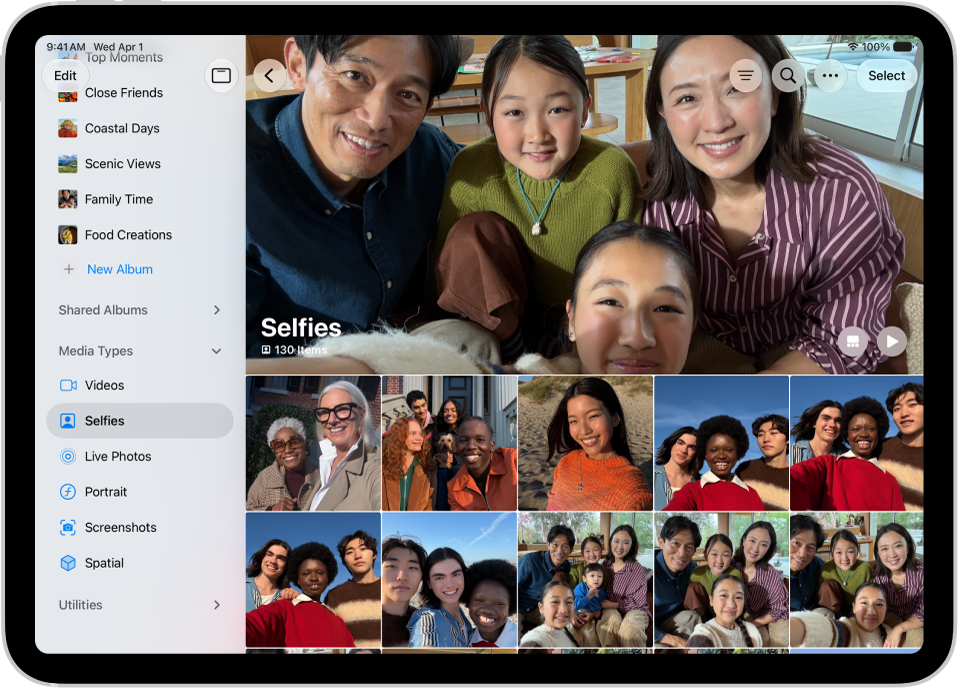
In the Photos app, you can find collections of photos and videos organized by media type. You might browse all your Portrait mode photos or time-lapse videos in one place.

You can reorder the list of media types to put the ones you use most often at the top, and pin your favorite media type to the Pinned collection.

Here’s how to locate photos and videos by media type on iPad.

Media Types is open in the Photos app, showing collections of videos, selfies, Live Photos, portraits, and more.

Browse photos and videos by media type

  1. Start the Photos app on your iPad.
  2. Tap Collections, scroll down, and then tap Media Types.
  3. Tap the type of photo or video you want to view.

Quick tip: Add your favorite media type to the Pinned collection, and you can locate it quickly. See our guide, Pin collections and albums.

Reorder media types

To help you find the media types you access most often, you can reorder the list.

  1. Start the Photos app on your iPad.
  2. Tap Collections, then tap Edit at the top of the screen.
  3. Touch and hold the media type you want to reorder and drag it to a new position.
  4. When you’re done, tap the checkmark at the top of the screen.

See also

Tag: Photos

You can find saved metadata information about a photo or video in the Photos app. You can also change certain stored data such as the date, time, and location.

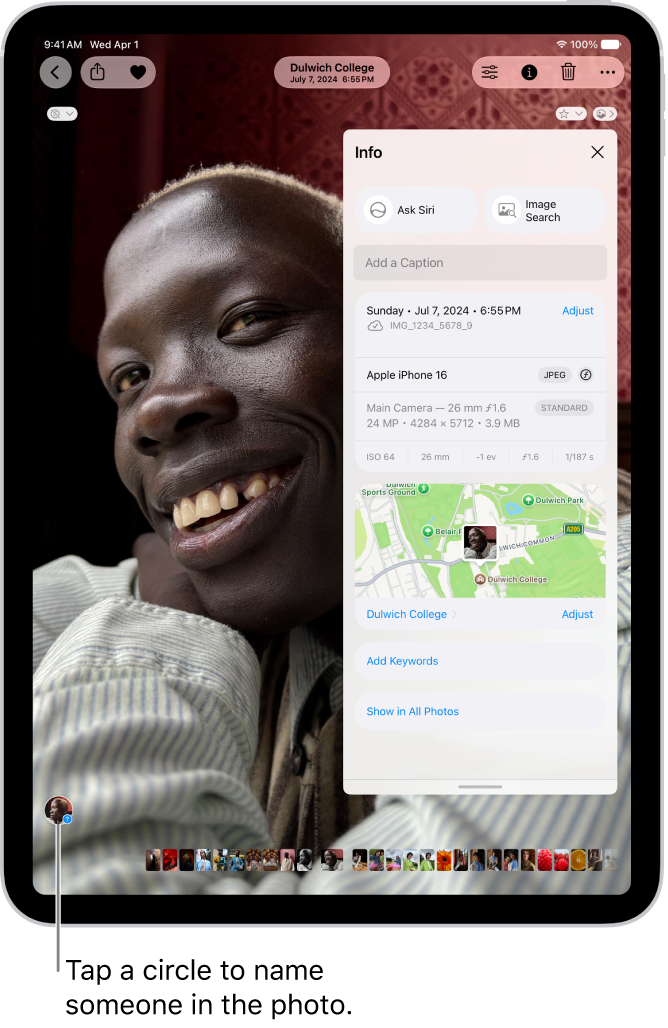
Depending on the photo or video, you see details like the people identified in it and a caption field that makes it easier to find in Search, along with when and where it was taken.

Here’s how to see photo and video information on iPad.

View photo and video metadata

  1. Open the Photos app on your iPad.
  2. Tap the photo or video whose metadata you want to see. Swipe up or tap the Info button.

    Depending on the photo or video, you see the following details:

    • People identified in the photo (see Find and name people and pets)
    • A caption field to describe the photo or video, and make it easier to find in Search
    • Items detected by Visual Look Up
    • Event information for photos and videos taken at concerts and sporting events
    • What device captured the photo or video
    • The date and time the photo or video was taken (tap Adjust to edit the date and time)
    • Camera metadata such as lens, shutter speed, file size, and more
    • Where the photo or video was taken (tap the link to view the location in Maps; tap Adjust to edit the location; tap “Add a location” to enter a location)
    • Who shared the photo or video with you, if it was shared
    • What albums this photo is in (tap to open the album)

    A photo is open in the Photos app. Metadata information appears over the photo including, from top to bottom, the date and time the photo was taken, the filename, the iPhone model and camera settings, and a map of the location where the photo was taken.

  3. Tap the Close button to close the menu.

Change the date, time, or location

  1. Open the Photos app on your iPad.
  2. Tap a photo or video to open it and then tap the More button.
  3. Tap Adjust Info and tap Adjust Date & Time or Adjust Location.
    • For date and time changes, use the calendar and clock to update, then tap Adjust.
    • For location changes, enter where the photo was taken in the text field, then tap the location when it appears under Map Locations.

To change the date, time, or location of a batch of photos in your photo library, tap Select, tap the thumbnails you want to change, then follow the steps above.

To revert a photo or video to its original date, time, or location, follow the instructions above, then in step number 3, tap Revert.

See also

Tag: Photos