Got a tip for us?

Photos

In the Photos app, you can create a slideshow to view a selection of photos and videos that you choose from your library. You can also turn any album or collection into a slideshow. Slideshows are automatically formatted and set to music.

You can change the transition style, speed, and time per slide, choose a song, or mute the music while the slideshow plays.

Here’s how to make a slideshow on iPad.

Make a slideshow from selected photos

  1. Start the Photos app on your iPad.
  2. Tap Library.
  3. Tap Select and tap each item you want to include.
  4. Tap the More button, then tap Start Slideshow.
  5. As the slideshow plays, tap the screen to do any of the following:
    • Change the transition style, speed, and time per slide: Tap Customize and tap Transition & Duration.
    • Choose a song: Tap Customize, tap Music, and then tap Choose Song.
    • Mute the song: Tap the Mute button.
    • Play on loop: Tap Customize and tap Loop.
    • Share: Tap the More button, tap Share, and select a sharing option such as Messages or Mail.
    • Play on a connected AirPlay device: Tap the More button, tap AirPlay, then select a device.

Make a slideshow from an album or collection

  1. Start the Photos app on your iPad.
  2. Tap to Collections.
  3. Open any album or collection and tap the More button. Tap Start Slideshow.

See also

Tag: Photos

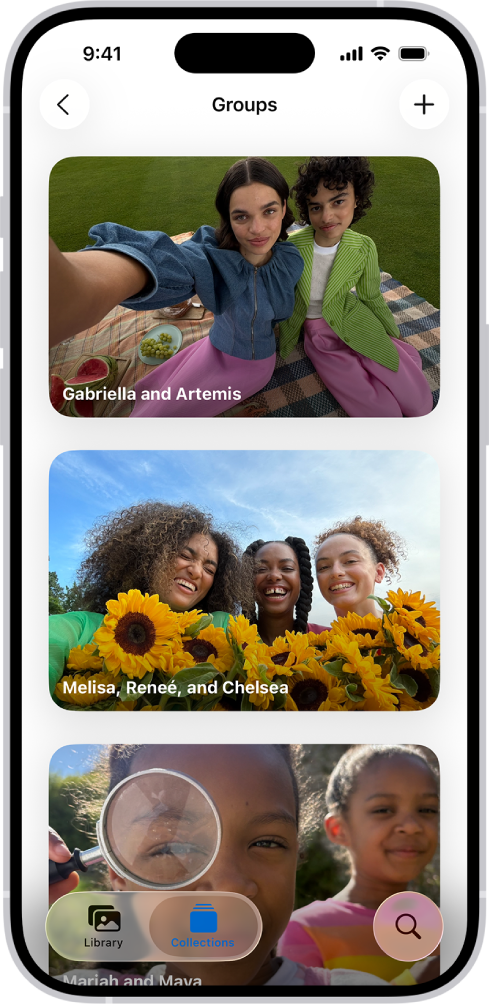
The Photos app recognizes groups of people and pets who often appear together in pictures and videos, and sorts them into group collections. For example, if you have many pictures of your family or a group of friends, Photos creates a collection for each of those groups.

You’ll find them in People & Pets, below Groups. From there, you can view pictures of a group with additional people, or share the photos of the group.

Groups is open in the People & Pets section of the Photos app, showing a list of collections labeled with the names of the people included in the group.

Find group photos and videos

  1. Start the Photos app on your iPhone.
  2. Tap Collections, then tap People & Pets.
  3. Swipe the collections below Groups to browse, or tap Groups to view them all.
  4. Tap a group to view all the photos and videos in that collection.

Quick tip: Tap the Sort and Filter button and tap View Options, then tap Other People to see pictures of this group with additional people.

To share the photos of the group, tap the More button, then tap Share.

Create a group collection

A group collection you create can include any combination of people and pets from the People & Pets collection.

  1. Start the Photos app on your iPhone.
  2. Tap Collections, then tap People & Pets.
  3. To the right of Groups, tap the Add button. Then tap Create New Group.
  4. Select the people and pets you want in the group. Tap the Done button.
  5. Optionally, you can enter a new name for the group or add more people and pets to the group.
  6. Tap Create.

Edit or delete a group collection

  1. Start the Photos app on your iPhone.
  2. Tap Collections, then tap People & Pets.
  3. Below Groups, touch and hold the group you want to edit. Then do any of the following:
    • Rename the group: Tap Edit Name and People, enter a new name, and then tap the Done button.
    • Remove someone from the group: Tap Edit Name and People. Then tap the Remove button at the top-left corner of their picture.
    • Add someone to the group: Tap Edit Name and People. Then tap Add People & Pets. Select who you want to add. Then tap the Done button.
    • Edit the group photo: Tap Edit Name and People and then tap the photo icon in the bottom-right corner of the current group photo. Select a new photo and then tap the Done button.
    • Delete the group: Tap Delete Group.

Change the order of group collections

  1. Start the Photos app on your iPhone.
  2. Tap Collections, tap People & Pets, and tap Groups.
  3. Touch and hold a group, then drag it to a new position.
Tag: Photos

In the Photos app, you can edit Live Photos, change the key photo, and add fun effects like Bounce and Loop.

In addition to the photo editing tools, you can trim a Live Photo’s length and mute the sound. You can even turn a Live Photo into a still of its key photo. Effects like Loop repeat the action in a continuous looping video.

Here’s how to edit Live Photos on iPad.

Make Live Photo edits

Beyond the photo editing tools, you can mute the sound, trim its length, change a Live Photo’s key photo, or turn it into a still photo.

  1. Start the Photos app on your iPad.
  2. Open a Live Photo, then tap the Edit button.
  3. Tap the Live Photo button. Do any of the following:

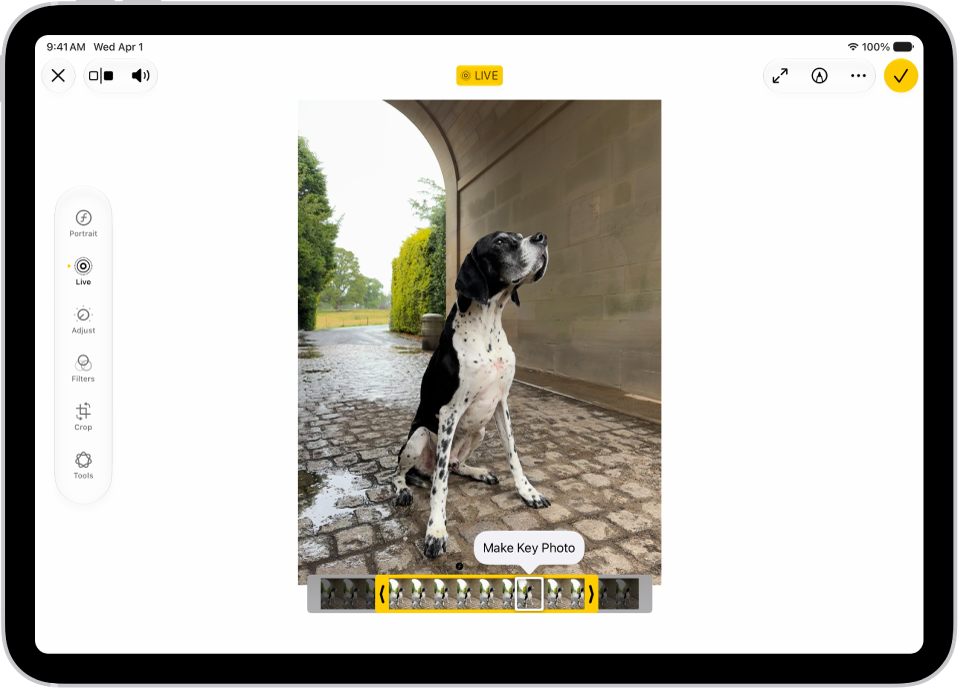
    • Set a key photo: Move the white frame on the frame viewer, tap Make Key Photo, and tap Done.
    • Trim a Live Photo: Drag either end of the frame viewer to choose the frames the Live Photo plays.
    • Make a still photo: Tap the Live button at the top of the screen to turn off the Live feature. The Live Photo becomes a still of its key photo.
    • Mute a Live Photo: Tap the Mute button at the top of the screen. Tap again to unmute.

    A Live Photo is in the center of the Edit screen in the Photos app. The frame viewer is across the bottom of the video and a yellow outline is around the selected frames to include in the edited Live Photo; a single frame is selected to make key photo. The editing tools are on the left side of the screen: from the top to bottom, Live Photo, Adjust, Filters, and Crop. Live Photo is selected.

Add effects to a Live Photo

You can add effects to Live Photos to turn them into fun videos.

  1. Start the Photos app on your iPad.
  2. Open a Live Photo.
  3. Tap Live in the top-left corner. Choose one of the following:
    • Live: Applies the Live video playback feature.
    • Loop: Repeats the action in a continuous looping video.
    • Bounce: Rewinds the action backward and forward.
    • Long Exposure: Simulates a DSLR-like long exposure effect by blurring motion.
    • Off: Turns off the Live video playback feature or applied effect.

Turn a Live Photo into a video

You can turn a Live Photo into a short video to save or share—for example, to share with people not on Apple devices.

  1. Start the Photos app on your iPad.
  2. Open a Live Photo and then tap the More button in the top-right corner.
  3. Tap Save as Video.

See also

Tag: Photos

In the Journal app, you can create multimedia entries by adding photos, drawings, videos, audio, and more.

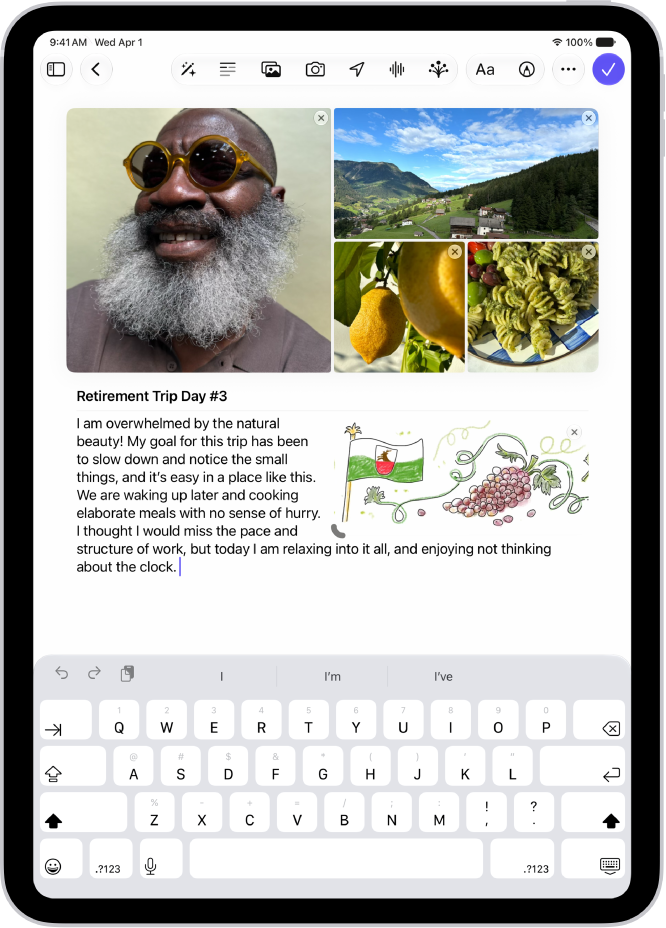
You can format the entry text, add a map location, and place a drawing inline with text, then resize and rearrange it. Photos and videos can go in the grid or inline with text, too, and you can adjust the color and style of the text.

Here’s how to add formatting, photos, and more in Journal on iPad.

A screen in the Journal app showing photos and an entry in progress.

Format text

You can adjust the color, style, formatting of the entry text.

  1. Open the Journal app on your iPad.
  2. While composing an entry, tap the Format button.
  3. Apply bold text, italics, underline, strikethrough, bulleted or numbered lists, block quote, or font color.

Add a drawing

  1. Open the Journal app on your iPad.
  2. While composing an entry, tap the Add Drawing button and then start drawing.

    Tip: To place a drawing inline with text, touch and hold where you want the drawing to go, then choose Insert Drawing.

  3. To see other tools, such as Crayon, Reed Pen, or Watercolor Brush, swipe through the toolbar. Tap the one you want.

    Tap any tool a second time to change its qualities, like the thickness or opacity of a stroke.

  4. When you’re finished drawing, tap the Add Drawing button.

    You can resize and rearrange inline drawings. To resize, drag the handle on the bottom left. To rearrange, touch and hold the drawing, then drag it to a new location.

Add photos or videos to the grid or inline with text

  1. Open the Journal app on your iPad.
  2. While composing an entry, do any of the following:

    • Choose photos and videos from your library: Tap the Choose Photo or Video button.

      If you don’t see the Choose Photo or Video button, tap the More button, then tap Choose Photo or Video.

    • Take a new photo or video: Tap the Take a Photo or Video button.

      If you don’t see the Take a Photo or Video button, tap the More button, then tap Take Photo or Video.

  3. To place photos and videos inline with entry text, touch and hold the photo or video and then drag it from the grid to the entry.

    You can resize inline media by dragging the handle on the frame.

Add a map location

  1. Open the Journal app on your iPad.
  2. While composing an entry, tap the Locations button.

    If you don’t see the Locations button, tap the More button, then tap Locations.

    When you add a location, the entry is visible in Places.

Work with attachments

All attachments—photos, drawings, videos, locations, recordings, and State of Mind tiles—can be reordered, placed inline with entry text, and more.

  1. Open the Journal app on your iPad.
  2. While composing an entry, do any of the following:
    • Place attachments inline with text: Touch and hold the attachment and drag it from the grid to the entry.
    • Resize inline attachments: Drag the handle on the frame.
    • Move inline attachments to the grid: Touch and hold the attachment, then drag it up to the grid.
    • View an attachment in full screen: Tap the thumbnail.
    • Reorder attachments: Touch and hold a thumbnail, then drag it to a different position.
    • Remove an attachment: Tap the Delete button in the top-right corner of the thumbnail.

Record and transcribe audio

Record audio in a journal entry and have your words transcribed. This works in English only (excluding Singapore and India locales).

  1. Open the Journal app on your iPad.
  2. While composing an entry, tap the Record Audio button.

    If you don’t see the Record Audio button, tap the More button, then tap Record Audio.

  3. Tap the Record button, then start speaking.
  4. When you’re done, tap the Pause button, then tap Done.
  5. Tap the audio recording, then tap the Transcription button to review the transcription.
  6. To add the text to the entry, tap the More button and tap Add Transcript to Entry.

See also

You can find photos and videos taken on a particular date—year, month, or day. The Recent Days collection shows a summary of the best photos from a particular day, and you can browse through your library by year or month. Years and Months views are curated to show your best shots.

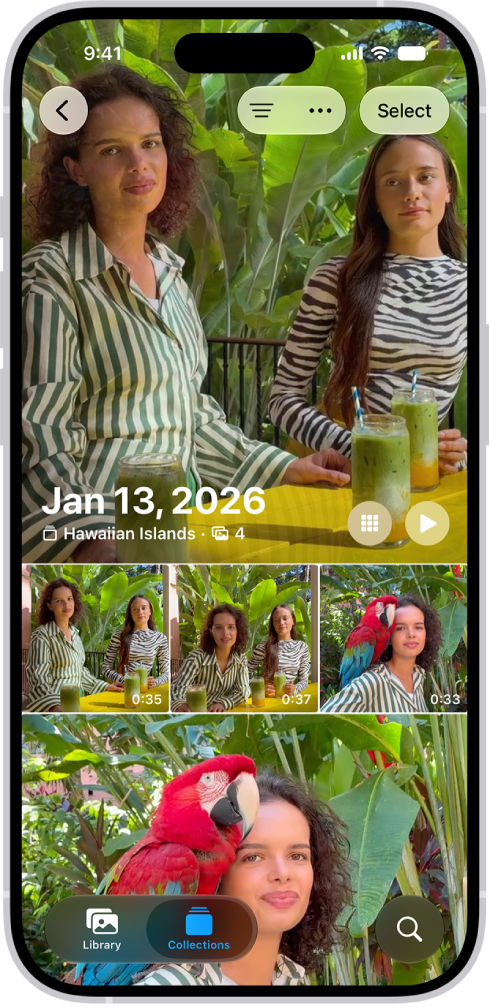
The Photos app showing a collection of photos taken on a particular day.

View photos and videos you took on a recent day

The Recent Days collection is where you’ll find the photos and videos you took on a particular day.

  1. Start the Photos app on your iPhone.
  2. Tap Collections and then scroll down to Recent Days.
  3. Swipe left or right to quickly move between days, or tap Recent Days to view all.
  4. Tap a day to open the collection.

When you open a day in Recent Days, you see a summary of the best photos from the day. To see all the photos you took that day, tap Show All.

Browse through your library by year or month

  1. Start the Photos app on your iPhone.
  2. Swipe down on the photo library grid and tap one of the following:
    • Years: Quickly locate a specific year in your photo library.
    • Months: View collections of photos that you took throughout a month, organized by significant events—like a family outing, social occasion, birthday party, or trip.

Years and Months views are curated to show your best shots, and visual clutter like similar photos, screenshots, whiteboards, and receipts aren’t shown. To see every photo and video, tap All. You can also search for a specific date.

Tag: Photos

You can save a frame from a video as a photo. In the Photos app, you pause a video on the frame you want, and Save Video Frame as Photo adds it to your library. If your library is sorted by Captured, the new photo appears next to the original video.

  1. Open the Photos app on your iPad.
  2. Open a video, then play it.
  3. Pause the video on the frame you want to save.
  4. Tap the More button and tap Save Video Frame as Photo.

The new photo is saved to your photo library. If the library is sorted by Added, it’s at the bottom, and if it’s sorted by Captured, it appears next to the original video. See our guide, Sort the library.

See also

Tag: Photos

Your photos and videos are organized into curated collections such as Memories, Trips, People & Pets, and more. Some collections are also organized by category such as Live Photos, Selfies, Recently Saved, and Recently Viewed.

You can change how collections are displayed, reorder them, and pin your favorite collections and albums. You can also see all the collections in a category, and view collections with larger or smaller image tiles, or with no images at all.

Here’s how to browse your photo collections on iPad.
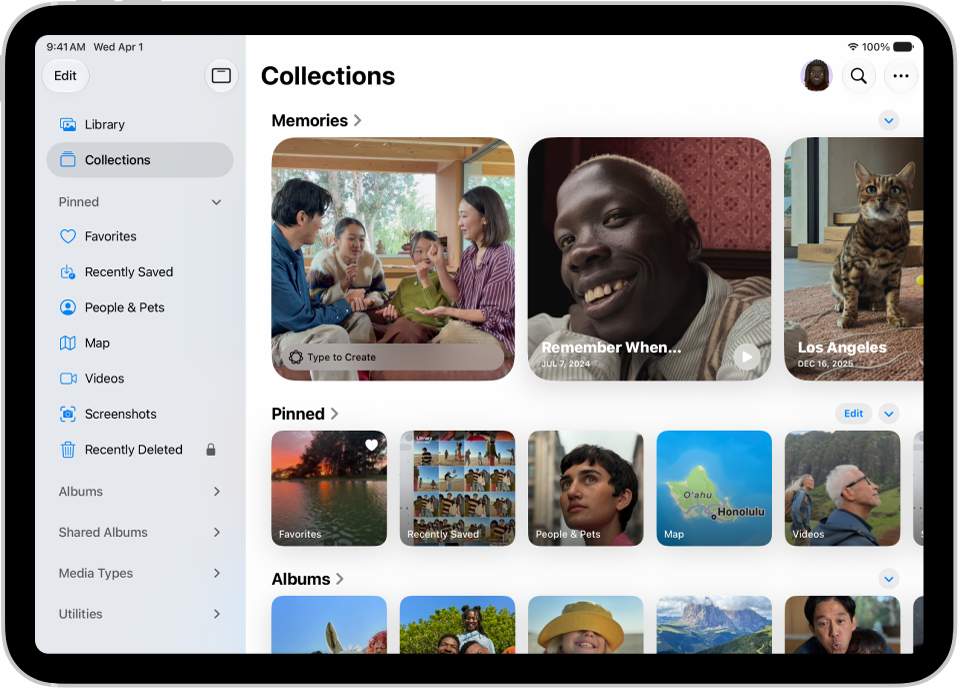
The Photos app is open and the Collections tab is selected in the sidebar.

View your collections

  1. Open the Photos app on your iPad.
  2. Tap Collections.
  3. Swipe up to view the collections.

    Under each collection heading, swipe left or right to see different collections. Or tap the heading to see all the collections in that category.

  4. Tap a collection to open it.

Quick tip: To close the sidebar, tap the Hide Sidebar button, and to bring it back, tap the Toggle Sidebar button.

Change the collections display

Collections can show larger or smaller image tiles, or none at all, and you can change the order they appear on the screen.

  1. Open the Photos app on your iPad.
  2. Tap Collections.
  3. Tap the More button and then do any of the following:
    • Enlarge the size of the collection tiles: Tap the Large Grid button.
    • Reduce the size of the collection tiles: Tap the Small Grid button.
    • Show the default display: Tap the Mixed Grid button.
    • Hide the collection tiles: Tap Collapse All.
    • Reorder collections: Tap Reorder, drag a collection into a new position, and then tap the Done button.
    • Choose which photo library to include in collections (if you’re part of an iCloud Shared Photo Library): Tap Both Libraries, Personal Library, or Shared Library.

Quick tip: For a single collection, tap the Forward button to hide its image tiles, then tap it again to stop hiding them.

By default, videos and Live Photos automatically play when you tap Collections. To turn autoplay off, tap your account in the top-right corner, then turn off Auto-Play Motion and Loop Videos.

Reorder collections

You can change the order of collections so the ones you go to most frequently appear first. For example, if you frequently view your Shared Albums, you can move them above other collections.

  1. Open the Photos app on your iPad.
  2. Tap Collections.
  3. Scroll to the bottom of the screen and tap Reorder. Then drag a collection into a new position.
  4. Tap Done.

You can also tap the More button, then tap Reorder.

Pin collections and albums

The Pinned collection at the top of the screen holds whatever you choose, so your most-viewed collections are easy to find.

  1. Open the Photos app on your iPad.
  2. Tap Collections.
  3. Tap Edit (to the right of the Pinned heading), then do any of the following:

    • Remove a pinned collection: Tap the Remove button and tap the Trash button.
    • Pin a collection: Tap the suggested collection you want to add, or tap Any Collection or Album to see more options.
    • Reorder pinned collections: Touch and hold a pinned collection. Then drag it to a new position.

      Note: Collections with the Remove button next to them are currently in your pinned collections. Collections with the Add button next to them are not yet pinned.

  4. When you’re done, tap the Close button.

Quick tip: To add a collection to Pinned, touch and hold it and tap Pin. To take it off Pinned later, touch and hold it again, then tap Unpin.

Filter and sort items in a collection

Filter items in a collection by category, like Edited, Rating, or Captured by Me, or sort them so the newest or oldest show first.

  1. Open the Photos app on your iPad.
  2. Tap Collections, then tap a collection to open it.
  3. Tap the Sort and Filter button and then do either of the following:
    • Filter items: Tap the filter you want to apply.
    • Sort items: Tap Sort By. Tap Newest First or Oldest First.

See also

Tag: Photos

Keywords are tags or labels you add to your photos and videos to help you easily find them. After assigning keywords, you can search for photos and videos by the keywords associated with them.

You can type more than one keyword at a time when you search, and you can rename, delete, or favorite keywords later. A favorite keyword shows up as a filter option in your photo library, albums, and collections.

Here’s how to add keywords to photos and videos on iPhone.

Add keywords

  1. Start the Photos app on your iPhone.
  2. Open a photo or video.
  3. Tap the Info button or swipe up on the image.
  4. Tap Add Keywords, enter your custom keyword or keywords, and tap the Done button. If you’ve already added keywords and want to add more, tap Edit in the field where the keywords appear.
  5. Swipe down to close the Info menu.

Search for photos and videos by keyword

  1. Start the Photos app on your iPhone.
  2. Tap the Search button, then enter the keyword. As you type, suggested search results appear below the search field. Search results for keywords have Aa before them. Tip: You can type multiple keywords separated by spaces.
  3. Tap the suggested search result to view all the photos and videos with the keyword you entered.
  4. Tap the Close button to close the keyword search results.

Manage keywords

  1. Start the Photos app on your iPhone.
  2. Tap Collections. Tap your profile in the top-right corner of the screen.
  3. Tap Manage Keywords, tap a keyword, and tap any of the following:
    • Add to Favorite: Adds the keyword to the Keyword filter options in your photo library, albums, and collections.
    • Rename: Changes the name of the keyword applied to your photos and videos.
    • Delete: Removes the keyword from your photos and videos.
  4. Tap Add Keywords at the bottom of the screen to create a new keyword.
Tag: Photos

You can set the Photos app to show certain people, days, and holidays less frequently or not at all in your memories, featured photos, and the Photos widget. You can also turn off memories and featured photos in the Photos app and the widget on your iPad Home Screen.

You can feature a person less, feature them again later, and keep holiday events in your home country or region out of memories and featured content.

Show a person less frequently or not at all

  1. Start the Photos app on your iPad.
  2. Open a photo of the person you want to show less often.
  3. Tap the More button, then tap Feature a Person.

    If there’s more than one person in the photo, tap the person you want to feature less, then tap Next.

  4. Choose Feature This Person Less or Never Feature This Person.
  5. Tap Confirm.

To feature someone again, tap Collections, tap your account in the top-right corner, then tap Reset People & Pets Suggestions.

Turn off memories, holidays, and other featured content

You can turn off memories or featured photos in the Photos app, and prevent holiday events in your home country or region from appearing in memories and featured content.

  1. Start the Photos app on your iPad.
  2. Tap Collections.
  3. Tap your account in the top-right corner.
  4. Do any of the following:
    • Hide featured content and memories: Turn off Show Featured Content to prevent Photos from automatically generating featured photos and memories.
    • Turn off holiday events: Turn off Show Holiday Events to prevent Photos from creating memories and featured content about holidays.

See also

Tag: Photos

Photos you take in the Photo Booth app are saved in the Photos app, where you can view and edit them. If you use iCloud Photos, you can view your Photo Booth photos on your other devices signed in to the same Apple Account, too.

View and edit photos in the Photos app

  1. Open the Photos app and then tap Library.
  2. Tap the thumbnail to view the photo in full screen and tap the Edit Photos button. Use the edit controls to make changes.
  3. Tap Done.

See Browse your photo library on iPad and Edit photos and videos.

View photos on all your devices

With iCloud Photos, you can view your photos on other devices that meet the minimum system requirements, which are iPadOS 13, iOS 11, and macOS 10.13. You’ll need to be signed in to the same Apple Account on all of them.

See also

Tag: Photos