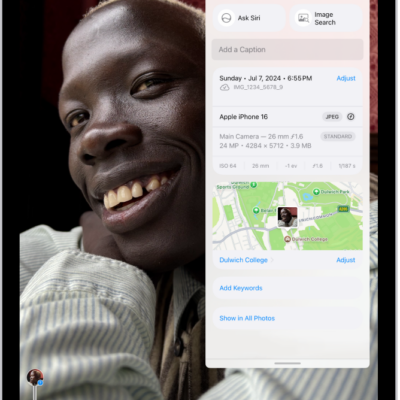
In the Photos app, you can create a slideshow to view a selection of photos and videos that you choose from your library. You can also turn any album or collection into a slideshow. Slideshows are automatically formatted and set to music.
You can change the transition style, speed, and time per slide, choose a song, or mute the music while the slideshow plays.
Here’s how to make a slideshow on iPad.
Make a slideshow from selected photos
- Start the Photos app on your iPad.
- Tap Library.
- Tap Select and tap each item you want to include.
- Tap the More button, then tap Start Slideshow.
- As the slideshow plays, tap the screen to do any of the following:
- Change the transition style, speed, and time per slide: Tap Customize and tap Transition & Duration.
- Choose a song: Tap Customize, tap Music, and then tap Choose Song.
- Mute the song: Tap the Mute button.
- Play on loop: Tap Customize and tap Loop.
- Share: Tap the More button, tap Share, and select a sharing option such as Messages or Mail.
- Play on a connected AirPlay device: Tap the More button, tap AirPlay, then select a device.
Make a slideshow from an album or collection
- Start the Photos app on your iPad.
- Tap to Collections.
- Open any album or collection and tap the More button. Tap Start Slideshow.
See also
- View your memories in Photos on iPad
- Play memory movies in Photos on iPad
- Wirelessly stream videos and photos to Apple TV 4K or a smart TV from iPad
Tag: Photos