Got a tip for us?

Photos

In the Photos app, you can create a slideshow to view a selection of photos and videos that you choose from your photo library. You can also turn any album or collection into a slideshow. Slideshows are automatically formatted and set to music.

You can still make it your own. As the slideshow plays, you can change the transition style, speed, and time per slide, choose a song, or play it on loop.

Make a slideshow from selected photos

  1. Open the Photos app on your iPhone.
  2. Tap Library.
  3. Tap Select and tap each item you want to include.
  4. Tap the More button, then tap Start Slideshow.
  5. As the slideshow plays, tap the screen to do any of the following:
    • Change the transition style, speed, and time per slide: Tap Customize and tap Transition & Duration.
    • Choose a song: Tap Customize, tap Music, and then tap Choose Song.
    • Mute the song: Tap the Mute button.
    • Play on loop: Tap Customize and tap Loop.
    • Share: Tap the More button, tap Share, and select a sharing option such as Messages or Mail.
    • Play on a connected AirPlay device: Tap the More button and tap AirPlay. Select a device.

Make a slideshow from an album or collection

  1. Open the Photos app on your iPhone.
  2. Tap Collections.
  3. Open any album or collection and tap the More button. Tap Start Slideshow.
Tag: Photos

In the Journal app on iPhone, you can create multimedia journal entries by adding photos, drawings, videos, audio, and more. You can also adjust the color, style, and formatting of the entry text, with options like bold text, italics, bulleted or numbered lists, and block quotes.

All attachments, including photos, drawings, videos, locations, and recordings, can be reordered and placed inline with entry text. Here’s how to add formatting, photos, and more in Journal on iPhone.

Format text

Adjust the color, style, and formatting of the entry text to suit you.

  1. Start the Journal app on your iPhone.
  2. While composing an entry, tap the Format button.
  3. Apply bold text, italics, underline, strikethrough, bulleted or numbered lists, block quote, or font color.

Add a drawing

  1. Start the Journal app on your iPhone.
  2. While composing an entry, tap the Add Drawing button and then start drawing.

Quick tip: To place a drawing inline with text, touch and hold where you want the drawing to go, then choose Insert Drawing.

  1. To see other tools, such as Crayon, Reed Pen, or Watercolor Brush, swipe through the toolbar. Tap the one you want.

Tap any tool a second time to change its qualities, like the thickness or opacity of a stroke.

  1. When you’re finished drawing, tap the Add Drawing button.

You can resize and rearrange inline drawings. To resize, drag the handle on the bottom left. To rearrange, touch and hold the drawing, then drag it to a new location.

Add photos or videos to the grid or inline with text

  1. Start the Journal app on your iPhone.
  2. While composing an entry, do any of the following:
    • Choose photos and videos from your library: Tap the Choose Photo or Video button.
    • Take a new photo or video: Tap the Take Photo or Video button.
  3. To place photos and videos inline with entry text, touch and hold the photo or video and then drag it from the grid to the entry.

Dragging the handle on the frame resizes inline media.

Add a map location

  1. Start the Journal app on your iPhone.
  2. While composing an entry, tap the Locations button.

Adding a location makes the entry visible in Places.

Work with attachments

Photos, drawings, videos, locations, recordings, and State of Mind tiles are all attachments you can reorder, place inline with entry text, and more.

  1. Start the Journal app on your iPhone.
  2. While composing an entry, do any of the following:
    • Place attachments inline with text: Touch and hold the attachment and drag it from the grid to the entry.
    • Move inline attachments to the grid: Touch and hold the attachment, then drag it up to the grid.
    • Resize inline attachments: Drag the handle on the frame.
    • View an attachment in full screen: Tap the thumbnail.
    • Reorder attachments: Touch and hold a thumbnail, then drag it to a different position.
    • Remove an attachment: Tap the Delete button in the top-right corner of the thumbnail.

Record and transcribe audio

In a journal entry, you can record audio and have your words transcribed. It only works in English, though, excluding Singapore and India locales.

  1. Start the Journal app on your iPhone.
  2. While composing an entry, tap the Record Audio button, tap the Record button, and then start speaking.
  3. When you’re done, tap the Stop button.
  4. Tap the audio recording, then tap the Transcription button to review the transcription.
  5. To add the text to the entry, tap the More button and tap Add Transcript to Entry.
Tag: Photos

If you created a shared album, you can invite more participants to join the album. You can also remove participants, manage album notifications, let other participants manage the album, and turn posting for participants off and on.

By default, all participants can view and comment on album content, but you can change each person’s permissions to Can Manage Album and Photos, Can Add Photos, or Can View and Comment.

Here’s how to add and remove people in a shared album on iPhone.

Add participants to a shared album

  1. Start the Photos app on your iPhone.
  2. Tap Collections.
  3. Tap Shared Albums and tap an album.
  4. Tap the Manage Shared Album button and tap Invite Participants.
  5. Tap a share method, enter the recipients’ details, and then send the invite.

Manage participant permissions

If you’re the organizer of a shared album, you can manage and change participant permissions. By default, every participant can contribute photos and videos, view and comment on album content, and remove anything they contributed.

  1. Start the Photos app on your iPhone.
  2. Tap Collections.
  3. Tap Shared Albums and tap an album.
  4. Tap the Manage Shared Album button, tap a participant, and then tap one of the following:
    • Can Manage Album and Photos: The participant can invite other participants, rename the album, update permissions, and delete photos or videos added by others.
    • Can Add Photos: The participant can share photos and videos and remove content they contributed.
    • Can View and Comment: The participant can view and comment on photo and videos.
  5. Tap the Done button.

When participants post or comment in a shared album you’re a part of, notifications about the activity appear in the Albums Activity tab.

Remove participants from a shared album

  1. Start the Photos app on your iPhone.
  2. Tap Collections.
  3. Tap Shared Albums, then tap an album you created.
  4. Tap the Manage Shared Album button.
  5. Tap the participant you want to remove.
  6. Tap Remove Participant at the bottom of the screen.
Tag: Photos

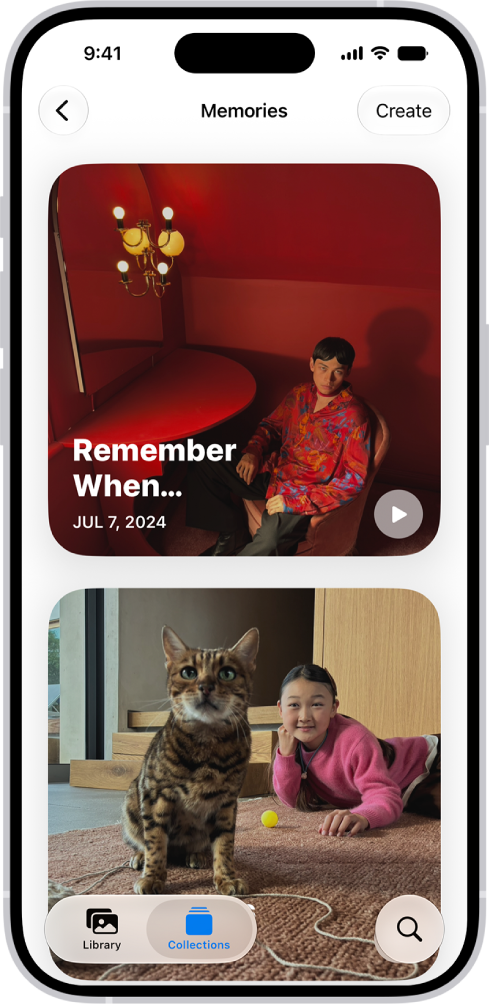
The Memories collection in the Photos app includes personalized collections of photos and videos that feature a significant person, pet, place, activity, or event from your photo library.

In a memory, you can filter and sort the photos and videos, view all of them, or search for photos and videos. You can share a memory, delete it, show its location on a map, or play the memory movie, and you can add a memory to Favorites to make your favorite memories easier to find.

The Photos app is open to the Memories collection.

View your memories

  1. Open the Photos app on your iPhone.
  2. Tap Collections.
  3. Swipe left under Memories to scroll through a selection of your memories, or tap Memories to view them all.
  4. Select a memory to view all the photos and videos included in that memory.
  5. As you view a memory, you can do any of the following:
    • Filter and sort the photos videos in the memory: Tap the Sort and Filter button.
    • View all the photos and videos in the memory: Tap Show All
    • Search for photos and videos in the memory: Tap the Search button.
    • Share the memory, delete the memory, or show the memory location on a map: Tap the More button.
    • Share specific photos and videos in the memory: Tap Select, tap the photos and videos you want to share, then tap the Share button.
    • Play the memory movie: Tap the Play button.
  6. Tap the Back button to close the memory and return to Collections.

Add a memory to Favorites

Identify your favorite memories to make them easier to find.

  1. Open the Photos app on your iPhone.
  2. Tap Collections.
  3. Swipe left under Memories to scroll through a selection of your memories, or tap Memories to view them all.
  4. Touch and hold a memory and tap Add to Favorite Memories.

To view your favorite memories, go to the Collections tab, tap Memories, then tap Favorites.

Tag: Photos

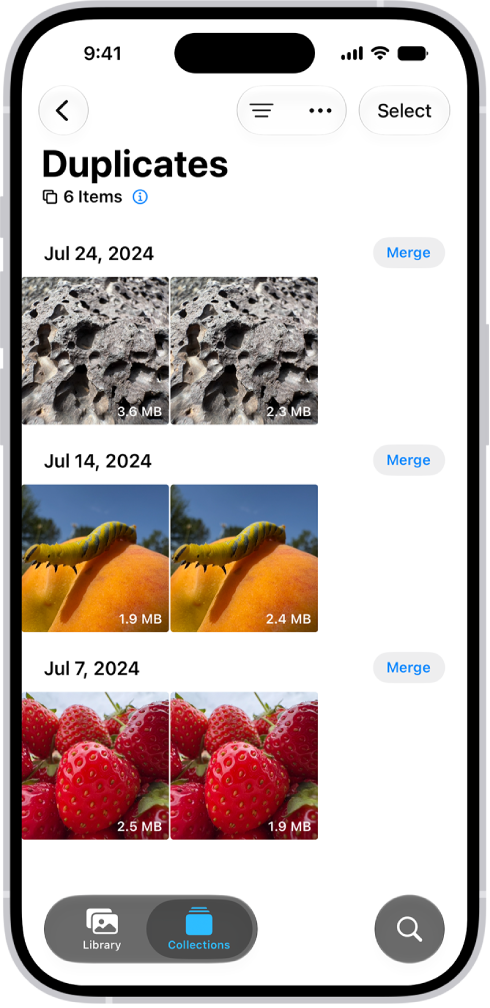
The Photos app identifies duplicate photos and videos in your photo library in the Duplicates collection. You can merge duplicate photos and videos to save space and clean up your library. It’s in Utilities. Got no duplicates? Then the Duplicates collection doesn’t appear.

The Duplicates screen, showing duplicate photos next to each other. On the right side of the screen are Merge buttons to merge each pair of duplicate photos.

  1. Start the Photos app on your iPhone.
  2. Tap Collections.
  3. Tap Utilities and tap Duplicates.
  4. Tap Merge to combine a set of duplicates and tap Merge [number] Items.

The Duplicates collection doesn’t appear if there aren’t any duplicate photos or videos in your library.

Tag: Photos

In the Photos app, you can trim a video you recorded on your iPhone to change where it starts and stops. You can also adjust the playback speed, and change the portion of a video that appears in slow motion when you record in Slo-mo mode.

And when you record a video with Spatial Audio, you can use Audio Mix to edit the sound in the Photos app, on supported models.

Here’s how to trim video length, adjust speed, and edit audio on iPhone.

Trim a video

  1. Open the Photos app on your iPhone.
  2. Open a video and then tap the Edit button.
  3. Drag either end of the frame viewer below the video to adjust the start and stop times. Then tap Done.
  4. Tap Save Video to save only the trimmed video, or Save Video as New Clip to save both versions of the video.

To undo edits after you save, open the video, tap the Edit button, then tap Revert.

Note: A video saved as a new clip can’t go back to the original.

Edit the video playback speed

For a dramatic effect, you can slow down videos captured at a high frame rate.

  1. Open the Photos app on your iPhone.
  2. Open a video, tap the Edit button, and then tap Video.
  3. Tap the Playback Speed button and then tap a playback speed.

Note: The format of the video you captured determines which playback options are available. The larger the format you capture, the more options you get.

Edit the slow-motion section of a video shot in Slo-mo mode

  1. Open the Photos app on your iPhone.
  2. Open a video shot in Slo-mo mode and then tap the Edit button.
  3. Drag the black vertical bars beneath the frame viewer to set where the video is played in slow motion.

Edit sound with Audio Mix

Recording a video with iPhone 16 or later gives you three recording options to choose from: Spatial Audio, Studio, and Mono. If you pick Spatial Audio, you can customize your video’s sound with Audio Mix. And on iPhone 18 Pro models, Audio Mix can isolate music as well as voices.

  1. Open the Photos app on your iPhone.
  2. Open a video and then tap the Edit button.
  3. Tap Audio Mix and then choose one of the following:
    • Standard: Play the original audio you recorded.
    • In-Frame: Reduce sounds and voices from sources not visible in the video frame.
    • Studio: Reduce background sounds and reverb, to make it sound more like you’re recording in a professional studio.
    • Cinematic: Put all the voices onto a front-facing track and leave environmental noises in surround, like the audio in movies.
  4. Drag the slider below the mix options to increase or decrease the effect and background noise levels.
  5. Tap Done.
Tag: Photos

Use the tools in the Photos app to crop, rotate, flip, straighten, or adjust the size of a photo or video. When you use iCloud Photos, any edits you make are saved across all your devices.

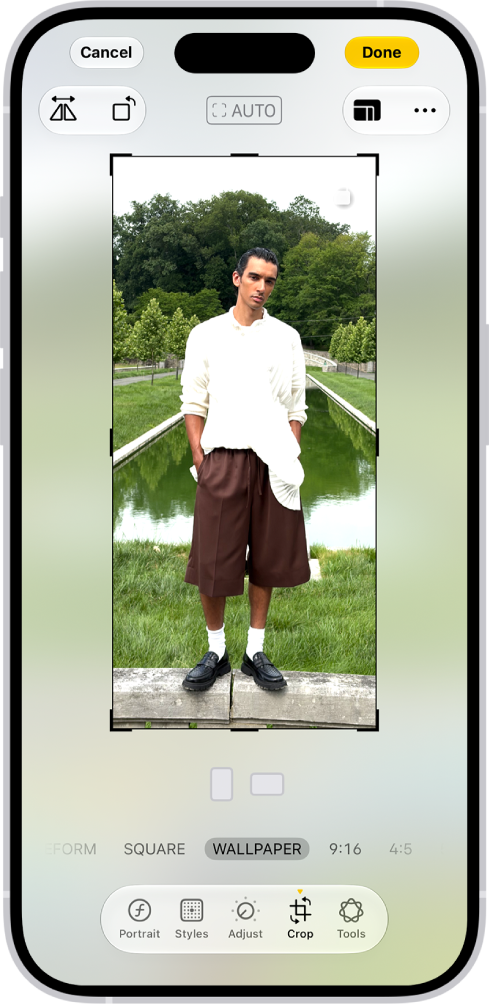
You can crop manually or to a standard preset ratio, such as Square, Wallpaper, 9:16, or 5:7, and rotate an image 90 degrees or flip it horizontally. The crop tool keeps the original aspect ratio of the photo unless you unlock it.

Here’s how to crop, rotate, flip, or straighten photos and videos on iPhone.

Crop, rotate, or flip a photo or video

  1. Open the Photos app on your iPhone.
  2. Tap a photo or video to open it, then tap the Edit button.
  3. Tap the Crop button. Do any of the following:

    • Crop manually: Drag the rectangle corners to enclose the area you want to keep in the image, or pinch open or closed.

      Note: When you drag a corner, the crop tool keeps the original aspect ratio of the photo. To change the aspect ratio, tap the lock at the top-right corner of the photo to unlock the aspect ratio.

    • Crop to a standard preset ratio: Tap the Aspect Ratio Freeform button. Then choose an option such as Square, Wallpaper, 9:16, or 5:7.
    • Rotate: Tap the Rotate button to rotate the image 90 degrees.
    • Flip: Tap the Flip button to flip the image horizontally.

    The Edit screen with a photo in the center. At the bottom of the screen, from left to right, are the Portrait, Adjust, Filters, Crop, and Clean Up buttons. The Crop button is selected and there is a slider to adjust the geometry enhancements.

  4. Tap Done to save your edits, or if you don’t like your changes, tap Cancel, and then tap Discard Changes.

Quick tip: There’s a faster way to crop a photo you’re viewing: Pinch it to zoom in, and when it looks right, tap Crop in the top-right corner. Then make any further adjustments with the crop tools and tap Done.

Straighten or tilt a photo or video

Along with straightening a photo or video, you can tilt it vertically or horizontally.

  1. Open the Photos app on your iPhone.
  2. Tap a photo or video to open it, then tap the Edit button.
  3. Tap the Crop button.
  4. Tap a button below the frame to straighten, tilt vertically, or tilt horizontally.
  5. Drag the slider to make adjustments.

    The level of adjustment you make is displayed by the slider. Tap the straighten or tilt button to switch between the adjusted version and the original.

  6. Tap Done to save your edits or tap Reset to revert to the original.

Quick tip: You can undo edits even after you save. Open the photo or video and tap the Edit button, then tap Revert.

Tag: Photos

You can find saved metadata information about a photo or video in the Photos app. You can also change certain stored data such as the date, time, and location.

Depending on the photo or video, you see details like the people identified in it and a caption field that makes it easier to find in Search, along with when and where it was taken.

Here’s how to see photo and video information on iPhone.

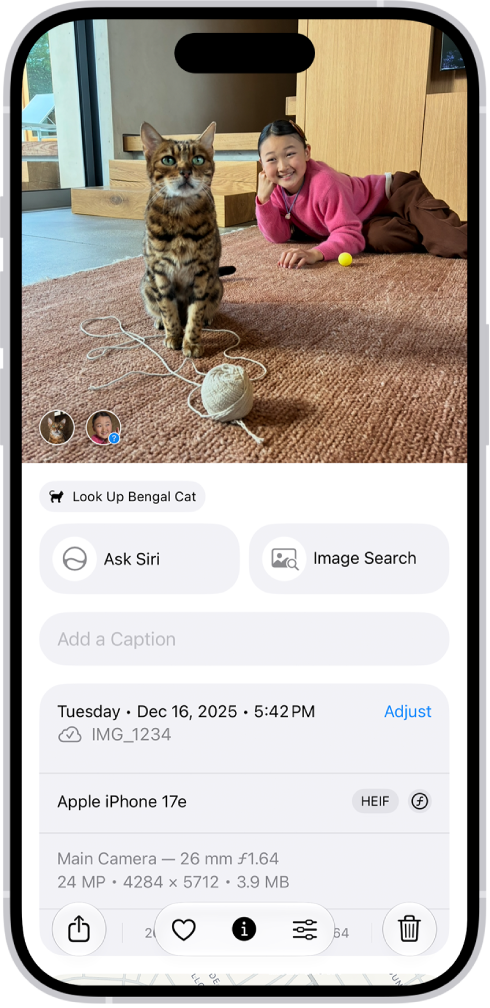
A photo is open in the Photos app. The bottom half of the screen shows photo information including, the date and time the photo was taken, the filename, and the iPhone model and camera settings.

View photo and video metadata

  1. Open the Photos app on your iPhone.
  2. Tap the photo or video whose metadata you want to see. Swipe up or tap the Info button. Depending on the photo or video, you see the following details:
    • People and pets identified in the photo
    • A caption field to describe the photo or video, and make it easier to find in Search
    • Items detected by Visual Look Up
    • Event information for photos and videos taken at concerts or sporting events
    • What device captured the photo or video
    • The date and time the photo or video was taken (tap Adjust to edit the date and time)
    • Camera metadata such as lens, shutter speed, file size, and more
    • Where the photo or video was taken (tap the link to view the location in Maps; tap Adjust to edit the location; tap “Add a location” to enter a location)
    • Who shared the photo or video with you, if it was shared
    • What albums the photo is in (tap to open the album)
  3. Swipe down or tap the Info button to close.

Change the date, time, or location of a photo or video

  1. Open the Photos app on your iPhone.
  2. Tap a photo or video to open it and then tap the More button.
  3. Tap Adjust Info and tap Adjust Date & Time or Adjust Location.
    • For date and time changes, use the calendar and clock to update, then tap Adjust.
    • For location changes, enter where the photo was taken in the text field, then tap the location when it appears under Map Locations.

To change the date, time, or location of a batch of photos in your photo library, tap Select, tap the thumbnails you want to change, then follow the steps above. To revert a photo or video to its original date, time, or location, follow the instructions above, then in step 3, tap Revert.

Tag: Photos

On supported iPhone models, Cinematic mode in Camera applies a depth-of-field effect that keeps the subject of your video sharp while blurring the foreground and background. After capturing the video, you can adjust or remove the Cinematic mode effects in the Photos app on iPhone.

Camera identifies where to focus while you record and can change focus automatically, and you can change the focus subject later. You can even adjust the depth of field or turn off the Cinematic effect.

Add a Cinematic effect to a video you recorded

If you recorded a video in Video mode with the Main camera on an iPhone 18 Pro model, you can apply the Cinematic effect to it.

  1. Start the Photos app on your iPhone.
  2. Open a video you recorded in Video mode. Then tap the Edit button.
  3. Tap Cinematic. Tap the Depth Control button at the top of the screen.

    A slider appears below the video.

  4. Drag the slider left or right to adjust the depth of field effect. Then tap Done.

Quick tip: To apply the effect quickly, open the video, tap Cinematic, and then tap Cinematic On.

To undo your edits after you save, open the video, then tap Revert.

Turn off the Cinematic effect

  1. Start the Photos app on your iPhone.
  2. Open a video you recorded in Cinematic mode and tap Cinematic. Tap Cinematic Off.

You can also tap the Edit button, tap Cinematic, then tap Done (or the Done button).

To quickly turn Cinematic mode back on, tap Cinematic, then tap Cinematic On.

Change the focus subject in a Cinematic mode video

While you record in Cinematic mode, Camera automatically identifies where to focus, and if it identifies a new subject, it can change focus automatically. Or you can change the focus subject manually.

  1. Start the Photos app on your iPhone.
  2. Open a video you recorded in Cinematic mode. Tap the Edit button.

    White dots under the frame viewer indicate where Camera automatically changed the focus while recording. Yellow dots indicate where the focus was manually changed.

  3. Play the video, or slide the white vertical bar in the frame viewer, to the point where you want to change the focus.
  4. Tap a subject, outlined in yellow, to change the focus; double-tap to set automatic focus tracking on the subject.

    A yellow dot appears under the frame viewer to indicate the focus was changed.

    Note: You can also touch and hold the screen to lock the focus at a specific distance from the camera.

  5. Repeat the steps above to change focus points throughout the video.

    To remove a manual focus change, tap the yellow dot under the frame viewer, then tap the Delete button.

  6. Tap Done to save your changes.

Tap the Manual Tracking button to switch between automatic focus tracking and your manually selected focus points.

After you save your changes, you can revert a Cinematic mode video to the original version if you don’t like your edits. Open the video, then tap Revert.

Adjust the depth of field in a Cinematic mode video

  1. Start the Photos app on your iPhone.
  2. Open a video you recorded in Cinematic mode. Tap the Edit button.
  3. Tap the Depth Control button at the top of the screen.

    A slider appears below the video.

  4. Drag the slider left or right to adjust the depth of field effect. Then tap Done.

To undo your edits after you save, open the video, then tap Revert.

Export Cinematic mode videos to your Mac

To edit Cinematic mode videos in other apps on your Mac, you can use AirDrop to transfer them from your iPhone, along with their depth and focus metadata.

Note: To edit Cinematic mode videos shot on an iPhone with iOS 16 or later, your Mac needs macOS 13 or later.

  1. Start the Photos app on your iPhone.
  2. Open the Cinematic mode video and then tap the Share button.
  3. Tap Options at the top of the screen and turn on All Photos Data. Then tap the Done button.
  4. Tap AirDrop and tap the device you want to share with (make sure the device you’re sharing with has AirDrop turned on).

Export Cinematic mode videos to an external storage device

You can export Cinematic mode videos straight to an external drive, a memory card, or another storage device.

Note: Edited photos and videos export as the unmodified original version.

  1. Connect your iPhone to the storage device using the Lightning or USB-C connector.
  2. Start the Photos app on your iPhone.
  3. Select the video you want to export.
  4. Tap the Share button and then tap Export Unmodified Original.
  5. Tap Browse, tap your storage device (below Locations), and then tap the Done button.

Tag: Photos

On supported models, you can take spatial photos and record spatial videos, and then relive the memories in three dimensions in the Photos app with Apple Vision Pro. It’s a separate mode in Camera, called Spatial, and you rotate your iPhone to landscape orientation to use it.

Take spatial photos and record spatial videos

  1. Open Camera on your iPhone.
  2. Swipe right on the screen to select Spatial mode.
  3. Rotate your iPhone to landscape orientation.
  4. Tap the Spatial Photo button or the Spatial Video button to take a spatial photo or record a spatial video.
  5. For best results, do the following:
    • Keep your iPhone steady and level.
    • Frame your subjects 3 to 8 feet from the camera.
    • Use lighting that is even and bright.
  6. Tap the Shutter button or Record button to take a photo or begin recording a video.

After you take a spatial photo or video, the Photos app on your Apple Vision Pro shows it in three dimensions. On any of your other Apple devices, you can view and share spatial photos and videos the same way you would regular photos and videos. If you’re signed in to the same Apple Account with iCloud Photos turned on, spatial photos and videos sync to all your devices.

Tag: Photos