Got a tip for us?

Photos

In the Photos app, you can find collections of photos and videos organized by media type. For example, browse all your Portrait mode photos or time-lapse videos in one place, in Media Types.

It’s easy to make it yours. The list of media types can be reordered, so the ones you access most often are easy to find, and to quickly locate your favorite media type, you can add it to the Pinned collection.

Browse photos and videos by media type

  1. Open the Photos app on your iPhone.
  2. Tap Collections, scroll down, and then tap Media Types.
  3. Tap the type of photo or video you want to view.

Quick tip: Add your favorite media type to the Pinned collection to locate it quickly.

Reorder media types

Reordering the list of media types makes the ones you access most often easier to find.

  1. Open the Photos app on your iPhone.
  2. Tap Collections, scroll down, and then tap Media Types.
  3. Tap Edit, touch and hold the collection you want to move, and then drag it to a new position. To undo your changes, tap Reset.
  4. Tap the Done button.
Tag: Photos

With your iPhone nearby, you’ll never miss a chance to take a photo, record a video, or snap a selfie. After you take photos, use the editing tools in the Photos app to crop, adjust the light and color, and much more.

You can open Camera right from the Lock Screen, and it automatically focuses the shot and adjusts the exposure for you. You can capture photos in low light, too.
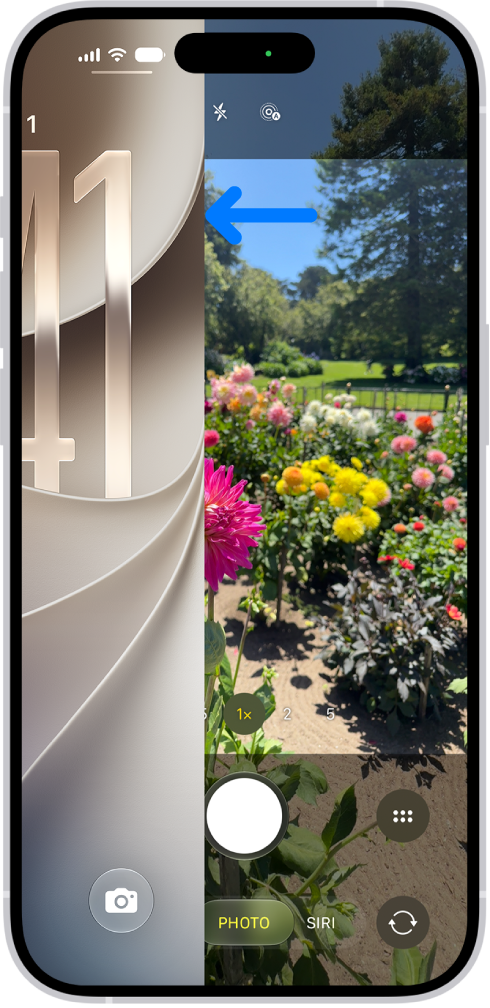
The iPhone screen showing the Lock Screen sliding to the left and the Camera open on the right side of the screen.

Capture the moment

To quickly open Camera , just swipe left on the Lock Screen. Camera automatically focuses the shot and adjusts the exposure. Tap the Shutter button to take a photo.

On supported models, click the Camera Control to open Camera, then click it again to take a photo.
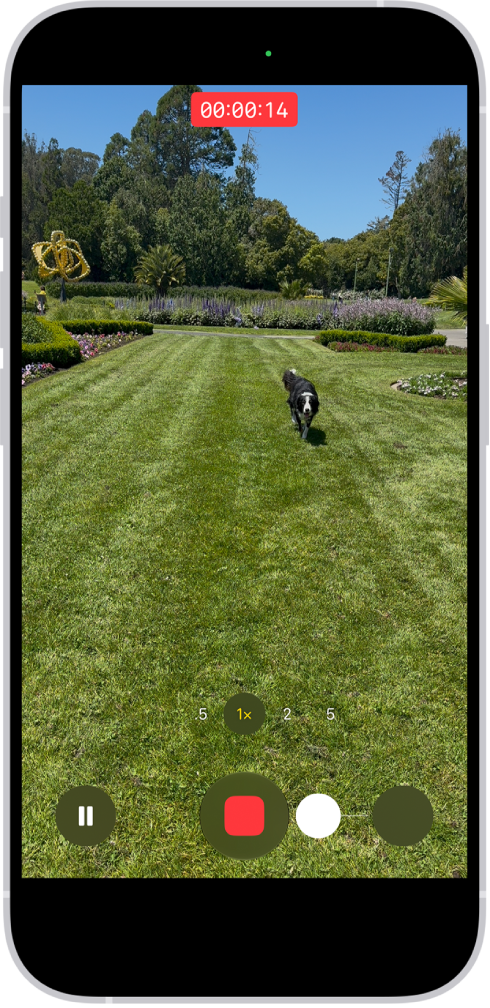
The camera frame fills the screen. At the bottom of the screen, the Shutter button moves to the right, demonstrating the movement of starting a QuickTake video.

Record video on the go

After you open Camera , tap Video to switch to Video mode, then tap the Record button to start a recording. Or stay in Photo mode and just touch and hold the Shutter button to start recording, then release the button to stop recording.

On supported models, click the Camera Control to open Camera, then click and hold the Camera Control to start a recording.
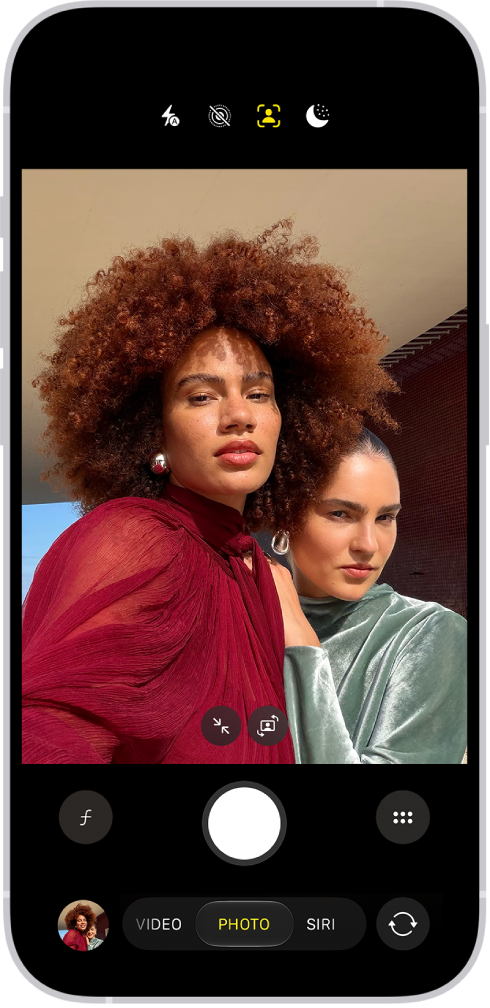
The Camera screen in Photo mode. Within the camera frame, the subjects are taking a selfie.

Snap the perfect selfie

To take a selfie, open Camera , then tap the Camera Chooser Back-Facing button. Hold your iPhone in front of you, then tap the Shutter button or press either volume button to take the selfie.

To fit more people in a selfie, the camera frame on supported models can automatically enlarge or rotate.
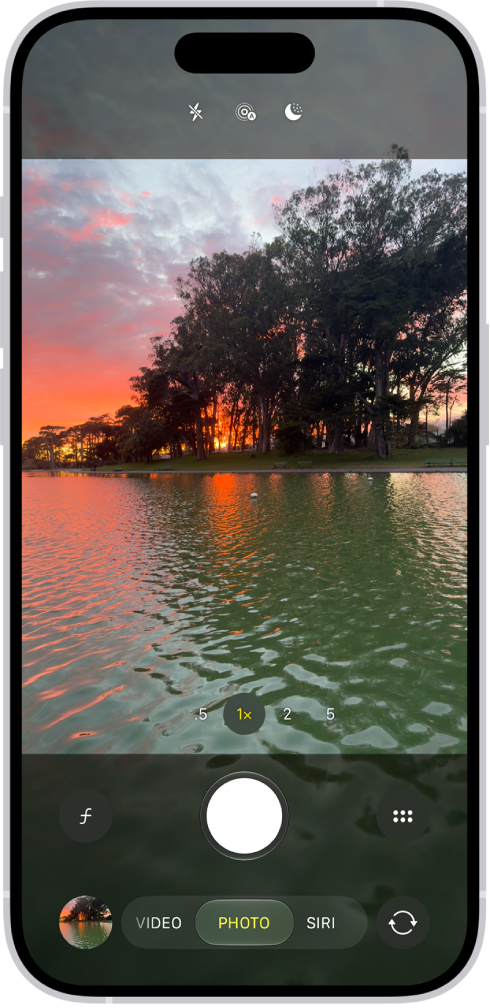
The Camera screen in Photo mode, with controls to capture a photo in low light.

Capture photos in low light

Night mode automatically improves photos taken in low light on supported iPhone models. When you see the Night Mode Off button, Night mode is on. Tap the Shutter button, then hold your iPhone steady for the best results.
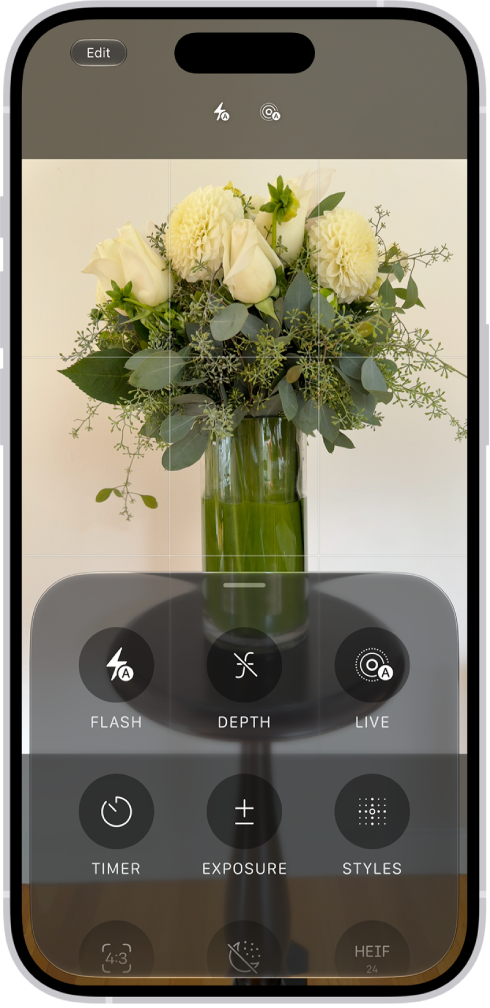
The Camera in Photo mode. At the bottom of the screen are buttons for the following camera controls: Flash, Live, Timer, Exposure, Styles, and Aspect.

Adjust camera controls

When Camera is open, you can quickly make adjustments to features like Flash or Exposure. Just tap the Camera Controls button, then tap any feature to adjust its settings and improve your shot.
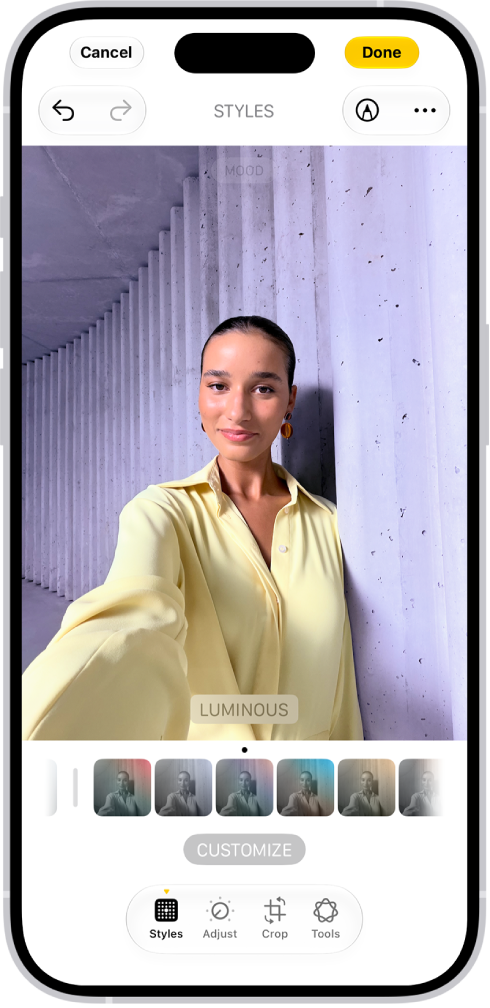
The edit screen in the Photos app.

Add the final touches

After you take a photo or video, use the editing tools in the Photos app to make it even better. Open a photo or video, tap the Edit button, then tap the buttons to adjust lighting, add a filter, crop, or rotate. As you make edits, tap the photo to compare your changes to the original.

If you want more, check out the Camera and Photos chapters.

Not all features, Apple says, are available for all iPhone models.

Tag: Photos

You can filter and sort photos and videos in the albums you create in the Photos app. For example, you can filter an album to show only photos, only videos, or photos and videos you marked as favorites.

Sorting works from the same button. You can sort photos and videos in an album by newest to oldest, oldest to newest, or in a custom order, and when you’re done with a filter, you can remove it from the album.

Here’s how to filter and sort photos and videos in albums on iPhone.

Filter photos and videos in an album

  1. Open the Photos app on your iPhone.
  2. Tap Collections and tap Albums.
  3. Tap an album to open it.
  4. Tap the Sort and Filter button, tap Filter, and choose an option.

To remove a filter from an album, tap the icon that replaced the Sort and Filter button at the bottom of the screen, then tap Remove Filter.

Sort photos and videos in an album

  1. Open the Photos app on your iPhone.
  2. Tap Collections and tap Albums.
  3. Tap an album to open it.
  4. Tap the Sort and Filter button. Choose a sort option.

If you choose Sort by Custom Order, touch and hold the photo or video thumbnail, then drag it into a new position.

Tag: Photos

You can find all the photos and videos you saved from other apps—like Messages, Safari, and Mail—in the Recently Saved collection. Photos and videos that were sent to you using AirDrop also appear here.

You can also sort your library by Recently Added, and see the photos you saved today in the Saved Today collection. The Recently Saved collection is also below Utilities, next to the Recently Viewed and Recently Shared collections.

  1. Start the Photos app on your iPhone.
  2. Do any of the following:
    • Tap Collections , then tap the Recently Saved collection below Pinned. Tip: You can also find the Recently Saved collection below Utilities along with the Recently Viewed and Recently Shared collections.
    • Tap Library , tap the Sort and Filter button, then tap Sort by Recently Added. Tip: To see photos you saved today, tap Collections , then tap the Saved Today collection below Recent Days.
Tag: Photos

You can use your Apple TV 4K or an AirPlay 2-enabled smart TV to watch videos and view photos streamed from your iPhone. For this, both devices need to be connected to the same Wi-Fi network.

You can also mirror your iPhone on the TV, and turn automatic AirPlay streaming on or off.

Here’s how to wirelessly stream videos and photos to Apple TV 4K or a smart TV from iPhone.

Note: To stream videos or photos to Apple TV 4K or a smart TV from your iPhone, both devices must be on the same Wi-Fi network.

Play video on Apple TV 4K or an AirPlay 2-enabled smart TV

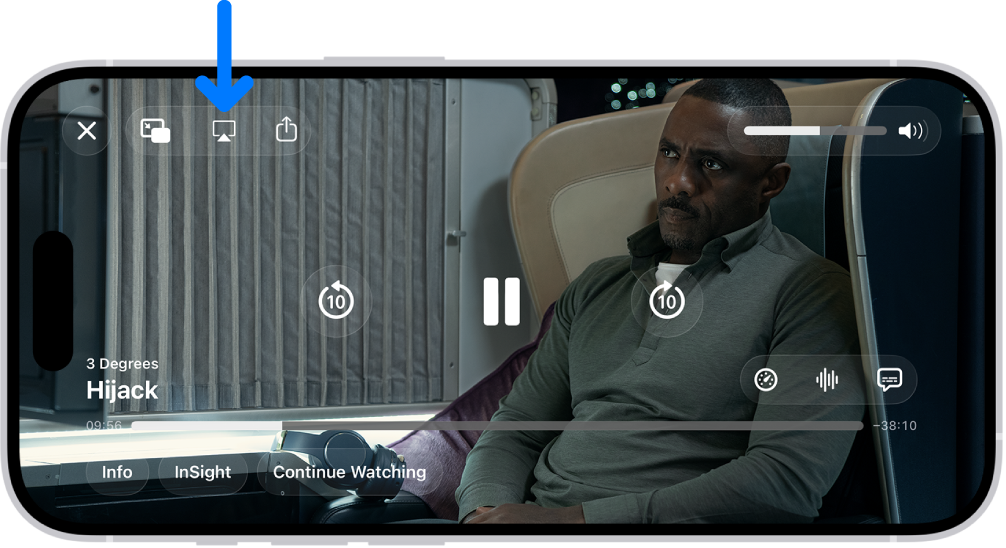
  1. While playing video in the Apple TV app or another supported video app on your iPhone, tap the screen to show the controls.
  2. Tap the AirPlay button. Then choose your Apple TV 4K or AirPlay 2-enabled smart TV as the playback destination.

If an AirPlay passcode appears on the TV screen, enter the passcode on your iPhone.

A movie playing on the iPhone screen. In the middle of the screen are the playback controls. The AirPlay button is near the top left.

To change the playback destination, choose a different AirPlay option on your iPhone screen.

Show photos on Apple TV 4K or an AirPlay 2-enabled smart TV

  1. Start the Photos app on your iPhone.
  2. Tap a photo, then tap the Share button.
  3. Swipe up, tap the AirPlay button, and then choose your Apple TV 4K or an AirPlay 2-enabled smart TV as the playback destination.

If an AirPlay passcode appears on the TV screen, enter the passcode on your iPhone.

To stop streaming photos, tap the AirPlay button near the top of the iPhone screen, then tap Turn off AirPlay.

Turn automatic AirPlay streaming on or off

When you play content from apps you regularly use with AirPlay, your iPhone can automatically discover and connect to any frequently used Apple TV 4K or smart TV, if you allow it.

Go to Settings > General > AirPlay & Continuity, then choose Automatic, Never, or Ask.

Mirror your iPhone on Apple TV 4K or a smart TV

Whatever appears on your iPhone can show up on Apple TV 4K or a smart TV.

  1. Open Control Center on your iPhone.
  2. Tap the Screen Mirroring button and choose your Apple TV 4K or an AirPlay 2-enabled smart TV as the playback destination.

If an AirPlay passcode appears on the TV screen, enter the passcode on your iPhone.

To switch back to iPhone, open Control Center, tap the Screen Mirroring button, then tap Stop Mirroring.

Tag: Photos

In the Photos app, you can edit your memory movies to make them even more personal. Try Memory Looks, which let you apply different songs paired with a matching photographic style. You can also choose new songs, edit the title, change the length, and add or remove photos.

Apple Music subscribers have even more to choose from, since they can add songs from the millions of songs in the Apple Music catalog. You can also reorder photos and change transitions.

Change the look of a memory movie

Memory Looks change the look and feel of a memory movie with curated combinations of different songs, pacing, and styles.

  1. Start the Photos app on your iPhone.
  2. Tap Collections.
  3. Swipe left under Memories to scroll through a selection of your memories, or tap Memories to view them all.
  4. Tap the Play button in the bottom-right corner of a memory to play it.
  5. Tap the screen, then tap Customize.
  6. Tap Customize Look, then swipe left to view different Memory mixes. You can also do the following:
    • Tap the Filters button to view all of the Memory Looks at the same time.
    • Tap the Music button to change the song.
  7. Tap the screen to apply the Memory Look.

Change the music of a memory movie

To change a memory movie’s music, choose from memory soundtracks or suggested songs in Apple Music. If you’re an Apple Music subscriber, you can also access your Apple Music library and view suggested songs based on your musical preferences or the content of the memory.

  1. Start the Photos app on your iPhone.
  2. Tap Collections.
  3. Swipe left under Memories to scroll through a selection of your memories, or tap Memories to view them all.
  4. Tap the Play button in the bottom-right corner of a memory to play it.
  5. Tap the screen, then tap Customize.
  6. Tap Music, then tap Change Song.

Apple Music subscribers can tap Browse to search for songs in the Apple Music library.

Add or remove photos in a memory movie

To choose the photos that appear in a memory movie, choose photos directly from your library, or add or remove suggested photos.

  1. Start the Photos app on your iPhone.
  2. Tap Collections.
  3. Swipe left under Memories to scroll through a selection of your memories, or tap Memories to view them all.
  4. Tap the Play button in the bottom-right corner of a memory to play it.
  5. Tap the screen, tap the Browse button, and do any of the following:
    • Add a photo: Tap the photos you want to add (tap All to see your entire library),then tap the Done button.
    • Remove a photo: Deselect a photo to remove it from the memory. Tap the Done button.
    • Search for photos in your library: Tap All and tap the Search button. Then type what you’re looking for. Tap the photos you want to add. Then tap the Done button.
  6. Tap the Back button to return to the memory movie.

Reorder photos in a memory movie

  1. Start the Photos app on your iPhone.
  2. Tap Collections.
  3. Swipe left under Memories to scroll through a selection of your memories, or tap Memories to view them all.
  4. Tap the Play button in the bottom-right corner of a memory to play it.
  5. Tap the screen, then tap the Browse button.
  6. Touch and hold a photo, then drag it to a new position in the grid.
  7. Tap the Back button to return to the memory movie.

Change the length and transitions of a memory movie

You can change a memory movie’s length to short, medium, or long, depending on how many photos it has, and your choice automatically adjusts the number of photos included. It’s up to you how the transition between photos appears, too, like crossfade or rotate.

  1. Start the Photos app on your iPhone.
  2. Tap Collections.
  3. Swipe left under Memories to scroll through a selection of your memories, or tap Memories to view them all.
  4. Tap the Play button in the bottom-right corner of a memory to play it.
  5. Tap the screen and tap Customize. Tap Transition and Duration.
  6. Make your selections, then tap the Done button.

Edit the memory title, subtitle, and key photo

Edit a memory’s title or subtitle, and change the key photo that appears with its title.

  1. Start the Photos app on your iPhone.
  2. Tap Collections.
  3. Swipe left under Memories to scroll through a selection of your memories, or tap Memories to view them all.
  4. Tap a memory to view the collection.
  5. Tap the More button, tap the current title, and then do any of the following:
    • Edit the memory title or subtitle: Enter a new title or subtitle in the text fields.
    • Change the key photo: Tap the photo icon in the bottom-right corner of the current key photo. Then select a new photo in the photo grid.
  6. Tap the Done button.
Tag: Photos

You can share photos and videos in Mail or Messages, or other apps you install. You can also use AirDrop to instantly share photos with anyone nearby on an iPhone, iPad, Mac, or Apple Vision Pro.

You can adjust the information you share about a photo or video, and even share photos and videos by bringing one iPhone close to another.

Here’s how to share photos and videos on iPhone.

Note: Sharing a photo or video includes sharing its associated metadata, such as date and time, location, device, and captions.

Share photos and videos

  1. Start the Photos app on your iPhone.
  2. Do any of the following:

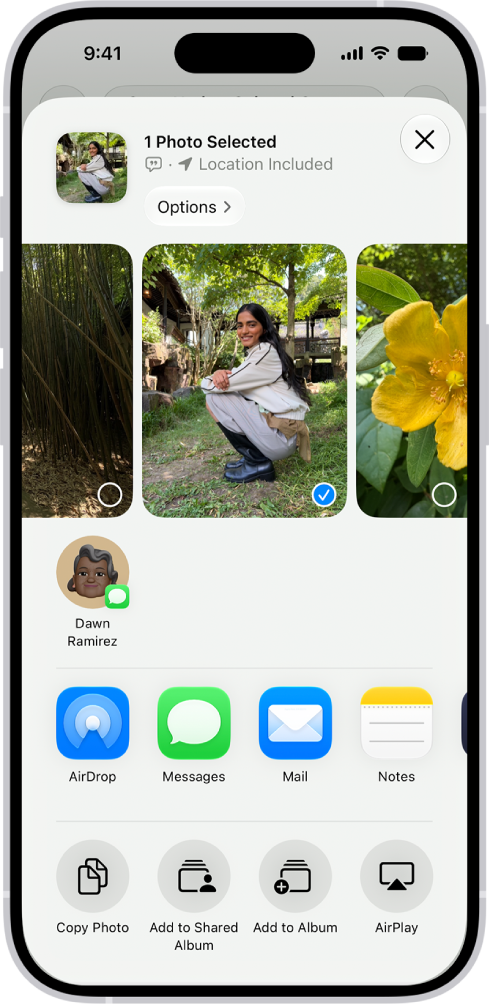
    • Share a single photo or video: Open the photo or video and tap the Share button. Then choose a sharing option such as Mail, Messages, or AirDrop.

      A selected photo is displayed in the top half of the iPhone screen, with a row of share options below. Additional options appear below those, including Copy Photo, Add to Shared Album, Add to Album, and Use as Wallpaper.

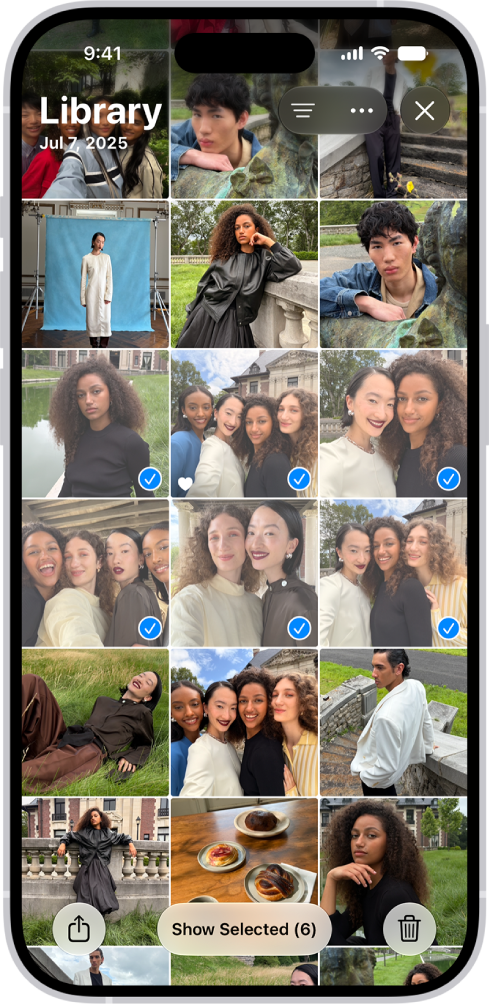
    • Share multiple photos or videos: While viewing a screen with multiple thumbnails, tap Select. Then tap the thumbnails of the photos and videos you want to share. Tap the Share button, then choose a sharing option such as Mail, Messages, or AirDrop.

      The iPhone screen is filled with a grid of photos, some of which are selected. At the bottom of the screen are the Share and Delete buttons.

      Tip: If you’re sharing multiple items, tap Show Selected to view or modify your selections before you share.

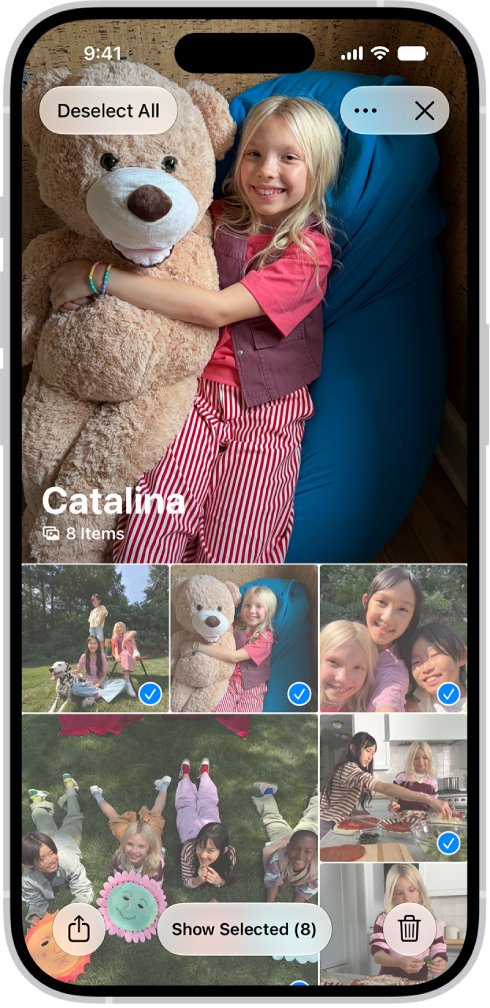
    • Share all the photos in a collection: While viewing a collection of photos, tap Select. Then tap Select All. Tap the Share button. Then choose a sharing option such as Mail, Messages, or AirDrop.

      On iPhone, a collection is open in the Photos app, and all of the photos are selected.

You can also create a shared album and share photos and videos there with a group of friends and family, who can contribute to the album as well.

Note: Your service provider sets the size limit of attachments. On devices or services that don’t support Live Photos, a Live Photo goes out as a still photo.

Adjust the information you share about a photo or video

Before you share a photo or video, you can adjust its format, its file type, and the information shared with it.

  1. Start the Photos app on your iPhone.
  2. Open a photo or video, tap the Share button, tap Options, and then do any of the following:
    • Don’t share keywords: Turn off Keywords.
    • Adjust the file format: Tap Automatic for the best file format for the destination, tap Current to prevent a file format conversion, or tap Most Compatible and files may convert to JPEG or MOV.
    • Send all photo data: Turn on All Photos Data to share the original file with edit history and metadata; the recipient can view and modify the current version (available with AirDrop only).
  3. Tap the Close button.

Share photos and videos by bringing one iPhone close to another

To transfer photos and videos from one iPhone to another, bring the two devices close together.

  1. Make sure each iPhone is turned on, unlocked, and has AirDrop turned on.
  2. On the iPhone with the items you want to share, open the Photos app and then do one of the following:
    • Share a single photo or video: Open the photo or video you want to share and keep it on the screen.
    • Share multiple photos or videos: Tap Select and tap multiple photos or videos to share from your library.
  3. Bring the devices together and then tap Share.

The recipient’s Photos library gets the shared items.

Save or share a photo or video you receive

You can save photos that others share with you from other apps.

Depending on the app, tap the Save button next to the image, or touch and hold the photo or video, then tap the Save button.

You can see your saved photos and videos in your photo library.

Note: Photos and videos people share with you in the Messages app get saved in your photo library automatically. If you’d rather turn off this feature, go to the Settings app , tap Apps, and then tap Messages. Tap Shared with You and turn off Photos.

Tag: Photos

Print your photos directly from the Photos app on your iPhone with any AirPrint-enabled device. You can print a single photo, or you can print multiple photos at once from your library or an album, and you’ll find Print in the Share menu.

Print a photo

  1. Start the Photos app on your iPhone.
  2. Open a photo, then tap the Share button.
  3. Tap Print.

Print multiple photos at once

  1. Start the Photos app on your iPhone.
  2. Tap Library or open a collection, then tap Select.
  3. Select each photo you want to print. Then tap the Share button.
  4. Tap Print.
Tag: Photos

Live Text recognizes text within your photos, videos, and images you find online. You can interact with this text in multiple ways. You can select text to copy, share, or translate, or you can use quick actions to perform tasks like making a phone call, opening a website, or converting currencies.

You can use Live Text in Safari, Photos, Camera, Quick Look, and more. But before you start, make sure Live Text is turned on for all supported languages.

Here’s how to interact with content in a photo or video on iPhone.

Note: Live Text isn’t available in all regions or languages.

Turn on Live Text

Make sure Live Text is turned on for all supported languages before you start using it.

  1. Open the Settings app on your iPhone.
  2. Tap General and tap Language & Region.
  3. Turn on Live Text.

Copy, translate, and look up text in a photo or video

  1. Open a photo or pause a video that contains text.
  2. Tap the Detect Text button and then touch and hold the selected text.
  3. Use the grab points to select specific text. Then do any of the following:
    • Copy Text: Copy text to paste into another app such as Notes or Messages.
    • Select All: Select all the text within the frame.
    • Look Up: Show personalized web suggestions.
    • Translate: Translate text.
    • Search the web: Look up the selected text on the web.
    • Share: Share text using AirDrop, Messages, Mail, or other available options.
  4. Tap the Selected Detect Text button to return to the photo or video.

Perform tasks within a photo or video with quick actions

Depending on the content of the photo or video, you can tap a quick action at the bottom of the screen to do things like make a phone call, get directions, translate languages, convert currencies, and more.

  1. Open a photo or pause a video that contains text.
  2. Tap the Detect Text button.
  3. Tap a quick action at the bottom of the screen.
  4. Tap the Selected Detect Text button to return to the photo or video.
Tag: Photos

You can set the Photos app to show certain people, days, and holidays less frequently or not at all in your memories, featured photos, and the Photos widget. You can also turn off memories and featured photos in the Photos app and the widget on your iPhone Home Screen.

For a person, you can choose Feature This Person Less or Never Feature This Person, and you can feature them again later.

Show a person less frequently or not at all

  1. Start the Photos app on your iPhone.
  2. Open a photo of the person you want to show less often.
  3. Tap the More button, then tap Don’t Feature a Person.

    If there’s more than one person in the photo, tap the person you want to feature less, then tap Next.

  4. Choose Feature This Person Less or Never Feature This Person.
  5. Tap Confirm.

To feature someone again, tap Collections , tap your account in the top-right corner, then tap Reset People & Pets Suggestions.

Turn off memories, holidays, and other featured content

In the Photos app, you can turn off memories or featured photos, and keep holiday events in your home country or region out of memories and featured content.

  1. Start the Photos app on your iPhone.
  2. Tap Collections.
  3. Tap your account in the top-right corner.
  4. Do any of the following:
    • Hide featured content and memories: Turn off Show Featured Content to prevent Photos from automatically generating featured photos and memories.
    • Turn off holiday events: Turn off Show Holiday Events to prevent Photos from creating memories and featured content about holidays.
Tag: Photos