Got a tip for us?

Photos

In the Photos app on iPhone, you can duplicate a photo or video while preserving the original version. You can also copy a photo and then paste it into another document such as an email, text message, or presentation.

A duplicate copy appears next to the original in your library, and you can copy several photos or videos at once.

Here’s how to duplicate and copy photos and videos on iPhone.

Duplicate a photo or video

  1. Open the Photos app on your iPhone.
  2. Open a photo or video and then tap the More button.
  3. Tap Duplicate.

You’ll find the duplicate copy next to the original in your library.

Copy a photo

  1. Open the Photos app on your iPhone.
  2. Open a photo, then tap the More button.
  3. Tap Copy and then paste the photo into another document.

Copy multiple photos or videos

  1. Open the Photos app on your iPhone.
  2. Tap Select and then tap the thumbnails you want to copy.
  3. Tap the More button, then tap Copy.
  4. Paste the copies into another document.
Tag: Photos

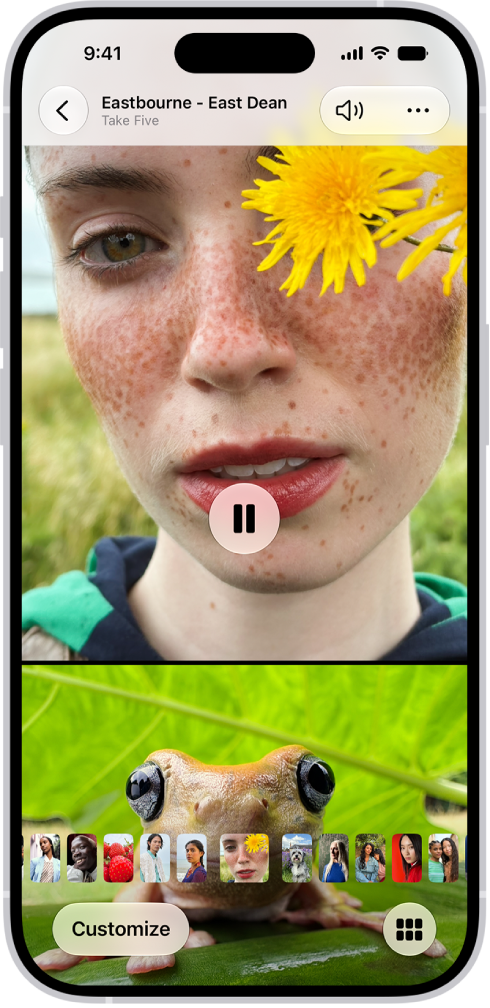
View each memory in your Memories collection as a movie that’s set to music. Every collection and album in the Photos app can play as a memory movie, too, which you can watch or edit to make more personal.

With Apple Intelligence, you can create a custom memory movie of the story you want to see. Just type a description, and Apple Intelligence chooses photos and videos, builds a storyline with unique chapters, and sets it to music. While a memory movie plays, you can pause it, mute it, or go backward or forward.

Note: Apple Intelligence on iOS 27 or later is available on an Apple Intelligence-enabled iPhone 15 Pro, iPhone 15 Pro Max, or iPhone 16 model or later. Apple Intelligence is not available in all languages or regions. Usage limits may apply.*

A memory is playing in the middle of the screen. At the bottom of the screen are the Memory Mixes and Browse buttons. At the top of the screen are the Back, Mute, and More buttons. At the top center of the screen are the location of the photo and the name of the song playing.

Play a memory movie

  1. Open the Photos app on your iPhone.
  2. Tap Collections.
  3. Swipe left under Memories to scroll through a selection of your memories, or tap Memories to view them all.
  4. Tap the Play button in the bottom-right corner of a memory to play it.
  5. As the memory movie plays, do any of the following:
    • Pause: Tap the screen and tap the Pause button.
    • Go backward or forward: Swipe left or right. Or tap the screen. Slide the frames at the bottom of the screen left or right.
    • Mute: Tap the screen, then tap the Mute button.
    • Close a memory: Tap the screen and tap the Close button.

Play a memory movie from a collection or album

The collections and albums you have in the Photos app can all be viewed as memory movies.

  1. Open the Photos app on your iPhone.
  2. Tap Collections.
  3. Select an existing collection or album. Then tap the Play button to watch the photos and videos as a memory movie.

Create a memory movie with Apple Intelligence

Want a custom memory movie of a particular story? Create one right in Photos. Type a description, and Apple Intelligence picks the best photos and videos and sets them to music, with a storyline built from unique chapters and a narrative arc.

  1. Open the Photos app on your iPhone.
  2. Tap Collections, tap Memories, and tap Create.
  3. Enter a description of the movie you want to create, then tap Done.

*Apple Intelligence is available with Siri and device language set to Chinese (Simplified), Chinese (Traditional), Danish, Dutch, English, French, German, Italian, Japanese, Korean, Norwegian, Portuguese, Spanish, Swedish, Turkish, or Vietnamese. Some features may not be available in all regions or languages. Some devices may not be available in all regions. Siri AI is available in beta in iOS 27, iPadOS 27, macOS 27, watchOS 27, and visionOS 27 and requires an Apple Intelligence–enabled device set to a supported language. Available in English to start. Siri AI will not be initially available in the EU on iOS, iPadOS, and watchOS. Certain Apple Intelligence features that rely on server-side models are subject to daily usage limits, including but not limited to Siri AI, Intelligent Photo Editing Tools, Image Playground, and AFM 3 Cloud models in Shortcuts. Daily limits may vary by feature, request complexity, system demand, system policies, and other factors. Expanded access to such features will be available for a fee in the future. Use of these features is subject to the Apple Intelligence Terms and Conditions.

In the Photos app, you can change and adjust the lighting effects, depth of field, and focus point of images you take in Portrait mode.

You can apply, change, or remove Portrait Lighting effects. Stage Light Mono is like Stage Light, but in classic black and white. Natural Light, for example, keeps the face in sharp focus against a blurred background, while Stage Light spotlights the face against a deep black background.

Adjust the background blur in Portrait mode photos

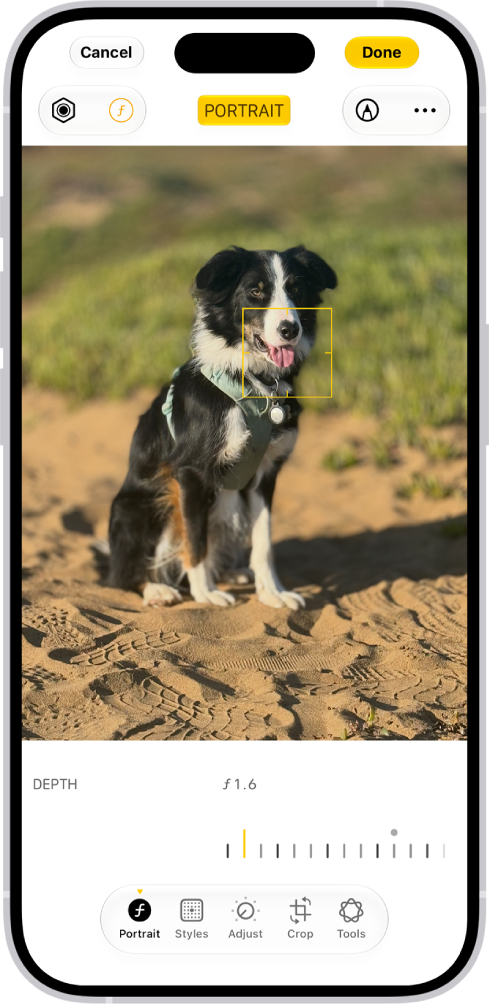
To adjust the level of background blur in your portraits, use the Depth Control slider.

The Edit screen in the Photos app with a portrait in the center. Below the photo is a slider to adjust the Depth Adjustment setting. Below the slider, from left to right, are the Style, Portrait, Adjust, Filters, Crop, and Clean Up buttons. The Portrait button is selected.

  1. Start the Photos app on your iPhone.
  2. Tap any Portrait mode photo to view it in full screen. Then tap the Edit button.
  3. Drag the Depth Control slider at the bottom of the screen to increase or decrease the background blur effect.

    A black dot marks the original depth value for the photo.

  4. Tap Done.

Apply portrait effects to photos taken in Photo mode

On supported models, the Photos app can turn photos with a person, dog, or cat taken in Photo mode into portraits.

  1. Start the Photos app on your iPhone.
  2. Tap any photo taken in Photo mode to view it in full screen and tap the Edit button.
  3. If portrait effects are available, select Portrait at the bottom of the screen.
  4. Tap Portrait at the top of the screen to turn on portrait effects.
  5. Tap the Lighting Intensity Off button or the Depth button to adjust the portrait lighting or background blur.
  6. Tap Done.

To undo edits after you save, open the photo, tap the Edit button, tap Revert, then tap Revert to Original.

Note: Live Photo effects aren’t available on a Live Photo taken in Photo mode while the portrait effect is applied. Tap Live when you want to view the Live Photo, or to apply a Live Photo effect without the portrait effect.

Change the Portrait Lighting effect

In portraits, you can apply the Portrait Lighting effects, change them, or remove them.

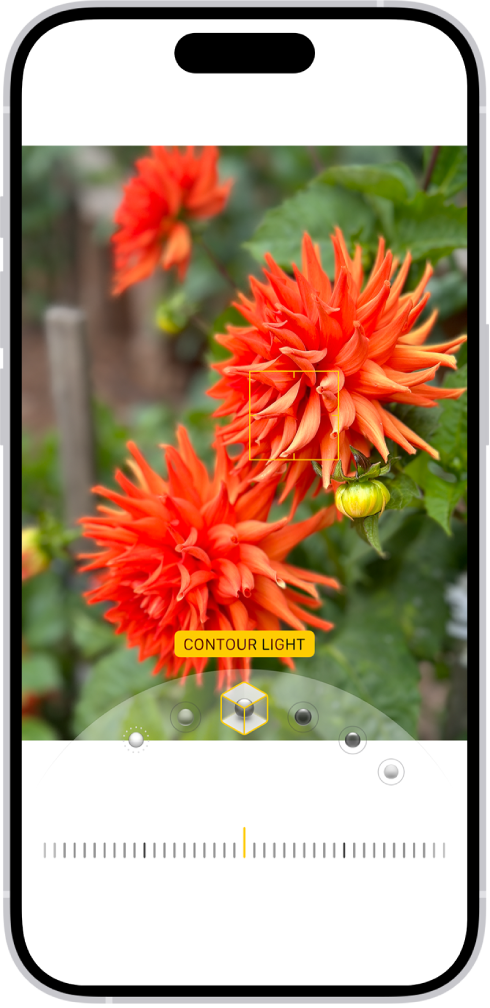
The Edit screen in the Photos app with a portrait in the center. Below the photo are the Portrait Lighting options. Studio Light is selected. Below that is a slider to adjust the level of the effect. At the bottom of the screen, from left to right, are the Portrait, Adjust, Filters, and Crop buttons. The Portrait button is selected.

  1. Start the Photos app on your iPhone.
  2. Tap a Portrait mode photo to open it, then tap the Edit button.
  3. Tap the Lighting Intensity Off button at the top of the screen.

    The Portrait Lighting effects appear at the bottom of the screen.

  4. Touch the Portrait Lighting control. Slide your finger left or right to choose a lighting effect:

    • Natural Light: The face is in sharp focus against a blurred background.
    • Studio Light: The face is brightly lit, and the photo has an overall clean look.
    • Contour Light: The face has dramatic shadows with highlights and lowlights.
    • Stage Light: The face is spotlit against a deep black background.
    • Stage Light Mono: The effect is like Stage Light, but the photo is in classic black and white.
    • High-Key Light Mono: The effect creates a grayscale subject on a white background.
  5. Drag the slider below the lighting effects left or right to adjust the intensity of the lighting effect.
  6. Tap Done.

To undo edits after you save, tap the Edit button, tap Revert, then tap Revert to Original.

Change the focus point of a portrait

On iPhone 13 or later, you can change the subject, or focus point, of a portrait. Select a new subject, and the background blur automatically adjusts so the new subject looks sharp and in focus. But make sure the new subject isn’t blurred or too far in the distance.

  1. Start the Photos app on your iPhone.
  2. Tap any Portrait mode photo to view it in full screen. Then tap the Edit button.
  3. Tap a new subject or focus point in the photo.
  4. Tap Done.

Remove the portrait effect

If a photo was taken in Portrait mode, you can remove the portrait effect.

  1. Start the Photos app on your iPhone.
  2. Tap any Portrait mode photo to view it in full screen.
  3. Tap Portrait in the top-left corner of the screen. Tap Portrait Off.
Tag: Photos

In the Photos app, you can delete photos and videos from your iPhone or hide them. You can also recover photos you recently deleted. Photos you delete and hide are saved in Recently Deleted and Hidden, which you unlock using Face ID, Touch ID, or your passcode.

When you use iCloud Photos, any photos you delete or hide are deleted or hidden on all your devices. You can delete or hide several at once, and stop hiding them later, so they reappear in your photo library.

Note: For 30 days, deleted photos and videos stay in the Recently Deleted collection, where you can recover or permanently remove them. After that, they’re permanently removed from all devices.

Delete or hide a photo or video

  1. Start the Photos app on your iPhone.
  2. While viewing a photo or video, do any of the following:
    • Delete: Tap the Delete button to delete a photo from your iPhone and other devices where iCloud Photos is turned on and you’re signed in to the same Apple Account.
    • Hide: Tap the More button, then tap Hide.

Hidden photos move to the Hidden collection, and you can’t view them anywhere else.

To keep the Hidden collection from appearing in the Photos app, turn it off. See Hide the Hidden collection.

Delete or hide multiple photos and videos

  1. Start the Photos app on your iPhone.
  2. View your library or open a collection.
  3. Tap Select and then tap the photos and videos you want to delete or hide.
  4. Do any of the following:

    • Delete: Tap the Delete button to delete the items from your iPhone and other devices where iCloud Photos is turned on and you’re signed in to the same Apple Account.

      Deleted photos and videos are kept in the Recently Deleted collection for 30 days. During that time, you can recover or permanently remove them from all devices.

    • Hide: Tap the More button, then tap Hide.

Stop hiding photos and videos

If you previously hid a photo or video, you can stop hiding it so that it reappears in your photo library.

  1. Start the Photos app on your iPhone.
  2. Tap Collections.
  3. Tap the Hidden collection (below Utilities), tap View Album, and unlock your iPhone.
  4. Tap the photo or video you want to stop hiding.
  5. Tap the More button, then tap Unhide.

Recover or permanently delete recently deleted items

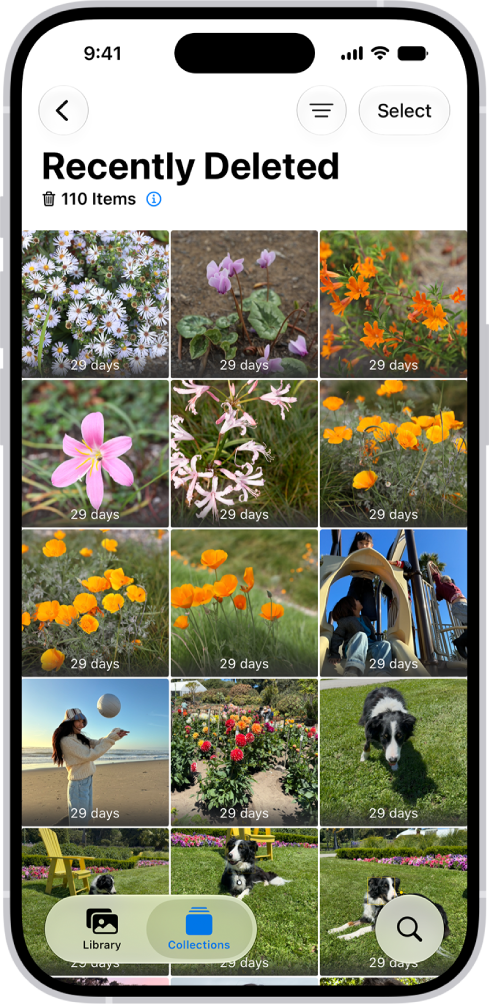
Photos and videos you delete stay in the Recently Deleted collection for 30 days, and after that, they’re permanently removed from iCloud, your iPhone, and other devices associated with your Apple Account. During those 30 days, you can recover them or delete them permanently at any time.

The Recently Deleted folder in the Photos app. Recently deleted photos appear in a grid on the screen.

  1. Start the Photos app on your iPhone.
  2. Tap Collections.
  3. Tap the Recently Deleted collection (below Utilities), tap View Album, and unlock your iPhone.
  4. Tap Select and choose the photos and videos you want to recover or delete.
  5. Tap the More button and tap Recover or Delete.

Note: Check the Recovered collection if the photos or videos you’re looking for aren’t in the Recently Deleted collection.

Lock and unlock the Recently Deleted and Hidden collections

The Recently Deleted and Hidden collections are locked by default. You can unlock these collections using Face ID, Touch ID, or your passcode. To change the default setting from locked to unlocked, do the following:

  1. Start the Settings app on your iPhone.
  2. Tap Apps and tap Photos.
  3. Turn off Use Face ID, Use Touch ID, or Use Passcode.

Hide the Hidden collection

The Hidden collection is locked by default, and for an extra layer of privacy, you can remove it from view.

  1. Start the Settings app on your iPhone.
  2. Tap Apps and tap Photos.
  3. Turn off Show Hidden Album.
Tag: Photos

iPhone uses your Apple Account to create your contact card, called My Card, in the Contacts app. You can also add or edit details, including your name, address, phone number, and birthday, as well as the Contact Poster, which you can share with people when you call or send a message to them.

Keeping My Card current pays off elsewhere, too. When you edit it, your AutoFill information in Safari updates automatically.

Complete or edit My Card

  1. Open the Contacts app on your iPhone.
  2. Tap My Card at the top, then tap Edit.

    If you don’t see My Card, tap the Add button and enter your information, then return to the contact list, touch and hold your contact, and tap Make this My Card.

  3. Enter your contact information.

To help you, Contacts suggests addresses and phone numbers as you go.

Add or edit your home address

  1. Open the Contacts app on your iPhone.
  2. Tap My Card at the top, then tap Edit.
  3. Tap Add Address and then add your address.
  4. Tap the label that appears to the left of the address and select Home.

AutoFill in Safari can fill in your address automatically for things like online shopping or online forms. Any edits to your My Card update your AutoFill information automatically, too.

Add or edit your avatar and poster

An avatar and poster you set can appear automatically when you call or send a message to others.

  1. Open the Contacts app on your iPhone.
  2. Tap My Card at the top, then tap Edit.
  3. Tap your contact photo and choose a style.
  4. Tap Customize to edit your avatar and poster.

Share your name and contact image

People in your contacts can automatically get your updated name, photo, and poster, if you choose.

  1. Open the Contacts app on your iPhone.
  2. Tap My Card at the top, tap Edit, and then tap your contact photo.
  3. Turn on Name & Photo Sharing to start sharing your contact photo and poster with others. (You may need to scroll down.)

Select Always Ask if you want a prompt before your name, photo, and poster are shared with anyone. Otherwise, you can share automatically with Contacts Only.

Add or edit contact pronouns

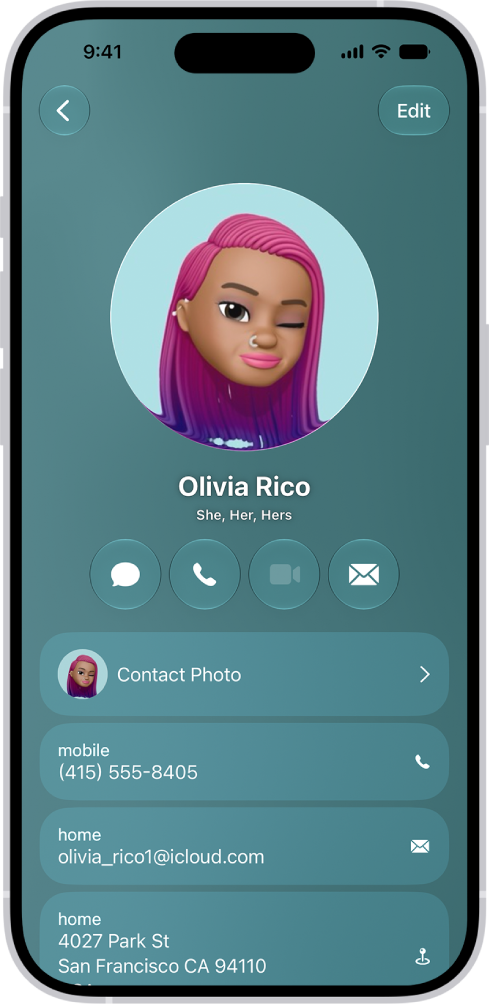
A contact named Olivia Rico with She, Her, and Hers pronouns below the contact photo. Below her name are buttons to send a message, call, mail, and use Apple Pay. At the bottom of the screen are the contact’s mobile number and email address.

In the Contacts app, you can add or edit your own pronouns or another contact’s.

  1. Open the Contacts app on your iPhone.
  2. Tap My Card at the top to add your pronouns, or select another contact to add theirs.
  3. Tap Edit and tap add pronouns.
  4. Select your language, then add the correct pronouns.

    You can also add pronouns in other languages by tapping Add Pronouns again.

  5. Tap Add.

Note: Sharing your contact information through Contacts or NameDrop doesn’t share your pronouns by default. And when you share another contact’s information, their pronouns are never included.

Create or edit your Medical ID

In an emergency, a Medical ID provides information about you that may be important, like allergies, medical conditions, and your emergency contacts.

  1. Open the Contacts app on your iPhone.
  2. Tap My Card at the top of your contacts list. Then tap Edit.
  3. Scroll down. Then tap Create Medical ID or Edit Medical ID.
Tag: Photos

With Shared Albums, you can create albums to share with just the people you choose, and they can add their own photos, videos, and comments for everyone to see. If you set up a shared album, you can also rename or delete it.

Before you start, Shared Albums needs to be turned on in your iCloud settings for Photos, and you need to be signed in to your Apple Account on every device you want to use with it.

Before you begin

Check that you’re signed in to your Apple Account on your iPhone and on any other devices you want to use with Shared Albums.

  1. Open the Settings app on your iPhone.
  2. Tap your name and tap iCloud. Tap Photos.
  3. Turn on Shared Albums.

Create a shared album

  1. Open the Photos app on your iPhone.
  2. Tap Collections, then tap Shared Albums.
  3. Tap the Add button, then do the following:

    • Add photos and videos to the album: Tap Add Photos, select the items you want to add, and then tap the Done button.
    • Name the album: Type a name in the Shared Album Name text field.
    • Set sharing permissions: Tap Sharing Options. Then select People You Choose or Anyone with the Link.

      Note: If you select People You Choose and the link is shared with someone you didn’t invite, they can request access to the album. You can grant or deny the request.

    • Allow the album to expire: Turn on Make Album Temporary to set the album to expire after 30 days.
  4. Tap the Done button to create the album.

Note: Whoever organizes a shared album provides the iCloud storage space for its content, but albums set to expire don’t use any iCloud storage.

Join a shared album

After selecting the link you received, select Join. You might need to sign in to your Apple Account, ask for access, or provide your email.

To save the album to your account after joining by email, select Join, then sign in to your Apple Account.

To view pending invitations, tap Collections, then tap your Apple Account profile.

View shared albums

There’s one place where you can view all of your shared albums.

  1. Open the Photos app on your iPhone.
  2. Tap Collections.
  3. Tap Shared Albums to see all of your shared albums and tap an album to view it.

Quick tip: Tap Activity to view what’s new in your shared albums, such as photos, reactions, and comments.

Rename a shared album

Whoever creates a shared album can change its name.

  1. Open the Photos app on your iPhone.
  2. Tap Collections.
  3. Tap Shared Albums and tap an album.
  4. Tap the More button. Tap the current album name.
  5. Enter a new name in the text field and then tap the Done button.

Delete or remove yourself from a shared album

  1. Open the Photos app on your iPhone.
  2. Tap Collections.
  3. Tap Shared Albums and tap an album.
  4. Tap the More button. Tap Delete Shared Album if you created the album, or tap Leave Shared Album if you’re a participant.

Even if a shared album is deleted, or the person who created it stops sharing it, photos you saved or downloaded from it to your photo library stay in your library.

Tag: Photos

On supported iPhone models, Night mode automatically brightens photos and captures more detail in low light. Your iPhone sets the exposure time automatically, but you can adjust it manually if needed.

It’ll turn on by itself in low-light situations. For even more detail, you can choose between the available exposure options, and your selection is saved for your next Night mode photo. A tripod can help you get even more detailed Night mode photos, too.

Quick tip: Use a tripod for even more detailed Night mode photos.

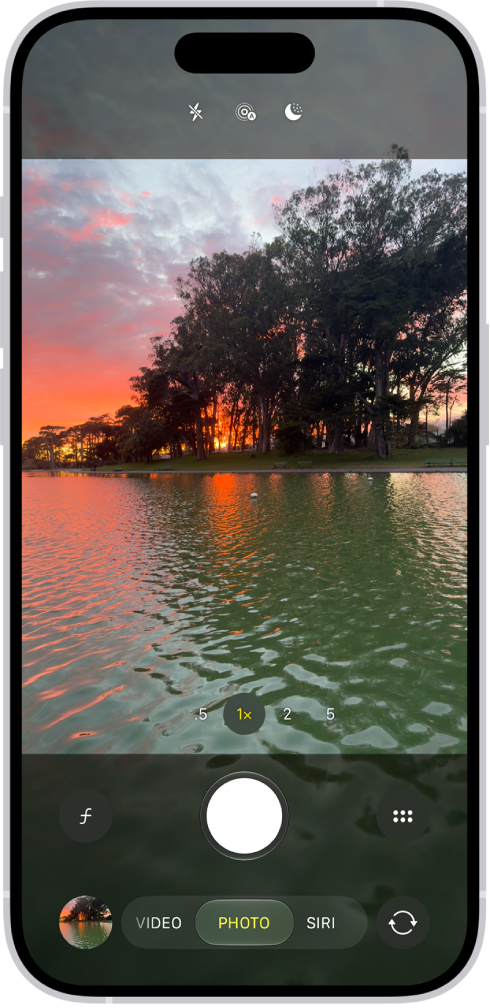
The Camera screen in Photo mode. Within the viewfinder is a night scene. Buttons for Night and Camera Controls mode appear in the top-right corner of the screen. At the bottom of the screen are, from left to right, the Photo and Video Viewer button, Video and Photo Mode, and the Camera Chooser Back-Facing button.

  1. Open Camera on your iPhone.

    In low-light situations, Night mode turns on automatically. To turn it off and on, tap the Night mode button.

  2. For even more detail, tap the Camera Controls button. Then tap Night Mode and choose between the available exposure options. Your selection is saved for your next Night mode photo.
  3. Tap the Shutter button, or click the Camera Control on (supported models) and then hold your iPhone still to take your shot.

    If crosshairs appear in the frame, your iPhone has detected movement—align them to help you reduce motion and improve the image quality.

    To cancel a Night capture in progress, tap the Stop button.

Supported models can take Night mode selfies and time-lapse videos, too.

You can also take Night mode photos with Portrait mode on supported models.

Tag: Photos

In the Photos app, you can make stickers from the subjects in your photos and animated stickers from the subjects in your Live Photos. Then use your stickers to decorate messages, photos, notes, and more.

It starts with the subject of a photo. Once you add it as a sticker, it shows up in your stickers menu, ready to use from the onscreen keyboard or Markup tools. You can delete a sticker later, too.

Turn a photo or Live Photo into a sticker

The main subject of a photo can become a sticker.

  1. Start the Photos app on your iPhone.
  2. Tap a photo to open it in full screen.
  3. Touch and hold the subject, then release.
  4. Tap Add Sticker.

    The sticker appears in your stickers menu, which you can access when you use the iPhone onscreen keyboard or Markup tools.

  5. Tap Add Effect to apply a visual effect such as Outline, or Comic, or turn the Live Photo animation on or off.

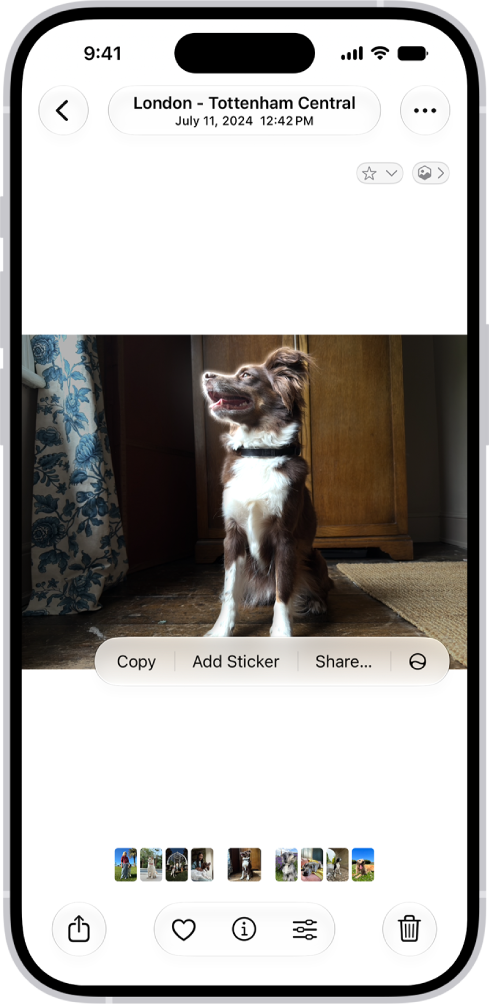
    The Photos app is open to a photo of a dog. The dog is selected, and the option Add Sticker is available in the menu above.

  6. Tap the Close button to close the stickers menu.

Quick tip: You can use stickers you’ve created to decorate a photo.

Delete a sticker

  1. Start the Photos app on your iPhone.
  2. Open a photo and then tap the Edit button.
  3. Tap the Markup button, then tap the Add button.
  4. Tap Add Sticker, touch and hold the sticker you want to delete, and tap Remove.

Since your stickers sync with iCloud, they’re available on any iPhone, iPad, Mac, or Apple Vision Pro where you’re signed in to the same Apple Account.

Tags: iCloud, Photos

With Visual Look Up on your iPhone, you can identify and learn about architectural landmarks, popular statues, famous art, plants, pets, books, and more that appear in photos and images. It can also identify food and suggest related recipes, and you can use it in Photos, Safari, Quick Look, and more.

A starred Info button tells you Visual Look Up has something to show you, and it works with a paused video frame, too. It isn’t available in all regions or languages, though.

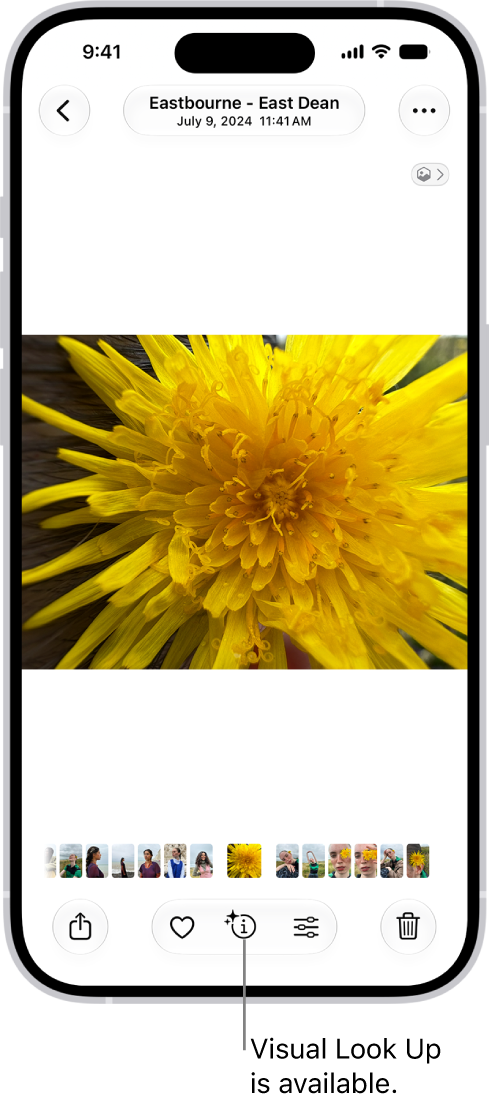
A photo is open in the Photos app library. At the bottom of the screen, the Info button displays an icon indicating that Visual Look Up information is available.

  1. On your iPhone, open a photo or image in full screen, or pause a video on any frame.
    If the Info button displays a symbol with stars such as the Detected Food Info button or the Detected Dog Info button, Visual Look Up is available.
  2. Tap the starred Info button and then tap Look Up at the top of the photo information to view the Visual Look Up results.
  3. Tap the Close button to close the Visual Look Up results and swipe down on the photo or video frame to close the photo information.

Visual Look Up isn’t available in all regions or languages, Apple says.

Tag: Photos

After you take a photo or video, use the tools in the Photos app to edit it on your iPhone. You can adjust the light and color, add a filter, and more, and when you use iCloud Photos, any edits you make are saved across all your devices.

Enhance can automatically improve light and color, and if you took a photo with iPhone 16 or later, you can change its Photographic Style.

Edit the light or color of a photo or video

To make your photos and videos look their best, adjust light and color settings.
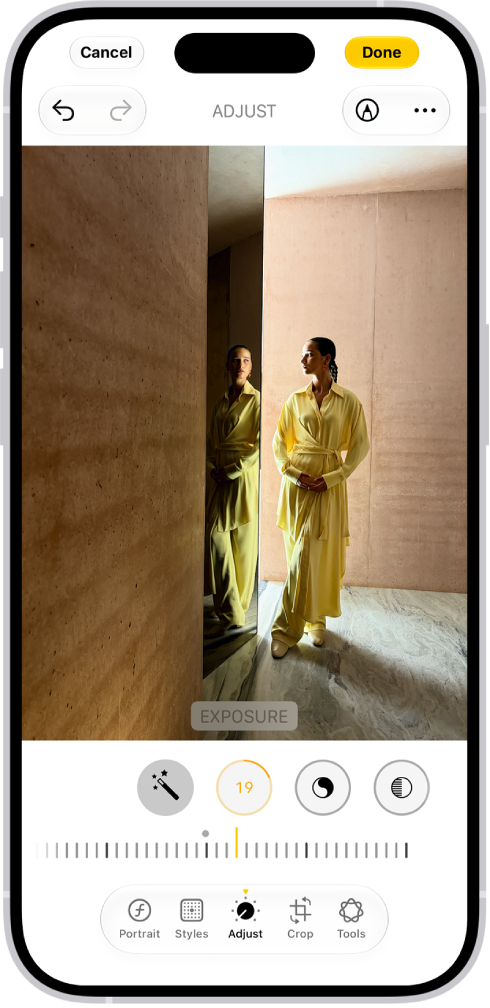
On iPhone, a phot is being edited in the Photos app. The Adjust button is selected, and a slider is available below the Exposure setting to adjust its level. The Cancel button is in the top-left corner of the screen and the Done button is in the top-right corner.

  1. Start the Photos app on your iPhone.
  2. Tap a photo or video to open it, then tap the Edit button.
  3. Tap Adjust.
  4. Swipe left under the photo to view the settings you can adjust—for example, Exposure, Brilliance, or Highlights.
  5. Tap a setting and drag the slider to make precise adjustments.

    The outline around each button indicates the level of change for that setting. Tap the button to compare the edited version to the original.

  6. Tap Done to save your edits, or if you don’t like your changes, tap Cancel, and then tap Discard Changes.

Quick tip: To automatically enhance the light and color, tap the Enhance button.

Edit the Photographic Style of a photo

On models that support Photographic Styles, you can apply a new style to photos in your library or edit the Photographic Style.

Note: Editing Photographic Styles in the Photos app only works if Camera captures photos with High Efficiency image capture. To turn on High Efficiency first, go to Settings app , tap Camera, tap Formats, and then tap High Efficiency.
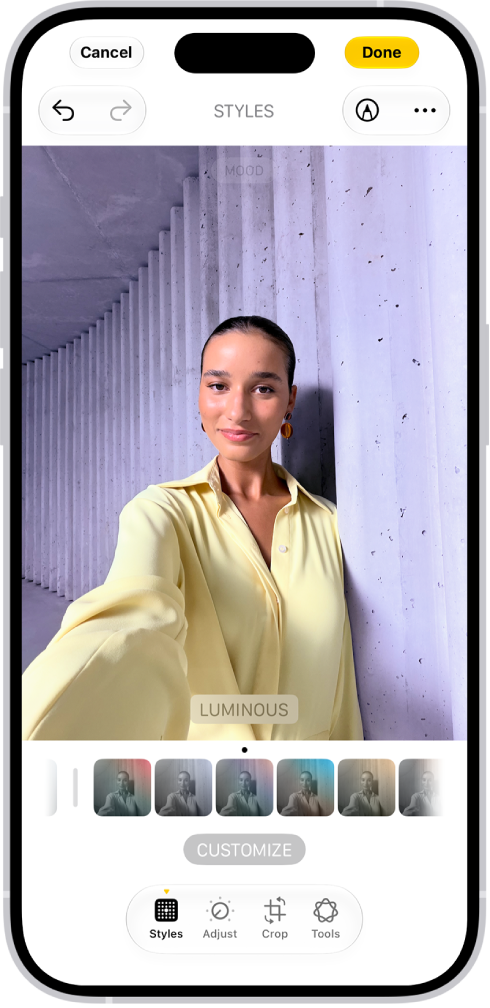
On iPhone, a photo is being edited in the Photos app. The Styles button is selected, and Luminous is selected.

  1. Start the Photos app on your iPhone.
  2. Open a photo taken with a Photographic Style and tap the Edit button.
  3. Tap Styles and then do any of the following:

    • Choose a new style: Swipe left or right on the style choices below the image.
    • Adjust the tone, color, and intensity: Tap Customize. Then drag your finger on the Styles Chooser to adjust the tone and color. On iPhone 18 Pro models, tap Palette first. Drag your finger left or right on the slider below to adjust the intensity level. When you’re done making adjustments, tap the image.
    • Change the texture: Tap Texture and choose a texture such as Soft Skin, Glow, or Film. Drag the slider to adjust the intensity, or choose Standard to apply no texture. Tap Grain to add film grain to any texture. (Available on models that support Photographic Styles 2 and Photographic Styles 3 and captured on iPhone 18 Pro or iPhone 18 Pro Max).

    Note: As you make adjustments, the values for tone, color, and intensity are shown at the top of the screen. Tap the Reset button to reset these values.

  4. Tap the Done button.

Apply filter effects to a photo or video

To change the tint of a photo or video, apply filter effects.

Note: On iPhone 16 models or later, Photographic Styles take the place of filters for giving your photos a customized look. If you haven’t turned on Photographic Styles, though, filter effects are still available on these models.
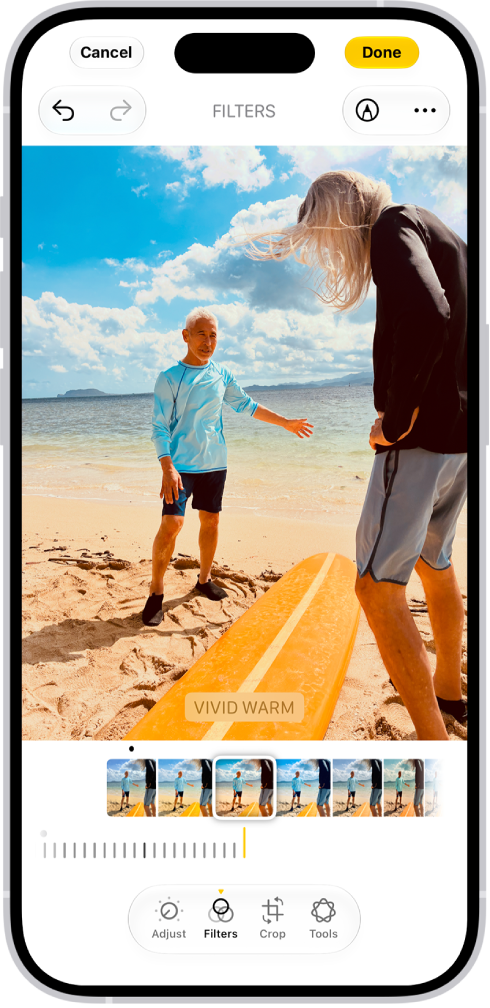
On iPhone, a photo is being edited in the Photos app. The Filters button is selected, and the Vivid Warm filter is selected. A slider is available below the filter options to adjust the intensity of the filter. The Cancel button is in thetop-left corner of the screen and the Done button is in the top-right corner.

  1. Start the Photos app on your iPhone.
  2. Open a photo or video, then tap the Edit button.
  3. Tap the Filters button to apply filter effects such as Vivid or Dramatic.

    To remove a filter that was applied when you took the photo, tap Original.

  4. Tap a filter. Then drag the slider to adjust the effect.

    To compare the edited photo to the original, tap the photo.

  5. Tap Done to save your edits, or if you don’t like your changes, tap Cancel, and then tap Discard Changes.

Copy and paste edits to multiple photos

Once you’ve edited one photo or video, you can copy those edits and paste them onto another photo, or onto a batch of photos all at the same time.

  1. Start the Photos app on your iPhone.
  2. Open the photo or video that contains the edits you want to copy.
  3. Tap the More button, then tap Copy Edits.
  4. Review and turn off any edits you don’t want to copy. Tap Copy.
  5. Tap the Back button to return to your library.
  6. Tap Select and tap the thumbnails of the photos you want to paste the edits onto, or open a single photo or video.
  7. Tap the More button and then tap Paste Edits.

Note: To make the edited photos look even more similar, Photos automatically adjusts their white balance and exposure for a better match.

Add stickers, text, and more

  1. Start the Photos app on your iPhone.
  2. Tap a photo to open it.
  3. Tap the Edit button, then tap the Markup button.
  4. Tap the Add Annotations button to add stickers, captions, text, shapes, or even your signature.
  5. Tap the Done button to save your edits.

Set the background color of Edit mode

The background of Edit mode matches your iPhone’s light or dark appearance by default. You can change its color, though. If you prefer to edit photos against a dark background, for example, set it to always appear dark.

  1. Start the Photos app on your iPhone.
  2. Tap a photo or video to open it, then tap the Edit button.
  3. Tap the More button, tap Appearance, and then do one of the following:
    • Match Edit mode to the light or dark appearance of your iPhone: Tap System.
    • Make Edit mode always appear dark: Tap Dark.
    • Make Edit mode always appear light: Tap Light.

Use Apple Intelligence editing tools

Apple Intelligence gives you the Clean Up, Extend, and Reframe tools to edit your photos.

Note: Apple Intelligence on iOS 27 or later is available on an Apple Intelligence-enabled iPhone 15 Pro, iPhone 15 Pro Max, or iPhone 16 model or later. Apple Intelligence is not available in all languages or regions. Usage limits may apply.*

*Apple Intelligence is available with Siri and device language set to Chinese (Simplified), Chinese (Traditional), Danish, Dutch, English, French, German, Italian, Japanese, Korean, Norwegian, Portuguese, Spanish, Swedish, Turkish, or Vietnamese. Some features may not be available in all regions or languages. Some devices may not be available in all regions. Siri AI is available in beta in iOS 27, iPadOS 27, macOS 27, watchOS 27, and visionOS 27 and requires an Apple Intelligence–enabled device set to a supported language. Available in English to start. Siri AI will not be initially available in the EU on iOS, iPadOS, and watchOS. Certain Apple Intelligence features that rely on server-side models are subject to daily usage limits, including but not limited to Siri AI, Intelligent Photo Editing Tools, Image Playground, and AFM 3 Cloud models in Shortcuts. Daily limits may vary by feature, request complexity, system demand, system policies, and other factors. Expanded access to such features will be available for a fee in the future. Use of these features is subject to the Apple Intelligence Terms and Conditions.