Got a tip for us?

Photos

To help you find the photos and videos you’re looking for, you can change how items in the library are sorted, filter the library to show only particular items, and hide certain items.

You can sort by the date items were added or the date they were taken. And you can hide screenshots, items from your Mac, and items shared with you.

Here’s how to sort and filter the photo library on iPhone.

Sort the library

You can sort your photo library so items appear by the date they were taken or the date they were added.

  1. Start the Photos app on your iPhone.
  2. Tap the Sort and Filter button and tap one of the following options at the top of the list:
    • Added: Photos and videos you added most recently appear at the bottom of the library.
    • Captured: Photos and videos are sorted by the date they were taken, instead of the date they were added to the library.

Filter the library

Filters can display items in your photo library by category, such as Edited, Rating, or Captured by Me, and the Media Types filter shows only photos, videos, or screenshots.

Quick tip: You can apply multiple filters at the same time.

  1. Start the Photos app on your iPhone.
  2. Tap the Sort and Filter button and then tap the filter you want to apply.
  3. To remove the filters and return to the full library, tap Remove Filters.

Hide screenshots, items from your Mac, and items shared with you

Photos and videos shared with you in the Messages app, photos and videos synced from your Mac, and screenshots all appear in your photo library automatically by default. To reduce clutter, you can hide these items.

  1. Start the Photos app on your iPhone.
  2. Tap the Sort and Filter button and then tap View Options.
  3. Tap Screenshots, From My Mac, or Shared with You to hide these items in your library. To stop hiding them, tap the option again.
Tag: Photos

You can make a screen recording to capture what’s happening on your iPhone screen and save it as a video. You can even turn on the microphone to add audio.

Recording starts after a 3-second countdown, and your screen recordings are saved to your photo library automatically. The Screen Recording control is in Control Center, and you can review your screen recordings with your other media types in the Photos app.

Note: Recording your screen and using screen mirroring at the same time isn’t possible, and some apps might not let you record their content.

Record the iPhone screen

  1. Swipe down from the top-right corner of the screen to open Control Center.

    If you don’t see the Screen Recording control, add it to Control Center.

  2. Tap the Screen Recording button and then wait for the 3-second countdown to start recording.
  3. Swipe up to dismiss Control Center and then perform the action you want to record.
  4. To stop recording, do one of the following:

    • If your iPhone has a Dynamic Island: Tap the red circle. Then tap the Stop Screen Recording button.
    • For all other models: Tap the timer (highlighted in red) in the top left of the screen. Tap Stop.

Take a screen recording with audio

  1. Swipe down from the top-right corner of the screen to open Control Center.
  2. Touch and hold the Screen Recording button, tap Microphone to turn it on, and tap Start Recording.
  3. Wait for the 3-second countdown, then start recording.

Review your screen recordings

Screen recordings are automatically saved to your photo library.

  1. Open the Photos app on your iPhone.
  2. Tap Collections, scroll down to Media Types, and then tap Screen Recordings.
Tag: Photos

Use your iPhone camera to take a panoramic photo of your surroundings in Pano mode. It’s all about the arrow. The panorama comes together as you move slowly in the arrow’s direction, keeping it on the center line. You can pan in the opposite direction, too, and you can reverse the direction of a vertical pan.

  1. Open Camera on your iPhone.
  2. Swipe left to select Pano mode.
  3. Tap the Shutter button or click the Camera Control on (supported models).
  4. Pan slowly in the direction of the arrow, keeping it on the center line.
  5. To finish, tap the Shutter button again or click the Camera Control on (supported models).

Tap the arrow to pan in the opposite direction. To pan vertically, rotate iPhone to landscape orientation. You can reverse the direction of a vertical pan, too.

Tag: Photos

You can keep adding photos and videos after you set up or join an iCloud Shared Photo Library in the Photos app. Keep in mind that content you move there leaves your personal library and becomes visible to all participants. There are several ways to add more:

  • Manually move photos from your personal library
  • Save photos and videos you take directly to the shared library from Camera
  • Share photos you take when other members of the shared library are nearby
  • Share photos and videos you take at home

Note: iCloud Shared Photo Library needs iOS 16.1, iPadOS 16.1, macOS 13, or later. If a device runs an earlier version of the software, it won’t have the photos and videos added to a shared library.

Manually add photos and videos to an iCloud Shared Photo Library

From your personal library, you can add individual photos and videos to the iCloud Shared Photo Library.

  1. Open the Photos app on your iPhone.
  2. Tap the photo or video you want to add. Or to add multiple photos and videos at the same time, tap Select. Tap the thumbnails you want to add.
  3. Tap the More button. Then tap Move to Shared Library.

Quick tip: The Photos app can suggest photos and videos for your Shared Library. To see them, tap Collections , tap your account in the top-right corner, and then tap For Your Shared Library.

After content is moved to the shared library, it’s no longer in your personal library and it’s visible to all of the shared library participants. To move content from the shared library back to your personal library, follow the steps above, but tap Move to Personal Library instead of Move to Shared Library.

Add photos and videos to an iCloud Shared Photo Library directly from Camera

Camera saves to your personal library by default. Once you set up or join an iCloud Shared Photo Library, though, a Shared Library button appears at the top of the screen when you open Camera, so you can switch between saving photos and videos to your personal library or to the shared library.

To switch, tap the Personal Library button to save to the shared library; tap the Shared Library button to switch back to your personal library.

To turn the feature on or off after you complete the setup process, go to Settings > Apps > Photos > Shared Library > Sharing from Camera, then turn Sharing from Camera on or off.

Add photos and videos to an iCloud Shared Photo Library when participants are nearby

There’s an option to automatically add photos you take when you’re near other shared library participants. You can choose it when you set up or join an iCloud Shared Photo Library.

To allow iPhone to detect when participants of your shared library are nearby, participants need to be signed in to their Apple Account on their device, and have Bluetooth® turned on in Settings > Bluetooth.

To turn the feature on or off after you complete the setup process, do the following:

  1. Open the Photos app on your iPhone.
  2. Tap Collections.
  3. Tap your account in the top-right corner.
  4. Tap Shared Library, then tap Sharing from Camera.
  5. Tap Share Automatically.

Automatically add photos and videos taken at home to an iCloud Shared Photo Library

Photos and videos you take at home can land in the shared library automatically, too. Choose that option when you set up or join an iCloud Shared Photo Library.

To turn the feature on or off after you complete the setup process, do the following:

  1. Open the Photos app on your iPhone.
  2. Tap Collections.
  3. Tap your account in the top-right corner.
  4. Tap Shared Library, then tap Sharing from Camera.
  5. Turn Share When At Home on or off.

Turn iCloud Shared Photo Library sharing suggestions on or off

Sharing suggestions recommends photos you might want to add to your iCloud Shared Photo Library, such as photos you took when participants of the shared library were nearby, or photos of people you indicated interest in during the setup process. iPhone sends a notification to review sharing suggestions. To turn suggestions on or off, follow these steps:

  1. Open the Photos app on your iPhone.
  2. Tap Collections.
  3. Tap your account in the top-right corner.
  4. Tap Shared Library, then turn Shared Library Suggestions on or off.

If you want to get sharing suggestions for additional people, tap Add People, tap a person, then tap Add. The person doesn’t have to be a member of the shared library.

Tags: iCloud, Photos

With the Continuity Sketch and Continuity Camera features, you can draw a sketch, take a photo, or scan a document using your nearby iPhone and have it appear instantly on your Mac, exactly where you want it, for example, in an email, note, or folder.

You can also mark up a file on your Mac with your iPhone using Continuity Markup. Both devices need Wi-Fi and Bluetooth® turned on and the same Apple Account, and they need to be within 30 feet (10 meters) of each other.

Here’s how to insert sketches, photos, and scans from your iPhone on Mac.

Before you begin

Before you try this, check that all of the following are true:

  • Both devices have Wi-Fi and Bluetooth® turned on.
  • You’re signed in to the same Apple Account on both devices.
  • Your devices are within 30 feet (10 meters) of each other.
  • Both devices meet minimum system requirements for Continuity Camera, Continuity Sketch, and Continuity Markup.

Make sure your VPN’s configuration doesn’t prevent local networking if you’re using one, as that may interfere with some Continuity features.

Depending on where it’s inserted, you can mark up the photo or scan, or adjust other aspects, like cropping it or applying a filter.

Insert a sketch, photo, or scan from your iPhone

With Continuity Sketch, a sketch you draw on your iPhone can appear on your Mac. And with Continuity Camera, a photo you take or a document you scan on your iPhone shows up on your Mac.

  1. On your Mac, Control-click where you want to insert the sketch or photo—for example, in an open window, like a note or email message.

    You can also Control-click the desktop or a folder in a Finder window.

  2. Choose an option from the pop-up menu.

    You may need to click “Insert from iPhone or iPad” before seeing the options.

  3. Do any of the following:

    • Add a sketch: On your iPhone, draw a sketch using your finger.
    • Take a photo: On your iPhone, take a photo and tap Use Photo or Retake.
    • Scan a document: On your iPhone, scan a document. Your iPhone detects the edges of the document and autocorrects any skewing of the image. If you want to adjust the area included in the scan, drag the frame or its edges. When you’re ready, tap Keep Scan or Retake. You can continue to scan documents until you’re done, then tap Save.

The sketch, picture, or scan appears on your Mac in the location you chose in step 1. And if you added it from the desktop or a folder, it’ll show up as a file.

You may be able to mark up the photo or scan, crop it, apply a filter, or adjust other aspects, depending on where it’s inserted.

Note: Scans you take on your iPhone don’t get saved on the device.

Use your iPhone to mark up a file on your Mac

With Continuity Markup, you can use your iPhone to add text, make drawings, and rotate and crop images, PDF documents, and more on your Mac.

  1. On your Mac, click the desktop to open the Finder.
  2. Control-click the file you want to mark up and choose Quick Actions. Choose Markup.

    The file opens.

  3. In the toolbar, click the iPhone button or click the Markup button (the button may have an arrow next to it) and choose your device.
  4. Use the Markup tools to draw, add text or shapes, and more.
  5. When you’re done, tap Done on your iPhone.
  6. To save your changes, click Done on your Mac.

If Continuity Camera, Continuity Sketch, or Continuity Markup aren’t working:

  • Make sure you’re signed in to the same Apple Account on both devices.
  • Make sure that both devices have Wi-Fi and Bluetooth turned on.
  • Make sure that your devices are within 30 feet (10 meters) of one another.
  • Make sure your device meets minimum system requirements for Continuity Camera.
Tag: Photos

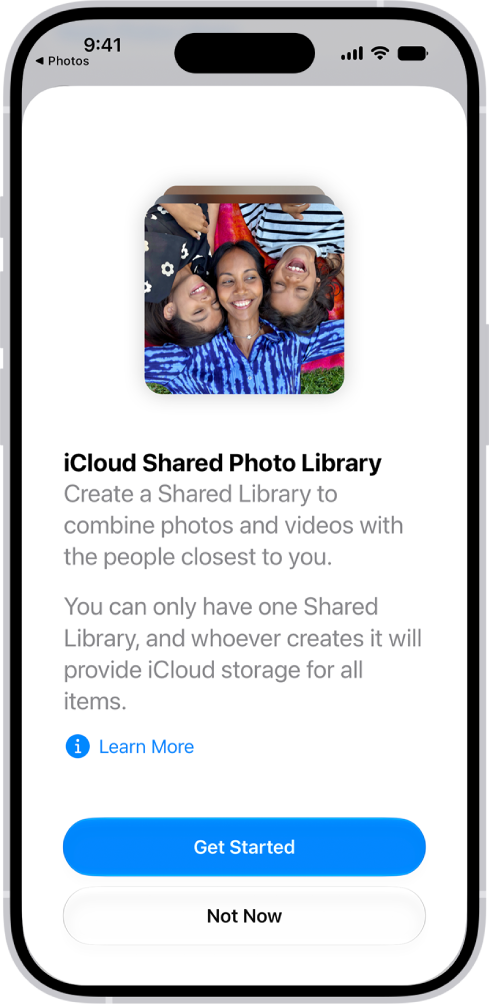
With the iCloud Shared Photo Library feature, you can set up or join a shared library to share photos and videos with up to five friends or family members. You and those close to you can collaborate on the photo collection and enjoy more complete memories, all in one place. You can belong to one shared library at a time.

When you join a shared library, the photos and videos that you contribute move from your personal library to the shared library, and all members can view, edit, and delete them. Shared library photos and videos appear in the Photos app alongside your personal content, and a filter lets you quickly switch between your personal and shared libraries.

Note: The minimum system requirements for iCloud Shared Photo Library are iOS 16.1, iPadOS 16.1, macOS 13, or later. On devices with earlier versions of the software, photos and videos added to a shared library aren’t available.

An iPhone showing the Get Started Screen for creating an iCloud Shared Photo Library.

Before you begin

Make sure iCloud Photos is turned on before you set up or join an iCloud Shared Photo Library.

  1. Start the Settings app on your iPhone.
  2. Tap your name, then tap iCloud.
  3. Tap Photos and then make sure Sync this iPhone is on.

Note: To set up a shared library, you don’t need Family Sharing turned on.

Set up an iCloud Shared Photo Library

Whoever sets up a shared library is its organizer.

  1. Start the Photos app on your iPhone.
  2. Tap Collections.
  3. Tap your account in the top-right corner.
  4. Tap Shared Library and then follow the onscreen instructions to add participants and move photos and videos into the shared library.

Note: Your personal library doesn’t show the photos and videos you add to the shared library.

Before you invite participants using Messages or a web link, you can preview and change the photos and videos you add to the shared library.

Join an iCloud Shared Photo Library

To join an iCloud Shared Photo Library, tap the invitation sent from the organizer, tap Get Started, then follow the onscreen instructions. During setup, you can add photos and videos to the shared library the same way as the organizer.

Once you’ve joined a shared library, you can add photos and videos to it in several ways and access the same content as the organizer and other participants.

Add participants to an iCloud Shared Photo Library

The organizer, the person who sets up an iCloud Shared Photo Library, can add new participants.

  1. Start the Photos app on your iPhone.
  2. Tap Collections.
  3. Tap your account in the top-right corner.
  4. Tap Manage, then tap Add Participants.

Note: Up to six participants, organizer included, can share a library, and you can only belong to one shared library at a time.

Delete or leave an iCloud Shared Photo Library

Organizers of an iCloud Shared Photo Library can delete it, while anyone who isn’t the organizer can leave the shared library.

  1. Start the Photos app on your iPhone.
  2. Tap Collections.
  3. Tap your account in the top-right corner.
  4. Tap Manage, then tap one of the following:
    • Delete Shared Library: When a shared library is deleted, participants who have been members of the shared library for more than 7 days can copy everything from the shared library into their own libraries. Participants who have been members for less than 7 days can copy only the content they contributed.
    • Leave Shared Library: When you leave a shared library, you can copy everything from the shared library into your own library, or just the content you contributed.

Everything added to a shared library counts toward the library organizer’s iCloud storage space.

Tags: iCloud, Photos

Use Camera to take Live Photos with your iPhone. A Live Photo captures what happens just before and after you take a photo, including the audio. You take a Live Photo just like you do a normal photo.

In Photo mode, Live Photo is on by default, and you can turn Live Photos off and on whenever you like. And you can play one back to see the moment move.

Here’s how to take Live Photos with your iPhone camera.

Take a Live Photo

  1. Open Camera on your iPhone.
  2. Make sure Camera is set to Photo mode.

    Note: Live Photo is on by default.

  3. Tap the Shutter button or click the Camera Control to take a Live Photo.
  4. To play the Live Photo, tap the photo thumbnail at the bottom of the screen. Touch and hold the screen.

Your Live Photos save automatically to your photo library in the Photos app.

Turn Live Photos off and on

  1. Open Camera on your iPhone.
  2. Make sure Camera is set to Photo mode.
  3. Tap the Camera Controls button or swipe up from Photo mode at the bottom of the screen.
  4. Tap Live. Tap one of the three options: Auto, On, or Off.
  5. Tap the screen to close.

Quick tip: Keep the Live Photo button on the camera screen at all times: Go to Settings > Camera > Indicators, then turn on Live Photo.

Note: With ProRAW or HEIF Max turned on, Live Photos aren’t available.

Tag: Photos

You can save a frame from a video as a photo. In the Photos app, you pause a video on the frame you want, and Save Video Frame as Photo adds it to your library. If your library is sorted by Captured, the new photo appears next to the original video.

  1. Open the Photos app on your iPhone.
  2. Open a video, then play it.
  3. Pause the video on the frame you want to save.
  4. Tap the More button and tap Save Video Frame as Photo.

You’ll find the new photo in your photo library, at the bottom if your library is sorted by Added. When sorted by Captured, the photo appears next to the original video.

Tag: Photos

With the Photos app on your Apple Watch, you can view photos from the iPhone album of your choice, featured photos, and Memories.

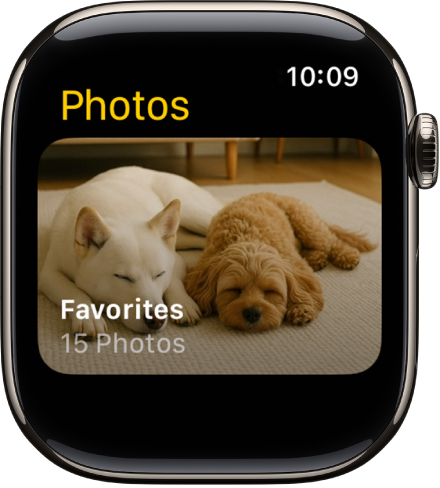
At first, it shows photos from your Favorites album, but you can change the album it uses. You can also stop photo syncing, or limit photo storage on Apple Watch. It all starts in the Apple Watch app on your iPhone.

Here’s how to choose a photo album and manage storage on Apple Watch.

Choose the album to store on Apple Watch

The Photos app on Apple Watch showing an album called Favorites.

A new Apple Watch displays photos from your Favorites album, meaning the photos you tagged as favorites, though you can change the album it uses.

  1. Start the Apple Watch app on your iPhone.
  2. Tap My Watch, go to Photos, tap Sync Album, and then choose the album.

Removing a photo from Apple Watch happens in the Photos app on your iPhone, where you remove the image from the album you’ve synced.

You create a new album for Apple Watch photos in the Photos app on your iPhone.

Show featured photos and Memories on Apple Watch

Featured photos and Memories from the photos library on your iPhone can sync to your Apple Watch automatically.

  1. Start the Apple Watch app on your iPhone.
  2. Tap My Watch, tap Photos, and turn on Sync Memories and Sync Featured Photos.

Stop photo syncing

If you don’t want your iPhone to sync Memories, featured photos, or photos from an album you’ve chosen, follow these steps:

  1. Start the Apple Watch app on your iPhone.
  2. Tap My Watch and tap Photos. Then turn off Photo Syncing.

Limit photo storage on Apple Watch

Available space decides the number of photos stored on your Apple Watch, so you can limit it to save space for songs or other content.

  1. Start the Apple Watch app on your iPhone.
  2. Tap My Watch and then go to Photos and tap Photos Limit.

To see how many photos are on your Apple Watch, do one of the following:

  • Go to the Settings app on your Apple Watch, tap General, then tap About.
  • Go to the Apple Watch app on your iPhone, tap My Watch, tap General, then tap About.

To see how much space is used for your photos, go to the Settings app on your Apple Watch, tap General, then tap Storage. To do this on your iPhone, open the Apple Watch app, tap My Watch, tap General, then tap Storage.

Take a screenshot of Apple Watch

  1. Go to the Settings app on your Apple Watch, tap General, and then tap Screenshots, then turn on Enable Screenshots.
  2. Press the Digital Crown and the side button at the same time to take a picture of the screen.

Screenshots end up in Photos on your iPhone.

See also

Tag: Photos

With Apple Intelligence, you can remove distracting objects, extend a photo beyond its original frame, and adjust its perspective.

The Clean Up tool removes distracting objects from a photo, and it may even highlight some items for you to remove. You can also extend the background or reframe the perspective, though Clean Up isn’t available in all languages or regions.

Here’s how to clean up, extend, and reframe photos on iPhone.

Note: Apple Intelligence on iOS 27 or later is available on an Apple Intelligence-enabled iPhone 15 Pro, iPhone 15 Pro Max, or iPhone 16 model or later. Apple Intelligence is not available in all languages or regions. Usage limits may apply.*
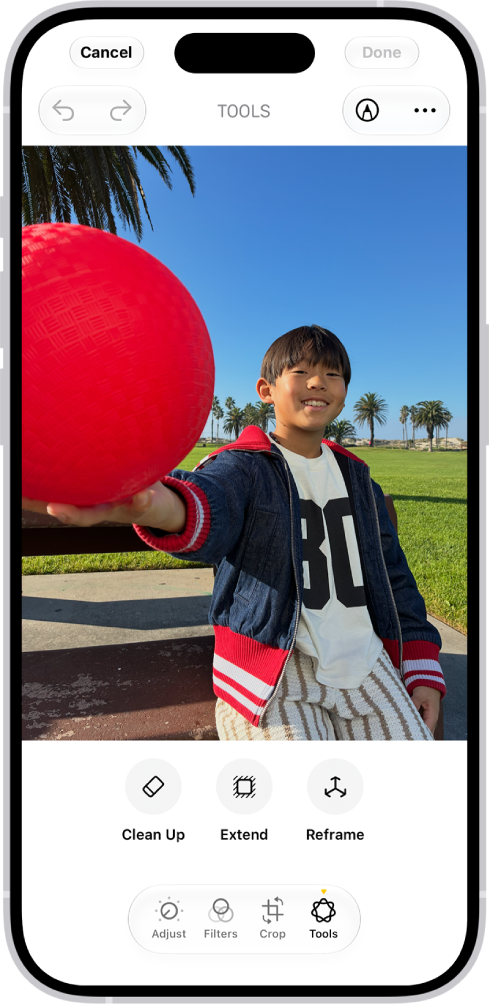
The buttons for Clean Up, Extend, and Reframe are displayed below a photo.

Clean up distractions

To remove distracting objects from a photo, use the Clean Up tool.

Note: Clean Up is not available in all languages or regions.

  1. Start the Photos app on your iPhone.
  2. Open a photo and then tap the Edit button.
  3. Tap Tools, then tap Clean Up.
  4. Tap, brush, or circle what you want to remove.
    • Some items may be highlighted automatically so you can quickly tap to remove them.
    • You can use two fingers to pinch, zoom, or pan the image.
    • Tap the Undo button if you want to restore something you removed
  5. Tap Clean Up (if you’re using High Quality processing).
  6. Tap the Done button. Then tap Done to close the photo.

To undo Clean Up changes after saving, follow steps 1 through 3 above, then tap Reset.

You can choose the processing type Photos uses for Clean Up—Auto, Fast, or High Quality. Tap Auto during the Clean Up process, then choose an option.

Extend the background

To expand the edges of the original photo frame, use the Extend tool.

  1. Start the Photos app on your iPhone.
  2. Open a photo and then tap the Edit button.
  3. Tap Tools, then tap Extend.
  4. Pinch or drag the photo to extend the background; drag the edge of the frame to crop.
  5. Tap Extend.
  6. Tap the Done button. Then tap Done to close the photo.

After you save, you can undo the changes you made with the Extend tool. Follow steps 1 through 3 above, then tap Reset.

Reframe the perspective

After you take a photo, the Reframe tool changes its point of capture.

  1. Start the Photos app on your iPhone.
  2. Open a photo and then tap the Edit button.
  3. Tap Tools, then tap Reframe.
  4. Touch and drag the photo to adjust the perspective or use two fingers to pan, zoom, and rotate.
  5. Tap Reframe.

    Tap the photo to compare the reframed version to the original.

  6. Tap the Done button. Then tap Done to close the photo.

After you save, you can undo the changes you made with the Reframe tool. Follow steps 1 through 3 above, then tap Reset.

*Apple Intelligence is available with Siri and device language set to Chinese (Simplified), Chinese (Traditional), Danish, Dutch, English, French, German, Italian, Japanese, Korean, Norwegian, Portuguese, Spanish, Swedish, Turkish, or Vietnamese. Some features may not be available in all regions or languages. Some devices may not be available in all regions. Siri AI is available in beta in iOS 27, iPadOS 27, macOS 27, watchOS 27, and visionOS 27 and requires an Apple Intelligence–enabled device set to a supported language. Available in English to start. Siri AI will not be initially available in the EU on iOS, iPadOS, and watchOS. Certain Apple Intelligence features that rely on server-side models are subject to daily usage limits, including but not limited to Siri AI, Intelligent Photo Editing Tools, Image Playground, and AFM 3 Cloud models in Shortcuts. Daily limits may vary by feature, request complexity, system demand, system policies, and other factors. Expanded access to such features will be available for a fee in the future. Use of these features is subject to the Apple Intelligence Terms and Conditions.