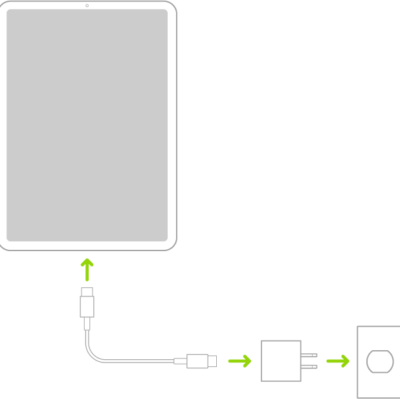
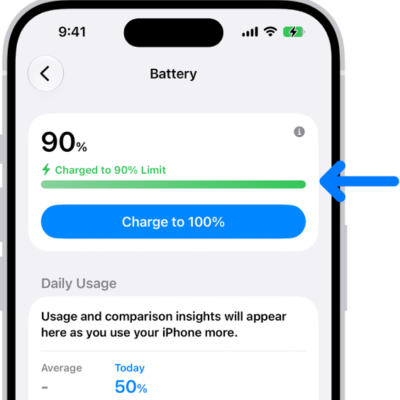
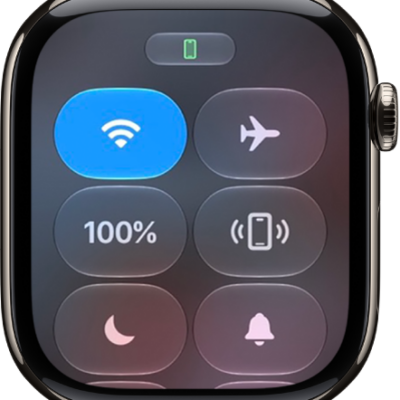
iPad offers useful insights into your battery life to help you identify ways to improve your experience, as well as important information about your battery’s overall health.
Daily Usage compares your battery usage today with previous days, and iPad highlights the top three apps or system activities. You can also explore more information about your app and system activity usage, and see whether an app was on screen, in the background, or used in a low signal environment.
View daily usage information
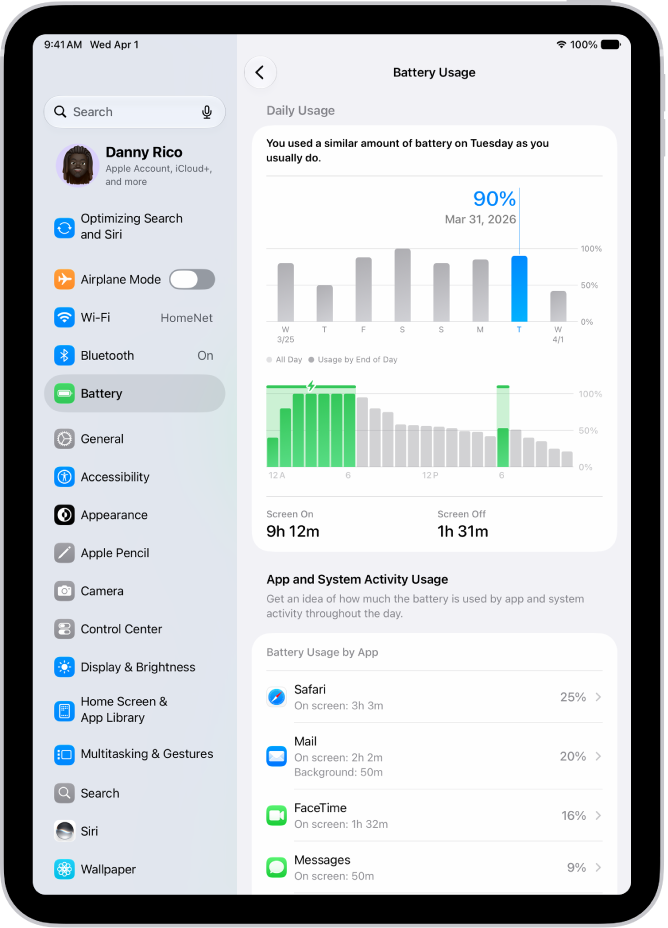
The Daily Usage section sums up your battery usage today compared to previous days, and iPad displays the following battery usage information:
- Similar or lower usage: Shows when your battery use is about the same as usual or less than usual by this time of day (in blue). When usage is similar, iPad highlights the top three apps or system activities contributing to today’s usage (in blue).
- Higher usage: Appears when you’ve used more battery than usual by this time of day (in orange). iPad highlights the top three apps or system activities that may explain the increase.
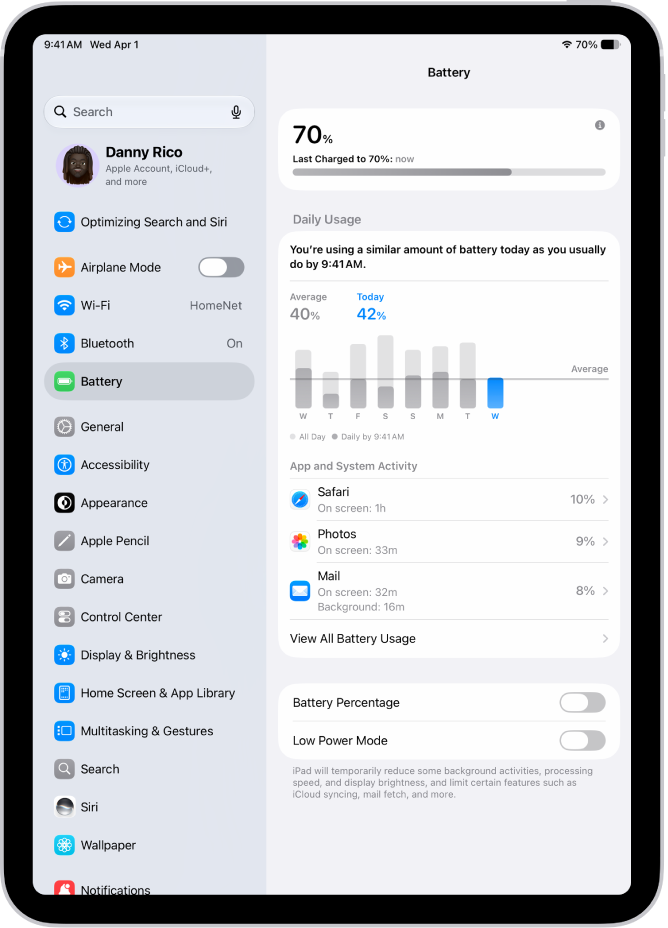
To view daily usage information:
- Start the Settings app on your iPad.
- Tap Battery.
View additional Battery Usage information
More information about your app and system activity usage is there to explore, both for today and the previous week.
- Start the Settings app on your iPad.
- Tap Battery, tap View All Battery Usage, and tap a day.
View App and System Activity information
The App and System Activity section lists the percentage of battery used by each app and system task, which helps you understand what’s using your battery.
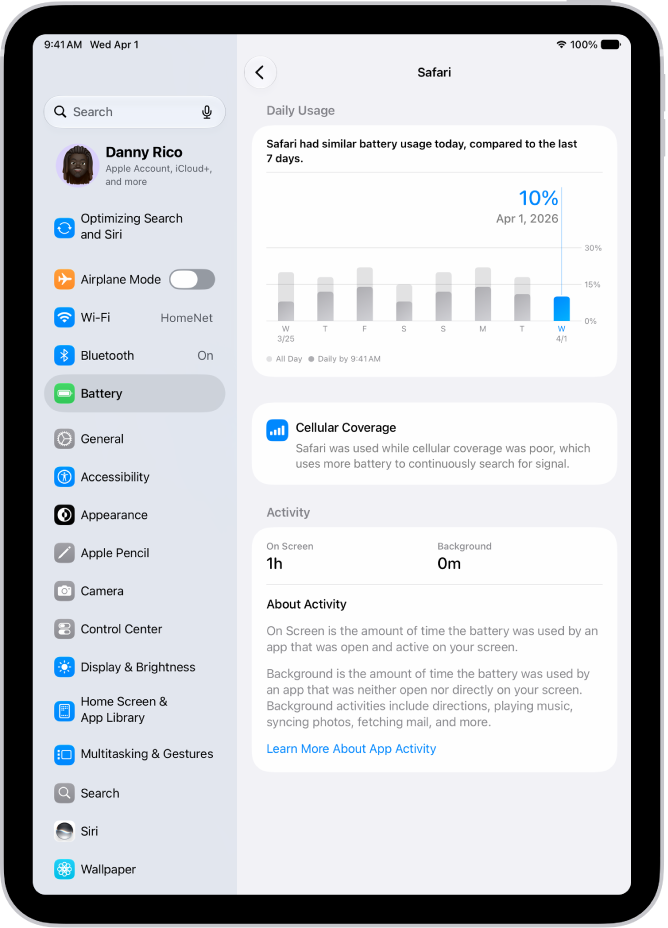
You might see the following information under an app or system activity, or when you tap an app to view more details. Here’s what they mean:
- On screen: The app or system activity was open and visible on your screen. A long duration of onscreen time can explain higher battery usage compared to previous days.
- Background: A long duration of background time can explain higher battery usage compared to previous days. Background activities include directions, playing music, syncing photos, fetching mail, and more.
- Cellular coverage: The app was used in a low signal environment, which used more battery.
- Notifications: The app or system activity woke your device and used battery to check for new information. You can manage an app’s notification settings to reduce how often this happens.
To view app and system activity information:
- Start the Settings app on your iPad.
- Do any of the following:
- View today: Tap Battery, then scroll down.
- View the last eight days: Tap Battery, tap View All Battery Usage and tap a day. Then scroll down.
- Tap an app to view more details, including its battery usage and activity for each day.
See when your iPad was last charged
iPad shows when its battery was last fully charged, plus when it was disconnected from the charger.
- Start the Settings app on your iPad.
- Tap Battery.
Review your iPad battery health
Supported iPad models also display cycle count, battery health, your battery’s capacity, first use date, and manufacture date.
Note: Battery Health won’t appear in Battery settings if your iPad model doesn’t support this feature.
- Start the Settings app on your iPad.
- Tap Battery, then tap Battery Health.
Battery life and charge cycles vary with use and settings. The iPad battery should be serviced or recycled by Apple or an Apple Authorized Service Provider.
See also