









Do you see a zoomed-in view when you open the camera within WhatsApp on your iPhone 18 Pro Max? Does it prevent you from capturing the perfect shot and sharing it with your friends and family or posting it on a status?
If so, there is probably something wrong with your WhatsApp or phone. But how can we figure out what is causing the problem and fix it? Let’s look at different fixes to help solve WhatsApp’s camera zoomed-in problem so that you can capture the perfect photos within the app.
Ensure WhatsApp Backend Isn’t to Blame
To begin with, ensure the problem isn’t coming from WhatsApp’s backend. To confirm this, go to the ServicesDown website, type “WhatsApp” into the top-right search bar, and press Enter.
From the search results, click on WhatsApp to see if the app has any issues. Also, look at the outage graph for the last 24 hours. If there are too many reported issues, WhatsApp may be having problems.
If there is a backend issue, WhatsApp will investigate it, and all you need to do is wait. However, if the problem lies solely with you, you can begin applying the fixes listed below.
1. Rule Out Hardware Issues
First, rule out hardware issues to ensure a problem with the hardware isn’t causing the camera to appear zoomed-in on WhatsApp. For that, perform the following checks:
-
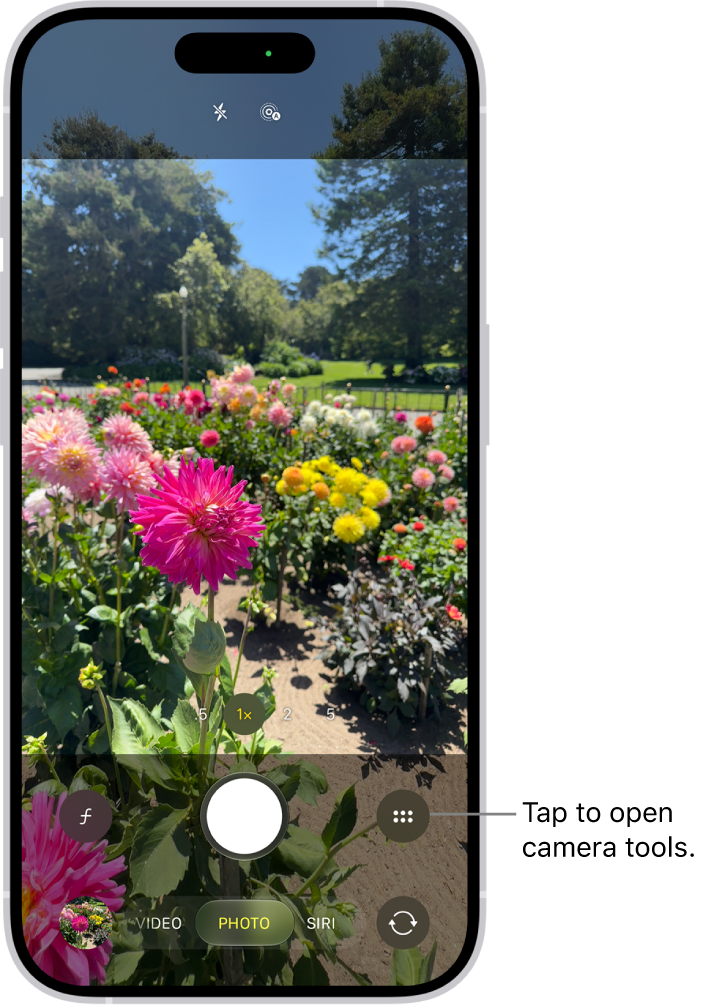
Verify that the problem isn’t with your cell phone camera. To do this, open your cell phone camera and check whether it opens zoomed in. If the issue lies with the camera, ensure its settings aren’t messed up and get it checked by a technician.
- Clean your cell phone camera thoroughly to ensure that the captured image does not appear zoomed-in because of a dusty lens.
If the above checks fail to diagnose the main problem, suggesting there is no hardware issue, move on to the next step.
2. Rule Out Temporary Glitches
To ensure it’s not a temporary glitch that’s causing the issue under discussion, perform the following checks:
- Close the camera app if it is open in parallel with WhatsApp.
- Close the chat or status menu where you have opened the camera, open the chat again, and try capturing the photo again.
- Restart the WhatsApp app to rule out any temporary problems with the app.
- Restart your cell phone once to ensure a temporary glitch isn’t causing the issue.
- Re-login to your WhatsApp account after logging out.
If the above checks do not resolve the problem, continue applying the remaining fixes.
3. Ensure Your iPhone 18 Pro Max Has Enough Storage
It’s common to experience problems with your installed apps if there is insufficient space on your phone. So, if your phone is always running out of storage, you should free up the space to give WhatsApp breathing room to function correctly.
4. Update the WhatsApp App
When was the last time you updated WhatsApp? If you haven’t updated the app in ages and keep the automatic update option disabled, this might explain why you’re experiencing unforeseen issues. So, update the application, and the problem will be resolved automatically.
Follow these steps to update WhatsApp Messenger on iOS:
- Go to the App Store.
- In the top-right corner, tap on your profile icon.
- Tap App Updates.
- Simply tap on Update next to WhatsApp. If WhatsApp is not listed there, it has already been updated.
If updating the app fixes the issue, keep auto-update enabled on your iPhone 18 Pro Max to avoid experiencing the same problem again. If you’ve already updated the app, or if updating it doesn’t make any difference, move on to the next fix.
5. Clear WhatsApp Cache and Data
The accumulation of cached data can also lead to unforeseen problems with apps. So, when updating the app does not work, you should clear its cache.
To clear the WhatsApp cache on iOS, follow these steps:
- Open the Settings app and go to General.
- Tap on iPhone Storage.
- From the list of installed apps, select WhatsApp.
- Tap Offload App.
If clearing the cache doesn’t help, move on to the next step.
6. Reinstall WhatsApp
If none of the fixes listed above work, you should reinstall WhatsApp. Uninstall the WhatsApp app from your iPhone 18 Pro or iPhone 18 Pro Max and install it from the App Store as you usually would.
7. Use the Camera App to Take Photos Instead
Hopefully, reinstalling the app will resolve the issue. But if it doesn’t, try using the mobile camera app instead. This way, you can capture the perfect shots and share them directly on your status or to your contacts without using the WhatsApp built-in camera interface.
Capture the Perfect Shots Within WhatsApp
Hopefully, you should be able to fix the WhatsApp camera zoomed-in issue on your iPhone 18 Pro Max by applying the fixes mentioned in the article. If none of the fixes work, you can contact WhatsApp support. If that doesn’t work, consult a local technician to ensure that a serious hardware issue isn’t the culprit behind this problem.

