









GeeksModo Story Archive - October 2026
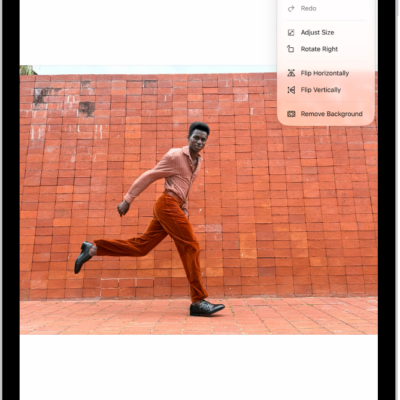
How to remove the background from an image in Preview on iPad
You can remove the background from an image in Preview on iPad with the Remove Background option.
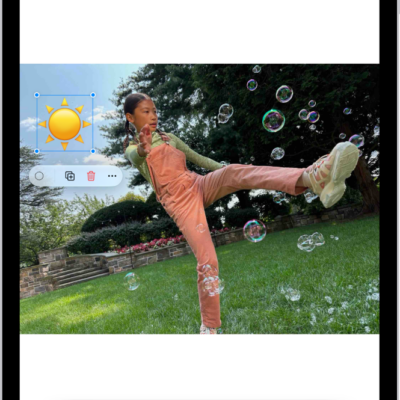
How to reply to an email with a PDF attachment in Preview on iPad
You can reply to an email with a PDF attachment in Preview on iPad, after you fill out or annotate the PDF.
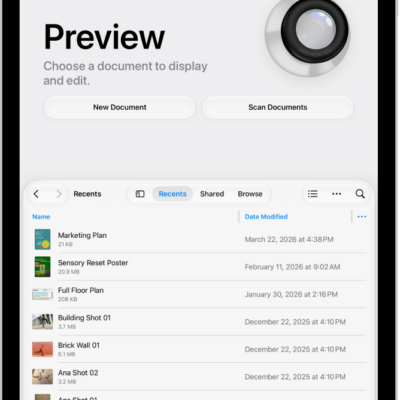
How to manage PDFs and images in Preview on iPad
You can manage PDFs and images in Preview on iPad, rename files, save them, and return to the main menu.
How to export or compress PDFs and images in Preview on iPad
You can export or compress PDFs and images in Preview on iPad as HEIC, JPEG, PDF, PNG, or TIFF files.
How to scan text and documents in Preview on iPad
You can scan text and documents in Preview on iPad to create a PDF, with automatic or manual capture.
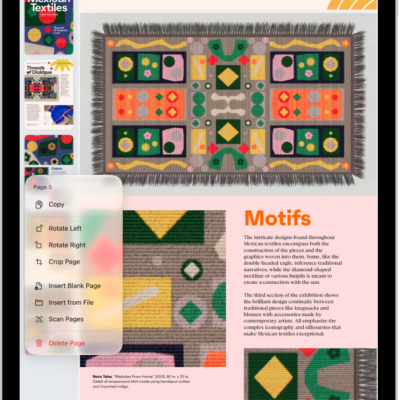
How to add, delete, rotate, move, or crop PDF pages in Preview on iPad
You can add, delete, rotate, move, or crop PDF pages in Preview on iPad, and insert blank pages, images, or scans.
How to print PDFs or images in Preview on iPad
You can print PDFs or images in Preview on iPad from the Actions Menu by selecting a printer.
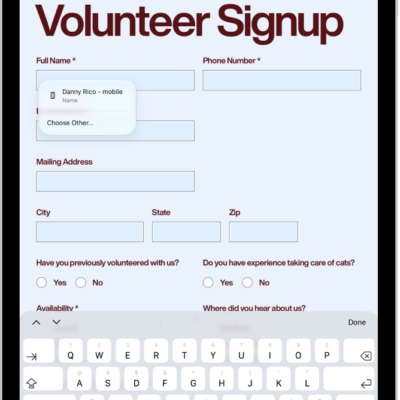
How to get started with Preview on iPad
You can get started with Preview on iPad to fill out and sign PDF forms, scan documents into PDFs, and remove image backgrounds.
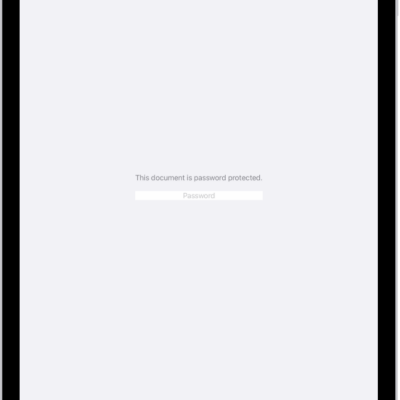
How to lock PDFs in Preview on iPad
You can lock PDFs in Preview on iPad with a password to keep others from editing or deleting your work.
How to fill out and sign PDF forms in Preview on iPad
You can fill out and sign PDF forms in Preview on iPad, enter information in form fields, and add a signature or text box.