









GeeksModo Story Archive - October 2026

How to save a video frame as a photo on iPad
You can save a video frame as a photo on iPad by pausing a video in Photos and saving the frame.
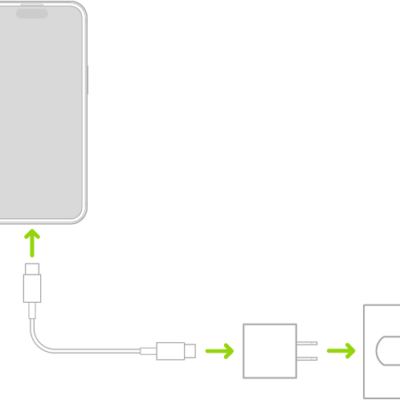
How to charge the iPhone battery
You can charge your iPhone battery with a cable or wirelessly.

How to report a problem with a game in the Apple Games app on iPad
You can report a problem with a game in the Apple Games app on iPad, or request a refund, on the Report a Problem website.
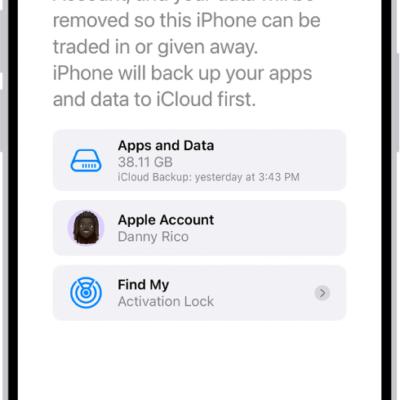
How to sell, give away, or trade in your iPhone
You can sell, give away, or trade in your iPhone safely by unpairing your Apple Watch, backing up, signing out, and erasing your content and settings.
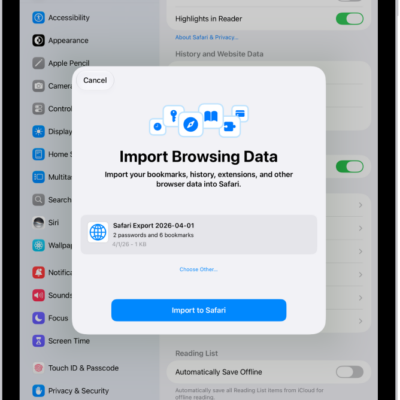
How to import passwords from another password manager into Passwords on iPad
You can import passwords from another password manager into Passwords on iPad from a CSV file, then delete the file.
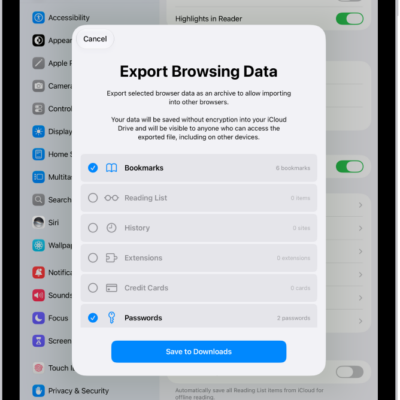
How to export passwords to another password manager on iPad
You can export passwords to another password manager on iPad as a CSV file, then delete the file after you import it.
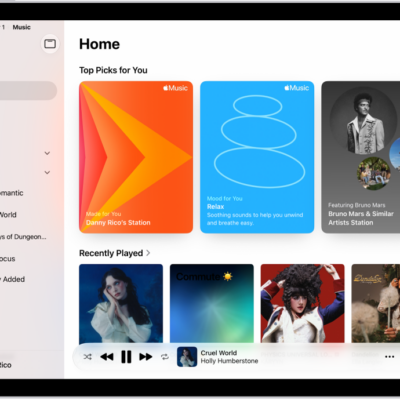
How to see what friends are listening to in Music on iPad
You can see what friends are listening to in Music on iPad, choose how to find friends, follow them, and stop following.

How to use audio call tools in FaceTime on iPad
You can use audio call tools in FaceTime on iPad to record a one-to-one call, view its transcript, and use Hold Assist.

How to use Live Captions and Live Translation in FaceTime on iPad
You can use Live Captions and Live Translation in FaceTime on iPad to see a call transcribed or translated in real time.
How to get started with FaceTime on iPad
You can get started with FaceTime on iPad, set it up, use the call controls, and leave a video message when someone doesn't answer.