





To use the new Siri in iOS 27, iPadOS 27, macOS 27, or watchOS 27, you have to trigger or invoke it. Apple offers multiple ways to activate Siri AI on each kind of hardware.
Siri’s appearance when activated and some of the methods to bring up its interface have changed since the version 26 releases. Its static icon has changed. Siri shows its active state using a consistent animation across platforms. On iPhone and iPad, that animation appears at the top of the device rather than as a glowing animation on all four edges.
Use Spotlight
Back in the olden days of (checks notes) mid-2025, Spotlight was for searching, and Siri was for other sorts of requests. Both involved a text field on your screen, though Siri could, of course, also respond to your voice.
In Golden Gate, when you press the Spotlight shortcut (⌘-Space by default), and on an iPhone or iPad when you swipe down on the Home Screen, you see a text field that serves both purposes. You can type the name of an app or file, and it will give you the same results as Spotlight always has, but you can also ask questions that Siri will answer from its nearly unlimited storehouse of information. Or you can use a plain-language description of what you’re looking for on your device, and Siri will find it. If, while this window is open, you prefer to speak your request, click or tap the microphone button, then speak.
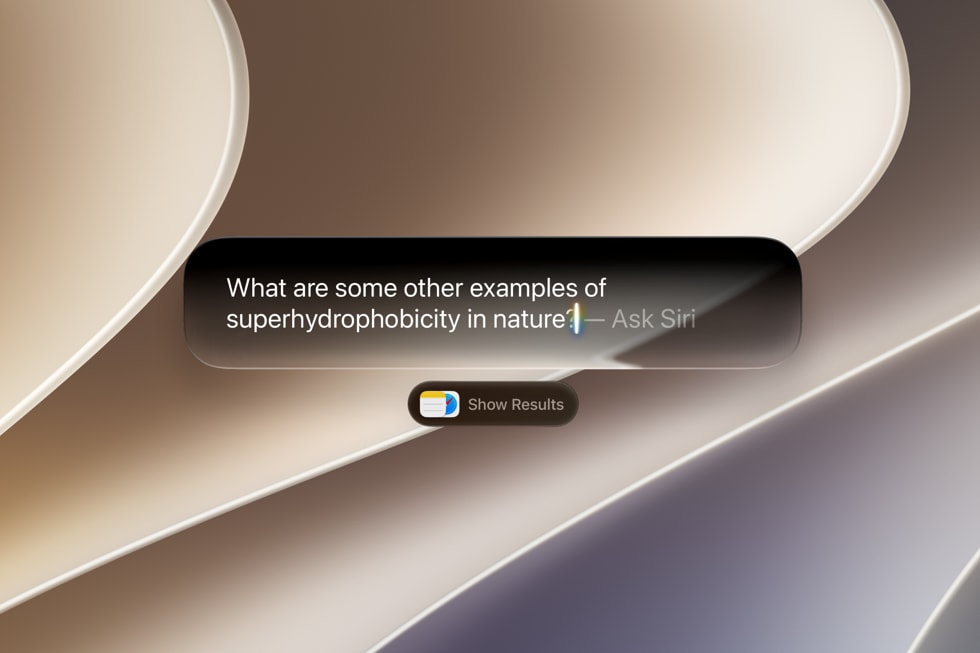
Apple removed the “type to Siri” option introduced in iOS 26, which let you double-tap the bottom of the display.
Use the Siri menu bar icon
On a Mac, if you click the Siri menu bar icon, you see the same combined Spotlight/Siri “Search or Ask” field as when you activate Spotlight via a keyboard shortcut.
Use “(Hey) Siri”
Optionally, Siri can continuously listen for requests. If you enable this (in Settings > Siri > Requests on iPhone or iPad, or System Settings > Siri > Requests on a Mac), you can say “Siri” or “Hey Siri” (depending on your settings) to trigger an animated, glowing blob that indicates Siri is ready to listen for spoken commands.
The first time you enable this, Siri asks you to repeat several phrases so it can adapt to the sound of your voice.
This also works on an Apple Watch: go to Settings > Siri, tap “Listen for,” and then tap either “Siri” or “Hey Siri” or just “Hey Siri.”
Use buttons on iPhones or iPads
On iPhones, you can press and hold the side button to activate Siri. Similarly, on iPads without a Home button, press and hold the top button. On iPads with a Home button, press and hold it instead.
Use Digital Crown or Raise Wrist on Apple Watch
In addition to listening for “Hey Siri” and/or “Siri,” your Apple Watch can activate Siri when you press the Digital Crown or when you raise your wrist. To enable either or both of these features, go to Settings > Siri and turn on Raise to Speak or Press Digital Crown.
Use contextual menus
On a Mac, you can select text, one or more files or folders, images in Photos, or other types of objects, then right-click or Control-click and choose Ask Siri from the contextual menu. Doing so not only activates Siri but also feeds it the selected item(s) as input it can work with. This even works in System Settings!
Likewise, on an iPhone or iPad, you can touch and hold text, images, and other objects, then tap the Siri button on the pop-up menu. An “Ask Siri about this” field appears, where, again, you can ask Siri anything but also give it the context of whatever was selected.
Use AirPods
With your AirPods connected to a Mac, iPhone, iPad, or Apple Watch that has “Siri” or “Hey Siri” enabled, you can speak your request just as you would if you were using the device without AirPods—but only if the AirPods are a recent model (AirPods 4, AirPods Pro 2, AirPods Pro 3, AirPods Max 2, or later). On older models, you must use “Hey Siri.”
Using “Siri” as the trigger may be unavailable in some countries and regions, even with a supported device.
In addition, you can use physical controls on your AirPods to activate Siri. The exact steps vary by AirPods model.
Use CarPlay
With an iPhone with iOS 27 installed connected to a CarPlay system, you can carry out Siri conversations, and these are synced in the Siri app, marked with a car icon.
Activate Siri while you have an iPhone connected to CarPlay using one of several methods:
- The voice triggers you have set work as they would if your iPhone weren’t connected.
- If your car has a steering-wheel activation button, press and hold it. Talk to Siri while continuing to hold the button for the entire time you’re talking. (Some cars trigger the automaker’s system with a short push, so be sure to press and keep holding.)
- Touch and hold the Dashboard or Home button on the CarPlay screen. In the interests of safety, we recommend never doing this while driving.
Use Apple Vision Pro
On an Apple Vision Pro, say “Siri” and the new app appears with its glowing orb. Once it appears, you can grab and pin it in your environment, after which you can just look at the Siri orb to activate it and start talking.
You can also reach Siri via the Home button. Hold your palm open and look at it, then pinch and hold the Home button. A Siri orb appears above it, and you can start speaking. You have to keep your fingers pinched while you speak, much like a Siri Remote for Apple TV requires you hold the Siri button as you speak.