









Siri AI is the flagship of the version 27 releases. Most of what has been written about it describes what it can do. These are the Siri AI tips and tricks that are easy to miss. Settings that are not obvious, shortcuts Apple has not documented, and two limits that explain most failures. I tested these Siri AI tips on my iPhone, iPad and Mac rather than reprinting Apple’s feature list.
1. Which Siri are you running?
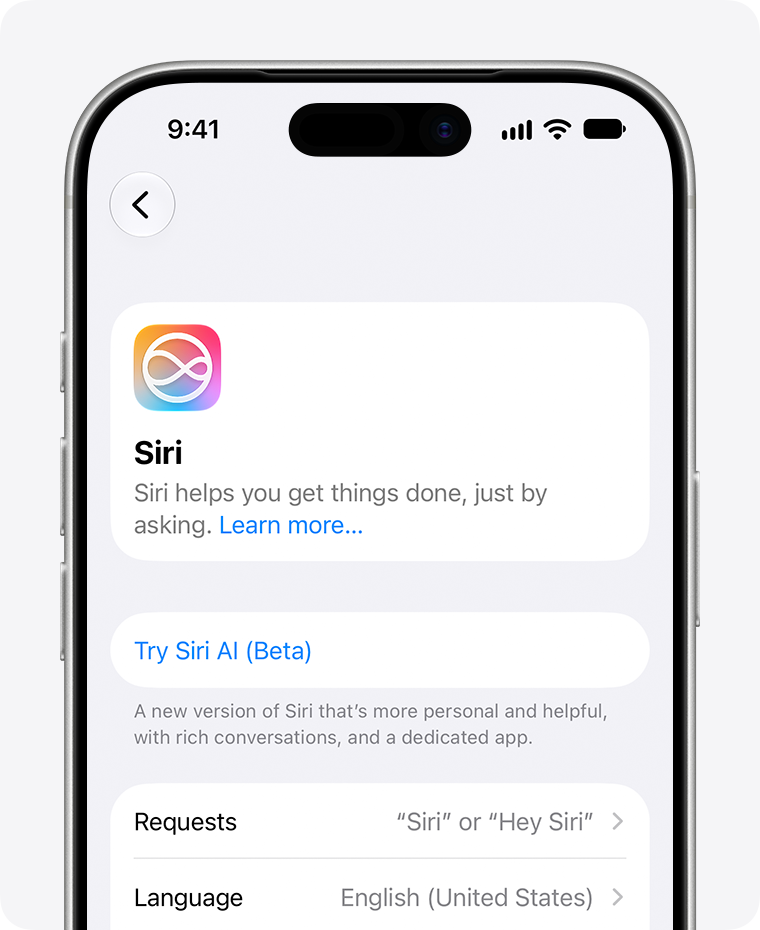
Open the Siri pane of Settings on an iPhone or iPad, or System Settings on a Mac. It tells you whether Siri AI is currently engaged, which is not always the case:
- If you see the new monochrome Siri icon, that means your device is currently configured to use Siri AI.
- If you see the old, colorful Siri icon, that means it’s not.
Among the reasons the old icon might appear are that your device, or Siri, is set to an incompatible language, that the two language settings described below don’t match, or that you have turned off Siri.
2. The silent language trap
Initially, only English is supported for Siri AI, though Apple plans to add more languages over time. As a result, if you set language to anything other than English, your device reverts to the old Siri—with the old icon—rather than Siri AI, with the new one.
In addition, both your Siri language and your system language (in Settings > General > Language & Region > Preferred Languages) must be identical—including the dialect, if applicable on your device. For example, if one is set to English (United States) and the other is set to English (Canada) on a Mac, you’ll get the old version of Siri. Make sure the two match—and note that switching your system language may require a restart.
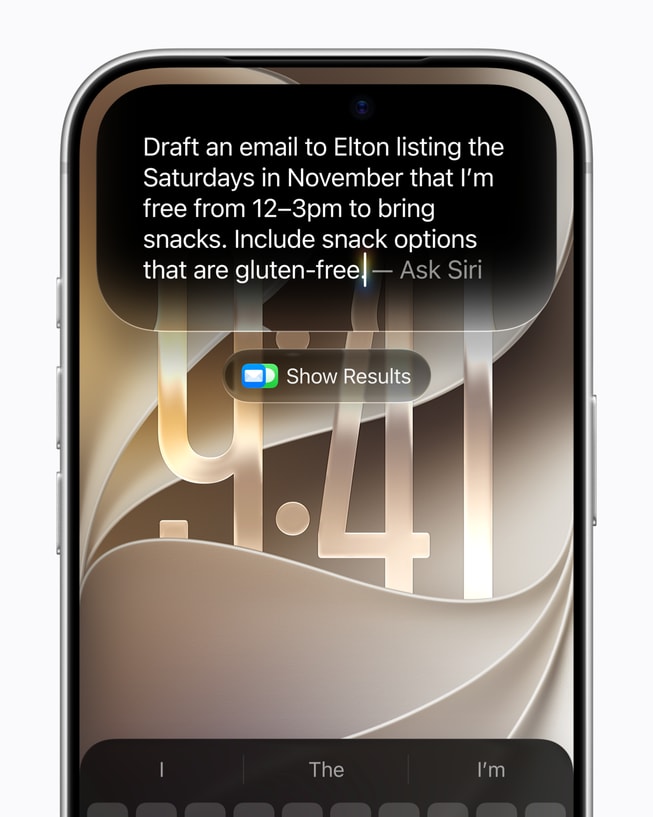
3. Just type what you want
This automatic recognition of your query type means you don’t have to think about how you formulate a search or question: type what you want and let Siri figure it out. If the results list for a search doesn’t suffice, elaborate on what you’re asking.
4. Send one question to ChatGPT
You can also explicitly add “ChatGPT” to a request—for example, “Ask ChatGPT the best way to fry an egg.” This works with spoken requests, too!
To route a single question to ChatGPT from the Search or Ask field:
- Activate Siri using a method where you can type to it.
- Touch and hold in the Search or Ask field on an iPhone or iPad, or Control-click/right-click that field on a Mac.
- From the menu that appears, choose Ask > Use ChatGPT.
- The text in the field changes to ChatGPT. Enter your query.
5. Plain Spotlight, on a Mac
What if you just want a plain Spotlight search, without Siri’s involvement at all? You can still have it, with some extra effort.
On a Mac, activate Siri and type a search term, then press ⌘-2 to search for that term only within files and folders. You can also press ⌘-1 to look for apps, ⌘-3 to look for actions, or ⌘-4 to search your clipboard history.
On any device, you can also specify as part of your search term where Spotlight should look—for example, “Files about cats”, “Contacts named John” or “Emails about Apple”.
6. Keep talking, don’t restart
However you navigate to activate Siri, you can immediately type or speak something after its response to whatever your first question or requested action was.
This can be useful if Siri’s first response or action wasn’t sufficient, or if it provided information or succeeded and you want to follow up by using context. You don’t have to define your scenario once again, which Siri often required before Siri AI.
7. Slow Siri down
It has long been possible to choose among various male- and female-sounding voices and even different dialects, and Siri AI adds even more choices. But now, you can also adjust Siri’s speed and expressiveness. If you want a zippy, flat, “just the facts” response; a relaxed, cheerful response; or anything in between, you can go to Settings > Siri on an iPhone or iPad, or System Settings > Siri on a Mac, and click or tap Voice. On this pane, you can select a base voice and then drag the Pace and Expressivity sliders as sample responses are played to dial in exactly the tone you prefer.
This feature requires more advanced chips than are needed for Apple Intelligence. See which devices support Siri AI.
8. Stop Siri talking back
You have two choices as to how Siri responds to requests:
- Spoken Response: Siri speaks responses when you speak to Siri, but provides textual responses when you type to Siri.
- Silent Response: Siri almost always provides textual responses. But note that even with this setting, Siri speaks responses if you’re driving or wearing headphones—and possibly in other limited situations.
9. Pin, share, or speak
You can pin a selected conversation, which anchors it at the top of the list. To pin on a Mac, choose Conversation > Pin Conversation, or right-click or Control-click and choose Pin from the contextual menu. On an iPhone or iPad, you can swipe left and tap the Pin icon, or touch and hold and choose Pin.
To share a specific response—not a conversation as a whole—as a PDF, you can click the Share icon on a Mac, or touch and hold the response on an iPhone or iPad and choose Share.
In any conversation in the Siri app, you can click or tap the microphone button to speak your request rather than type it.
10. Control what Siri keeps
Your device can store all your Siri conversations indefinitely, or it can delete them after 30 days or a year. To configure this, go to Settings on an iPhone or iPad, or System Settings on a Mac, then Your Name > iCloud > See All > Siri, and choose 30 Days, 1 Year, or Forever from the Keep Conversations pop-up menu.
The same pane controls syncing. You can disable Sync this Device, which is enabled by default. The Keep Conversations setting is synced with the main Siri retention setting: change it here, and it’s changed globally, not just for iCloud.
11. Summaries did not disappear
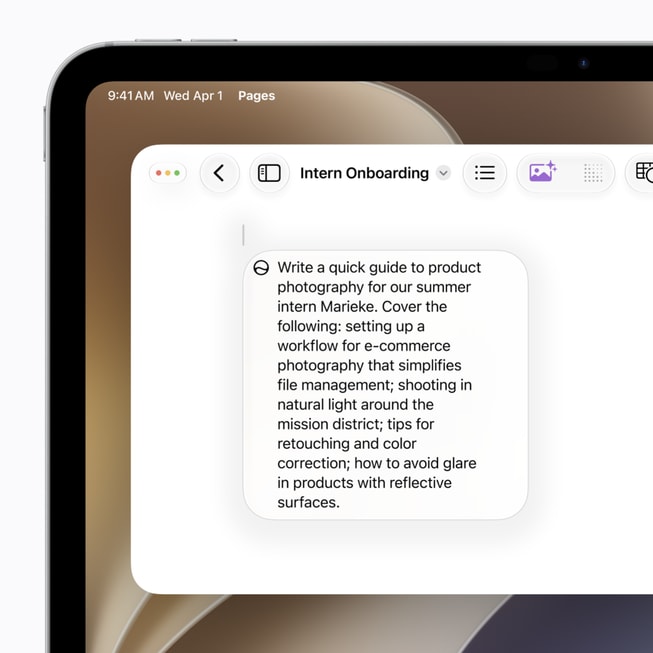
Options that were formerly part of Writing Tools, such as Summary, Key Points, List, and Table, no longer explicitly appear in the Write/Edit with Siri interface, but you can still use them. In the Edit with Siri field, you can type “Summarize this” or “Make this into a list”, for example, and Siri does just that.
12. When the Siri icon is missing
If the Siri icon doesn’t appear (as is the case in Messages, for example), you can right-click or Control-click (on a Mac) and choose Ask Siri, or tap once to bring up the text menu (on an iPhone or iPad) and then tap the Siri icon to display an “Ask Siri about this” field.
13. Turning Siri off changes less
Unlike in the previous two generations of Apple’s operating systems, you can no longer disable Apple Intelligence completely, and if you want to disable Siri (along with portions of Apple Intelligence), you must scroll to the bottom of the pane, click or tap the red Turn Off Siri button, read a long description of all the things that will stop working if you do, and then click or tap Turn Off Siri.
Even if you turn off Siri, “Visual Intelligence will continue to work but with more limited capabilities,” though Apple doesn’t spell out what those limitations are, and other Apple Intelligence features such as Write/Edit with Siri, Image Playground, and Shortcuts continue to work. All this is Apple’s heavy-handed way of pushing these new features, even if you actively dislike them and don’t ever want to use them.
14. The shortcut you cannot change
One thing you might be surprised not to see in the Siri settings pane is a setting for the keyboard shortcut that invokes Siri on a Mac. Although you can change the Spotlight keyboard shortcut and the shortcuts used for Siri screenshots (in System Settings > Keyboard > Keyboard Shortcuts > Spotlight and Screenshots, respectively), there’s no evident way to change the Siri shortcut to anything else.
15. Two limits worth knowing
Remember that the data has to exist for Siri to answer. I rely on a third-party email client, so Siri seems to have limited access to my email stores for now. But nearly everything else i do is stored in and synced by iCloud.
The second limit is music. Siri only knows about locally stored music from its metadata, as far as i can tell, or at least without asking further questions. For additional Siri AI tricks, see the complete guide to Siri AI.
