Using predictive text, you can write and complete entire sentences with just a few taps. As you type on the iPhone keyboard, you see choices for words, emoji, and information that you’d probably type.
It can fill in details about you, too. In Messages, for example, try typing something like:
- “I’m at” followed by a space, your current location appears as an option
- “My number is” followed by a space, your phone number appears as an option
Predictions that complete your word or phrase appear inline as you’re typing.
Note: Predictive typing and inline predictions may not be supported in your language.
Accept or reject inline text predictions
Predictions that complete the word or phrase you’re typing show up inline in gray text as you type. Then you can do one of the following:
- Accept the prediction: Tap the Space bar.
- Reject the prediction: Keep typing.
- Change a prediction you accepted: Tap the Delete key, then tap the word you were in the process of typing.
Accept or reject suggested text and information
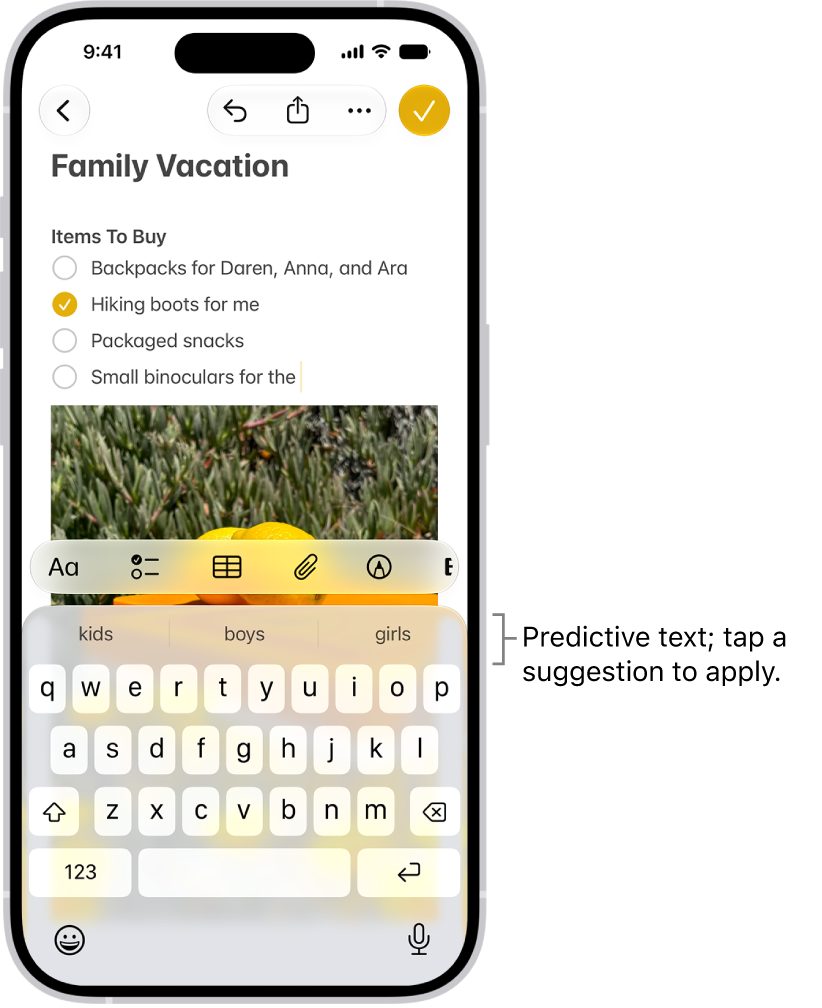
As suggested words, emoji, and information appear above the onscreen keyboard while you type, you can do one of the following:
- Accept a suggestion: Tap a suggestion to apply it.
- Reject the suggestions: Tap your original word (shown as the option in quotation marks), or just continue to type.
Turn suggestions and inline text predictions off or on
- While using the keyboard, touch and hold the Emoji button or the Switch Keyboard key.
- Tap Keyboard Settings and then do any of the following:
- Stop (or start) seeing suggestions above the keyboard: Turn Predictive Text off (or on).
- Stop (or start) seeing predicted text inline: Turn Show Predictions Inline off (or on).
Note: When you turn off the Predictive Text setting, both predictive text and inline text predictions turn off.
Accept and reject a correction
When you turn off Predictive Text, corrections for misspelled words may still appear. To handle them, do one of the following:
- Accept a correction: Enter a space or punctuation, or tap Return.
- Reject a correction: Tap the “x.”
If you reject the same suggestion a few times, iPhone stops suggesting it.