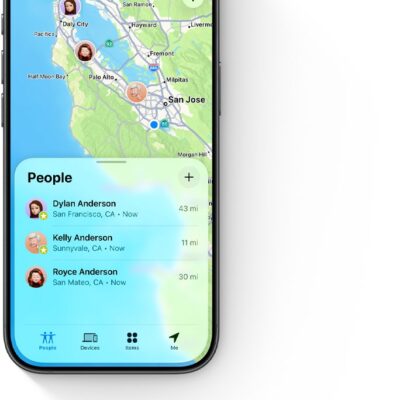
With Family Sharing, you can share your location with members of your Family Sharing group and help them find lost devices.
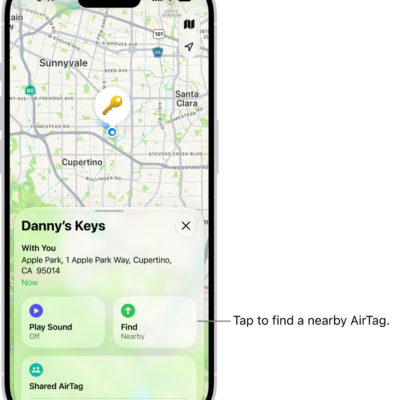
When the family organizer sets up location sharing, the organizer’s location is automatically shared with everyone in the family, including new members added later. Each family member decides whether to share their location, and you can stop sharing with anyone at any time. You can even get notified if a child leaves school during school hours. You can also ask a family member to share an AirTag with you.
Share your location with family members
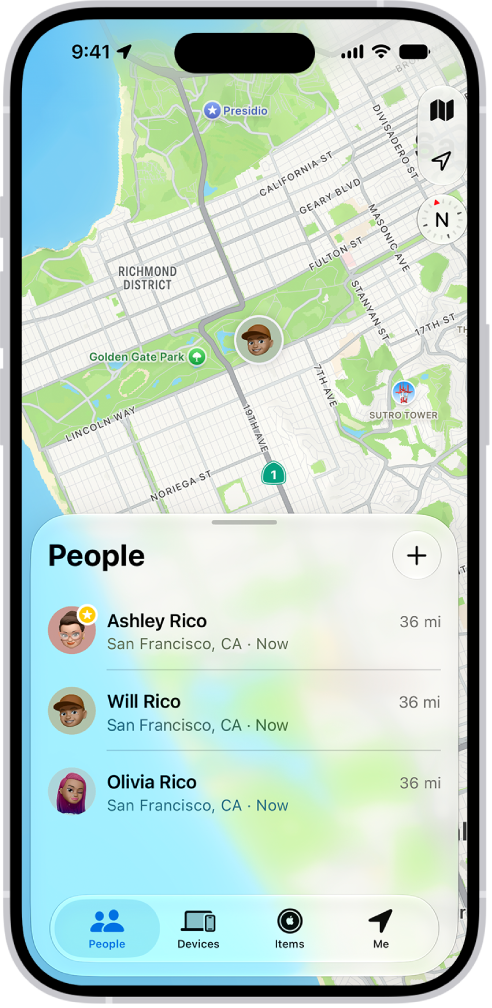
When you share locations with your family, your location shows up for them in Find My. You can also get notified when family members’ locations change, say, if a child leaves school during school hours.
- Open Settings, tap Family, and then tap Location Sharing.
-
Turn on Location Sharing for the family member you want to share your location with.
You can repeat this step for each family member you want to share your location with. Each family member receives a message that you’re sharing your location and can choose to share their location with you.
You can stop sharing your location with any family member at any time.
-
If you want to share your location with new members that join later, turn on Automatically Share Location.
When Automatically Share Location is turned on for a child, only parents and guardians in the family group can see the child’s location, including parents and guardians that are added to the group later.
Note: Children and teens with Screen Time turned on may not be able to change their own location sharing settings.
To share your location, you must have Location Services turned on in Settings > Privacy & Security.
Locate a family member’s device
After members of your Family Sharing group have your location, they can help track down a missing device that’s been added to the Find My app.
Your devices sit at the top of the list, with your family members’ devices below them.
Ask a family member to share an AirTag with you
If you receive a notification in the Find My app that says AirTag Detected Near You or Unknown AirTag, you can ask the family member who owns it to share the AirTag with you.
- In the notification, tap Ask Owner to Share AirTag.
- Tap Ask Owner.