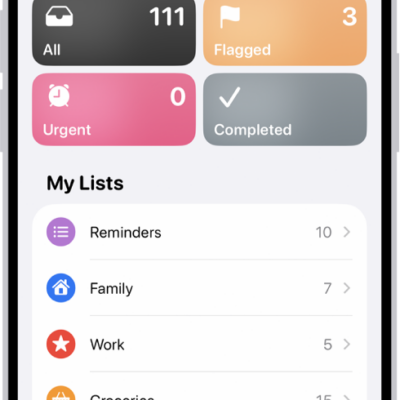
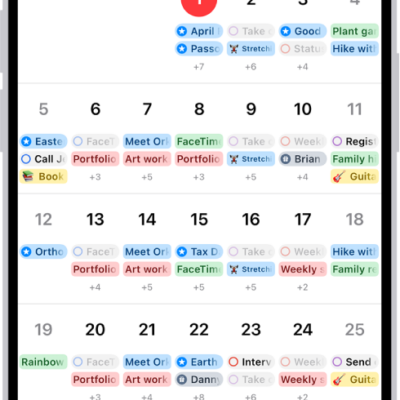
It’s easy to create reminders on your iPhone. You can add them in the Reminders and Calendar apps, or create one instantly without leaving the app you’re currently in.
With Apple Intelligence, you can create a reminder from a description, or get suggested reminders like shopping lists and action items based on text from other apps. A reminder can include a title, date, time, and any other information you want.
Here’s how to create reminders on iPhone.
Siri: Ask Siri something like, “Add artichokes to my groceries list.” Learn how to use Siri.
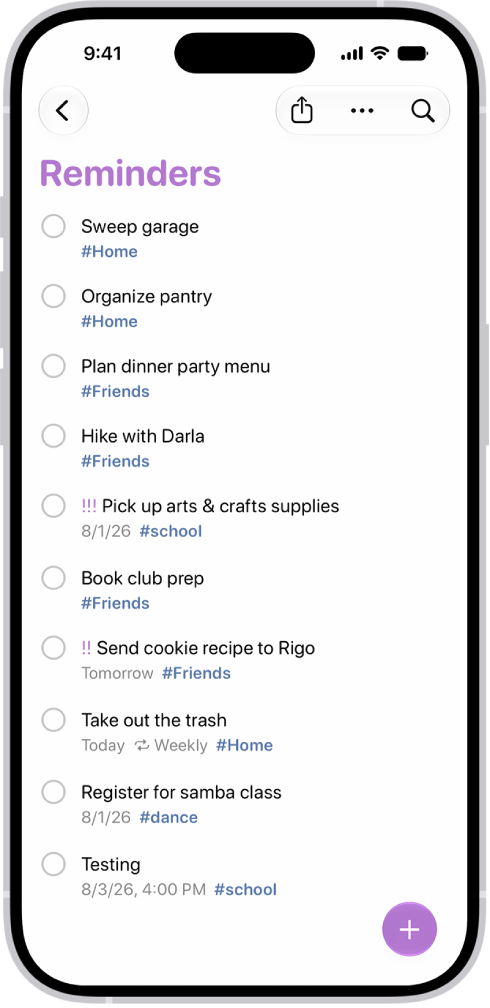
When you use updated reminders in iCloud, all Reminders features described in this guide are available, though some features aren’t available with other accounts.
Create a reminder
- Start the Reminders app on your iPhone.
-
Tap the New Reminder button. Enter the title, date, time, and any other information you want for the reminder.
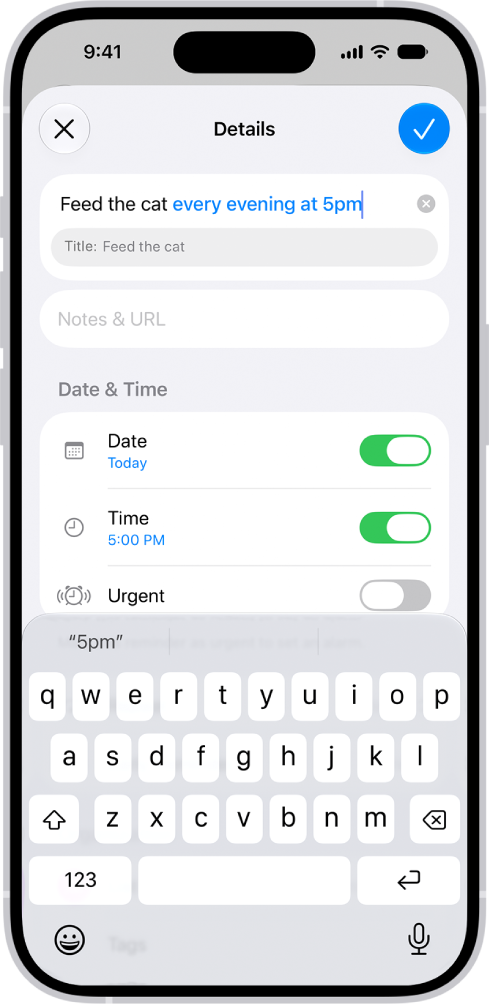
Tip: With Apple Intelligence, you can also type a description of the reminder—for example “Feed the cat every evening at 5pm”—and Reminders automatically fills in the details and timing based on what you typed.
-
Tap the Done button.
Note: Apple Intelligence on iOS 27 or later is available on an Apple Intelligence-enabled iPhone 15 Pro, iPhone 15 Pro Max, or iPhone 16 model or later. Apple Intelligence is not available in all languages or regions. Usage limits may apply.*
Create a reminder without switching apps
To create a reminder from any app or screen, do either of the following:
- Add the Reminders button to Control Center, then tap the Reminders button in Control Center.
- On supported models, assign Reminders to the Action button, then press and hold the Action button.
Create a reminder in Calendar
See Use Reminders in Calendar.
Get suggested reminders
Apple Intelligence can suggest reminders from text in other apps, such as action items from an email in Mail, or a list of grocery items from an online recipe in Safari.
Note: Apple Intelligence on iOS 27 or later is available on an Apple Intelligence-enabled iPhone 15 Pro, iPhone 15 Pro Max, or iPhone 16 model or later. Apple Intelligence is not available in all languages or regions. Usage limits may apply.*
- Open the information you want added to a list, like a recipe in Safari or meeting notes in Notes.
-
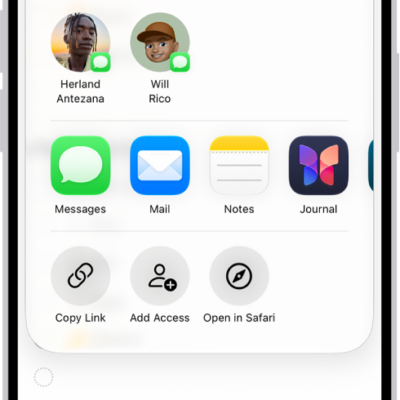
Tap the Share button, then tap Reminders.
Tip: You can also select specific text or bullets you want Apple Intelligence to review. Select text, tap Share, then tap Reminders.
Suggested reminders may appear below the text you selected.
- To change which list the reminders are added to, tap the pop-up menu at the top of the screen and then choose a list.
- Tap the Add button next to a suggestion to add it to your list, or tap Include All to add all suggestions.
- Tap the Done button.
Your reminders are added to the list you chose. *Apple Intelligence is available with Siri and device language set to Chinese (Simplified), Chinese (Traditional), Danish, Dutch, English, French, German, Italian, Japanese, Korean, Norwegian, Portuguese, Spanish, Swedish, Turkish, or Vietnamese. Some features may not be available in all regions or languages. Some devices may not be available in all regions. Siri AI is available in beta in iOS 27, iPadOS 27, macOS 27, watchOS 27, and visionOS 27 and requires an Apple Intelligence–enabled device set to a supported language. Available in English to start. Siri AI will not be initially available in the EU on iOS, iPadOS, and watchOS. Certain Apple Intelligence features that rely on server-side models are subject to daily usage limits, including but not limited to Siri AI, Intelligent Photo Editing Tools, Image Playground, and AFM 3 Cloud models in Shortcuts. Daily limits may vary by feature, request complexity, system demand, system policies, and other factors. Expanded access to such features will be available for a fee in the future. Use of these features is subject to the Apple Intelligence Terms and Conditions.