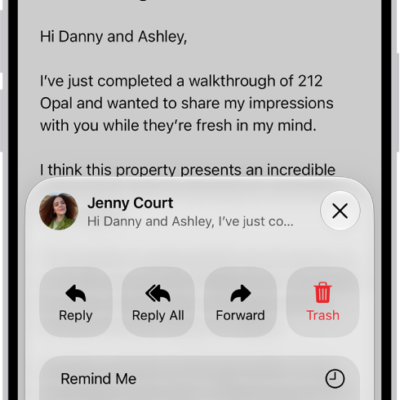
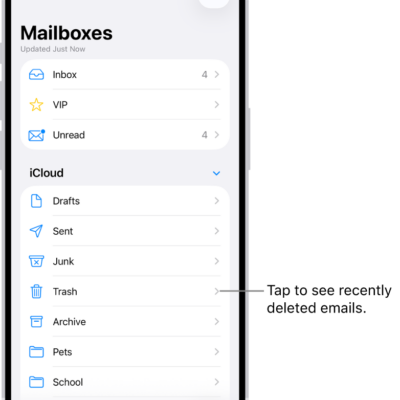
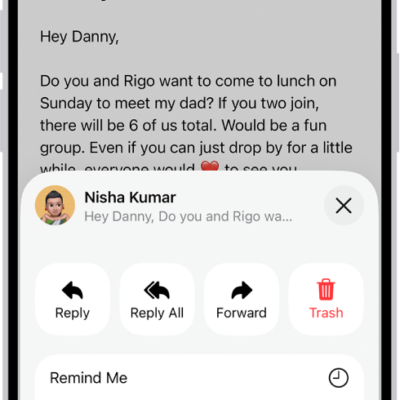
You can delete or archive emails you no longer need. If you change your mind, you can recover deleted emails.
There are multiple ways to delete email messages, and selecting a Transactions, Updates, or Promotions message selects all the messages in that category from the sender. You can also archive instead of delete, and decide how long to keep deleted messages.
Here’s how to delete and recover emails in Mail on iPhone.
Delete emails
-
Start the Mail app on your iPhone.
Do any of the following: While viewing a Primary message: Tap the Delete button.
- While viewing a message list: Tap Select and then select the messages you want to delete by tapping their checkboxes.
-
Tap the Delete button at the bottom of the message list.
Important: When you select a Transactions, Updates, or Promotions message, you’re selecting all the messages in that category from the sender.
- While viewing a sender’s digest view: Swipe left on a message, then tap the Reply Actions button.
- To turn off the deletion confirmation, open Settings, tap Apps, tap Mail, and then turn off Ask Before Deleting (below Messages).
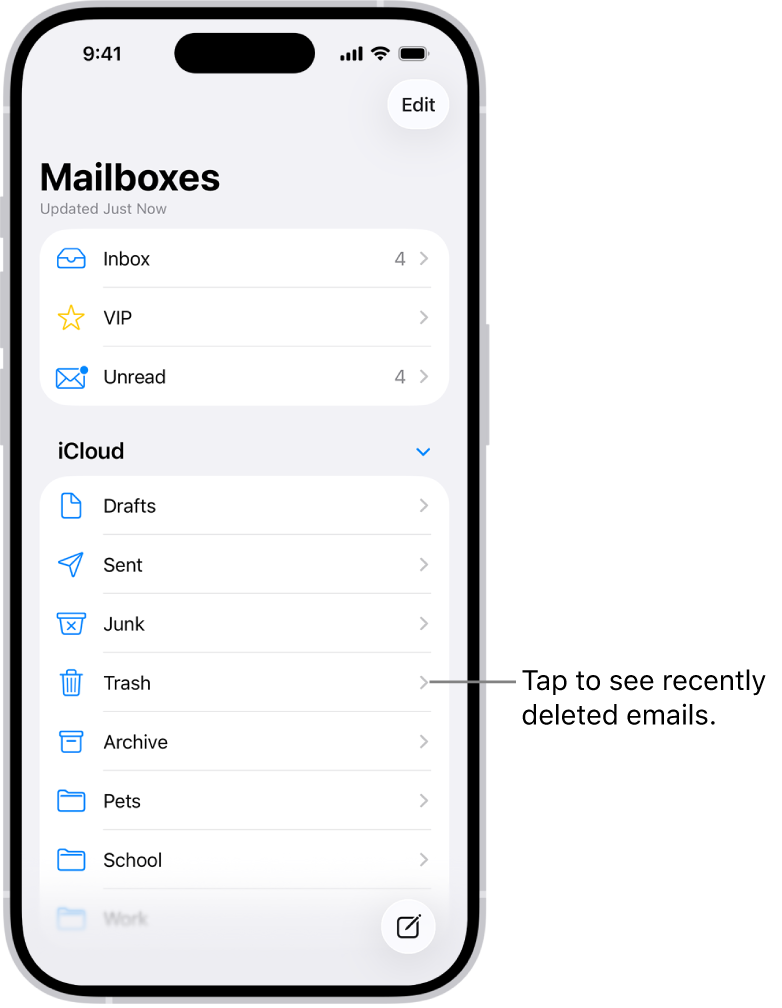
Recover a deleted email
- Start the Mail app on your iPhone.
- Tap the Mailboxes button until you see Mailboxes.
- Tap Trash, then tap the message you want to recover.
-
Tap the Mailbox button, then choose another mailbox.
Tip: To easily see all deleted messages, you can add a mailbox with deleted messages across all your accounts.
- Tap the Mailboxes button until you see Mailboxes and tap Edit. Select the All Trash mailbox.
Archive instead of delete
Rather than deleting email messages, you can archive them in the Archive mailbox.
- Start the Settings app on your iPhone.
- Tap Apps and then tap Mail.
-
Tap Mail Accounts. Do one of the following: If you’re using an iCloud email account: Tap iCloud, then tap Mailbox Behaviors.
- If you’re using another email account: Tap an email account, tap Account Settings, and then tap Advanced.
-
Select Archive Mailbox (below Move Discarded Messages Into).
When this option is turned on, to delete a message instead of archiving it, touch and hold the Archive button, then tap Trash Message.
Decide how long to keep deleted emails
Some email clients let you set how long deleted messages stay in the Trash mailbox.
- Start the Settings app on your iPhone.
- Tap Apps and then tap Mail.
-
Tap Mail Accounts. Do one of the following: If you’re using an iCloud email account: Tap iCloud, then tap Mailbox Behaviors.
- If you’re using another email account: Tap an email account, tap Account Settings, and then tap Advanced.
-
Tap Remove, then select a time interval.
Note: Some email services might override your selection; for example, iCloud doesn’t keep deleted messages longer than 30 days, even if you select Never.