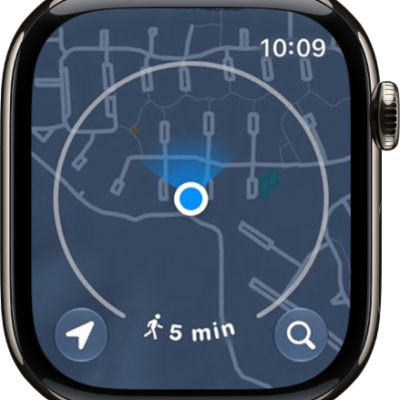
Use Maps to get directions and navigate when driving, walking, cycling, and taking transit. You can even mark a location with a pin to revisit later.
It’s simple. You can choose how you want to get there, browse suggested routes, and see route details, and along the way, turn alerts help you follow the route. Location services must be turned on to use Maps, though.
Here’s how to get directions in Maps on Apple Watch.
Note: Not all transportation options are available in all locations. Location services must be turned on to use maps. On Apple Watch, go to Settings, tap Privacy & Security, tap Location Services, then turn on location services.
WARNING: For important information about avoiding distractions that could lead to dangerous situations, see Important safety information for Apple Watch.
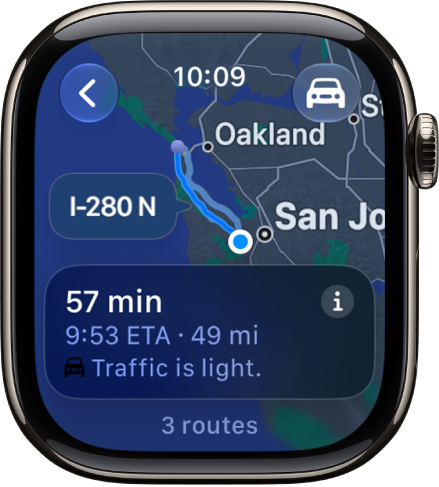
Get directions
- Open the Maps app on your Apple Watch.
- Tap the Search button, tap Search, and enter what you’re looking for—or choose from Favorites, Recents, Find Nearby, or Guides.
- Do any of the following:
- Choose how you want to get there: Tap the button at the top right, then tap driving, walking, cycling, or transit.
- Browse suggested routes: Turn the Digital Crown.
- See route details: Tap the More Info button.
- Start navigating: Choose a route or tap Go.
Following turn alerts
With driving, cycling, or walking directions, your Apple Watch uses sounds and haptics to tell you when to turn after you head off on your first leg. When you hear a low tone and then a high tone (tock tick, tock tick), turn right at the intersection you’re approaching. A high tone and then a low tone (tick tock, tick tock) means turn left. On the last leg, you’ll feel a vibration, and you’ll feel another when you arrive.
Note: Sounds don’t play when Apple Watch is in Silent Mode.
Mark a location with a pin
A location marker, or pin, saves an important spot on the map so it’s easy to revisit later. You can use one to remember where you parked or mark a scenic viewpoint.
Note: A new location marker replaces a previous location marker.
- Open the Maps app on your Apple Watch.
- Touch and hold the map where you want to position the pin. Tap Mark Location.
See also
- Find places in Maps on Apple Watch
- Use offline maps on Apple Watch
- Locate people in Find My on Apple Watch
- Use Siri for your daily routine