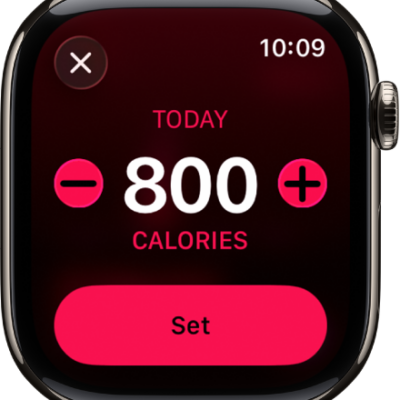
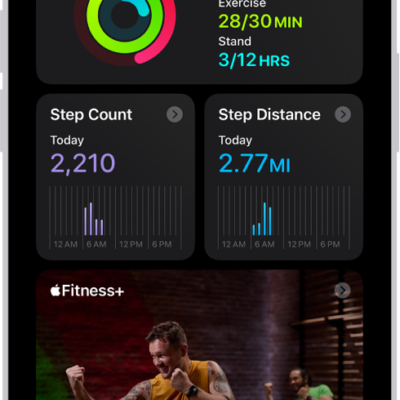
The Activity app on your Apple Watch helps you keep track of your movement throughout the day and encourages you to meet your fitness goals. It tracks how often you stand, how much you move, and how many minutes of exercise you do, and three rings in different colors summarize your progress. The goal is to sit less, move more, and get some exercise by completing each ring every day.
The Fitness app on your iPhone keeps a record of your activity. If you’ve tracked at least 6 months of activity, it displays daily trend data, from active calories and exercise minutes to stand hours, walking pace, and cardio fitness, so you can see how you’re doing compared with your average activity.
Note: Your Apple Watch is not a medical device. For important information about using the wellness apps safely, see Important safety information for Apple Watch.
Get started
You’re asked if you’d like to configure the Activity app when you set up your Apple Watch. If you choose not to, you can do it the first time you open the Activity app.
- Start the Activity app on your Apple Watch.
- Use the Digital Crown to read the Move, Exercise, and Stand descriptions. Tap Get Started.
Check your progress
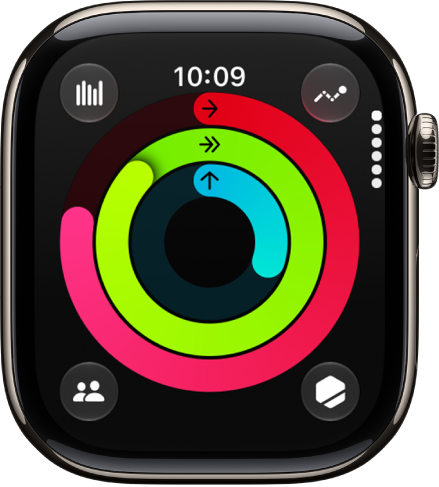
Go to the Activity app on your Apple Watch at any time to see how you’re doing. The Activity app displays three rings:
- The red Move ring shows how many active calories you’ve burned.
- The green Exercise ring shows how many minutes of brisk activity you’ve done.
- The blue Stand ring shows how many times in the day you’ve stood and moved for at least 1 minute per hour.
When you’ve specified that you use a wheelchair, the blue Stand ring turns into the Roll ring, showing how many times you’ve rolled for at least one minute per hour during the day.
When you turn the Digital Crown, your current totals appear, and if you keep scrolling, you’ll see your progress for each of your rings, plus your total steps, total distance, flights climbed, and activity history.
An overlapping ring means you exceeded your goal. Tap the Weekly Summary button to see how you’re doing for the week.
See your weekly summary
- Start the Activity app on your Apple Watch.
- Tap the Weekly Summary button.
You’ll find a daily average and weekly total of your progress toward closing your rings in the summary.
Check your activity history
- Start the Fitness app on your iPhone and then tap Summary.
- Tap the Activity rings, tap the Calendar button, and then tap a date.
Check your trends
The Trends area in the Fitness app on iPhone shows daily trend data for active calories, exercise minutes, stand hours, and walking distance, along with stand minutes, cardio fitness, walking pace, and running pace. Trends weighs your last 90 days of activity against the last 365.
To see more detail, follow these steps:
- Start the Fitness app on your iPhone.
- In the Trends area, tap a trend to see the history.
A Trend arrow pointing up for a particular metric means you’re maintaining or improving your fitness levels. When an arrow points down, it means your 90 day average for that metric has started to decline, and you’ll receive coaching, like “Walk an extra quarter of a mile a day,” to help motivate you to turn the trend around.
See your awards
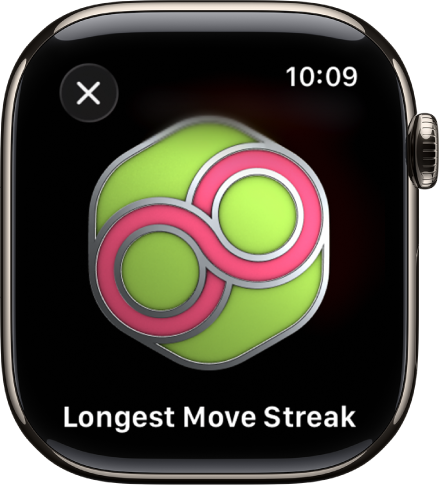
You can earn awards for personal records, streaks, and major milestones using your Apple Watch. To see all your awards, including Activity Competition awards and awards you’re making progress towards, follow these steps:
- Start the Activity app on your Apple Watch.
- Tap the Awards button.
- Tap an award category (like Monthly Challenges). Then tap an award to learn more about it.
You can also open the Fitness app on your iPhone, then tap Awards.
See Compete with your friends for more information about competitions.
See your workout, meditation, and dive history
For workouts, dives, and meditations you’ve completed in Apple Fitness+, the Workout app, the Depth app, and compatible third-party apps, you can see data like your average heart rate, how long you worked out, total calories burned, and more.
- Start the Activity app on your Apple Watch.
- Scroll to the bottom of the screen.
- To review a workout, meditation, or dive, tap it.
Control activity reminders
Reminders can help when it comes to meeting goals. Your Apple Watch lets you know if you’re on track or falling behind your Activity goals. To choose which reminders and alerts you’d like to see, follow these steps:
- Start the Settings app on your Apple Watch.
- Tap Activity and then configure the notifications.
You can also open the Apple Watch app on your iPhone, tap My Watch, tap Apps, then tap Activity.
Suspend daily coaching
To turn off activity reminders, follow these steps:
- Start the Settings app on your Apple Watch.
- Tap Activity, then turn off Daily Coaching.
You can also open the Apple Watch app on your iPhone, tap My Watch, tap Activity, then turn off Daily Coaching.
See also