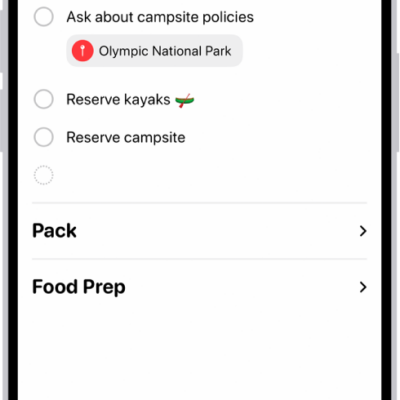
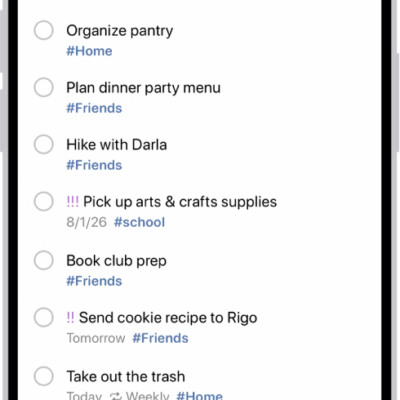
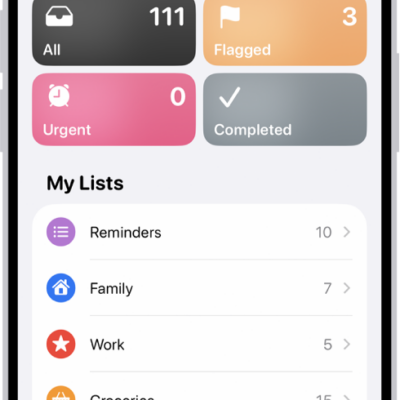
In the Reminders app, you can set reminders, make grocery lists, create checklists, and organize to-do lists. With iCloud, you can keep your reminders up to date on all your devices.
Any changes you make appear on your paired iPhone and other devices signed in to your Apple Account. You can mark an item as complete with a tap, and hide or show completed reminders.
Here’s how to use reminders on Apple Watch.
Keep your reminders up to date on all your devices with iCloud
Your iCloud reminders appear on your paired iPhone, plus any other devices where you’re signed in to your Apple Account, and so do any changes you make to them.
View a list
- Open the Reminders app on your Apple Watch.
-
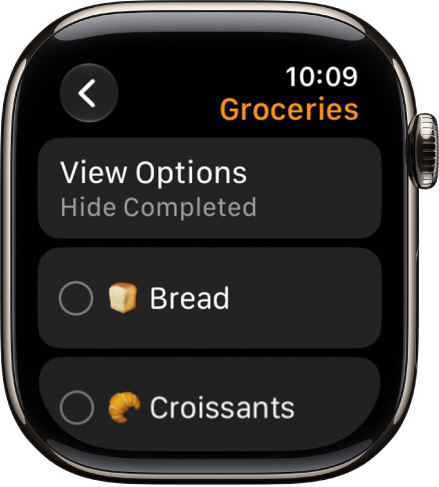
Tap a list to open it.
-
Do any of the following:
- Mark an item as complete: Tap the Reminder Completed button next to the item. Or tap the reminder and then tap Mark as Completed.
- Hide or show the completed reminders: Tap View Options, then choose an option.
- Return to the list view: Tap the Back button in the top-left corner.
Add an item to a list
- Open the Reminders app on your Apple Watch.
- Scroll to the bottom of a list, then tap Add Reminder.
Edit an item
To edit details, you can add a date, time, note, location, flag, tag, and priority, or move the item to a different list instead.
- Open the Reminders app on your Apple Watch.
- Tap the reminder you want to edit and tap Edit.
Delete an item
- Open the Reminders app on your Apple Watch.
- Swipe left on the item you want to remove and then tap the Delete button.
If you change your mind, you can recover the item. On your iPhone, open the Reminders app, go to the Recently Deleted list, swipe left on the item, then tap Move and choose a folder.
See also