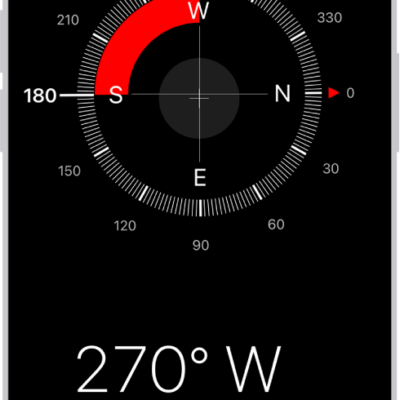
You can use Backtrack in the Compass app to track your route and then help you retrace your steps in case you get lost.
On Apple Watch Ultra models, you can even start Backtrack with the Action button.
Here’s how to use Backtrack to retrace your steps on Apple Watch.
Note: Backtrack is for use in remote settings—away from familiar places like your home or workplace—and outside densely populated areas with Wi-Fi. Backtrack does not account for external conditions, such as changes in elevation or objects in the environment.
Record and retrace your path
- Open the Compass app on your Apple Watch.
- To begin recording your route, tap the Backtrack button. Then tap Record Path.
-
To retrace your steps, tap the Record Steps button. Tap Retrace Path.
The path back to the location where you first tapped the Backtrack button appears on the screen. The initial location appears as a white dot at the beginning of the path.
- Follow the path back to return to where you first turned on Backtrack.
- When you’re finished, tap the Retrace Steps button, then tap Delete Path.
Quick tip: On Apple Watch Ultra models, pressing the Action button starts Backtrack quickly. See our guide, Use the Action button on Apple Watch Ultra models.
See also
- Use the Compass app on Apple Watch
- View and add waypoints in Compass on Apple Watch
- Use Smart Stack hints
- Get directions in Maps on Apple Watch