Use the Find My app on your iPad to locate lost devices, find everyday items using AirTags, and keep track of family and friends. Before you can find a missing device, though, you need to add it to Find My, and you can slip an AirTag into a gym bag or luggage.
Add your iPad to Find My
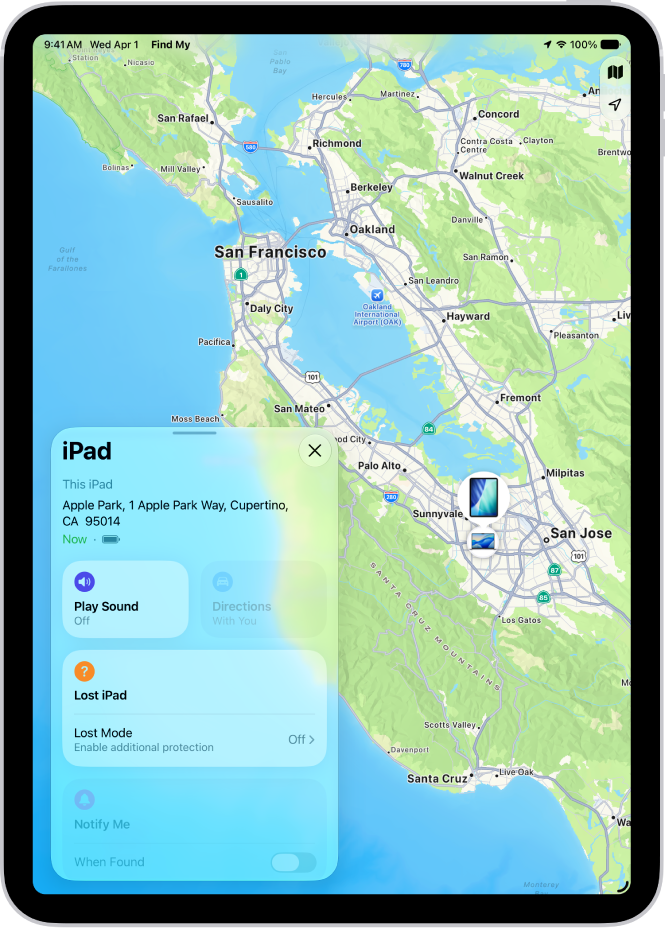
Before you can use the Find My app to find a missing device, you need to add the device to Find My. Go to the Settings app, tap your name, tap Find My iPad, then turn on Find My iPad. Add your other devices to Find My in the same way so you can see all of them in one place.
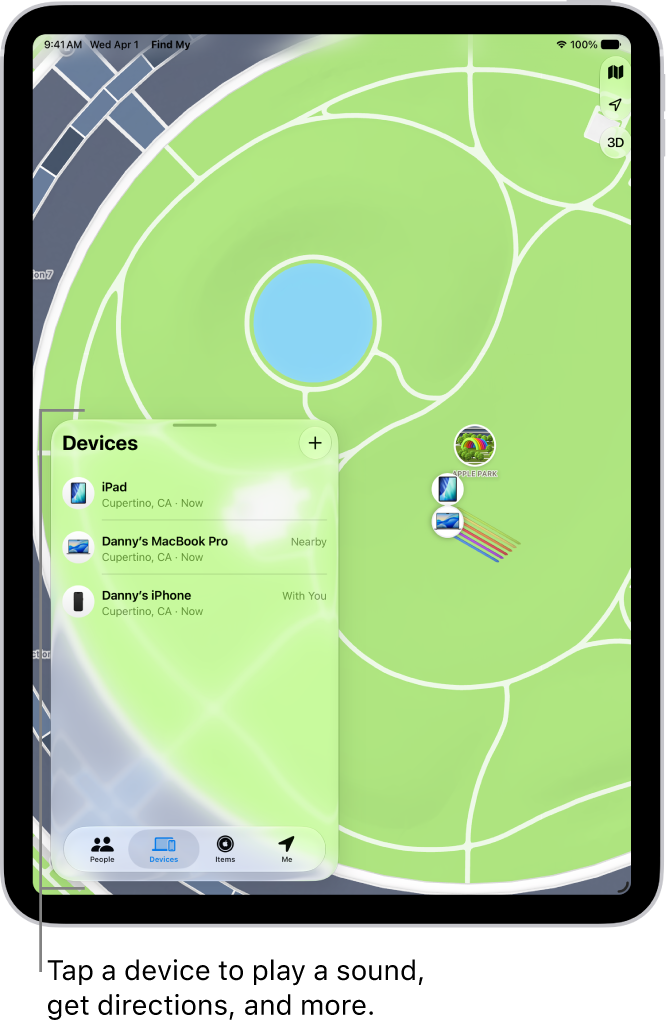
Find a missing Apple device
Go to the Find My app, tap Devices, then select the device you’re looking for. As long as it’s been added to Find My, you see it on a map, and you can play a sound on it to help narrow down your search.
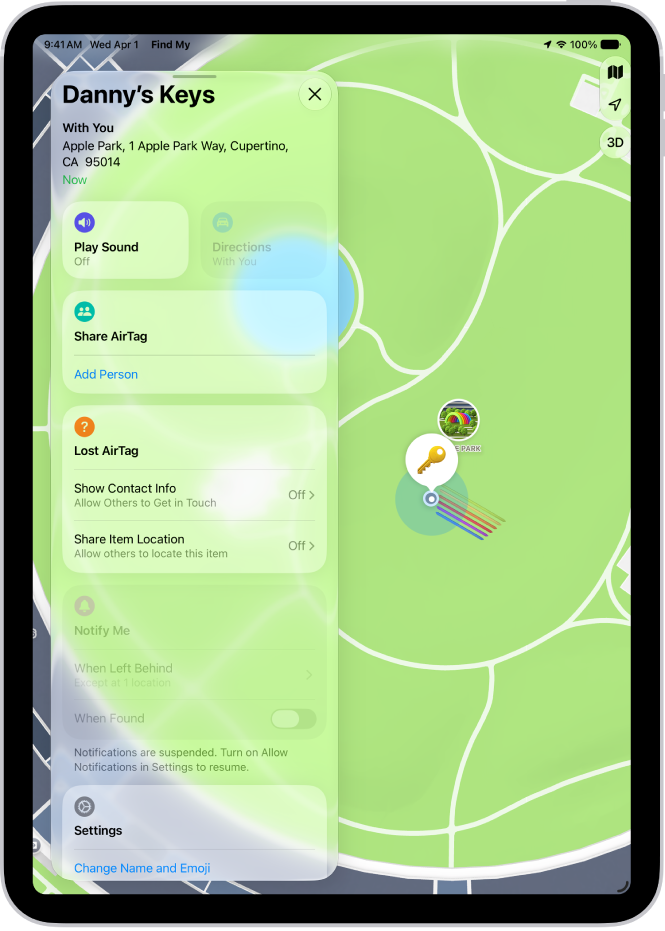
Add an AirTag
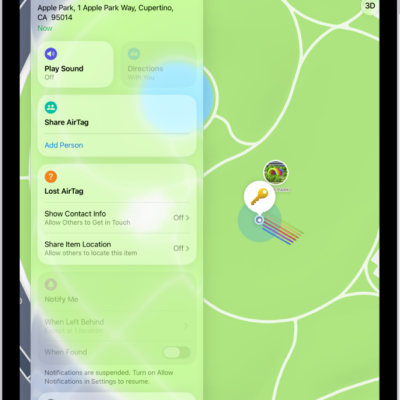
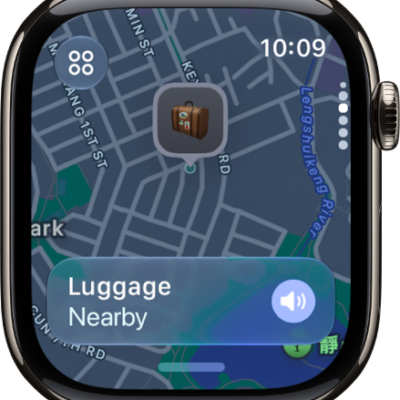
You can add an AirTag to Find My, then slip it in a gym bag, backpack, or luggage in case those items go missing. Go to the Find My app, tap Items, tap the Add button, then follow the onscreen instructions. After you add an AirTag (and other compatible accessories) to Find My, they appear in the Items list, with their location visible.
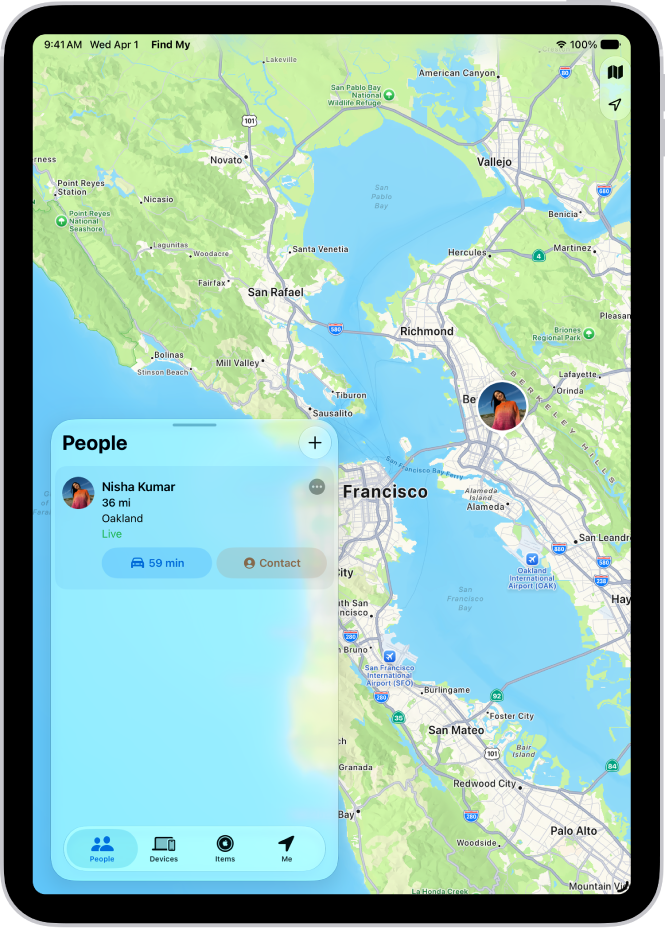
Find friends
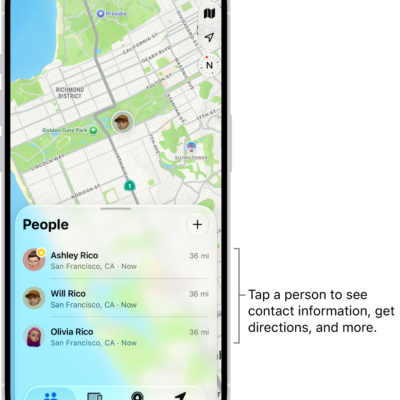
When you and your friends share your locations with each other, you can see each other in Find My. First, go to the Find My app, then tap People. Tap the Add button, tap Share My Location, then choose a contact. The People list shows friends who have shared their location with you.
To keep track of more of your stuff with Find My, take a look at these guides:
- Add your iPad to Find My
- Locate a device in Find My on iPad
- Add an AirTag in Find My on iPad
- Locate a friend in Find My on iPad
- Share your location in Find My on iPad
- Locate an AirTag or other item in Find My on iPad
- Mark an AirTag or other item as lost in Find My on iPad