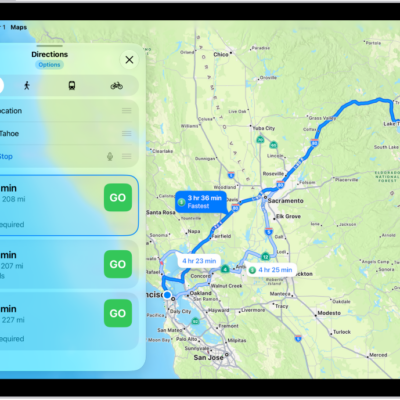
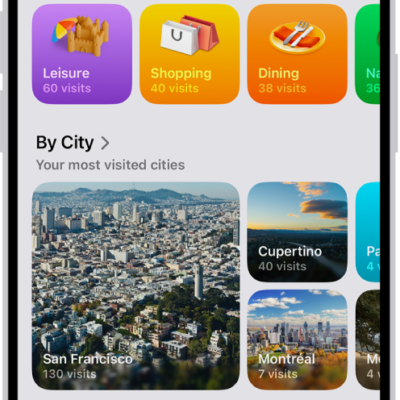
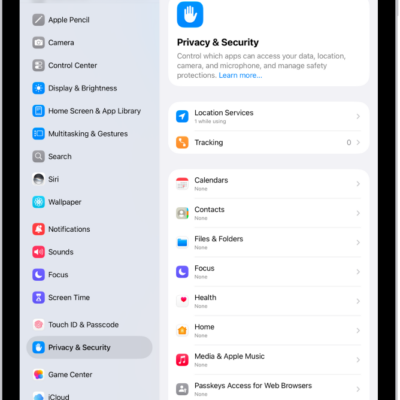
The Maps app helps you navigate the world around you, whether you’re getting directions to a new destination, discovering local businesses, or exploring unfamiliar areas with real-time traffic updates. You can save the places you travel to and from most, find restaurants and shops nearby, and get step-by-step directions.
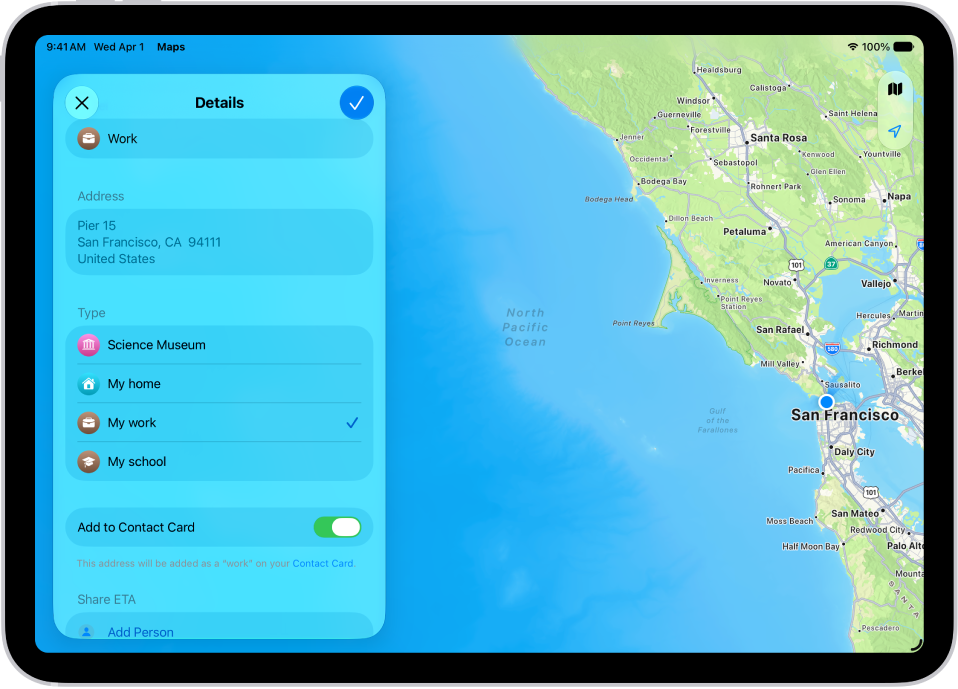
Set your go-to addresses
Quickly access directions by saving the locations you travel to and from most. Below Places, tap the Add button. Tap the search field, enter an address, then tap a result. Assign it to a type—home, work, or school—then tap the Done button.
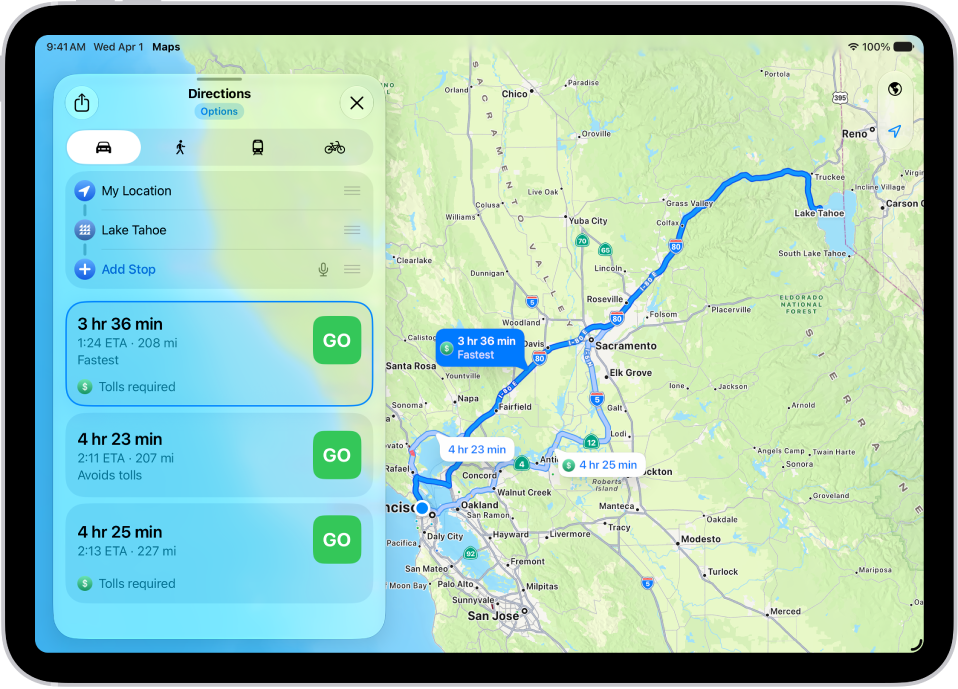
Navigate with ease
Get step-by-step directions to wherever you’re headed, however you want to get there. Touch and hold anywhere on the map or enter a location in the search field. Tap Directions, tap your travel mode (the Driving button, the Walking button, the Transit button, or the Cycling button), then tap Go or Steps for the route you want to take.
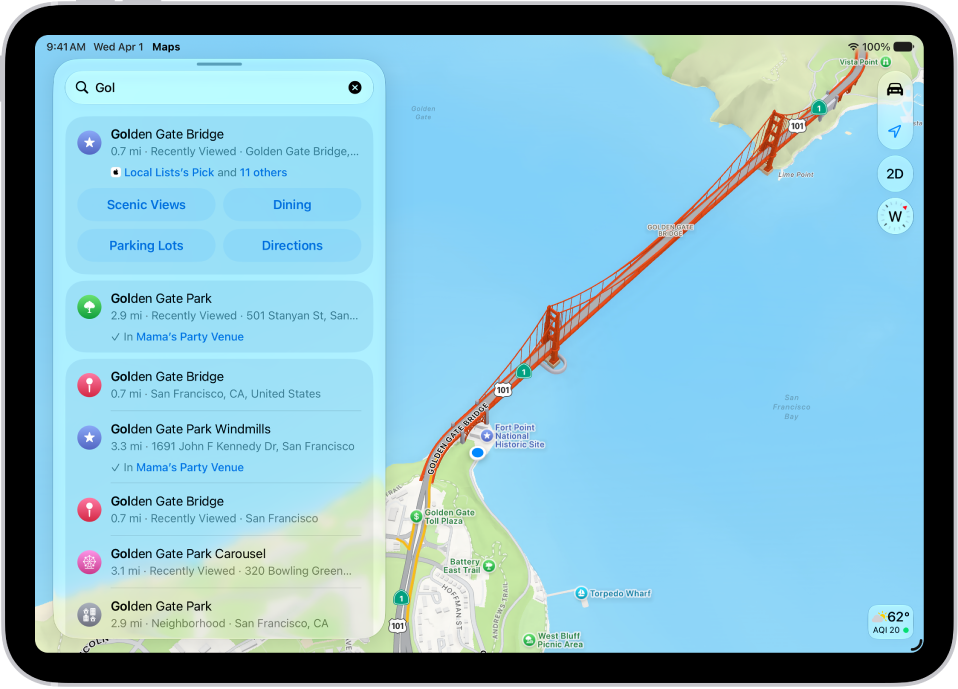
Discover what’s nearby
When you’re in an unfamiliar area, find nearby places like restaurants, shops, or services. Tap the search field and simply start typing, or tap a category like Restaurants.
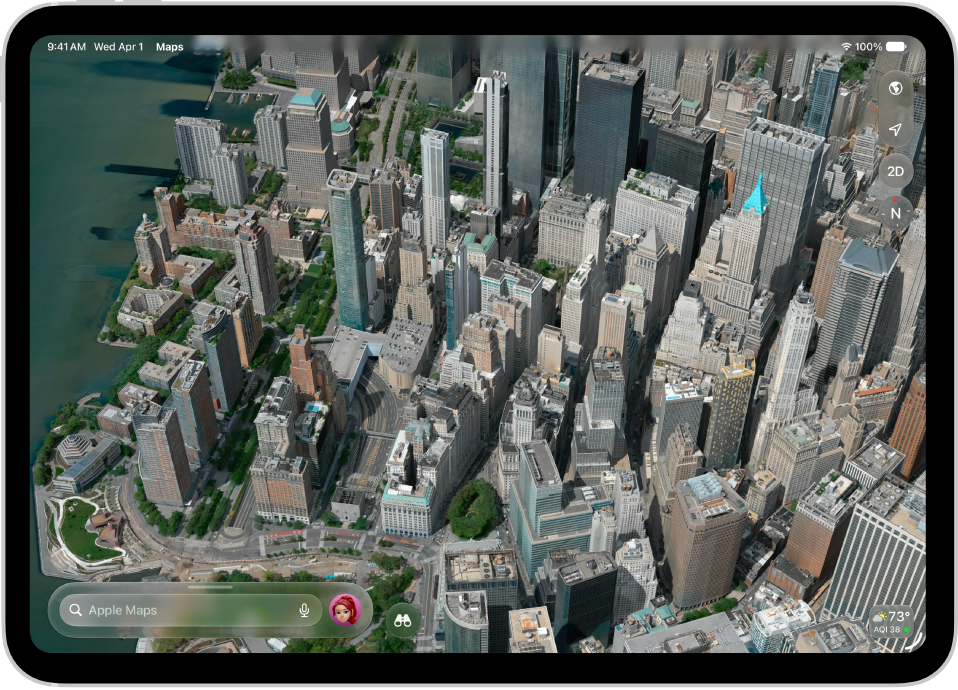
Immerse yourself in a place
Maps renders cities in sharp, true-to-life detail. Tap the Exploring Map Mode button, tap Satellite, then tap the Close button. Pinch open to zoom in, and swipe up with two fingers to see the map in 3D. When you see the Look Around button near the bottom of a map, tap it to look around with a 360-degree panoramic view.
You can get more out of Maps with these guides:
- Set your home, work, or school address in Maps on iPad
- Use Maps on iPad
- Find nearby attractions, restaurants, and services in Maps on iPad
- Explore maps with immersive views on iPad
Per Apple, not all features are available in all countries or regions.