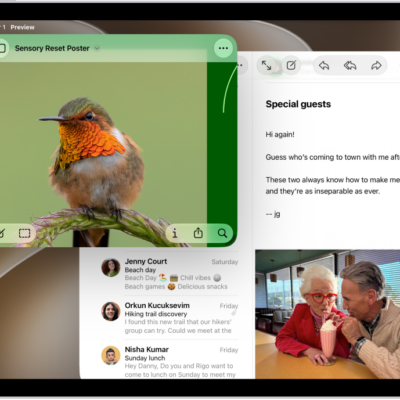
While you’re working in multiple apps, you can arrange the windows to make them easier to see and work in. You can also tile two apps side by side. And you can designate one window as a Slide Over window, and it’ll stay open on top of your other windows, even full-screen ones.

Arrange windows with gestures
While working with windowed apps, you can drag and drop apps from the Dock, Home Screen, App Library, or Spotlight to easily arrange them among your windowed apps.
You can do any of the following with apps in windows:
- Open an app in a window: While working with other apps in windows, drag the app icon to the center of the screen. If it was previously full screen, it opens as a windowed app, and if it was previously resized, it opens in its previous size.
- Split the screen between two apps: Drag an app icon to the right or left on top of a full-screen app to quickly tile the two apps side-by-side.
- Replace a window on the left or right edge with another app: Drag an app icon from the Dock or Home Screen on top of a window that’s touching the right or left edge of the screen. The new app opens in that window, replacing its previous contents.
- Tile two windows side-by-side: When you already have two apps in windows and want to tile them side by side, drag one of the app windows from the top, hold it briefly, then swipe it quickly to one side of the screen. Drag the other window from the top, hold it briefly, then swipe it to the other side of the screen.
- Adjust the size of tiled windows: Drag the divider between two side-by-side windows to adjust their size at the same time.
- Make side-by-side windows full screen: When you have two app windows tiled side-by-side, drag the divider all the way to one edge to make one of the windows full screen, or drag the divider to the other edge to make the other window full screen.
Arrange windows with tiling
- Tap one of the windows to bring it to the front.
- Touch and hold the Window Controls button in the top-left corner to see a menu of layout options.
-
Choose one of the preset window layouts.
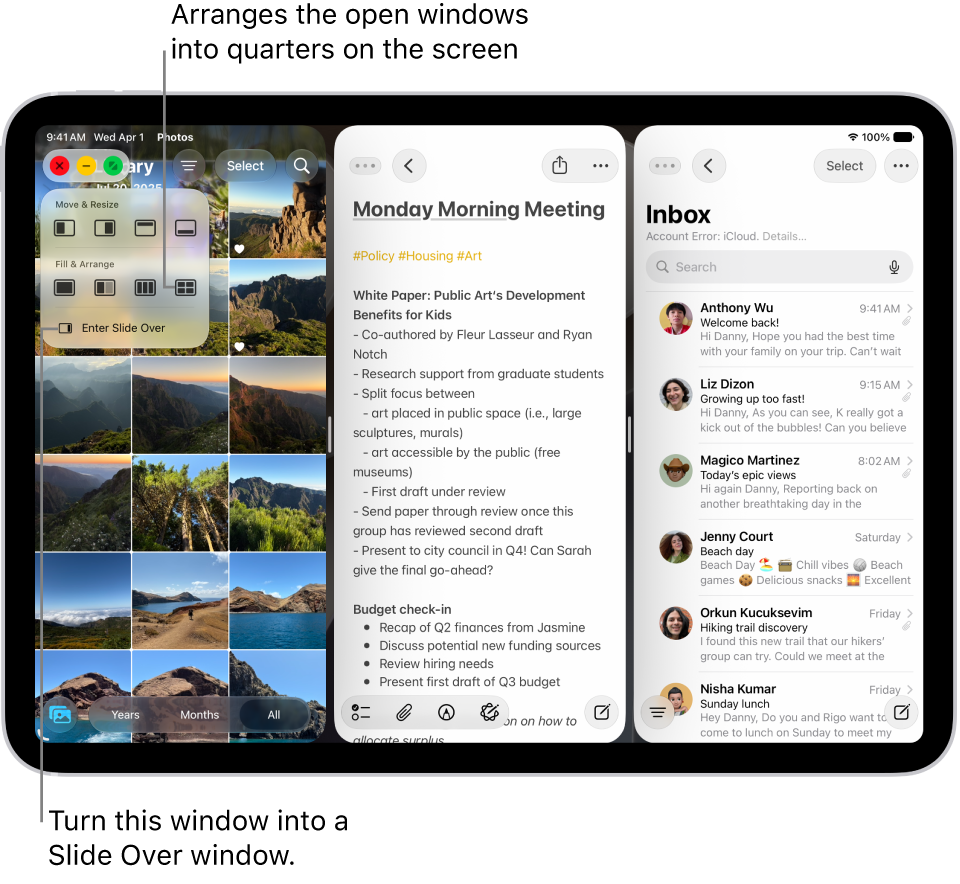
The windows arrange themselves according to the layout you selected.
Note: To see more layout options for the active app, tap Window in the menu bar, then tap Move & Resize.
Add a Slide Over window
While you work in Windowed Apps or Stage Manager, you can designate one window as a Slide Over window to stay open on top of your other windows or full-screen apps. This window stays on the right or left side of the screen. You can drag this window off screen, and bring it back out when you need it.
While you work this way, you can do any of the following:
-
Move a window into Slide Over: Touch and hold the Window Controls button, then tap Enter Slide Over. Or, while working in apps, drag an app icon from the Dock, Home Screen, App Library, or Spotlight to the left or right edge on top of the arrow.
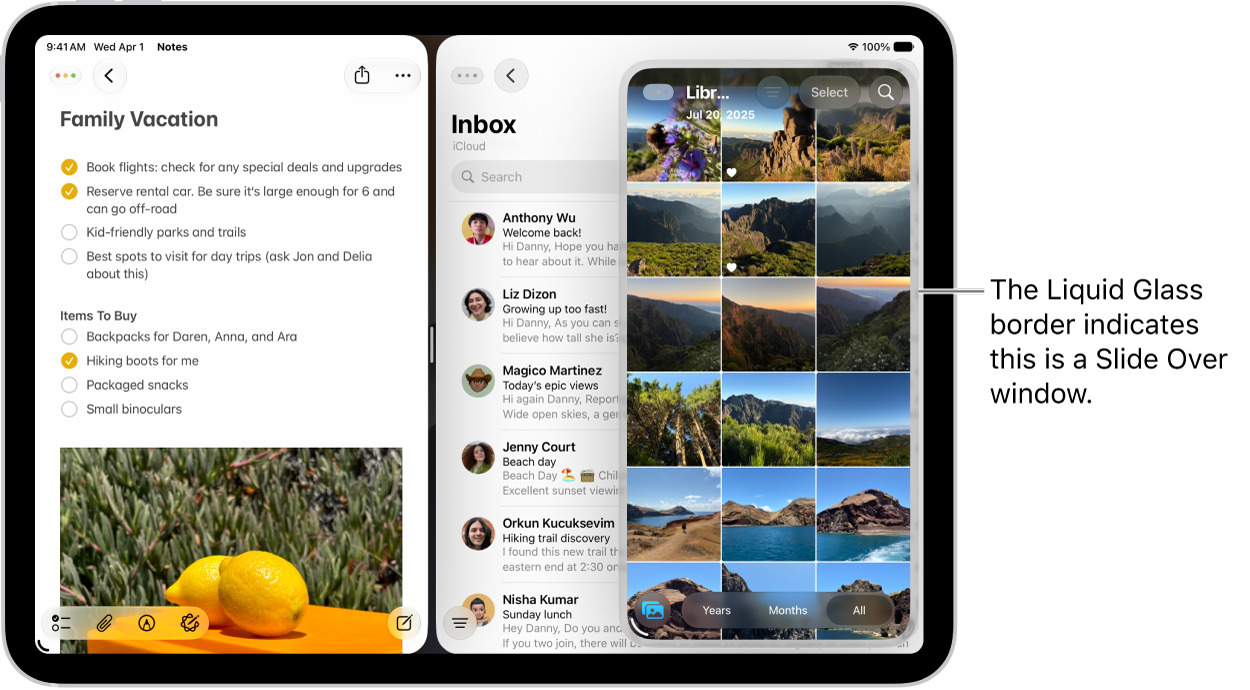
- Switch Slide Over windows: To switch which window is in Slide Over, touch and hold the Window Controls button of a different window and tap Enter Slide Over. This window enters Slide Over and the previous one leaves Slide Over. You can also drag the app you want from the Dock, Home Screen, App Library, or Spotlight over the existing Slide Over window to switch them.
- Hide the Slide Over window off screen temporarily: Drag the top of the window past the left or right edge of the screen. An arrow appears at the edge where the window disappeared.
- Bring the Slide Over window back: Tap the Arrow button or swipe from the edge of the screen where you moved the Slide Over window to bring it back into view.
- Reposition the Slide Over window: Drag the top of your Slide Over window to move it. The window snaps to the left or right side of the screen.
- Resize the Slide Over window: Drag a bottom corner of the Slide Over window to resize it.
- Exit Slide Over: Touch and hold the Window Controls button, then tap Exit Slide Over. Or move the window to the middle of the screen and pause. The window leaves Slide Over and the border around it disappears. It no longer always stays on top of the other windows.
- Change the Slide Over window: You can replace the contents of a Slide Over window with another app by dragging the app icon (from the Dock or Home Screen) on top of the Slide Over arrow (or the Slide Over window).
Open an item in the center of the screen
Many iPad apps, including Mail, Messages, and Notes, let you open an item in a window of its own in the center of the screen.
-
For example, do any of the following:
- Touch and hold a message in a mailbox in Mail.
- Touch and hold a conversation in Messages.
- Touch and hold a note in Notes.
-
Tap Open in New Window.
The item opens in the center of the screen, on top of what you’re viewing, without changing your view.
You can change a center window to full screen: Tap the Window Controls button, then tap the Full Screen button.
See also