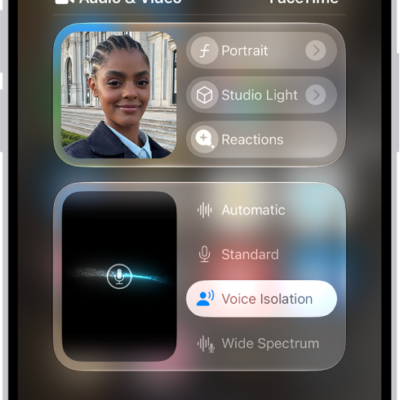
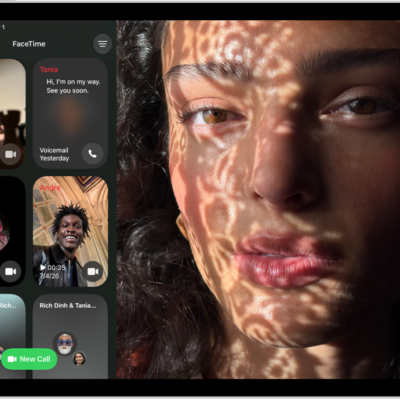
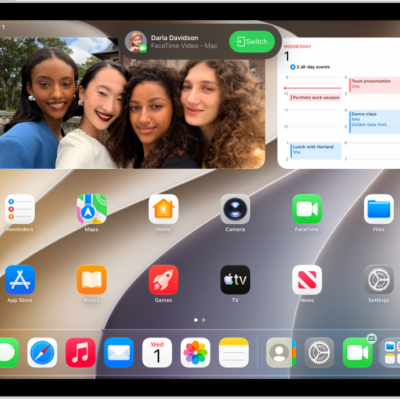
With an internet connection and an Apple Account, you can make and receive calls in the FaceTime app.
On iPad Wi-Fi + Cellular models, you can also make FaceTime calls over a cellular data connection (calling and data rates may apply), and you can turn that feature off. During a FaceTime video call, landscape orientation shows you more. See View or change cellular data settings. If someone doesn’t answer, you can record a video message, and to call several people at once, you start a Group FaceTime call.
Note: FaceTime audio calls aren’t available in all countries or regions.
Make a FaceTime call
- Open the FaceTime app on your iPad.
- Tap New near the top of the screen.
-
Enter the name, number, or email of the person you want to call and tap FaceTime to make a video call or the Call button to make a FaceTime audio call.
Alternatively, you can tap the Add Contact button to open Contacts and start your call from there, or tap a suggested contact to quickly make a call.
For calls with multiple people, see our guide, Make a Group FaceTime call on iPad.
Siri: Ask Siri something like, “Call Eliza’s mobile.” Learn how to use Siri.
Quick tip: You’ll see more during a FaceTime video call if you rotate iPad to landscape orientation. See our article, Change or lock the screen orientation.
View information when starting a FaceTime call
With Apple Intelligence, when you start a FaceTime call, a Call Context card with related information may appear. This can include an upcoming or recent birthday during a call to a contact, or it can include tickets, orders, or confirmation numbers during a call to certain businesses. Tap the card to view the information in the related app, such as Mail or Messages.
Note: Apple Intelligence on iPadOS 27 or later is available on an Apple Intelligence-enabled iPad mini (A17 Pro) and iPad models with M1 or later. Apple Intelligence is not available in all languages or regions. Usage limits may apply.
Record a video message
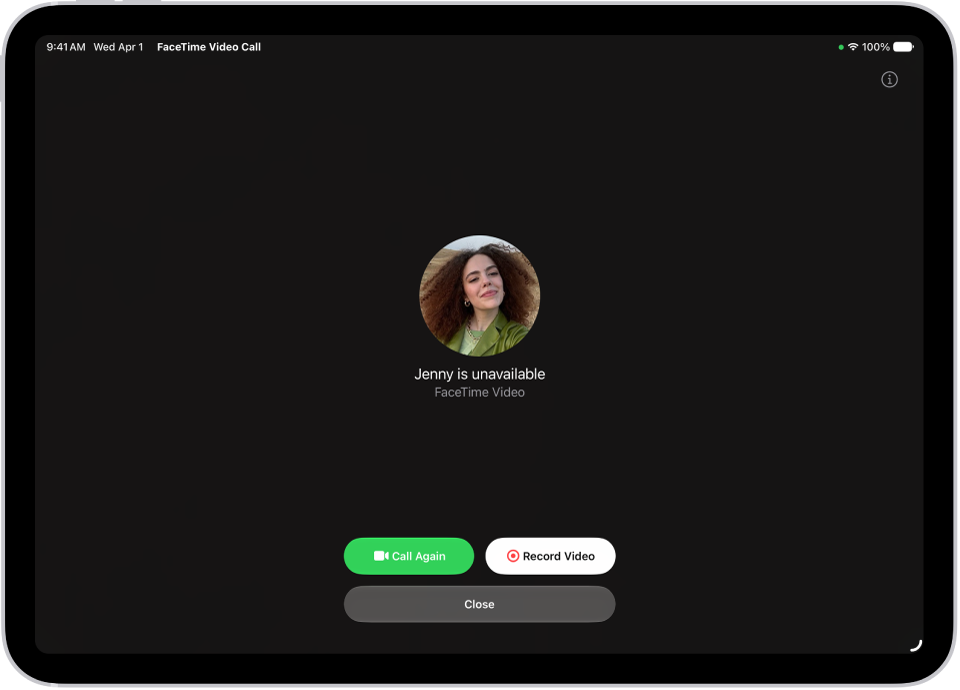
When someone doesn’t answer your FaceTime video call, a video message you record can convey exactly what you want to say.
-
Tap Record Video, wait for the countdown (from 5 to 1). Record your message.
-
Tap the Send button to send your recorded message, or tap Retake to rerecord the message. You can also tap Save to save the video message to Photos.
After you send your video message, the recipient is notified.
Note: You can receive video messages only from saved contacts, people you’ve called, and people suggested by Siri.
Leave a voicemail
If someone doesn’t answer your FaceTime audio call, you’re prompted to leave a voicemail if the person you’re calling has Live Voicemail turned on in Settings > Apps > Phone on an iPhone signed in to the same Apple Account as their iPad.
Note: Live Voicemail isn’t available in all languages or regions.
Call again
Do any of the following to call someone again in FaceTime:
- Tap Call Again on the Record Video screen.
- In your call history, tap the tile with the contact information of the person (or group) you want to call again, then tap the FaceTime Video button (for a FaceTime video call) or the Call button.
Start a FaceTime call from a Messages conversation
While in an iMessage conversation, you can start a FaceTime call with whoever you’re chatting with.
- Tap the FaceTime button at the top right of the Messages conversation.
- Tap FaceTime Audio or FaceTime Video.
Important: If you remove the FaceTime app from your iPad, or if you removed FaceTime in an earlier version of iPadOS, you won’t be able to make or receive FaceTime calls or use SharePlay on your iPad unless you redownload the app. Settings and contact cards won’t show FaceTime options.
*Apple Intelligence is available with Siri and device language set to Chinese (Simplified), Chinese (Traditional), Danish, Dutch, English, French, German, Italian, Japanese, Korean, Norwegian, Portuguese, Spanish, Swedish, Turkish, or Vietnamese. Some features may not be available in all regions or languages. Some devices may not be available in all regions. Siri AI is available in beta in iOS 27, iPadOS 27, macOS 27, watchOS 27, and visionOS 27 and requires an Apple Intelligence–enabled device set to a supported language. Available in English to start. Siri AI will not be initially available in the EU on iOS, iPadOS, and watchOS. Certain Apple Intelligence features that rely on server-side models are subject to daily usage limits, including but not limited to Siri AI, Intelligent Photo Editing Tools, Image Playground, and AFM 3 Cloud models in Shortcuts. Daily limits may vary by feature, request complexity, system demand, system policies, and other factors. Expanded access to such features will be available for a fee in the future. Use of these features is subject to the Apple Intelligence Terms and Conditions.
See also
- Set up FaceTime on iPad
- Use Live Captions and Live Translation in FaceTime on iPad
- Create a link to a FaceTime call on iPad
- Get started with Calendar on iPad