You can save a map of an area and use it when your iPad is offline.
Even without Wi-Fi or cellular service, you can view information like hours and ratings on place cards, get turn-by-turn directions for driving, walking, cycling, or riding transit, and see your estimated time of arrival. Selecting a smaller area reduces the size of the map you download, and downloaded maps update automatically unless you change your settings.
Note: Offline maps aren’t available in all countries or regions. Automatic Updates is on by default.
Download maps
- Go to the Maps app on your iPad.
-
Do one of the following:
- Touch and hold the map until a pin marker appears, then tap Download.
- Tap your picture or initials next to the search field, tap Offline Maps, tap Download Map, then enter a location in the search field or tap Current Location.
-
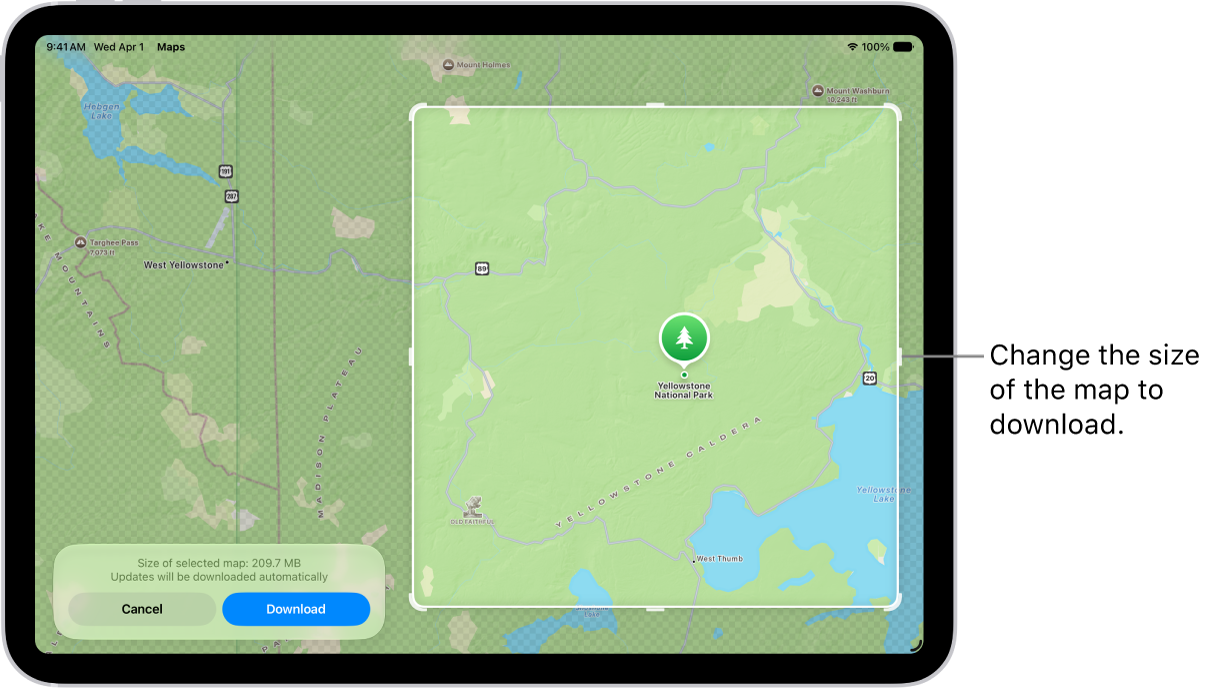
Adjust the selected area, then tap Download.
To reduce the size of the map you download, select a smaller area.
Downloaded maps update automatically, unless you change your settings.
Open or edit a map you downloaded
Any maps you download to use offline appear in your list of offline maps.
- Open the Maps app on your iPad.
- Tap your picture or initials next to the search field. Then tap Offline Maps.
- Tap a map, then do any of the following:
- Rename a map: Tap Rename, enter a new name, and tap Save.
- Change the area covered by a map: Tap Resize on the image of the map, adjust the selected area and tap Download.
- Delete a map: Tap Delete Map.
Control map data downloads
To match your data storage needs and preferences, you can adjust settings such as when to download or update a map.
- Open the Maps app on your iPad.
- Tap your picture or initials next to the search field. Then tap Offline Maps.
- Do any of the following:
- Download over cellular: Tap Wi-Fi Only and then tap to select Wi-Fi + Cellular.
- Automatically update all maps: Turn on Automatic Updates.
- Automatically delete unused maps: Turn on Optimize Storage.
- Use online maps: Turn off Only Use Offline Maps.
Remove downloaded maps
You can remove downloaded maps to free up storage space on your iPad.
- Open the Maps app on your iPad.
- Tap your picture or initials next to the search field. Then tap Offline Maps.
- Do one of the following:
- Manually remove a map: Swipe left on the map and tap Delete.
- Automatically delete unused maps: Turn on Optimize Storage.
See also
- Set up cellular service on iPad (Wi-Fi + Cellular models)
- Download languages
- Download, save, remove, and share podcast episodes on iPad