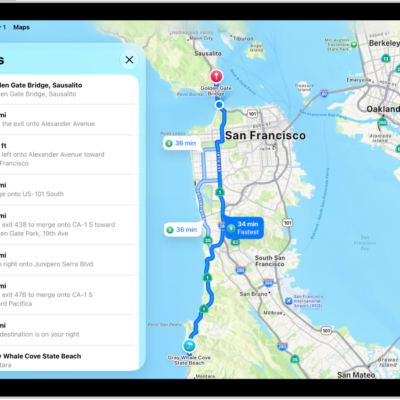
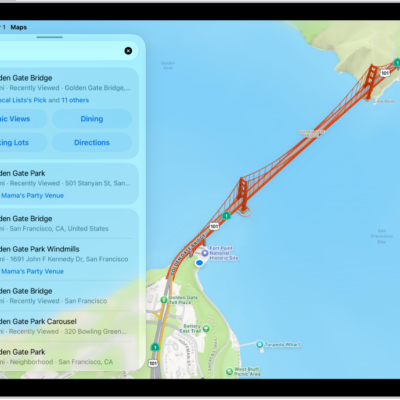
You can use pins to mark places so you can more easily find those locations later.
You can drop a pin to share a location, or to start or end your route somewhere that isn’t already marked. Pins appear as a row of icons in your Places, and you can get a pin’s latitude and longitude, edit it, or remove it. You can also note your current location with Mark My Location, and get directions to a pin.
Drop a pin
Dropping a pin helps when you want to share a location with someone else, or when your route needs to start or end somewhere that isn’t already marked on the map. Unless you’ve saved them to your Places, only one pin appears at a time.
- Go to the Maps app on your iPad.
-
Touch and hold the map until a pin marker appears.
To refine the location, tap Move, then drag the map.
-
Tap Pin. To mark several places with pins, save each pin as you drop it.
Pins appear as a row of icons in your Places when you open the Maps app.
To get directions to the pin, tap the pin, then tap the directions button.
Quick tip: You can note your current location even when the Maps app isn’t open. Touch and hold the Maps icon on the Home Screen and choose Mark My Location. To learn more about quick actions, see our guide, Perform quick actions.
Share a pin
- Start the Maps app on your iPad.
- Do one of the following:
- Touch and hold the map until a pin marker appears, then tap the Share button (at the top of the card).
- Tap Places, tap Pinned, swipe left on the pin, then tap Share.
- Choose how you want to share it.
Get the latitude and longitude of a pin
- Start the Maps app on your iPad.
- Tap Places, tap Pinned, and then tap the pin.
- Swipe up to Coordinates (below Details).
- Touch and hold the coordinates and then tap Copy.
Edit a pin
- Start the Maps app on your iPad.
- Tap Places, then tap Pinned.
- Tap the Info button. Then do any of the following:
- Change the name of the pin: Tap in the Label field.
- Assign it to your Home, Work, or School address: Choose an option below Type.
Note: After you’re prompted to sync Maps to My Card, changing your Home, Work, or School address may mean updating it in both Maps and Contacts. For more, see our article, Add a pin to your Places, and our guide, Complete or edit My Card.
Remove a pin
- Start the Maps app on your iPad.
- Tap Places, then tap Pinned.
- Swipe left on the pinned location, then tap Delete.
You can also tap the Info button, then tap Unpin.
See also
- Download offline maps on iPad
- Organize places with custom guides in Maps on iPad
- Get transit directions in Maps on iPad