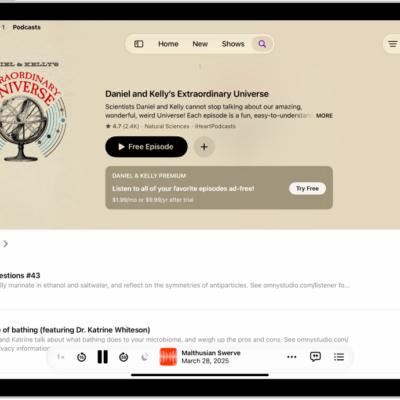
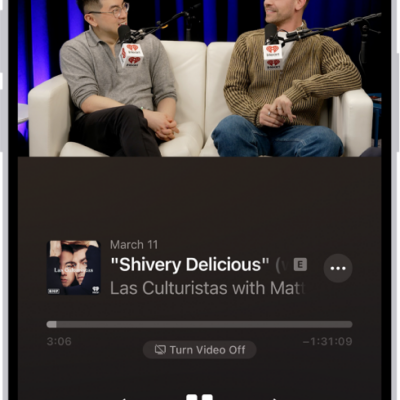
Use the Podcasts app to search for or browse shows about science, news, politics, comedy, and more. When you find a show you like, you can follow it to add it to your library.
Then you can watch or listen offline, get notified about new episodes, and access followed shows on your other Apple devices and on Apple Podcasts on the web. You can also find episodes within a show, and filter or sort them. Shows may offer paid subscriptions, too.
Note: A show may offer paid subscriptions, with access to exclusive shows and episodes, new releases, ad-free episodes, and more. You’re able to subscribe to a show or channel and then manage your subscriptions. People with an existing subscription to Apple Music, Apple News+, or an eligible third-party app can play its subscriber content in Podcasts, too. See our article, Listen to subscriber-only content.
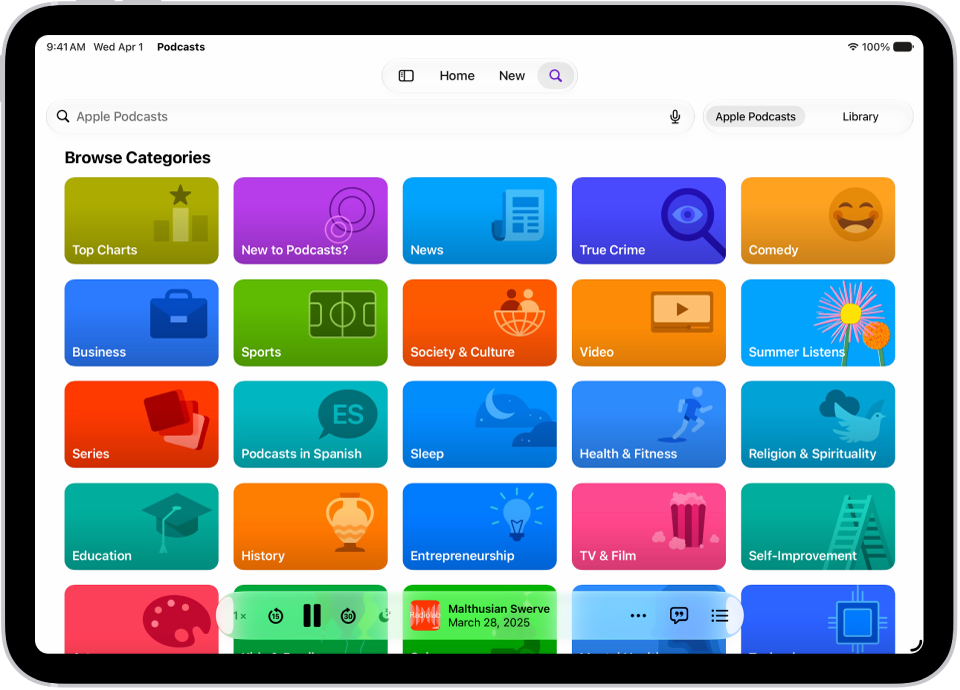
Find podcasts
- Open the Podcasts app on your iPad.
-
Do any of the following:
-
Search by category, title, person, or topic: Tap the Search button (or tap Search in the sidebar). Enter a word or phrase in the search field. Top hits appear as you type.
Tap the Search button on the onscreen keyboard to view all results for the word or phrase you typed. Tap a show, channel, or episode to go directly to it.
-
Discover new shows: Tap New to see new and trending shows, and the Apple editorial collections. You can also tap the Search button or Search and get a personalized list of categories to choose from, as well as editorial collections.
Tip: To quickly see the top shows and episodes for a specific category, tap Top Charts, tap the All Categories pop-up menu in the top-right corner, then tap a category.
-
Add shows by URL: In the sidebar, tap Shows, tap the More button, and then tap Follow a Show by URL. Enter the URL and tap Follow.
Note: The URL must be for a valid podcast RSS feed.
-
Search by category, title, person, or topic: Tap the Search button (or tap Search in the sidebar). Enter a word or phrase in the search field. Top hits appear as you type.
Find episodes within a show
- Open the Podcasts app on your iPad.
- Search or browse for a show.
- Tap the show and then do any of the following:
- Browse episodes: Scroll down to see recent episodes (or tap See All Episodes, if available).
- Search for a specific episode: Scroll down and then tap See All Episodes. Tap the search field near the top of the screen and then enter a word or phrase. Suggested results appear as you type. To view all results, tap the Search button on the keyboard.
Filter episodes
- Open the Podcasts app on your iPad.
- Search or browse for a show.
- Tap the show. Then tap the Filter button (available only if the show has Video or Subscriber-Only episodes).
- Choose one or more filters, such as All Episodes or Video.
Note: Additional filter options like Unplayed, Saved, or Downloaded become available once you follow the show or add one or more of its episodes to your library. If these options are missing, follow the show, then check the filters again.
By default, shows you follow are filtered to Unplayed episodes, and you can remove this filter to see all episodes. Filter changes stick until you change them again. Your filter selections won’t change whether you can find any episode of the show using search.
Sort episodes
- Open the Podcasts app on your iPad.
- Search or browse for a show.
- Tap the show, tap the More button, and then tap Sort.
- Choose Sort Newest to Oldest or Sort Oldest to Newest.
View podcasts shared with you
When a friend shares a show or episode with you in Messages, you can easily find it in Podcasts.
- Open the Podcasts app on your iPad.
-
Tap Home. Then scroll down to the Shared with You section.
If you don’t see Shared with You, check to make sure your friend is in your contacts, and that Podcasts is turned on in Settings > Apps > Messages > Shared with You.
See also Find all the content someone shared with you.
Get personalized recommendations
You can get personalized podcast recommendations based on your watching and listening activity and your favorite channels and categories.
- Open the Podcasts app on your iPad.
- Tap Home.
-
Do any of the following:
- View recommended shows: Scroll left or right in the You Might Like row.
- Refine your show recommendations: Tap a show in the You Might Like row, tap the More button, and tap Suggest Less.
- View suggested episodes based on your watching and listening: Scroll down to the More to Discover row. Scroll left or right.
-
Opt out of personalized recommendations: Tap the My Account button or your profile picture (you may need to open the sidebar), tap your name, and then turn off Personalized Recommendations.
Note: Your Personalized Recommendations setting also applies to the App Store, Apple Books, iTunes Store, Apple TV, and subscriptions from Apple.
You’ll also see other recommendations based on categories you watch and listen to, plus any subscriptions you already purchased.
See also