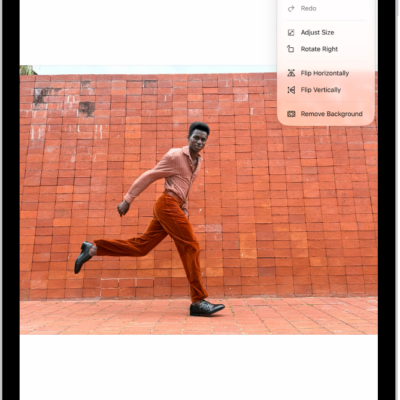
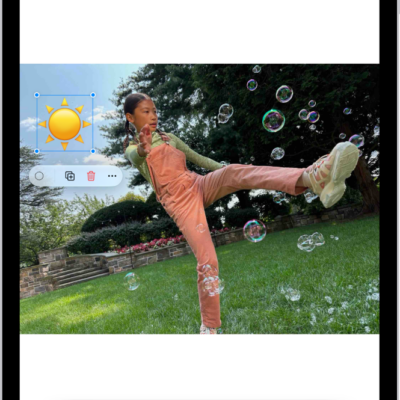
You can lock a PDF document with a password to prevent others from editing or deleting your work. You just lock it in the Preview app, and to keep a copy that’s not password-protected, you can duplicate it first. You can also open and view PDFs and images in Preview.
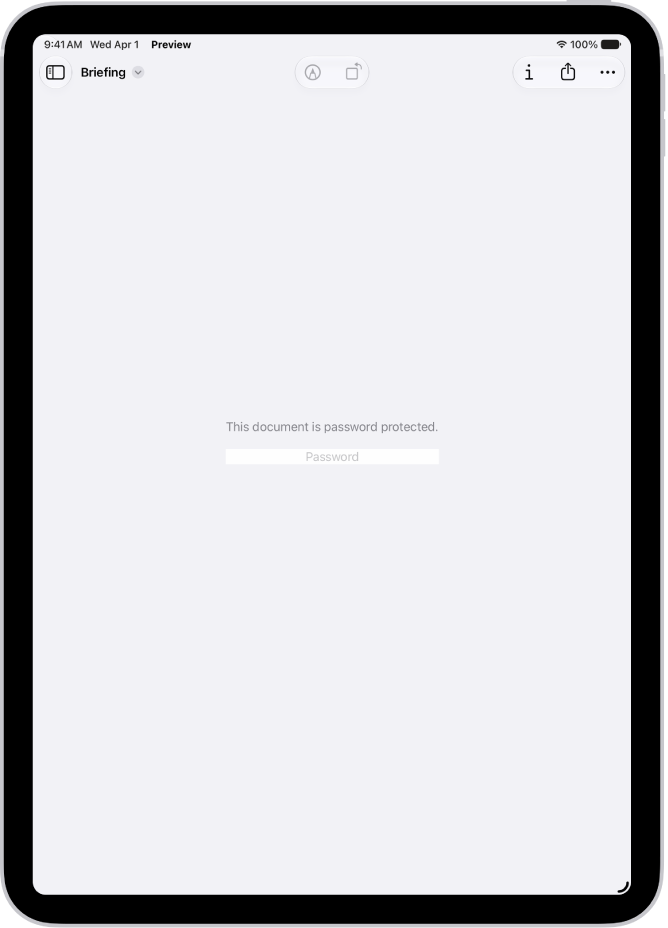
- Go to the Preview app on your iPad.
-
Open a PDF.
Important: To keep a copy that’s not password-protected, tap the Actions Menu button, then tap Duplicate.
- Tap the Actions Menu button next to the filename and tap Lock.
- Turn on Require Password. Enter the same password in the Password and Verify fields.
- Tap Done.
See also
- Open and view PDFs and images in Preview on iPad
- Export or compress PDFs and images in Preview on iPad
Tag: Preview