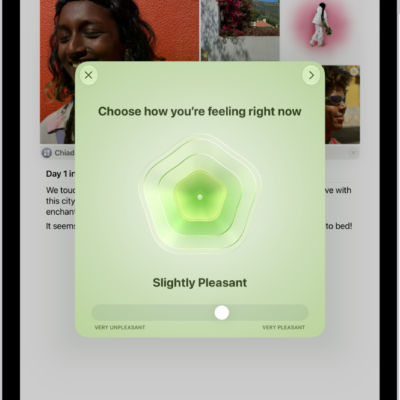
The Journal app makes it easy to capture your thoughts on everyday moments and special events. You can also get suggestions for topics to write about.
Journaling Suggestions group your outings, photos, workouts, and more, to help you remember and reflect. You can handwrite your entries with Apple Pencil, create multiple journals, start a journal entry from another app, and with Apple Intelligence, get customized writing prompts based on what you write.
Create a journal entry
- Open the Journal app on your iPad.
- Tap the Create an Entry button at the bottom of the screen.
- Start typing or tap the Add Drawing button and use Apple Pencil to create a handwritten entry.
Use Journaling Suggestions
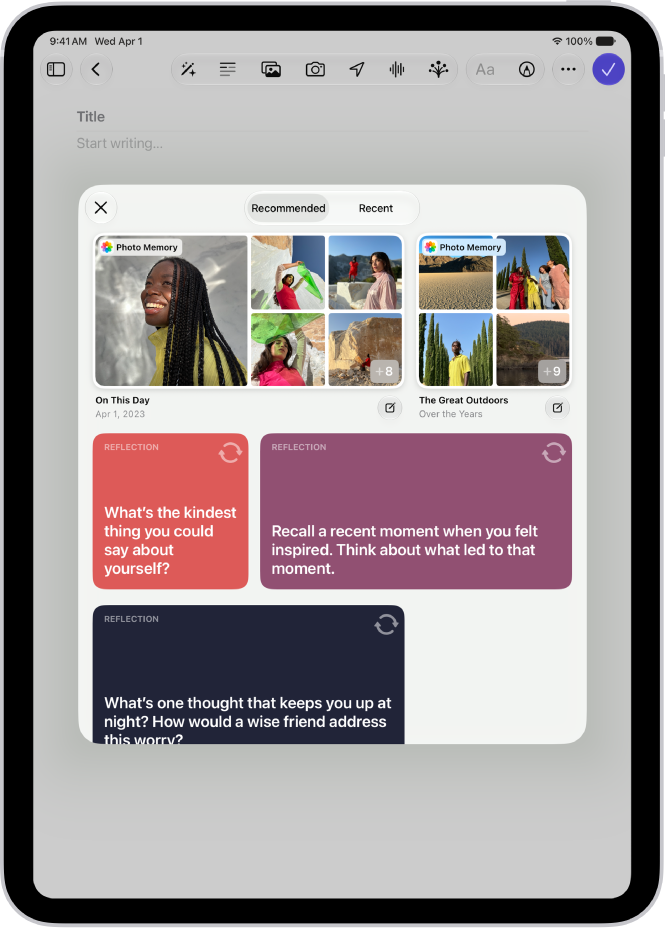
To help you remember and reflect on your experiences, Journaling Suggestions intelligently group outings, workouts, photos, and more. When you’re signed in to the same Apple Account, journaling suggestions can sync from iPhone to iPad.
- Open the Journal app on your iPad.
- Tap the Create an Entry button at the bottom of the screen.
- Tap the Journaling Suggestions button.
- Browse the recommended suggestions or tap Recent to see suggestions sorted by date.
- To start a new entry with all the suggested attachments, tap the Journal Now button at the bottom-right corner of the suggestion.
- To preview the attachments before creating the entry, tap the suggestion. Do any of the following:
- Browse the attachments: Swipe through the attachments.
- Change to list view: To see the details for all attachments, tap the List View button.
- Choose the attachments you want: Tap an attachment to select or deselect it.
- Tap Add to Entry to start writing or the Back button to return to the suggestions list.
To delete a suggestion, touch and hold the suggestion, then tap Remove.
Use Apple Pencil to handwrite your entries
- Open the Journal app on your iPad.
- Create a journal entry, then tap the Add Drawing button.
- Start writing with Apple Pencil and then do any of the following:
- Select a different color: Tap a color on the palette.
- Select a different tool: Swipe through the toolbar to see other tools and then tap the one you want. Tap any tool a second time to change its qualities, like the thickness or opacity of a stroke.
- Select and transform text: Tap the Lasso button and outline the text you want to select. Drag the text to a new location or tap the More button and choose Cut, Copy, Paste, Duplicate, Refine, Copy as Text, Translate, or Straighten.
- Change spacing between words: Select a writing tool, touch and hold between two words, and drag left or right.
- Refine your handwriting: Tap the More button in the toolbar and turn on Auto-Refine Handwriting.
- See spelling suggestions: Tap an underlined word to see the spelling suggestion. To use the suggestion, tap it.
- Transcribe your handwriting into typed text as you write: Tap the Scribble tool, then start writing.
Use Writing Prompts while you write
Journal can use Apple Intelligence to suggest customized writing prompts that draw on what you write, plus any photos or drawings you add to your entry; read our guide, Turn Writing Prompts on or off.
Note: Apple Intelligence on iPadOS 27 or later is available on an Apple Intelligence-enabled iPad mini (A17 Pro) and iPad models with M1 or later. Apple Intelligence is not available in all languages or regions. Usage limits may apply.* You must be an adult to use this feature.
- Open the Journal app on your iPad.
- While composing an entry, tap the Show Writing Prompts button in the toolbar.
- Swipe through the prompts. Then tap a prompt to add it to your entry. You can add up to three prompts to an entry.
Create multiple journals
- Open the Journal app on your iPad.
- Tap the New Journal button in the sidebar above All Entries. Name the new journal.
- To reorder journals, touch and hold the journal name and drag up or down.
- To edit the journal name, color, or icon, touch and hold the journal. Choose Edit Journal.
Take action from the Home Screen
- On the iPad Home Screen, touch and hold the Journal app.
- Choose Record Audio, Add Photos, View Suggestions, or New Entry.
Start a journal entry from another app
Even while you’re doing something in another app, like listening to a song in Music or reading an article in News, a new journal entry can quickly capture your thoughts.
-
In the app you’re using, tap the Share button or Share. Tap Journal.
If you don’t see Journal, you may need to customize the app’s sharing options.
- Enter your thoughts, then tap the Done button.
Later, in the Journal app, you can review your entry and add more details. See our article, Edit a journal entry.
*Apple Intelligence is available with Siri and device language set to Chinese (Simplified), Chinese (Traditional), Danish, Dutch, English, French, German, Italian, Japanese, Korean, Norwegian, Portuguese, Spanish, Swedish, Turkish, or Vietnamese. Some features may not be available in all regions or languages. Some devices may not be available in all regions. Siri AI is available in beta in iOS 27, iPadOS 27, macOS 27, watchOS 27, and visionOS 27 and requires an Apple Intelligence–enabled device set to a supported language. Available in English to start. Siri AI will not be initially available in the EU on iOS, iPadOS, and watchOS. Certain Apple Intelligence features that rely on server-side models are subject to daily usage limits, including but not limited to Siri AI, Intelligent Photo Editing Tools, Image Playground, and AFM 3 Cloud models in Shortcuts. Daily limits may vary by feature, request complexity, system demand, system policies, and other factors. Expanded access to such features will be available for a fee in the future. Use of these features is subject to the Apple Intelligence Terms and Conditions.
See also