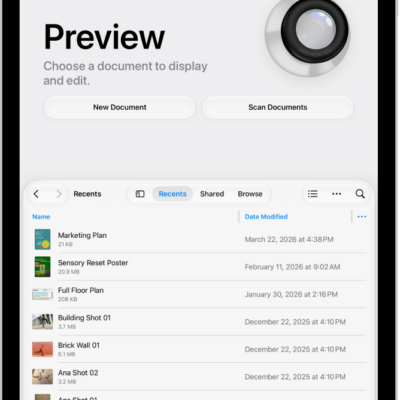
Learn how to use the Preview app to fill out and sign PDF forms, scan documents, and make changes to PDF documents and images. You’ll scan document pages with the iPad camera to create a PDF file. You can also fill out a form with AutoFill, and remove the background from an image to focus on what’s important.
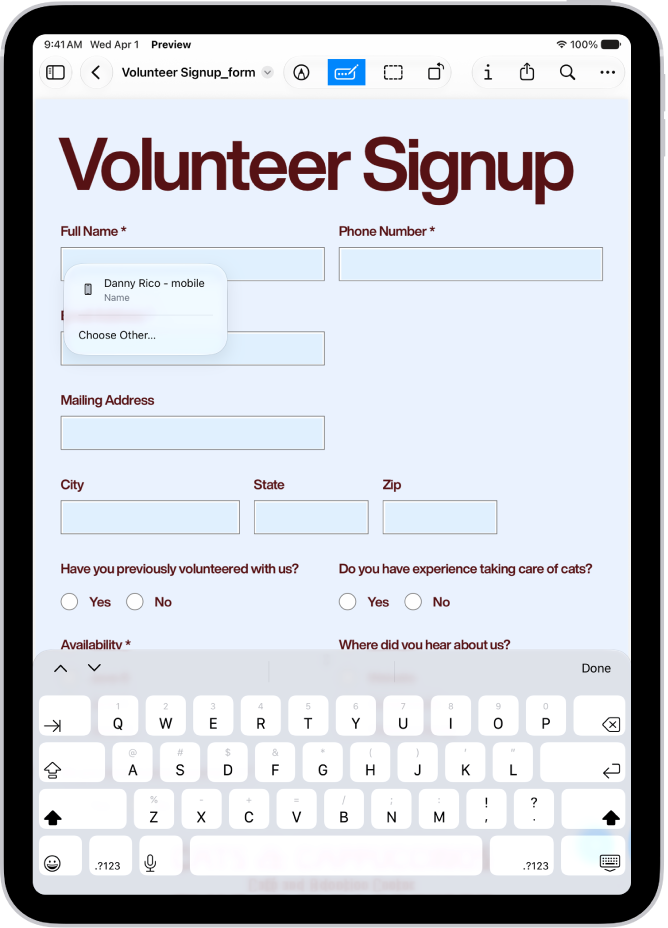
Fill out PDF forms
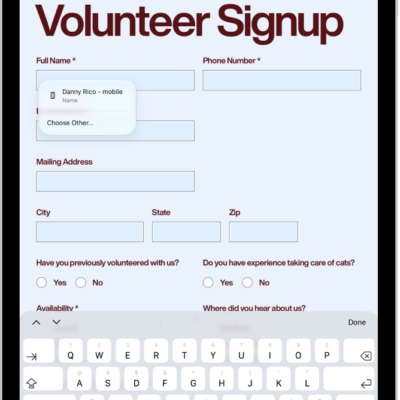
To fill out a PDF form in Preview, tap the AutoFill button at the top of the screen, then select a field. Enter text, or tap a suggestion that appears above the onscreen keyboard. Use your finger or Apple Pencil to add a signature.
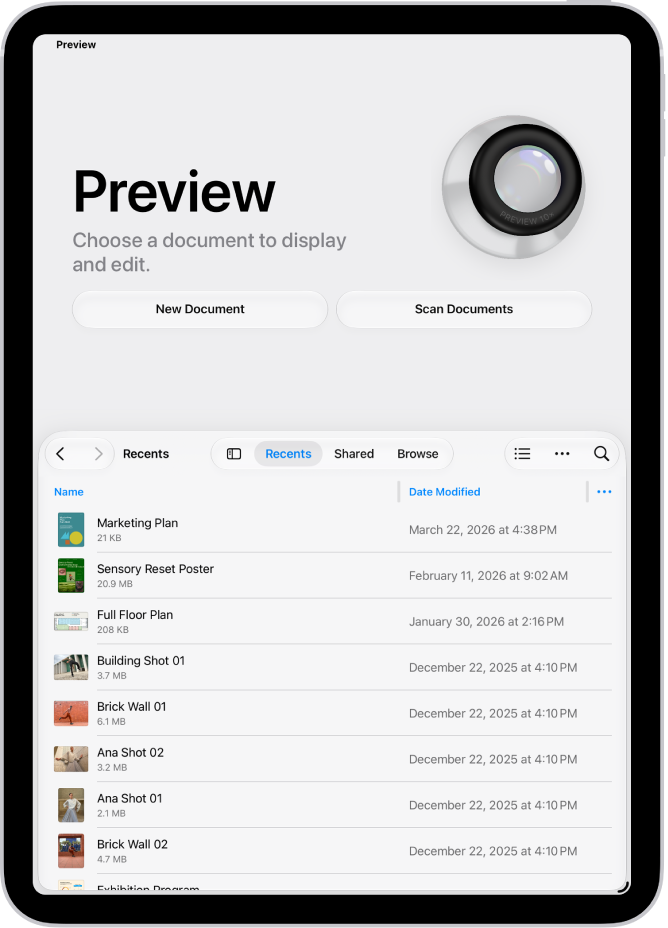
Scan and save documents to create a PDF file
Tap Scan Documents, then position the iPad camera to capture document pages. You can crop, rotate, and adjust colors before saving the scanned document as a searchable PDF.
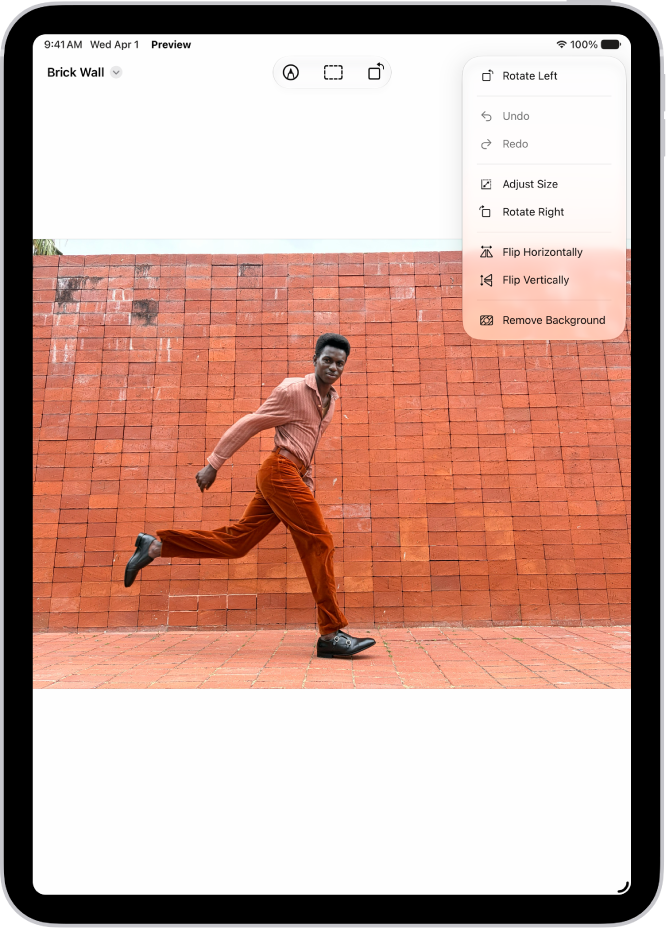
Remove the background from an image
You can remove image backgrounds to focus on what’s important. Tap the More button at the top of the screen, then choose Remove Background.
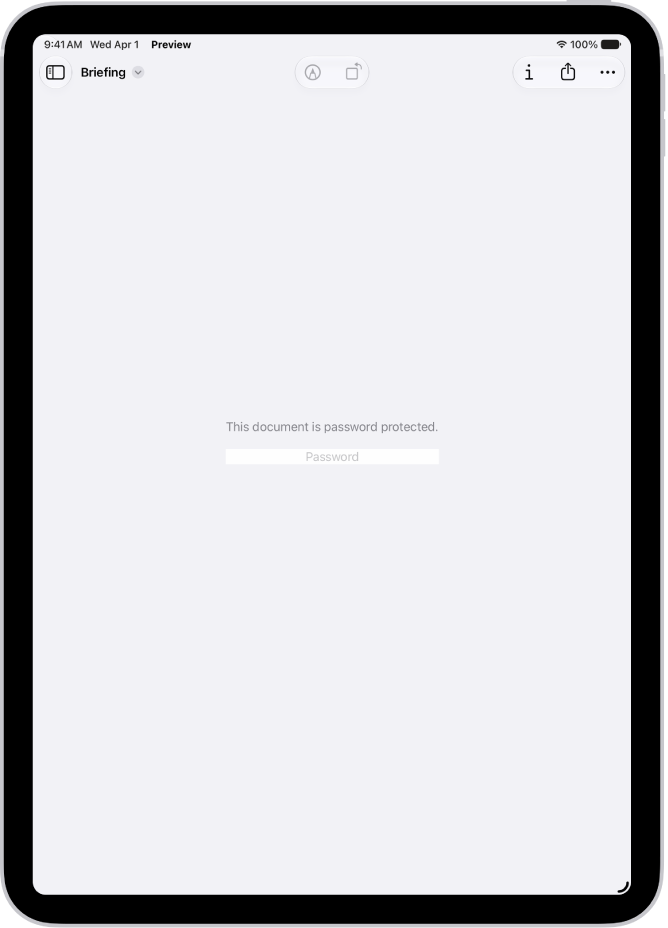
Protect a PDF document with a password
You can lock a PDF with a password. Open a PDF, tap the Actions Menu button next to the filename, then tap Lock. Turn on Require Password, then enter a password in the Password and Verify fields.
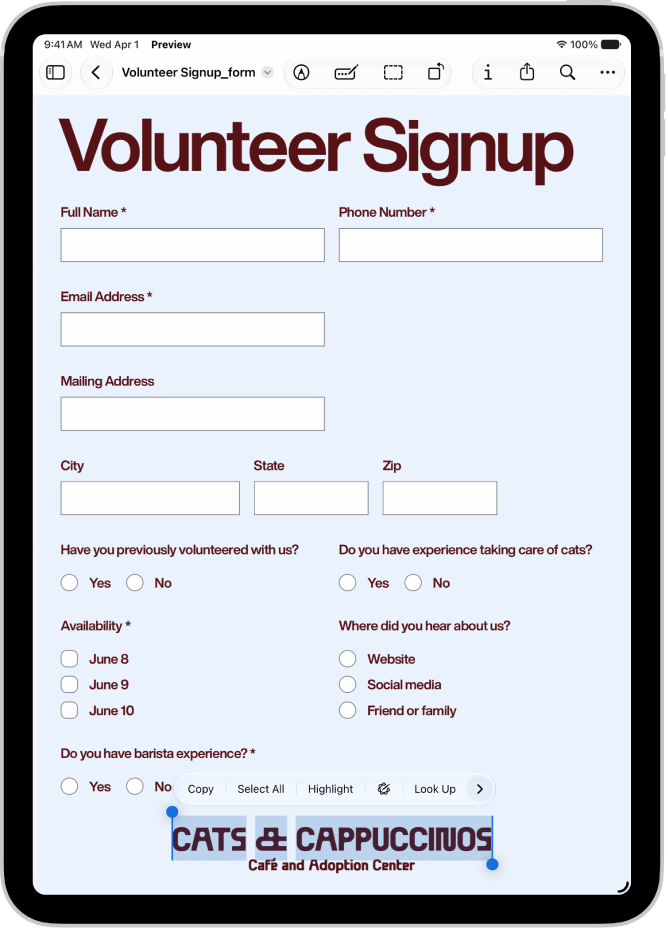
Highlight, underline, or strike through text
You can highlight, underline, or strike through text in a PDF. Open a PDF, then select text. Tap Highlight, then tap a highlight color, the underline button, or the strike through button.
There’s much more Preview can do, as these guides show:
- Fill out and sign PDF forms in Preview on iPad
- Scan text and documents in Preview on iPad
- Remove the background from an image in Preview on iPad
- Lock PDFs in Preview on iPad
- Annotate a PDF or image in Preview on iPad
- Open and view PDFs and images in Preview on iPad