Got a tip for us?

Chris Smith

Chris Smith is a senior editor at GeeksModo based in Canada. He likes to think of himself as a jack of all trades (and a master of at least a few), though he mainly focuses on iPhones and Macs. Often covering both at the same time. When not surrounded by various Apple devices while putting them through their paces, Chris can be found streaming the latest movies or series, gaming on his PS5, or getting fresh air on a hike in the beautiful wilderness of British Columbia.

Chris Smith's Articles

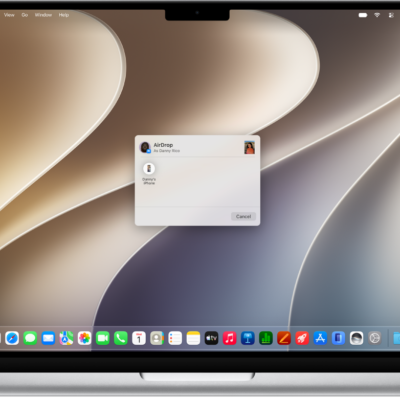
A Mac is next to an iPhone. The AirDrop dialog is open on the Mac desktop, ready to share a document with the iPhone. The iPhone screen has a notification about receiving the document.

How to use Continuity to work across Apple devices

You can use your iPhone with your Mac, iPad, or Apple Watch to hand off tasks, share files, and stream video and audio with Continuity.
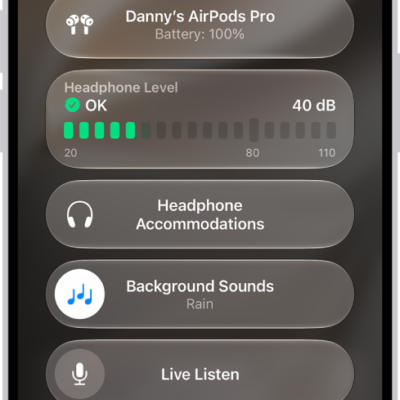
The Hearing Devices screen in Control Center. From top to bottom, it includes the Headphone Level in decibels, Hearing Assistance, Background Sounds, and Live Listen.

How to play the same sound in both of your AirPods

You can play the same sound in both of your AirPods with Mono Audio on iPhone, iPad, Mac, or Apple Watch, instead of stereo sound.

The location of the Digital Crown on the right headphone of AirPods Max 2.

How to make and answer calls with AirPods Max

You can make and answer calls with AirPods Max, mute or unmute yourself, decline an incoming call, and answer a second call with the Digital Crown.
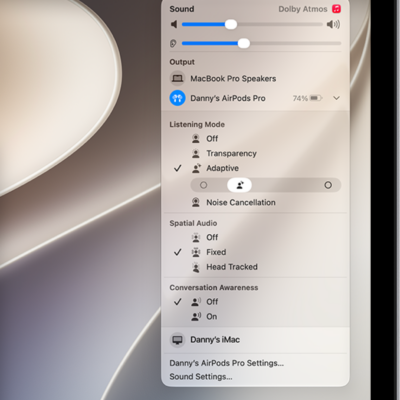
The AirPods icon is selected on the right side of the menu bar on Mac. For AirPods Pro, Adaptive is selected below Listening Mode and Conversation Awareness is Off.

How to adjust listening mode settings on AirPods

You can adjust listening mode settings on AirPods to allow noise cancellation in one ear, use Conversation Awareness, and tune Adaptive Audio.
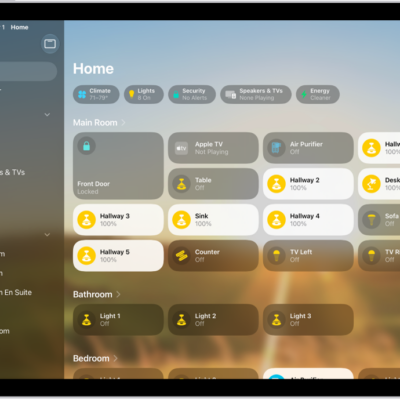
The Home app with the sidebar on the left, showing Home, Automation, and Discover tabs near the top left. Categories and Rooms in the home appear below. To the right of the sidebar, at the top, are the Intercom, Add, and More Options buttons. Category buttons appear near the top. Below that are scenes, camera images, and a room with its accessories.

How to configure a router in Home on iPad

You can configure a router in Home on iPad to control which services your accessories can reach, with Restrict to Home, Automatic, or No Restriction.
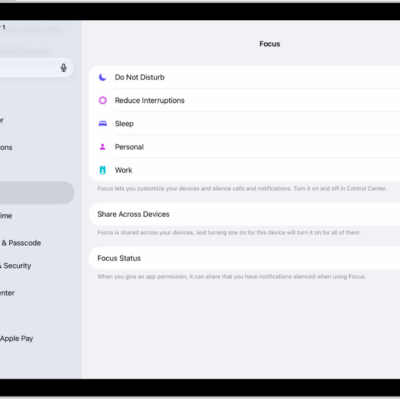
A screen showing six provided Focus options—Do Not Disturb, Driving, No messages during calls, Sleep, Personal, and Work. The Share Across Devices button is on, which allows the same Focus settings to be used across your Apple devices.

How to use a Sleep Focus on iPad

You can use a Sleep Focus on iPad to reduce distractions before and during bedtime, filtering notifications and calls.
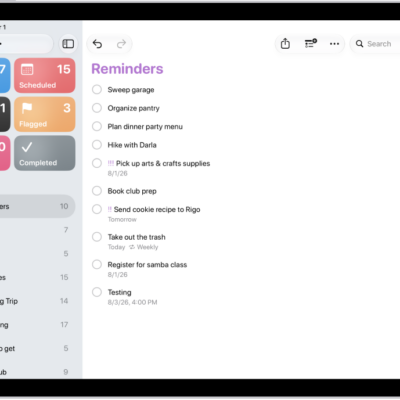
The Reminders app, showing a new task being added to the Reminders list.

How to work with templates in Reminders on iPad

You can work with templates in Reminders on iPad to reuse lists for routines and packing lists, and share templates with others.
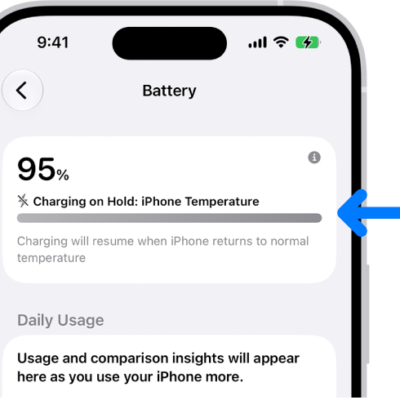
The charging information card in iPhone Battery settings. The card shows the battery at 95% with the message "Charging on Hold: iPhone Temperature." A note below indicates that charging will resume when the iPhone temperature returns to normal.

Why iPad slows or pauses charging when it’s too hot or cold

You can understand Thermally Limited Charging on iPad, which slows or pauses charging in hot or cold conditions to protect the battery.
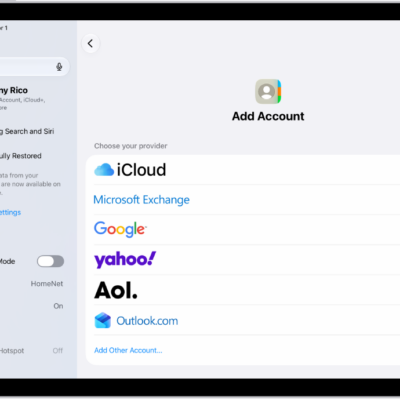
The Add Account screen showing different contacts services.

How to import contacts on iPad

You can import contacts on iPad from a vCard attachment or add a contact from a directory.
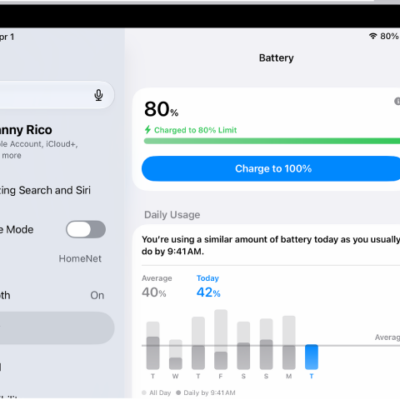
The charging information card in iPad Battery settings. The card shows the battery at 80% with the message "Charged to 80% Limit." A button provides the option to "Charge to 100%.

How to set a charge limit on iPad

You can set a charge limit on iPad to stop charging at 80% and reduce battery wear, or change it back to 100%.