









Emily Long
Emily Long's Articles
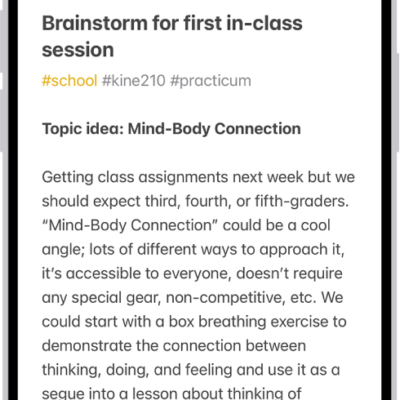
How to organize your notes with tags on iPhone
You can add tags like #work to notes on iPhone, then find and filter tagged notes with the Tag Browser or Smart Folders.
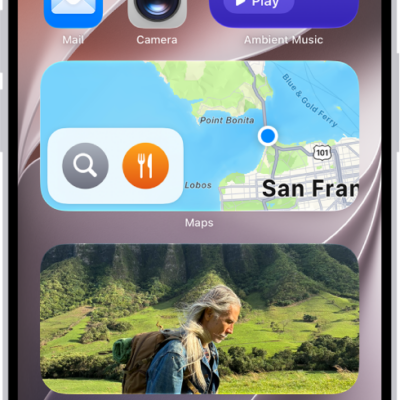
How to use Weather widgets on iPhone
You can use Weather widgets on your iPhone Home Screen to check the forecast at a glance, and change the location they show.
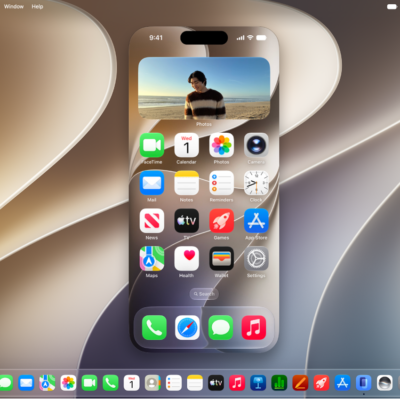
How to control your iPhone from your Mac
You can control your iPhone from your nearby Mac and get its notifications and Live Activities there too with iPhone Mirroring.
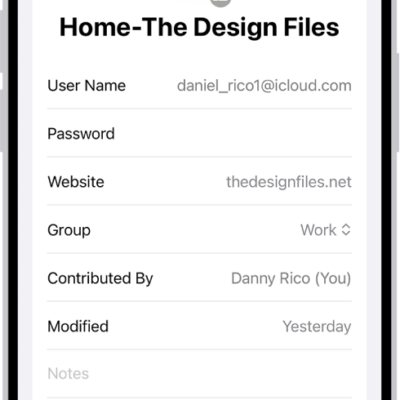
How to change the password for a website or app on iPhone
You can change the password for a website or app from the Passwords app on iPhone, or switch to Sign in with Apple where it's offered.
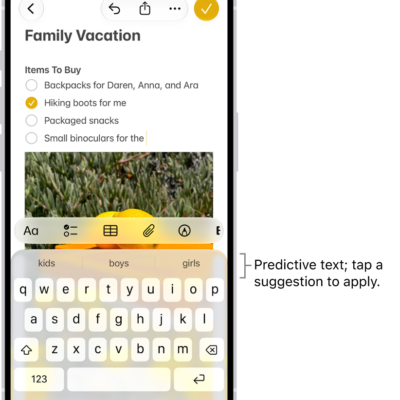
How to use the onscreen keyboard with VoiceOver on iPhone
You can use the onscreen keyboard to enter, select, and delete text, and change the keyboard language with VoiceOver on iPhone.
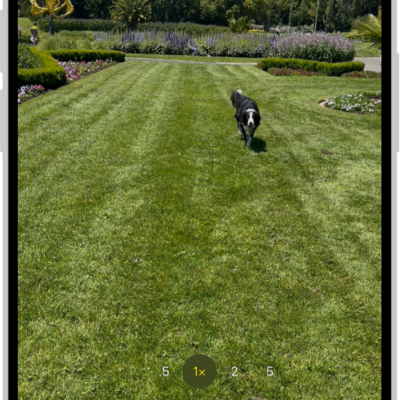
How to capture action shots with Burst mode on your iPhone camera
You can use Burst mode on iPhone to take photos in rapid succession of a moving subject, then keep only the shots you want.
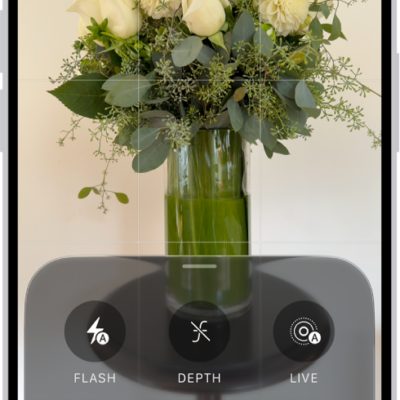
How to use iPhone camera tools to set up your shot
You can use iPhone camera tools to customize your shot, adjust focus and exposure, track a moving subject, and turn the flash on or off.
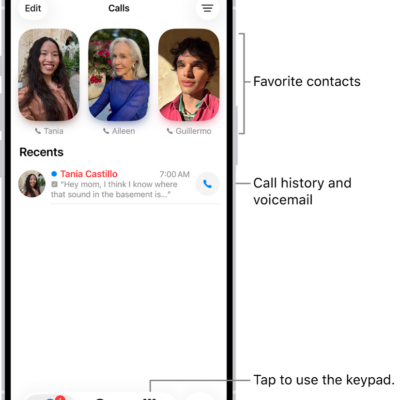
How to set up and use RTT and TTY on iPhone
You can make RTT and TTY calls on iPhone with built-in Software RTT/TTY or a TTY device if you have hearing or speech difficulties.
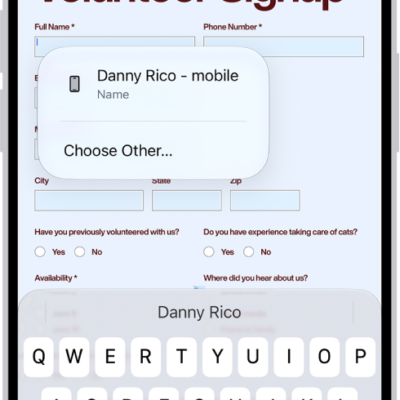
How to fill out and sign PDF forms in Preview on iPhone
You can fill out and sign PDF forms in the Preview app on iPhone, using AutoFill suggestions and adding signatures or text boxes.

How to set up accessories with Home on iPhone
You can add accessories like lights and cameras to the Home app on iPhone, assign them to rooms, and organize rooms into zones.