Got a tip for us?

Moses Johnson

Moses Johnson is the Editorial Director of GeeksModo.com, who has a keen eye for news, rumors, and all the unusual stuff around Apple products. Moses is commonly referred to online as The Professor, with decades of experience in tech under his belt.

Moses Johnson's Articles

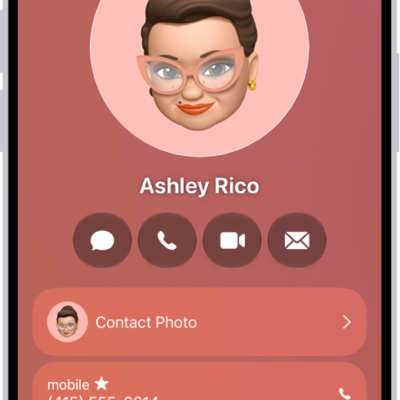
A contact card in the Contacts app.

How to add and use contact information on iPhone

You can create, find, share, and delete contacts in the Contacts app on iPhone, and reach anyone with a message, call, or email.
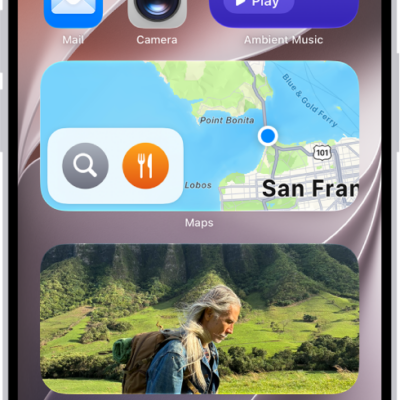
The Photos, Maps, and Music widgets on the iPhone Home Screen. The Music widget displays interactive features.

How to add a Mail widget to your iPhone Home Screen

You can add a Mail widget to your iPhone Home Screen and choose which mailbox it shows, like unread email or messages from your VIPs.
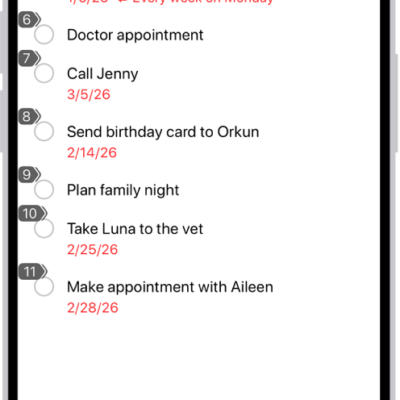
An iPhone showing a number next to each item in the Reminders app.

How to use Voice Control to interact with iPhone

You can speak commands to tap, swipe, dictate, and edit text, and describe items in your own words with Voice Control on iPhone.

An open video with a Play/Pause button, a progress bar, and a Mute/Volume button along the bottom. At the top left is a Back button to go back to browsing.

How to save a video frame as a photo on iPhone

You can save any frame of a video as a photo in the Photos app on iPhone.
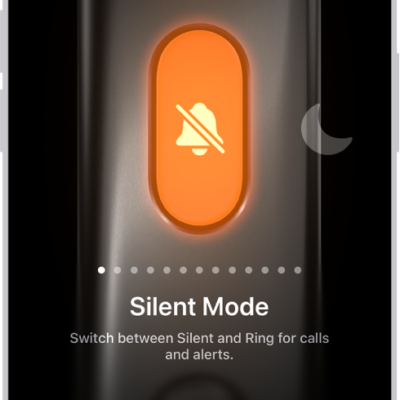
The screen for customizing the Action button. The Camera is the selected action. Other features appear to the right and left of the camera, including Do Not Disturb and Flashlight. Below the actions are dots you can tap to switch to another action. Below the selected action, Camera, is a menu of Camera options you can tap to assign to the Action button.

How to use and customize the Action button on iPhone

You can choose what the Action button does when you press it, and change it any time in Settings on supported iPhone models.

The Home tab showing, from top to bottom, four categories, two scenes, three camera views, and the status of one room. Across the bottom are the tabs Home (which is selected), Automation, and Discover.

How to invite others to control accessories in your home on iPhone

You can invite residents to control your home accessories in the Home app on iPhone, or give guests scheduled access to doors and locks.
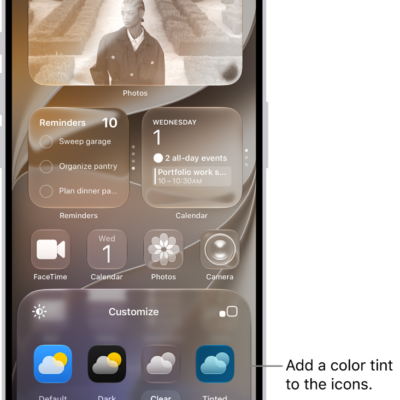
A customized Home Screen clear icons tinted blue and arranged to frame the photo, and controls at the bottom of the screen for customizing icons. Options include Automatic, Dark, Light, and Tinted buttons, options for choosing color and saturation, and Small and Large buttons for setting the icons' size.

How to customize apps and widgets on the iPhone Home Screen

You can customize app icons and widgets on your iPhone Home Screen: make them larger, tint them, or switch to a dark or clear look.
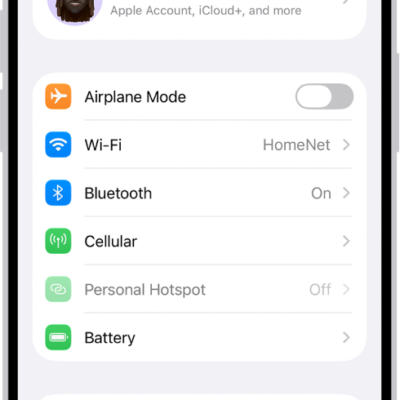
The Settings screen showing that iPhone is connected to a Wi-Fi network called HomeNet.

How to make calls using Wi-Fi on iPhone

You can turn on Wi-Fi Calling on iPhone to make and receive calls over a Wi-Fi network when your cellular signal is low.
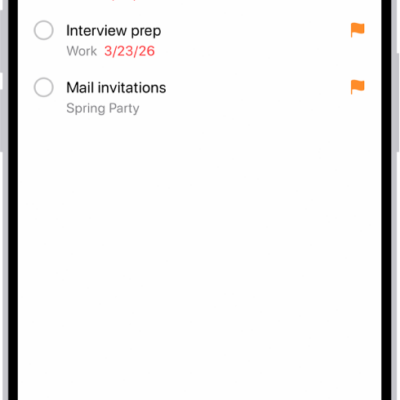
The Flagged Smart List in the Reminders app, which automatically collects all reminders marked with a flag into a single, consolidated list.

How to use Smart Lists in Reminders on iPhone

You can use Smart Lists in Reminders on iPhone to filter items by tags, dates, locations, flags, and priority, or convert a list.
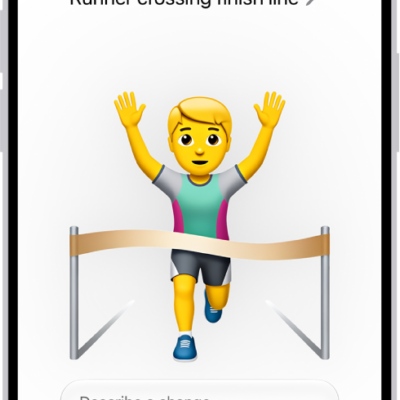
The Genmoji window showing a created Genmoji of a man running across a finish line.

How to create your own emoji with Genmoji on iPhone

You can create Genmoji on iPhone from a description, existing emoji, or a photo, and use them in messages with Apple Intelligence.