Got a tip for us?

Tyler Stephen

I'm Tyler Stephen, from the US state of Maine. I have a life-long passion for technology, and in addition to writing here, I am also on the editorial team of AppleVis.com. I've been totally blind from birth and thus rely on screenreading software like VoiceOver on Apple products and NVDA on Windows. I have been a Mac user since 2005 and an iOS user since 2010, in addition to also having used Windows, Linux, and Chrome OS. On this site and elsewhere, I hope to write pieces that educate and entertain people, as well as bring attention to the accessibility or inaccessibility of various technologies. You can find me on mastodon at mastodon.applevis.com/@tyler.

Tyler Stephen's Articles

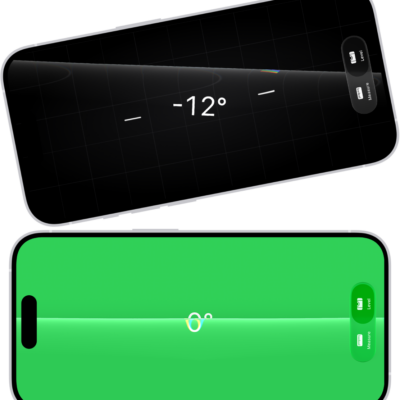
The level screen in the Measure app. On the top, iPhone is tilted at an angle of 10 degrees; on the bottom, iPhone is level.

How to use iPhone as a level

You can use the Measure app on iPhone as a level to check whether an object is level or how many degrees it's off.

A photo is open in the Photos app library. At the bottom of the screen, the Info button displays an icon indicating that Visual Look Up information is available.

How to view reference images in Photos on iPhone

You can develop, view, and share reference images in Photos to verify what the iPhone camera captured with Apple Reference Image.
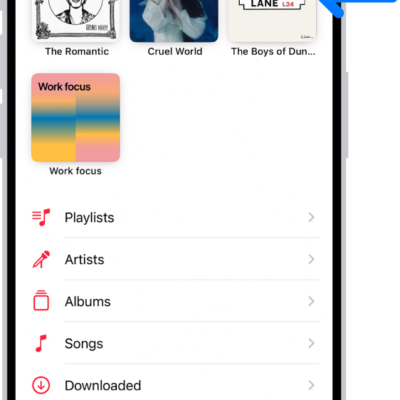
The Library tab with an arrow pointing out pinned items, such as an album and a playlist, at the top.

How to mark items as favorites in Apple Music on iPhone

You can mark playlists, artists, albums, and songs as favorites in Music on iPhone, and get notified about your favorite artists.
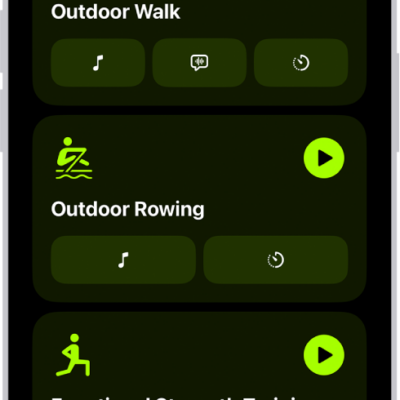
The Fitness workout screen showing three workout types. Buttons to log a workout and connect a heart rate monitor are at the top of the screen.

How to use gym equipment in Fitness on iPhone

You can use gym equipment with Fitness on iPhone through GymKit, pairing with treadmills, ellipticals, and indoor bikes for more accurate workout data.
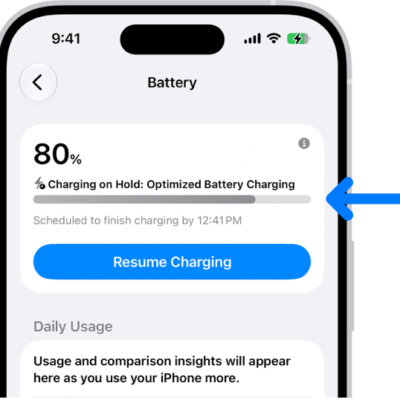
The charging information card in iPhone Battery settings. The card shows the battery at 80% with the message “Charging on Hold: Optimized Battery Charging.” It is scheduled to finish by 12:41 PM, with an option to “Resume Charging.”

How to optimize iPhone battery charging

You can optimize iPhone battery charging, so iPhone pauses at 80% and finishes before you usually unplug, to help extend battery lifespan.
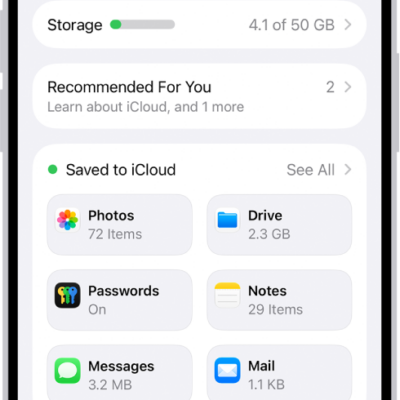
The iCloud settings screen showing the iCloud storage meter and a list of features—including Photos, iCloud Drive, and iCloud Backup—that can be used with iCloud.

How to sync contacts across devices on iPhone

You can sync contacts across your devices with iCloud on iPhone, or sync them with your Mac or Windows device.
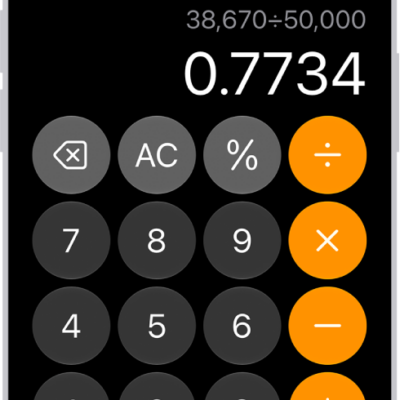
The basic calculator on iPhone.

How to see previous calculations in Calculator on iPhone

You can see previous calculations in the basic or scientific calculator on iPhone, reload them, and copy results to use elsewhere.
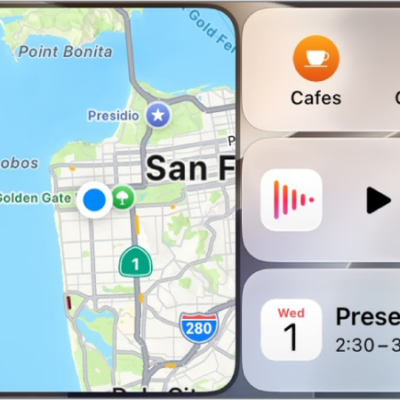
A CarPlay Dashboard showing Maps, Music, and Messages in the Sidebar. On the right is a map of San Francisco, navigation buttons, a now playing window, and a calendar entry.

How to make and receive phone calls with CarPlay

You can make phone calls and listen to voicemail with CarPlay, using the Phone app or your car's built-in controls.
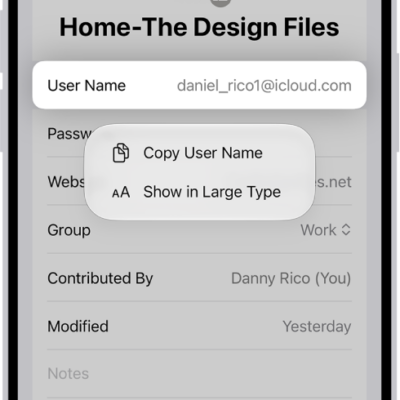
An account screen showing the user name highlighted, with options to Copy User Name and Show in Large Type.

How to see the websites you’ve excluded from automatically filling in passwords on iPhone

You can see the websites you've excluded from saving passwords on iPhone, and remove a website from that list.
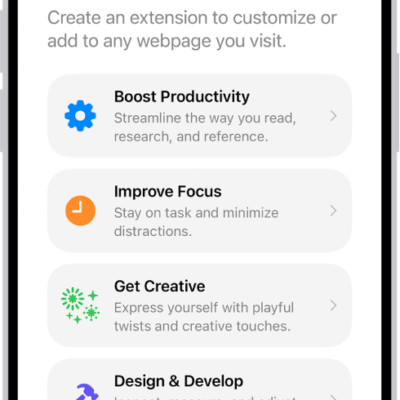
Safari window showing Describe an Extension options.

How to get extensions to customize Safari on iPhone

You can get Safari extensions on iPhone from the App Store to find coupons, block content, and add features from other apps.