Got a tip for us?

Tyler Stephen

I'm Tyler Stephen, from the US state of Maine. I have a life-long passion for technology, and in addition to writing here, I am also on the editorial team of AppleVis.com. I've been totally blind from birth and thus rely on screenreading software like VoiceOver on Apple products and NVDA on Windows. I have been a Mac user since 2005 and an iOS user since 2010, in addition to also having used Windows, Linux, and Chrome OS. On this site and elsewhere, I hope to write pieces that educate and entertain people, as well as bring attention to the accessibility or inaccessibility of various technologies. You can find me on mastodon at mastodon.applevis.com/@tyler.

Tyler Stephen's Articles

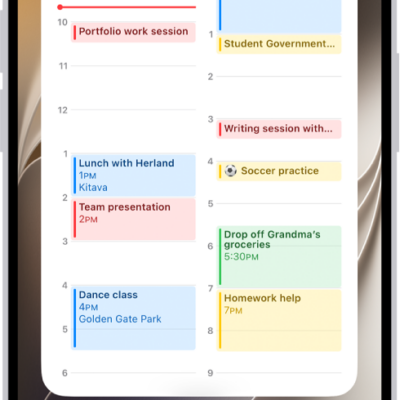
The iPhone Home Screen with an extra-large Calendar widget.

How to add, edit, and remove widgets on iPhone

You can add, edit, and remove widgets on iPhone, turn an app icon into a widget, and view widgets in Today View.
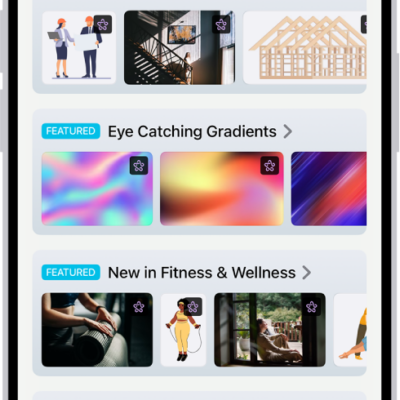
An iPhone with the Freeform app open to the Content Hub in Apple Creator Studio.

How to subscribe to Apple Creator Studio in Freeform on iPhone

You can subscribe to Apple Creator Studio monthly or annually from Freeform on iPhone, share it with family, and cancel any time.
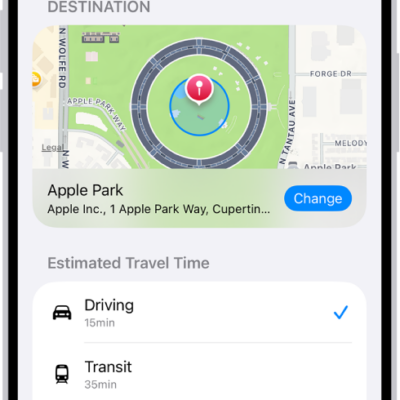
A Check In showing a map and estimated travel times for Driving, Transit, and Walking. At the bottom is a button to Add Extra Time.

How to use Check In on iPhone to let your friends know you’ve arrived

You can use Check In on iPhone to automatically let a friend know you've arrived, and choose what they see if you don't.
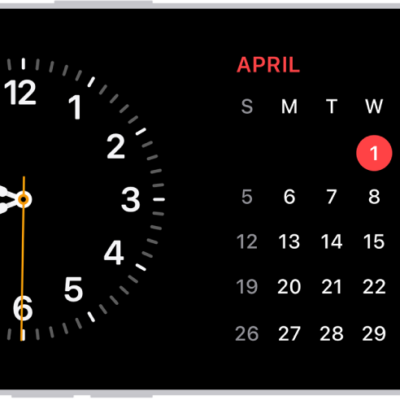
iPhone turned horizontally. The left side of the screen displays a clock and the right side of the screen displays the date.

How to use StandBy to view information at a distance while iPhone is charging

You can use StandBy to view information at a distance while iPhone is charging on its side, like a bedside clock, photo frame, or widget display.
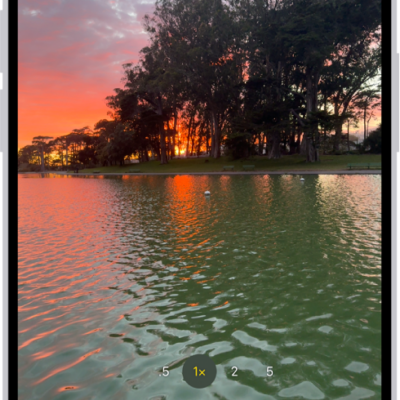
The Camera screen in Photo mode. Within the viewfinder is a night scene. Buttons for Night and Camera Controls mode appear in the top-right corner of the screen. At the bottom of the screen are, from left to right, the Photo and Video Viewer button, Video and Photo Mode, and the Camera Chooser Back-Facing button.

How to take Night mode photos with your iPhone camera

You can take Night mode photos on supported iPhone models to brighten shots and capture more detail in low light, and adjust the exposure.
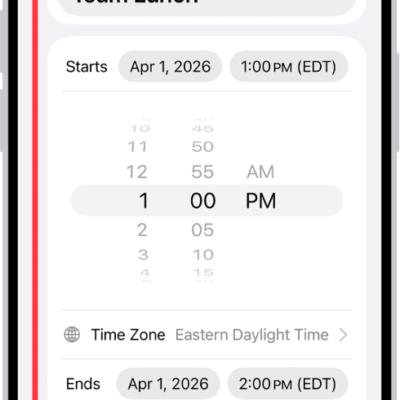
A calendar event showing settings for the time and time zone of the event.

How to create and edit events in Calendar on iPhone

You can create and edit events, appointments, and meetings in Calendar on iPhone, add a location or FaceTime link, and invite people.
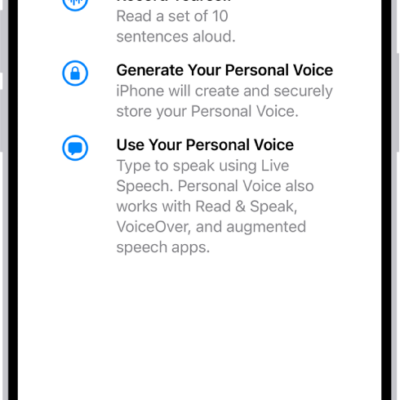
An iPhone with information about how to create a Personal Voice.

iPhone speech accessibility features: Live Speech, Personal Voice, and more

You can use speech accessibility features on iPhone, including Live Speech, Personal Voice, Voice Control, Vocal Shortcuts, and Siri options.
The iPhone Home Screen showing a FaceTime video call notification from an iPad at the top. Tap the Switch button to the right of the notification to move the call to your iPhone

How to hand off a FaceTime call from your iPhone to your other Apple devices

You can move a FaceTime call from your iPhone to your iPad, Mac, or Apple TV 4K, and use iPhone as a webcam for FaceTime on Mac.
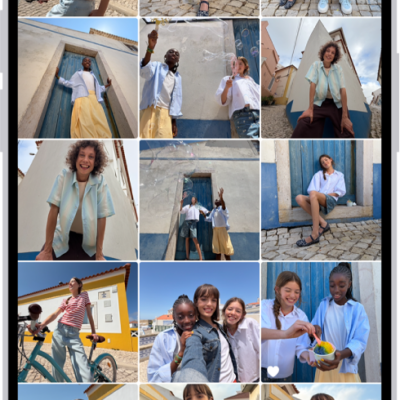
The Photos app is open to the photo library grid. At the bottom of the screen, from left to right, are buttons to view the library by Years, Months, and All buttons. In the bottom-right corner is the Search button.

How to sort and filter the photo library on iPhone

You can sort your photo library on iPhone by date added or taken, filter it to show certain items, and hide screenshots.
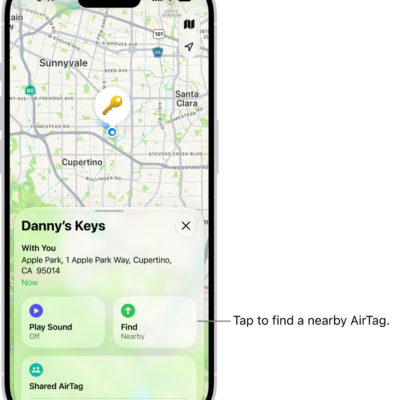
The Find My app open, showing Danny's keys in Golden Gate Park. Tap the Find button to locate a nearby AirTag.

How to share an AirTag or other item in Find My on iPhone

You can share an AirTag or other Find My item with up to five people on iPhone, so they can see it on a map and find it.